
hyperPad, the Best Game Development Tool for iPad: A Feature Tour

hyperPad puts the tools for making a 2D game on iPad into one app. This tour walks through them in the order most creators reach for them, from your first Scene to saving high scores and adding online multiplayer. Each stop links to its help doc, so you can try the feature as you read.

hyperPad on Product Hunt: a no-code game making tool for iPad.
Start with a Scene
Every Project is built from Scenes. A Scene holds the Objects for one part of your game, such as the main menu, a level, or the game over screen. Layers control what draws in front of what. Read the Scenes guide to plan how your game moves from screen to screen.
Add Objects and Graphics
An Object is anything in your Scene: a player, a coin, a platform, a button. Its Graphic is the art it shows. Drag an Object off the Object Dock onto the canvas, or open the Asset Library to bring in your own Graphics, sounds, fonts, and animations.
To make your own art today, draw it in any iPad art app, such as Procreate, and import it as Graphics through the Asset Library. Make a Game on iPad with Procreate and hyperPad shows that workflow, and the Importing Assets doc covers file types and where you can import from. Drawing with Apple Pencil? See Why hyperPad Is the Best iPad Game Development Tool for Touch and Apple Pencil.
Make it interactive with Behaviors
Behaviors are how your game works. In the Behavior Editor, you connect actions and events to create a flowchart of your game's logic. Add Jump with Button to your player and it jumps when a button is tapped. Add a Collision Event to a coin and it can add to the score when the player touches it.
Start with one event and one action, then add If, Loop, and Timer Behaviors as your game grows. The Behavior Editor rundown is a short video tour of the editor. For the bigger picture on visual logic versus typed code, read Game Making Software: What It Is and How It Works.
Track values with Attributes
Attributes are values stored on each Object. Give every enemy a health Attribute, and each one keeps its own count. Use the Set Attribute and Get Attribute Behaviors to change and read those values while the game runs.
See Object Attributes to learn how to define them in Object Properties.
Add physics
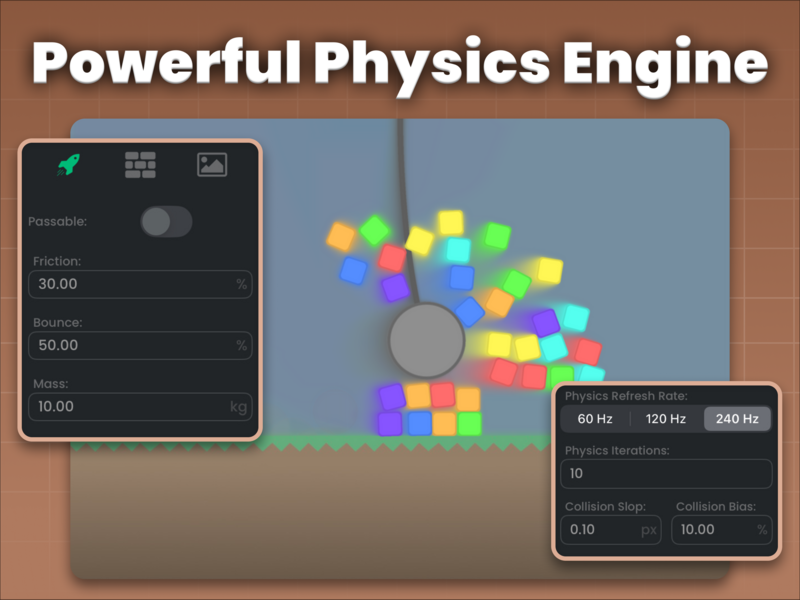
Physics is built in. Each Object uses one of three modes:
- Physics: falls with gravity and collides with other Objects.
- Wall: stays put when something bumps into it. Use it for the ground and buildings.
- Scenery: a Graphic with no collision, good for backgrounds and decoration.
Change gravity, bounce, friction, and mass to tune how your game feels. The Physics Modes doc shows each mode and suggests setting Objects that don't interact with anything to Scenery to keep your game running smoothly.
Make effects with particles
The Particle Editor lets you design effects such as fire, smoke, and sparkles. Start from a template, adjust it, and trigger it with the Start Particles Behavior when the player grabs a coin or an enemy explodes. The Particle Editor overview explains each setting.
Create sound effects
The Sound Effects Editor generates sounds from categories like Pickup, Laser, Explosion, Hit, and Jump. Tap a category to get a fresh sound, tweak it, and play it with the Play Sound Behavior. You can also import your own music and sound files. Read the Sound Effects Editor overview to learn the controls.
Save progress and high scores
Saving works like a two-column table: a key, such as "Score," and its saved value. Save a value with a Behavior, then load it the next time the player opens your game.
Introduction to Saving explains the idea, and Saving, Loading, and High Scores puts it into practice.
Add online multiplayer
Socket.io Behaviors connect your game to a server for online multiplayer. This is an advanced feature: you host the server yourself on a computer that can run Node.js, and the server side uses a little JavaScript. Follow Setting up a Multiplayer Game with Socket.io once you're comfortable with the basics.
Coming in an upcoming update: Art Studio and Smart Shape
These two tools aren't in the current App Store version of hyperPad yet. Their help guides are previews.
Art Studio (coming soon)
Art Studio will be a built-in workspace for game art. The preview guide shows drawing Graphics, making frame animations, designing stretchable 9-slice panels, and animating characters with a rig. Read Art Studio: Start Here for the preview. Until then, import Graphics from your art app.
Smart Shape (coming soon)
Smart Shape will let you draw ground, platforms, islands, and roads, then choose the Graphics that repeat along the edges and fill the inside. Stretch a platform and the art follows. The Smart Shape Object preview covers the Box, Terrain, Freeform, and Path shapes.
Test, share, and ship
Tap Play in the tool bar to run your Project from the current Scene. When it's ready, Publish it to the hyperPad Hub so creators and players can try it. With the paid hyperPad app, you can also Export it to the App Store and keep 100% of your revenue.
For what's new this year, read Why hyperPad Is the Best iPad App for Game Development in 2026.
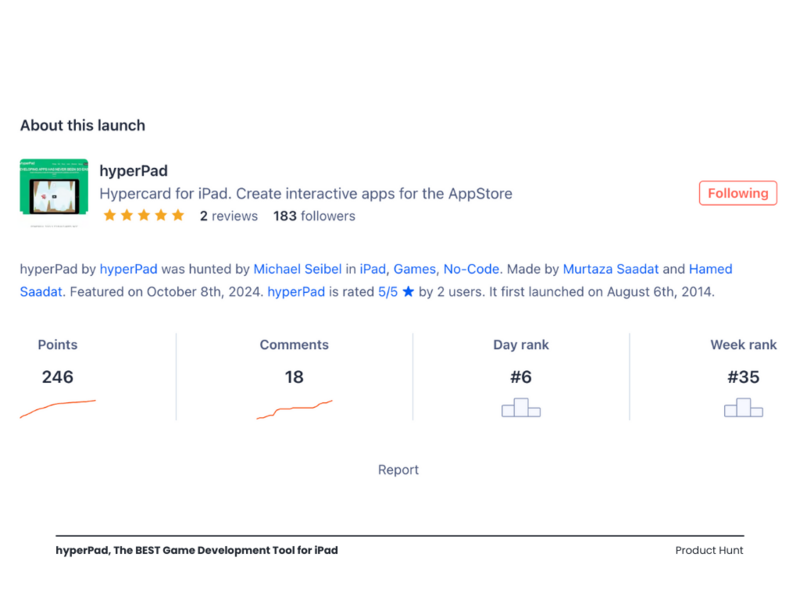
hyperPad's Product Hunt launch page.
FAQ
Do I need to know how to code to use hyperPad?
No. You build with Behaviors by connecting actions and events in a flowchart. Only the optional multiplayer server setup asks for any typed code.
Can I use my own art and sounds?
Yes. Draw art in any iPad art app, then import Graphics, sounds, fonts, and animations through the Asset Library.
What's the difference between hyperPad Starter and hyperPad?
hyperPad Starter is free and lets you build one Project. The paid hyperPad app lifts the Project limit and adds App Store Export.
Your next step: build a one-Scene coin game
Make one Scene with a player, a Wall Object for the ground, and three coins. Give the player Jump with Button. Add a Collision Event to each coin that adds to the score, plays a Pickup sound from the Sound Effects Editor, and starts a sparkle particle. Then save the high score so it's still there next time.


