Best App for Game Development on iPad and Mac


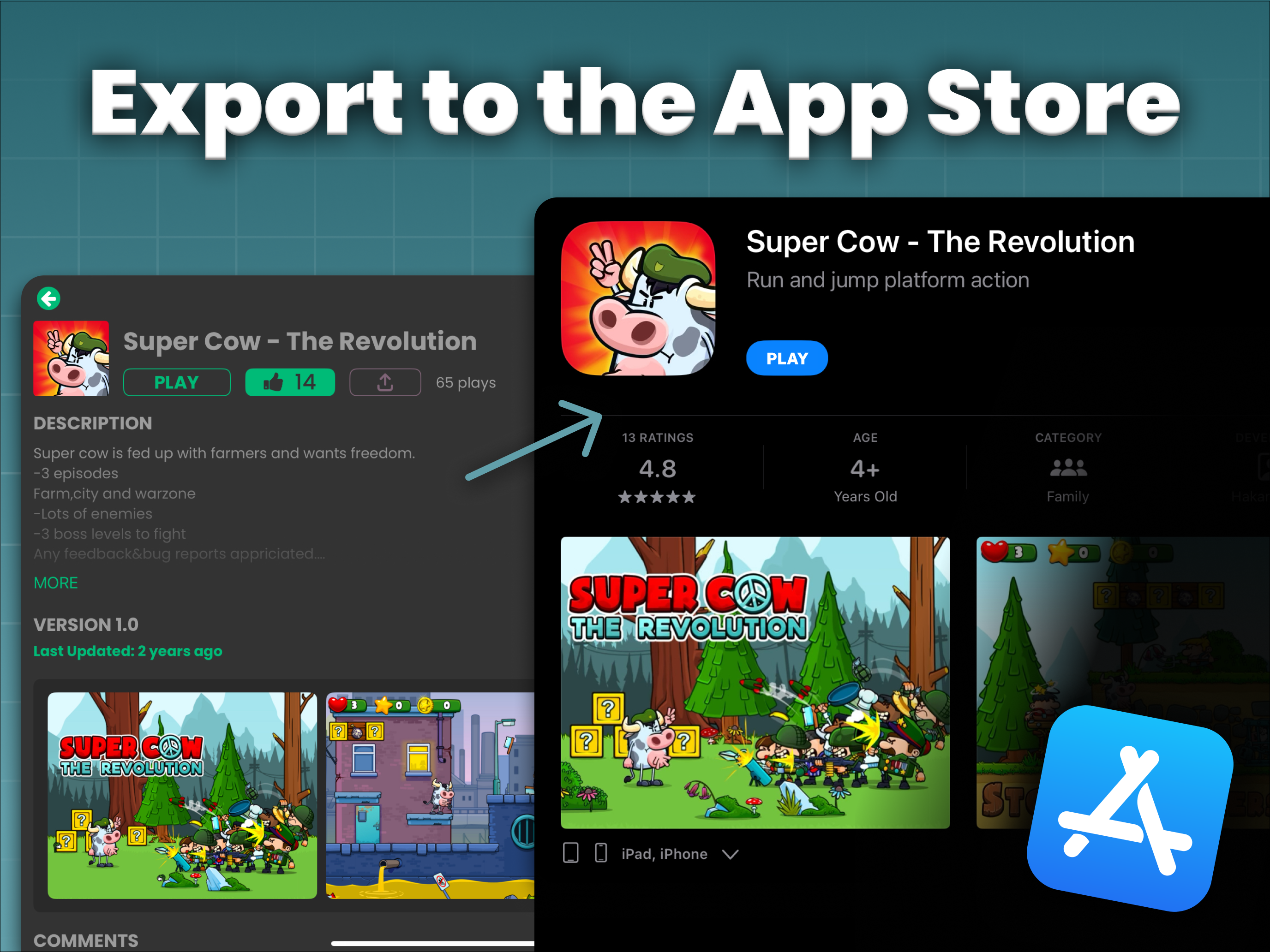
hyperPad lets you make 2D games on iPad and on Apple silicon Macs with an M1 chip or later. Players can try your game in the hyperPad Hub app on iPhone, iPad, or Mac. With the paid hyperPad app, you can also Export your game to the App Store. Here's how each device fits into making and sharing a game.
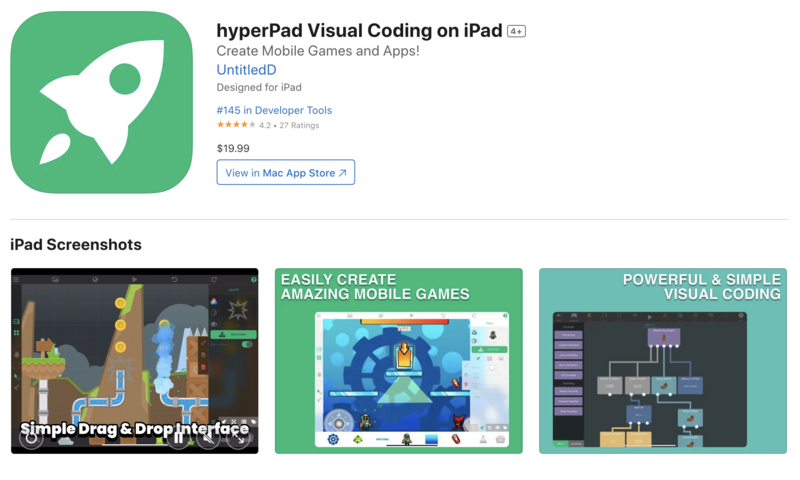
hyperPad on the App Store, with its Mac App Store listing one tap away.
Build on iPad
iPad is where hyperPad started, and it's still the most direct way to build. You drag Objects into a Scene by touch, connect Behaviors with your finger, and import Graphics you've drawn with Apple Pencil in any iPad art app. You play-test on the same device your players hold, so you feel your touch controls right away.
Why hyperPad Is the Best iPad Game Development Tool for Touch and Apple Pencil covers that workflow step by step. Here's a walkthrough of making your own iOS game on iPad:
https://www.youtube.com/embed/1vNiD3wb_00?si=-O_5FW7ixULTPKwP
Build on a Mac with Apple silicon
hyperPad also runs on Macs with an M1 chip or later. You build with the same Scenes, Objects, and Behaviors, on a bigger display with a keyboard and a trackpad or mouse.
A few things make Mac sessions faster:
- Keyboard shortcuts. hyperPad's native keyboard shortcuts cover playing, duplicating, undo, layers, and more. Hold ⌘ to see them all.
- Trackpad editing. Press F to put an Object in free transform mode and move it with the trackpad.
- Art from any app. Make your Graphics in whatever art app you use on Mac or iPad, then import them through the Asset Library.
If your Mac has an Intel chip, use an iPad for hyperPad instead. Shopping for a new machine? Read Apple's New Macs and Touchscreen MacBook Pro: More Ways to Build Games for the latest models, or MacBook Neo and hyperPad for a lower-cost setup.
Pick a home device for each Project
Choose one device as the main place you work on each Project. Turn on Automatic Cloud Backups when you create it, and hyperPad uploads a backup of your Project to your hyperPad account each time you save and quit. You can restore earlier backups from My Cloud Backups if something goes wrong.
Design for the screens your players use
Your players may be on an iPad, an iPhone, or a Mac, so plan your controls and layout for each one.
- Screen sizes. A Universal Project supports more than one device from a single Project. A device-specific Project gives you full control over one screen shape. Multiple Screen Sizes and Devices explains the tradeoffs.
- Touch. Swipes, taps, and on-screen buttons suit iPad and iPhone players. Test them on a touch device before you share.
- Keyboard and mouse. Keyboard Event and Mouse Event Behaviors let your game respond to keys and clicks, which helps Mac players.
A simple rule: give every action a touch control, and add a key for it if Mac players will play too.
Where players play your game
You have two ways to get your game to players, and they are different actions.
Publish to the hyperPad Hub. Your game appears in the community, where creators and players can try it and leave feedback. Players open it in the hyperPad Hub app on iPhone, iPad, or a Mac with an M1 chip or later. hyperPad Starter can Publish to the Hub.
Export to the App Store. The paid hyperPad app adds App Store Export, so you can release your game as its own app. You keep 100% of your revenue. Not sure which app you need? Your Best iPad Game Development Tool: hyperPad Starter or hyperPad? compares the two.
FAQ
Does hyperPad run on Intel Macs?
hyperPad runs on Apple silicon Macs with an M1 chip or later. On an Intel Mac, use hyperPad on an iPad instead.
Can players on iPhone play my game?
Yes. Publish your game to the hyperPad Hub, and players can open it in the hyperPad Hub app on iPhone, iPad, or an Apple silicon Mac.
Is hyperPad available on Android or Windows?
No. hyperPad is made for Apple devices. Is hyperPad Available on Android? explains platform support.
Your next step: make one game that plays on every screen
Start a Universal Project on your iPad or Mac with one Scene and one player Object. Give the player two ways to jump: an on-screen button for touch and a Keyboard Event for the space bar. Play it on the device you built it on, then Publish it to the Hub and open it in the hyperPad Hub app on your iPhone. If the button feels right under your thumb there, your controls are ready for every player.