Why hyperPad Is the Best iPad Game Development Tool for Touch and Apple Pencil

hyperPad is made for iPad, so you build your game with the same touch and Apple Pencil input you already use every day. You drag Objects into a Scene with your finger, connect Behaviors by touch, draw Graphics with Apple Pencil, and play your game on the screen you built it on. Here's how that workflow looks, one step at a time.
Edit your game by touch
Building a Scene starts with a drag. Pull an Object off the Object Dock and drop it where you want it on the canvas. Tap an Object to open its properties and change its size, physics, or Graphic. Double-tap an Object on the dock to swap it for a different one.
The Object Dock doc shows where everything lives. If you want a tour of every tool in hyperPad, read hyperPad, the Best Game Development Tool for iPad: A Feature Tour.
Connect Behaviors with your finger
Your game's logic works the same way. In the Behavior Editor, you pick a Behavior from the list, drag it into place, and connect it to the next one. The result is a flowchart of actions and events that you can read at a glance.
Tap a Behavior and a reference panel explains what it does, with an example. That makes it easier to learn new Behaviors without leaving the editor.

Connecting Behaviors by touch in the Behavior Editor.
Draw game art with Apple Pencil
Today, you draw your game art with Apple Pencil in an iPad art app you already like, such as Procreate. Export each piece as an image, then import it into hyperPad as a Graphic through the Asset Library. Drop it on an Object and it's in your Scene.
A few things to draw first:
- A character: one pose is enough to start testing movement.
- A coin or pickup: small, with a clear outline so it reads on any background.
- Animation frames: draw each frame of a run cycle as its own image and import them as an animation.
Keep your art app and hyperPad side by side. Draw a Graphic, import it, play the game, and go back to fix a line in a few minutes. The Importing Assets doc lists the file types hyperPad accepts.
Coming in an upcoming update: Art Studio, a built-in drawing and animation workspace, isn't in the current App Store version of hyperPad yet. The preview guides show how Draw Your First Sprite and Make a Frame Animation will work once it ships.
Play-test on the device you build on
Tap Play in the tool bar and your Project runs from the current Scene, right on your iPad. That's the same kind of device many of your players will hold, so you feel your controls the way they will.
This matters most for touch and motion controls:
- A Swipe Gesture can feel too sensitive or too slow. Swipe it yourself and adjust the detection range.
- A Tilt Sensor game only makes sense when you tilt a real device. Pick the tilt position that matches how players sit.
- An on-screen jump button may sit out of reach of your thumb. Hold the iPad the way a player would and move the button.
Stop the game, change one value, and play again. A short loop like this is how small games start to feel good.
Speed up with a keyboard
Attach a keyboard and hyperPad's native shortcuts cut out a lot of tapping. Hold ⌘ in the editor to see every shortcut. A few to learn first:
- ⌘ + P: play your Project.
- ⌘ + B: edit the selected Object's Behaviors.
- ⌘ + D: duplicate an Object.
- ⌘ + Z and ⌘ + Shift + Z: undo and redo.
- ⌘ + G: show or hide the grid.
With a trackpad, press F to put an Object in free transform mode and move it with the trackpad. Read How to Use iPad Native Keyboard Shortcuts in hyperPad for the full workflow, or keep the Native Keyboard Shortcuts doc open as a reference.
Set up your iPad for building
You can build a whole game with only your fingers. A few accessories make longer sessions easier: an Apple Pencil for art, a keyboard for shortcuts and naming, and a stand that holds the iPad at a comfortable angle. Best Tools for Game Developers on iPad lists accessories that fit a hyperPad setup.
If you sometimes want a bigger screen, hyperPad also runs on Apple silicon Macs with an M1 chip or later. Best App for Game Development on iPad and Mac explains how the two fit together.
Share from the same iPad
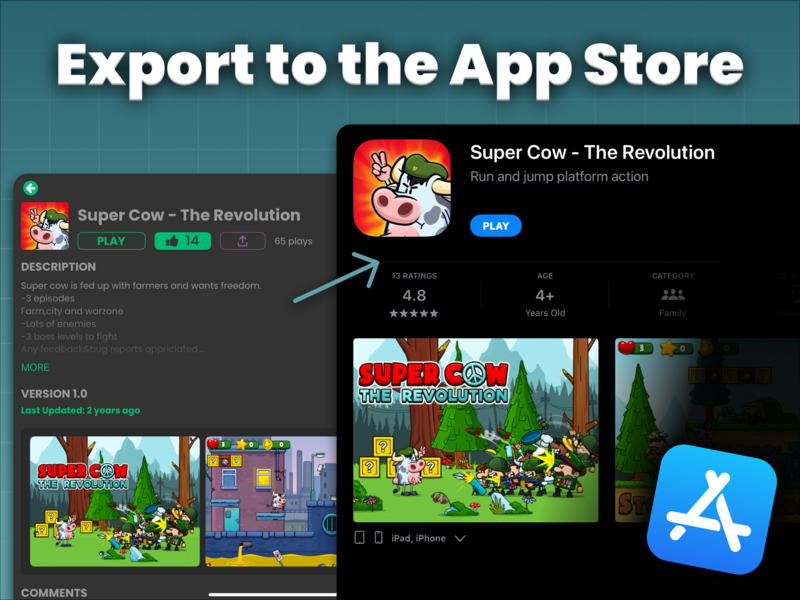
When your game is ready, Publish it to the hyperPad Hub straight from your iPad. Creators and players can try it and leave feedback. With the paid hyperPad app, you can also Export it to the App Store and keep 100% of your revenue.

One game, two places: the hyperPad Hub and the App Store.
FAQ
Do I need an Apple Pencil to use hyperPad?
No. Everything in hyperPad works by touch. An Apple Pencil helps when you draw detailed Graphics or animation frames in your iPad art app.
Can I use a keyboard and trackpad with hyperPad on iPad?
Yes. hyperPad supports native keyboard shortcuts, and you can move Objects with a trackpad in free transform mode.
Can I test tilt and swipe controls while I build?
Yes. Tap Play and your game runs on your iPad, so tilt and swipe controls respond the way they will for players.
Your next step: draw a character and swipe it around
Draw a simple character with Apple Pencil in your iPad art app and export it as an image. Import it into hyperPad through the Asset Library and drop it into a new Scene as a Graphic. Add a Swipe Gesture Behavior that moves the character left or right, then tap Play and swipe. If the movement feels off, change the detection range or the distance and play again until it feels right under your finger.