
Sound Effects Editor Overview
You can create custom sound effects to be used throughout your creation. You can then use the created sound with the Play Sound behavior. This article is an overview of the different features of the Sound Effect Editor.
Sound Categories
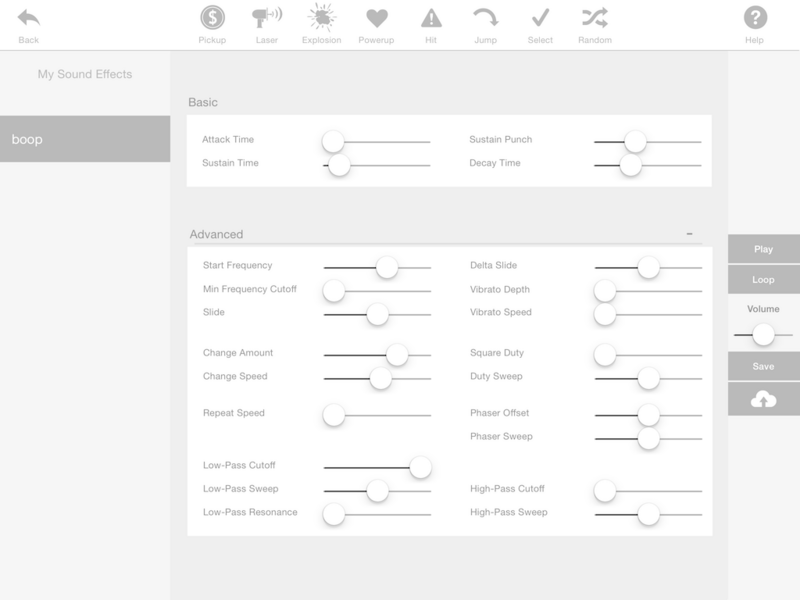
Along the top of the Sound Effects Editor are the various sound categories. Each time you tap a category a new sound effect is generated with parameters based off of that category.
Pickup
Typical sounds for picking up coins and items.

Laser
Generates sound effects that sound like lasers.
Explosion
Generates static sounds that could be used for explosions.

Power Up
Sounds used for power ups and special items.

Hit
Sounds that can be used for punching, attacks, or being hit.

Jump
Generates sound effects that sound like jumping.
Select
Generates static sounds that can be used for menus and buttons.

Random
Generates random sound effects that may not fit in other categories.

Sound Properties
Sound properties allow you to change some parameters for your sound effects to make them sound different. Simply adjust the sliders until you get the desired effect.

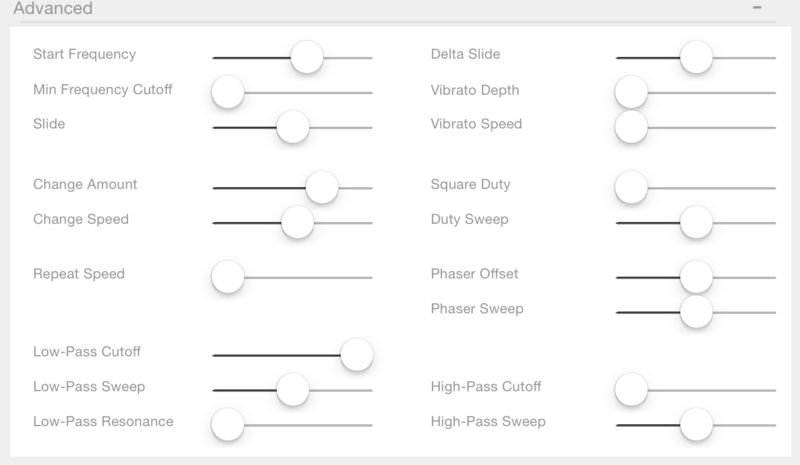
Advanced Options
Tapping the Advanced button will expand the Advanced properties giving you even more options to modify your sound effect.
Menu
The menu is where you can playback the effect, or export it.
Play
The Play button starts the sound effect from the beginning.
Loop
Repeatedly plays the sound effect you are making.
Volume
Changes the volume of the sound effect. When saving the sound effect, it will be saved with this volume.
Save
Saves your sound effect so you can use it in your creation with the Play Sound behavior. Once your effect is saved, you can also edit later, or use it in other creations you make.
Share
You can share the current sound effect. This will send a file that can be edited with hyperPad.
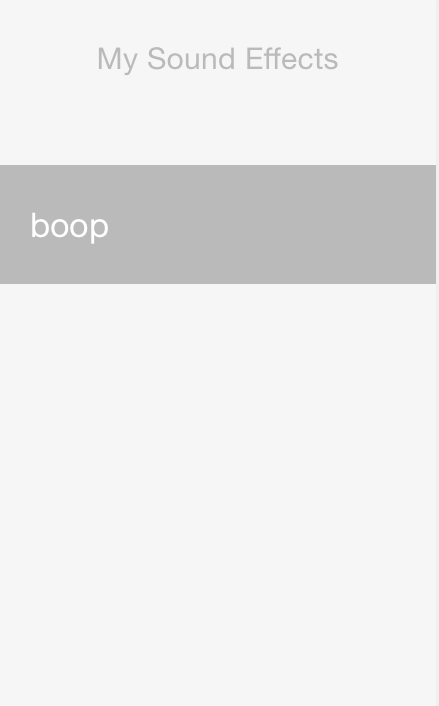
My Sound Effects
Your saved sound effects show up under “My Sound Effects”. You can modify these at any time. Simply tap an effect from the list to load the effect.