How To Use iPad Native Keyboard Shortcuts in hyperPad

April 16, 2026
Keyboard shortcuts make editing in hyperPad faster, whether you're building your first game or your fiftieth.
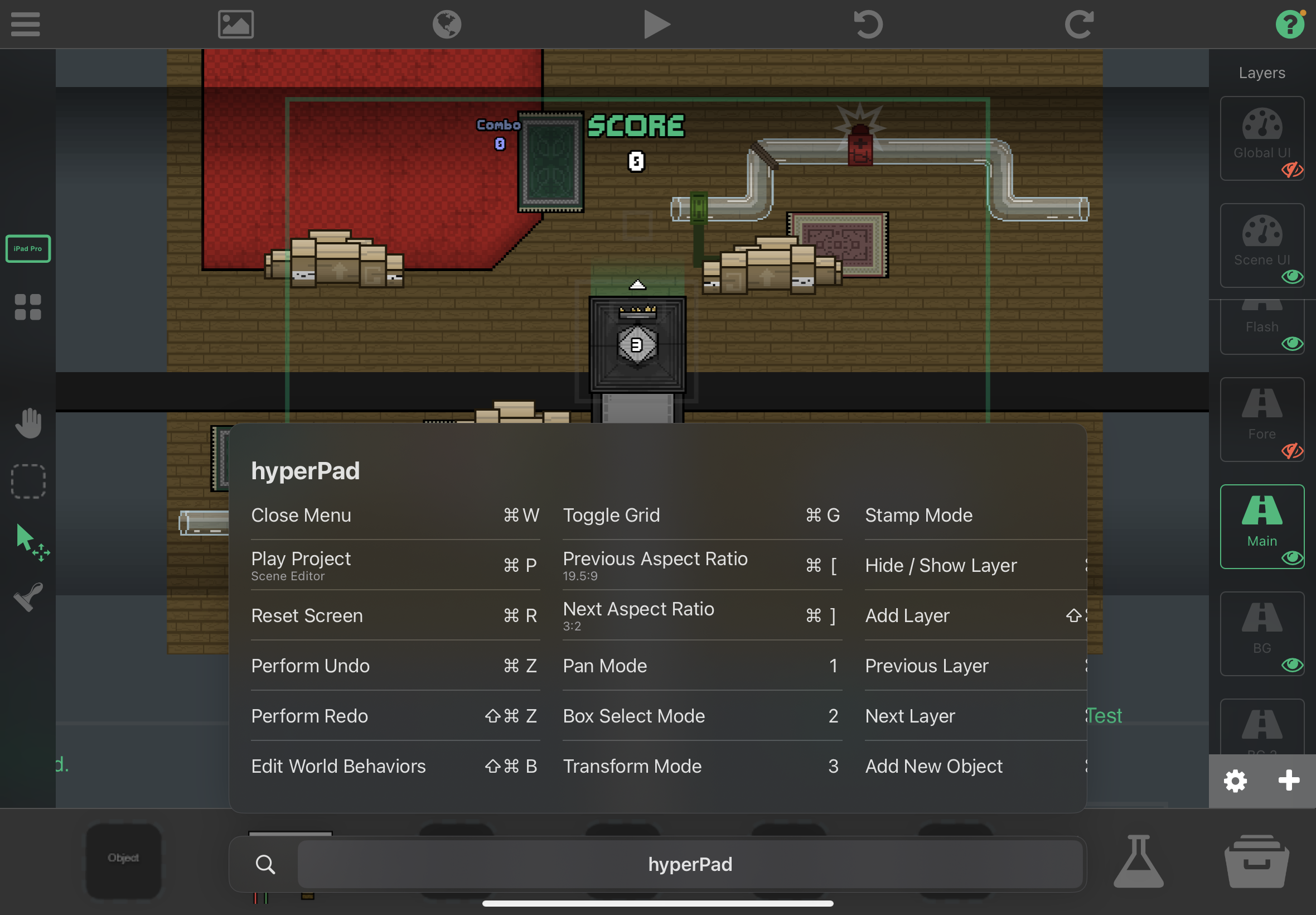
Connect a keyboard to your iPad and hyperPad gives you native shortcuts for common editor actions. Here's the list.
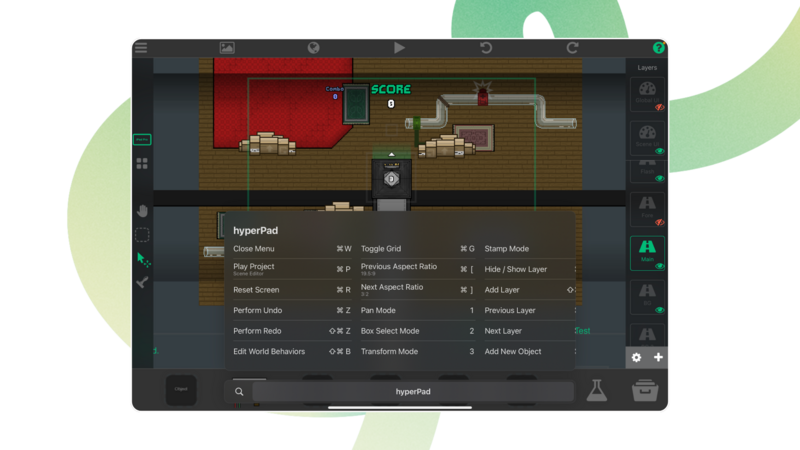
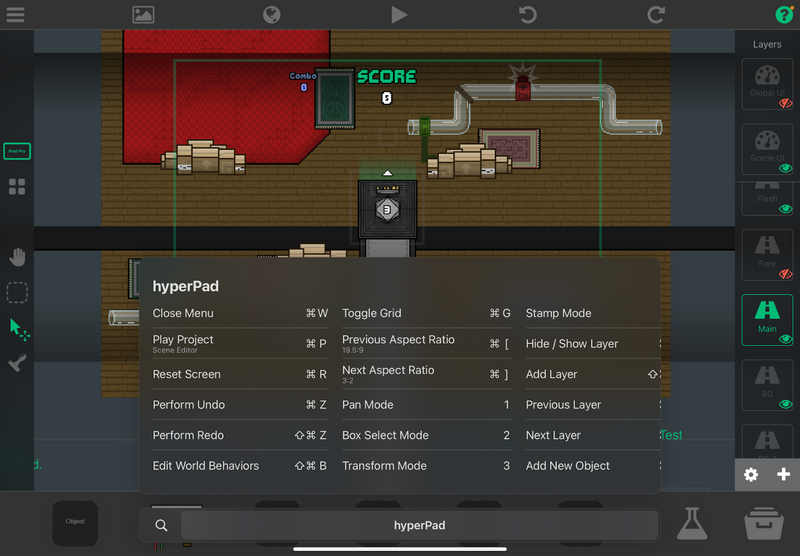
To bring up every available shortcut while you work, hold ⌘ on your keyboard.
General Shortcuts
⌘ + R: Reset screen position.⌘ + P: Play project.Up Arrow: In number fields, increase the value at the pointer position.Down Arrow: In number fields, decrease the value at the pointer position.
Scene Editor Shortcuts
⌘ + C: Copy Objects.⌘ + V: Paste Objects.⌘ + X: Cut Objects.⌘ + Z: Undo.⌘ + Shift + Z: Redo.⌘ + ]: Cycle to the next aspect ratio.⌘ + [: Cycle to the previous aspect ratio.Delete: Delete Object.⌘ + M: Mirror Object.⌘ + W: Exit the current window.⌘ + Shift + B: Open global Behaviors.⌘ + Up Arrow: Switch to the next layer.⌘ + Down Arrow: Switch to the previous layer.⌘ + L: Show or hide the current layer.⌘ + G: Show or hide the grid.⌘ + A: Add Object.
Object Properties Shortcuts
⌘ + D: Duplicate Object.⌘ + E: Edit Collisions.Arrow keys: Move Objects with fine precision.⌘ + B: Edit Behaviors.F: Put the Object in "free transform" mode, so you can transform it freely with the trackpad.R: Edit the rotation value. In free transform mode, the Object rotates along with the trackpad.X: Edit the Object's X position. In free transform mode, drag the Object horizontally with the trackpad.Y: Edit the Object's Y position. In free transform mode, drag the Object vertically with the trackpad.Z: Edit the Object's Z order. In free transform mode, the number changes as you scroll vertically on the trackpad.Shift + X: Edit the Object's X scale. In free transform mode, rescale the Object horizontally with the trackpad.Shift + Y: Edit the Object's Y scale. In free transform mode, rescale the Object vertically with the trackpad.⌥ + X: Edit the Object's X anchor. In free transform mode, move the anchor horizontally with the trackpad.⌥ + Y: Edit the Object's Y anchor. In free transform mode, move the anchor vertically with the trackpad.V: Toggle Object visibility.⌘ + R(in Object properties): Rename Object.
Palette Modes
Object Properties
1: Pan mode.2: Box select mode.3: Transform mode.4: Stamp mode.
Collision Editor
1: Pan mode.2: Box select mode.3: Circle mode.4: Square mode.5: Polygon mode.6: Insert Points mode.7: Erase mode.
Behavior Editor Shortcuts
⌘ + F: Go to Behavior search.⌘ + D: Duplicate Behavior.⌘ + Shift + D: Duplicate Behavior Tree.Delete: Delete Behavior.Shift + Delete: Delete Behavior Tree.R: Open the selected Behavior's documentation.⌘ + R(in Behavior properties): Rename Behavior.D: Disconnect Behavior.A: Toggle the Behavior's active state (enable or disable it).
Now you know the shortcuts. Keep your hands on the keyboard and spend more of your time building.
Try hyperPad Starter free. When you want more projects and App Store export, upgrade to hyperPad for a one-time USD $14.99. You keep 100% of your revenue.