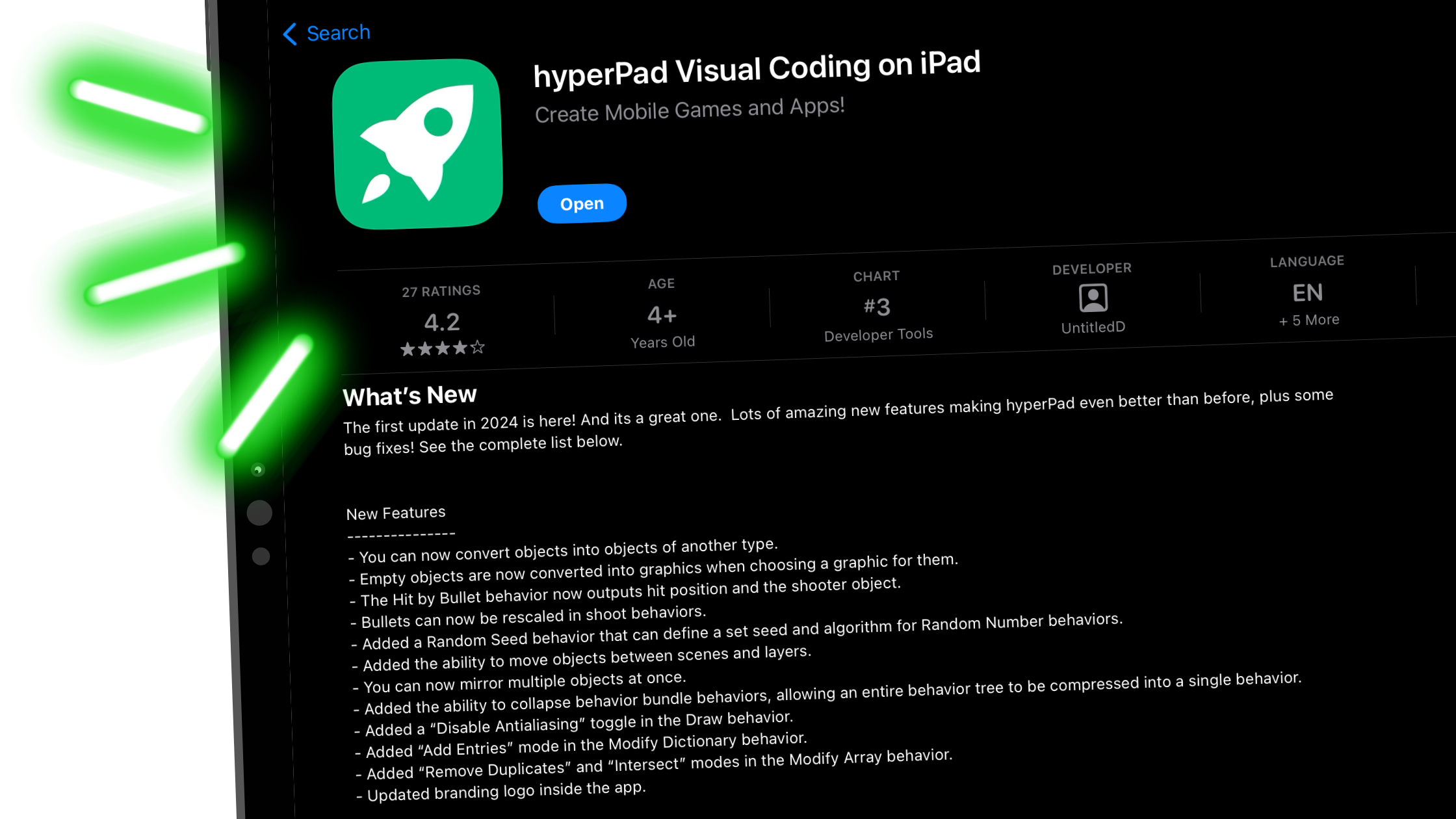
Guide to the Best Game Development Tools for iPad

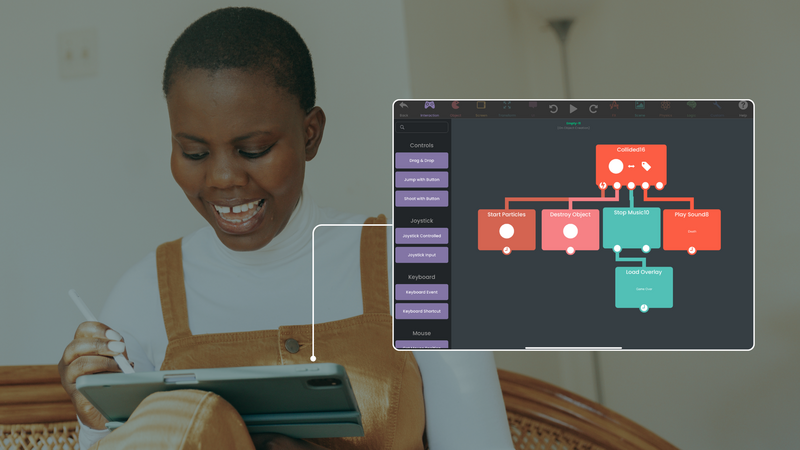
Here's what to look for in a tool for making games on iPad.
Understanding iPad Game Development
The iPad's touchscreen and portability make it a good fit for game development. With tools built for iPad, you can make games at home or on the go.
Many iPad game tools let you build without traditional coding. That opens the door for people who felt held back by technical barriers. hyperPad is one of them: you build with Behaviors instead of typing code.
Here’s why the iPad works well for game development:
- Touchscreen: You interact with your game directly, which makes it easier to design and test.
- Portability: Work on your game anywhere. An iPad is light enough to take to your favorite spot.
- Capable Hardware: Modern iPads have the performance for detailed graphics and game mechanics.
- Community Support: Connect with creators around the world who share tips, feedback, and inspiration.
- All-in-One Device: Build, test, and play your game on the same device.
Whether you're a hobbyist or an aspiring developer, an iPad gives you the tools and the setting to bring your game ideas to life.
Key Features to Look for in Game Development Tools
The tool you pick shapes how smoothly your ideas turn into games. hyperPad's no-code game development tool lets you build without writing a line of code. Whatever you choose, look for these features.
A user-friendly interface comes first. Look for a drag-and-drop interface that lets you create and arrange game elements without writing code. That keeps the process approachable and lets you focus on your ideas.
Support for custom assets is another must-have. Importing your own graphics, sounds, and fonts makes your game look and sound like yours.
Handling screen resolutions is key. The tool should scale your game so it looks right on any screen size. That handles the differences between iOS devices and gives every player a consistent experience.
A visual behavior editor matters for designing complex game logic. It should use a flowchart that shows how your game's mechanics connect. That makes complex logic easier for beginners to follow and build. In hyperPad, this is the Behavior Editor, where you connect actions and events into a flowchart of your game's logic.
Access to a supportive community and resources makes a big difference. Forums, documentation, and tutorials help you get past problems and improve your skills.
Tips for Managing Screen Resolutions
Handling screen resolutions is a big part of game development on iPad. With so many iOS devices out there, making your game look right on all of them can be tricky. A one-size-fits-all layout often isn't enough.
Automated scaling can simplify this. It adjusts the layout based on the detected screen size. It's quick and saves time, so you can focus on design and gameplay instead of technical tweaks. The trade-off is less control over exactly how your game elements look.
Manual adjustments give you more control. By tweaking how your game looks on each device, you keep the quality and look consistent. This takes more time, because you design for each resolution.
Here's a quick comparison of the two methods:
-
Automated Scaling:
- Advantages: Quick setup, efficient, saves time.
- Disadvantages: Less control over the exact look of game elements.
-
Manual Adjustments:
- Advantages: Precise control, consistent quality across devices.
- Disadvantages: Time-consuming, requires more effort.
The right method depends on your game's needs and how much time you have. Combining the two can give players a consistent experience on every device.
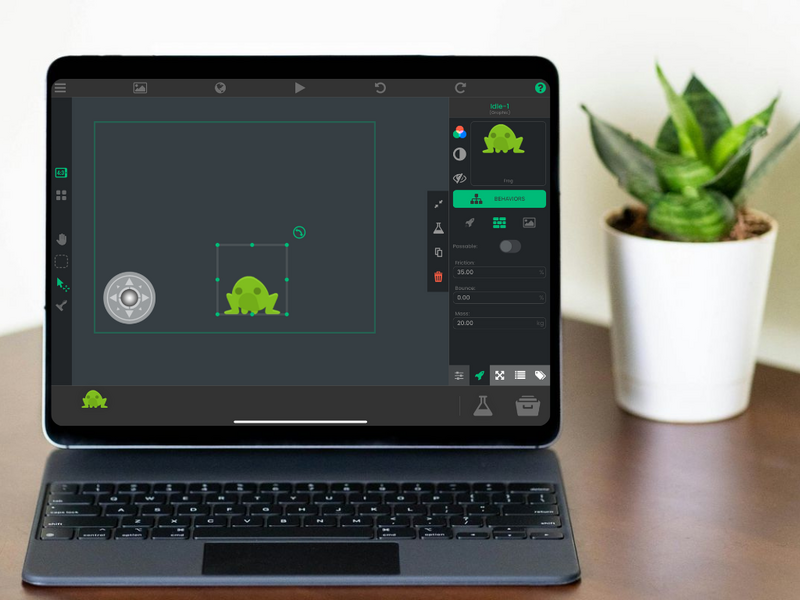
Overcoming Common Development Challenges
Game development on iPad is exciting, but it comes with challenges. Compatibility and older hardware are the common ones. They can limit your game's performance and reach, and make it hard to deliver a consistent experience across devices.
Older devices might not handle the latest graphics and mechanics. That can shrink your audience and cause performance issues. Compatibility across iOS versions can also be tricky and needs careful planning and testing.
To handle these challenges, try the following:
- Use Scalable Designs: Build graphics and layouts that adapt to different screen sizes. That keeps quality consistent across devices.
- Use hyperPad's Features: hyperPad offers motion tween animations and support for multiple Apple screen sizes, which makes device differences easier to manage.
- Test Regularly: Test your game on different iOS devices and versions. You'll catch compatibility issues early and give every player a smooth game.
- Optimize Performance: Optimize your game's assets and logic. That cuts load times and improves performance, even on older devices.
- Join the Community: Talk with other creators in forums. Shared insights and solutions are a good source of feedback and support.
With the right strategies and tools, you can make games that run well and reach a broad audience.
Choosing the Right iPad Game Maker
Picking a game development tool for your iPad comes down to what fits your needs and style. This article covered how the iPad changed game creation with a portable, touch-first setup, and why intuitive interfaces, custom asset support, and screen resolution handling matter.
When you look for an iPad game maker, check for these features:
- User-Friendly Interface: Look for a drag-and-drop interface. It lets you focus on your ideas instead of getting bogged down in complex code.
- Custom Asset Support: Make sure you can import your own graphics, sounds, and fonts. Your own assets make your project unique.
- Screen Resolution Handling: Choose a tool with reliable resolution scaling, so your game looks right on any device.
- Visual Behavior Editor: Choose a visual editor that can handle complex game mechanics. A flowchart makes game logic easier to see and build.
- Community and Resources: Forums, documentation, and tutorials help you learn, troubleshoot, and improve your skills.
Focus on these features and you'll pick a tool that meets your technical needs and suits the way you create. Try hyperPad Starter free. When you want more projects and App Store export, upgrade to hyperPad for a one-time USD $14.99. You keep 100% of your revenue.