

Prefabs and Templates
Prefabs and templates allow users to reuse objects and share behavior logic across scenes in a project. Users also have the ability to export prefab and template files externally, so they can be imported to other projects, and shared with other users.
Here is a brief overview of similarities and differences between templates and prefabs.
| Feature | Templates | Prefabs |
| Behavior Logic | Copied on creation, then independent for each instance. Does not update existing instances when editing behaviors. | Always shared across all instances. Editing behaviors will apply changes to all instances. |
| Object Properties (Transform, Physics, Tags, etc.) | Independent for each instance. | Independent for each instance. |
| Best Application | Player starting state, enemies in different scenes, and other objects with differing behavior logic. | Coins, bullets, doors, and other objects with shared behavior logic. |
What are Prefabs and Templates?
Prefabs and templates contain properties and behavior logic of a single object which are accessed from the Asset Library. The only difference between the two is that all instances of a prefab will share the same behavior logic.
When one prefab’s behaviors are modified, changes will also apply to every other prefab of the same object. However, object properties such as attributes, tags, and transformations will not apply to all of the prefab objects.
Creating Templates and Prefabs
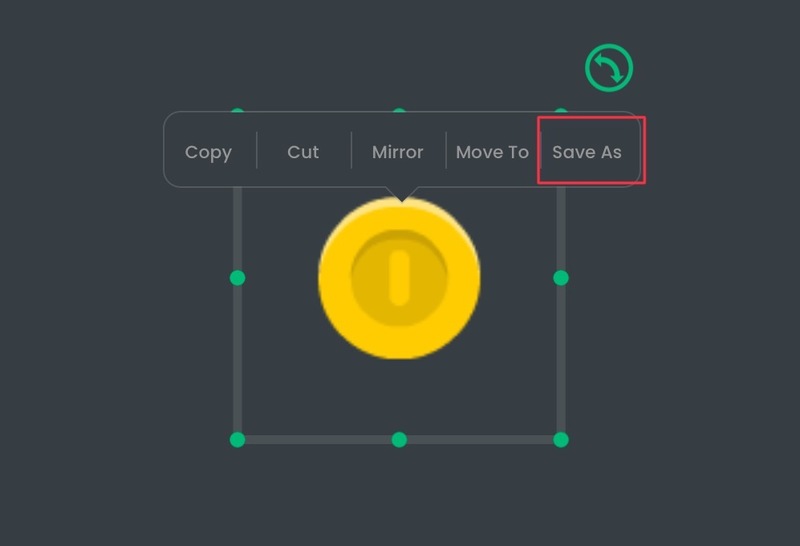
To create a template or prefab, tap and hold (or right click) an object you wish to create a template/prefab of, then press Save As.
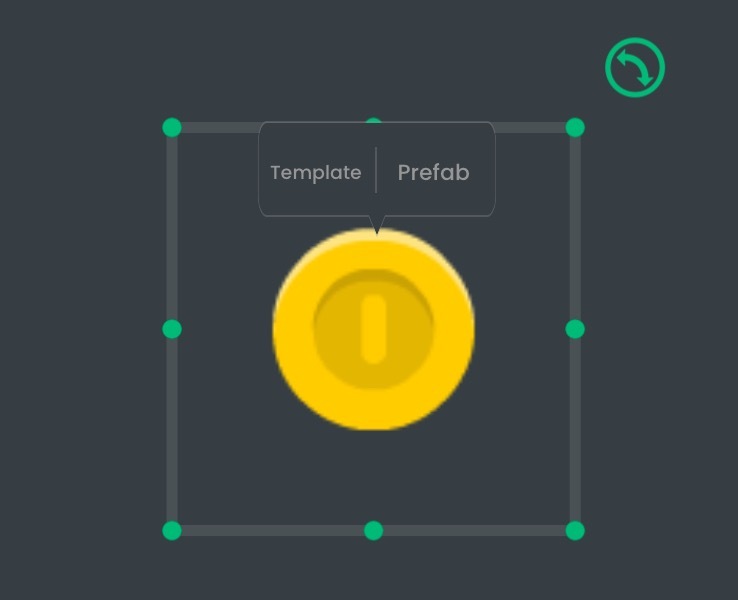
You will be given the option to create a template or a prefab. Pick the option of your choice. Note that choosing to create a prefab will not convert the selected object into a prefab.
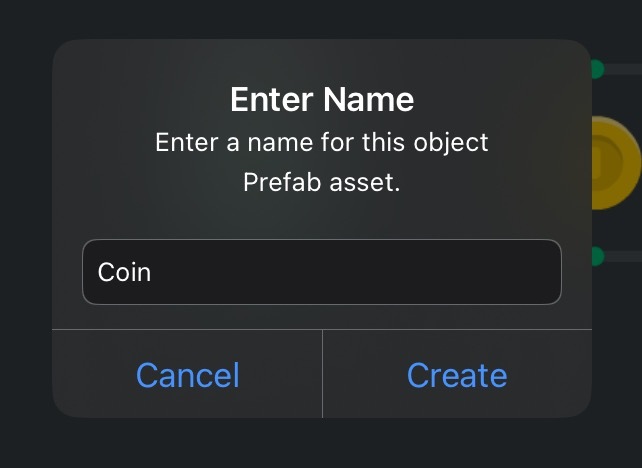
You will be prompted to enter the name of the template or prefab. This will be the name of the newly created asset in the Asset Library.
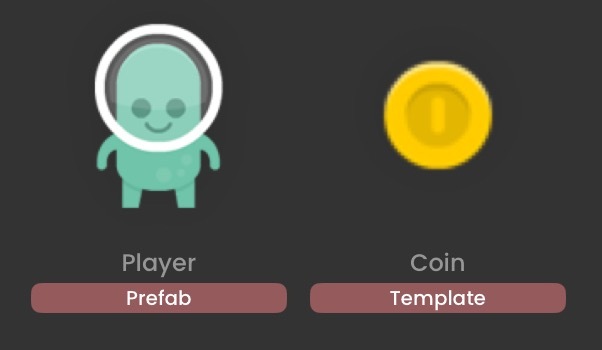
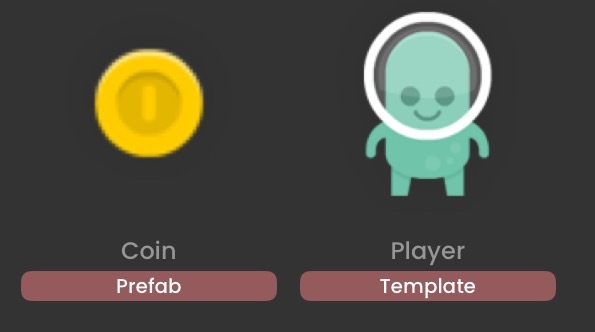
After creating the prefab or template, you will see it in the Asset Library like so. You can rename it, relocate it, or remove it anytime like any other asset. You can preview them to see basic information about the prefab or template.
⚠️ Removing prefabs will also cause instances of the prefab to have their behavior logic removed. This action is irreversible, and will cause data loss. Only remove prefabs when you know your project does not use them.
Using Templates
Select a template asset from the Asset Library, then simply drag it from the Asset Dock into the scene. The newly created object will have the properties and behavior logic of the template from the time it was created.
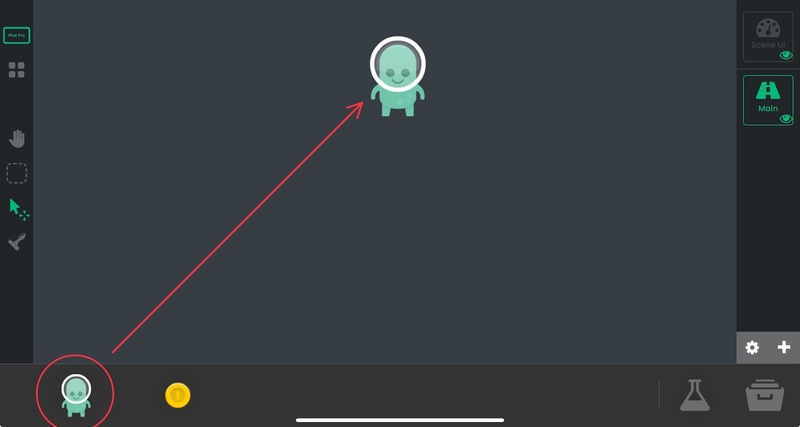
You are free to edit and use this object like any other object in the scene. In this example, a Player template is being used in multiple scenes. All Player template objects start with the same behavior logic, but can be tweaked in each scene depending on the environment - for example, the player controls may have different logic in an underwater level compared to a land level.
Editing behavior logic for one of the player objects will not affect any of the other player objects unlike in prefabs.
Other use cases can include:
- UI Buttons - You can have a basic button template, then create buttons that extend from the template that trigger different actions.
- Enemies - You can have a basic enemy template, then create enemies that extend from the base functionality with additional logic which can behave different depending on the scene the enemy is in.
Using Prefabs
Similarly to a template, select the prefab asset from the Asset Library, then simply drag it from the Asset Dock into the scene. The newly created object will have behavior logic and object properties of the prefab from the time it was created. However, the behavior logic will contain the latest changes you've made on this prefab (if any).
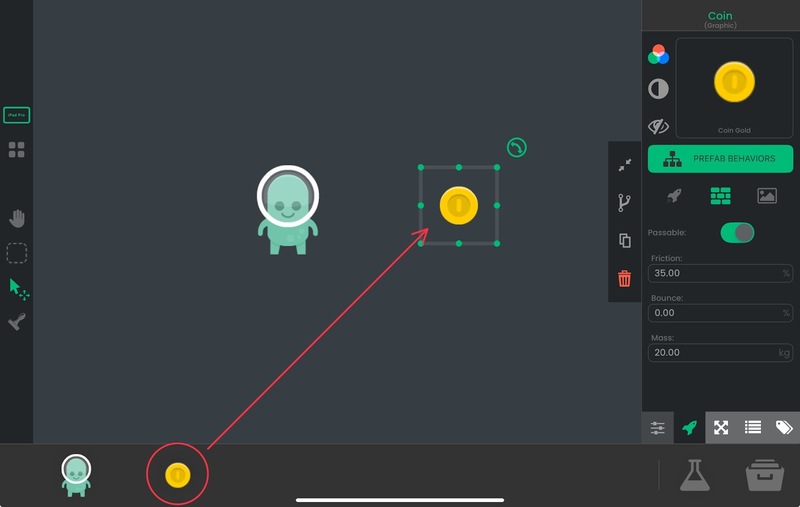
By dragging and dropping the prefab asset onto the scene, you have created a new instance of the prefab. All instances of the same prefab will share the same behavior logic. When selecting a prefab object, you will be able to edit its Prefab Behaviors and any changes you make in a prefab instance will apply to all other instances of the same prefab.
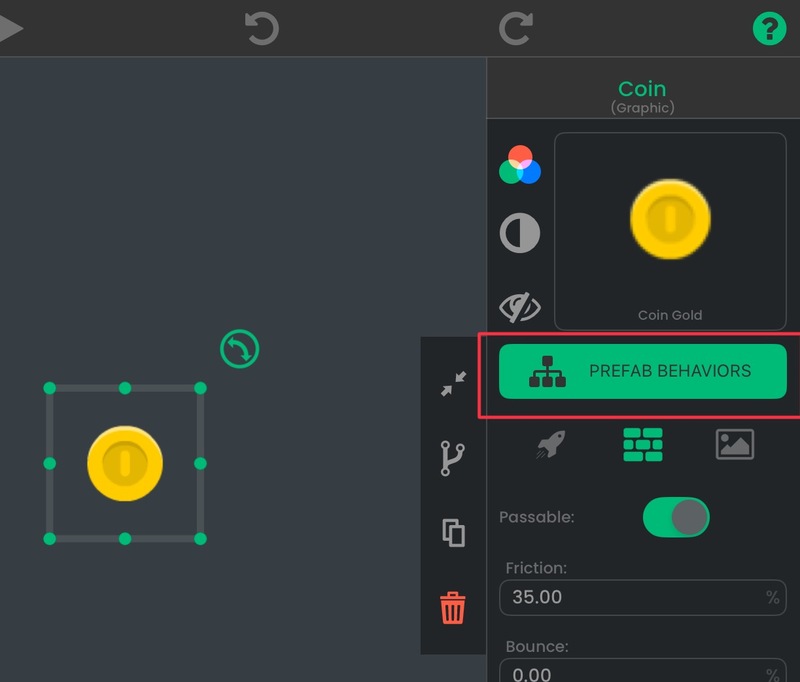
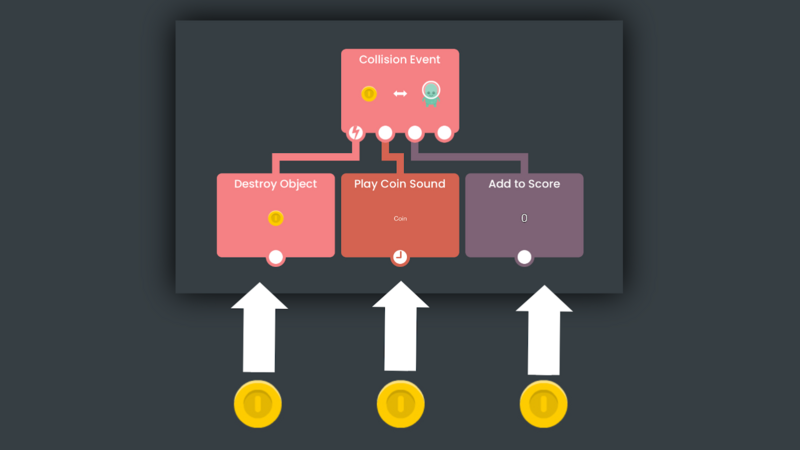
Object properties such as transformations, physics properties, attributes or tags will not sync across all prefabs - only behavior logic will be synced. This is perfect for a scenario where you want to have many objects, such as coins, to share the same behavior logic but be placed in multiple areas.
What makes prefabs extremely useful is that you can edit the behaviors of a single coin, and have every coin reflect that change - this saves a lot of time since you can now tweak the behavior logic of many objects at the same time.
Other use cases can include:
- Destroyable Platforms - All destroyable platforms will behave exactly the same where they are destroyed shortly after contact.
- Environmental Objects - You can have rocks, bushes or other environmental objects that can share the same functionality. For example, you can have all rocks be breakable with a pickaxe.
You can edit a single object and have changes be applied to all instances of the prefab. You can use this to ensure consistency across many objects.
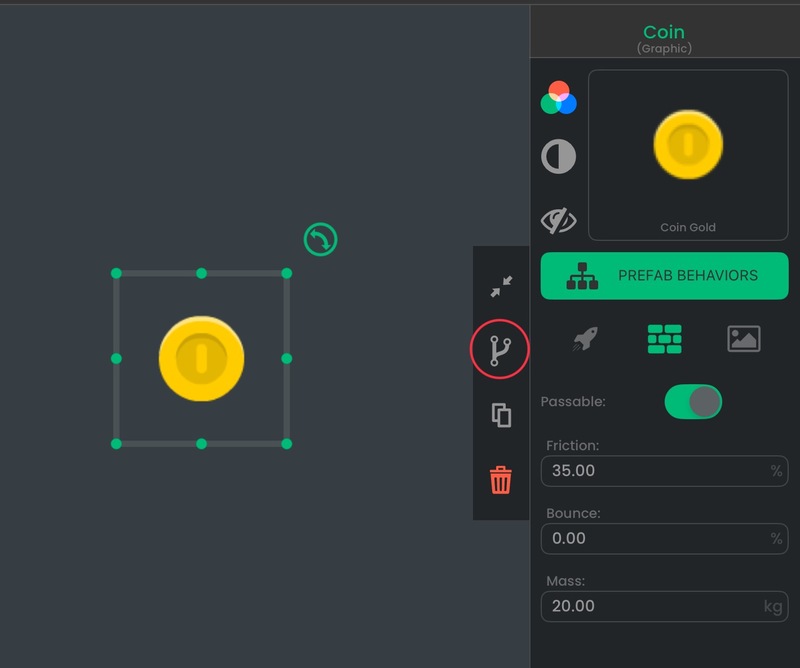
But in a case where you want a specific prefab instance to stop receiving changes, you can disassociate the object by tapping on the branch icon. It will be converted to a standalone normal object, and you will be able to edit its behaviors without affecting all other instances of the prefab.
This action is irreversible. Behavior logic will be fully copied from the prefab into the object and will become independent. Future prefab changes will not affect this object.
Exporting Prefabs and Templates
In the case where users want to share them with others, or use them in another project, hyperPad allows users to export prefabs and templates externally. First, in the Asset Library, locate the prefab or template you wish to export.
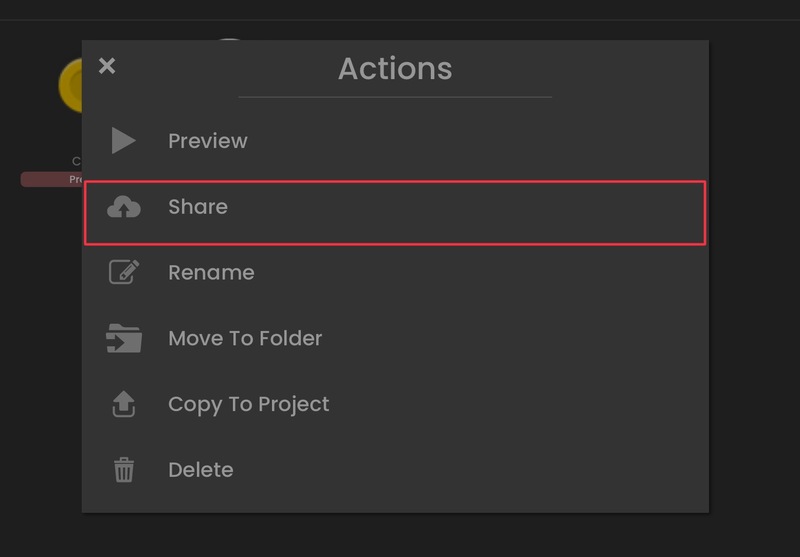
Tap and hold on the asset you want to export. You will be shown a menu of actions you can perform on the asset. You can choose Share, and a file will be created for you which you can share externally.
⚠️ Prefabs and templates only contain the object's properties, its asset and its behavior logic. If the object is referencing another object or asset in the project in its behaviors, those references will no longer work when imported into a different project.
Importing Prefabs and Templates
Open the project you wish to import a prefab or template into. In the Asset Library, tap on the Import button.
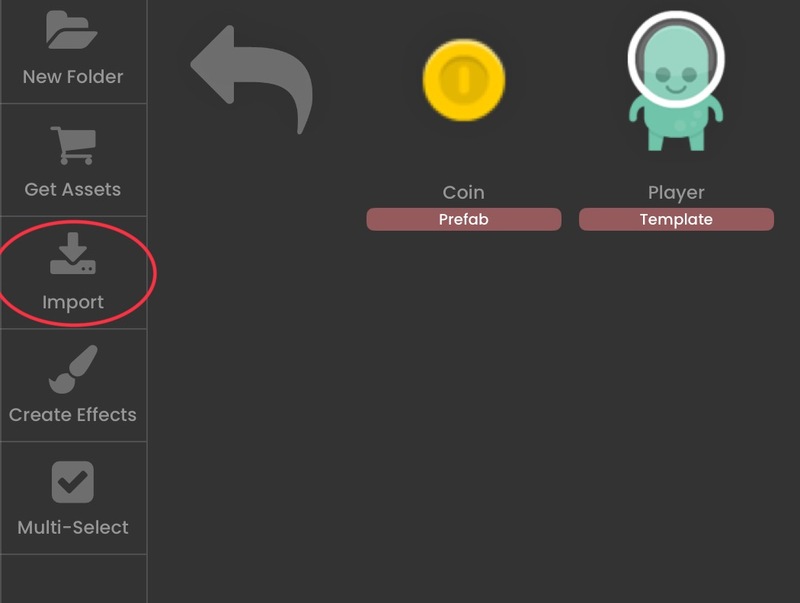
Select Prefabs & Templates. You will be able to import prefab and template files from Dropbox and Files - choose the import source where your file is located.
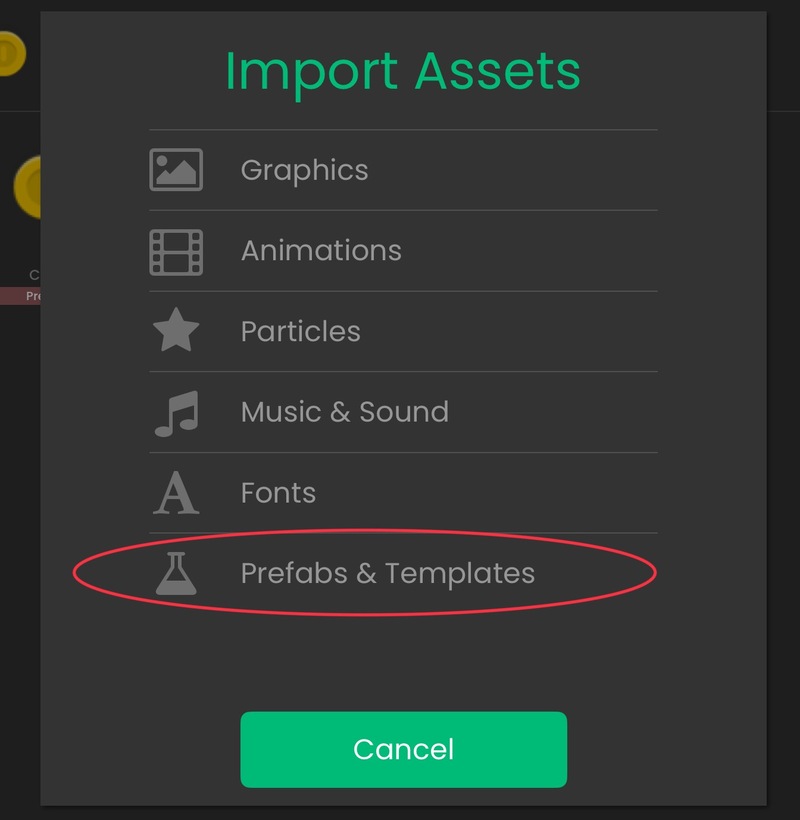
Note that prefab files have the .pfb extension and template files have the .tmp extension. After selecting the proper file to import, you should see the newly imported prefab/template asset, and you’re free to start using it in your project as you wish.
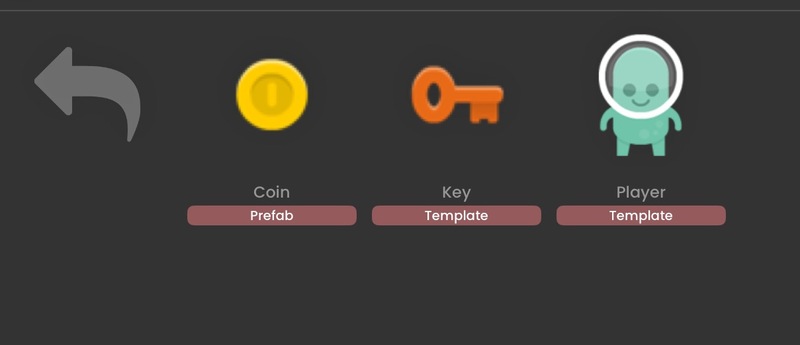
⚠️ Overwriting a prefab will replace existing behavior logic of the prefab's instances with the newly imported behavior logic. Prefab instances such as attributes, tags and graphic will retain their object properties.