Game Design Apps for iPad: What You Need to Make a Game

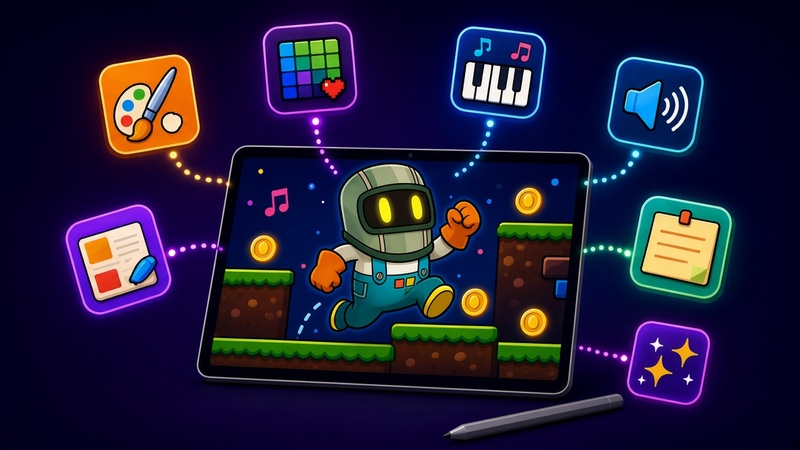
The game design apps you need on iPad come down to four jobs: one app to build and test the game in, one to plan it, one for art and one for sound. This list names the apps we'd pick for each job and what you'd use each one for. hyperPad is the build app, and some of the other jobs can happen inside it too. Every third-party app below was checked on the US App Store in November 2026.
The short list
| Job | App | What you use it for |
|---|---|---|
| Build and test | hyperPad | Scenes, Objects, Behaviors, physics and playtesting on the iPad |
| Plan | Freeform or Notes | The core action, how a round ends, and a rough Scene sketch |
| Hand-drawn art | Procreate | Characters, backgrounds and frame-by-frame animation |
| Pixel art | Resprite or Pixquare | Sprites, tiles and small animations |
| Music | GarageBand | Background loops and short music cues |
| Sound effects | hyperPad's Sound Effects Editor or Koala Sampler | Jumps, pickups, hits and recorded sounds |
| Visual effects | hyperPad's Particle Editor | Explosions, sparks, smoke and trails |
You don't need all of them on day one. The last section covers what to add first.
1. hyperPad: where the game gets built
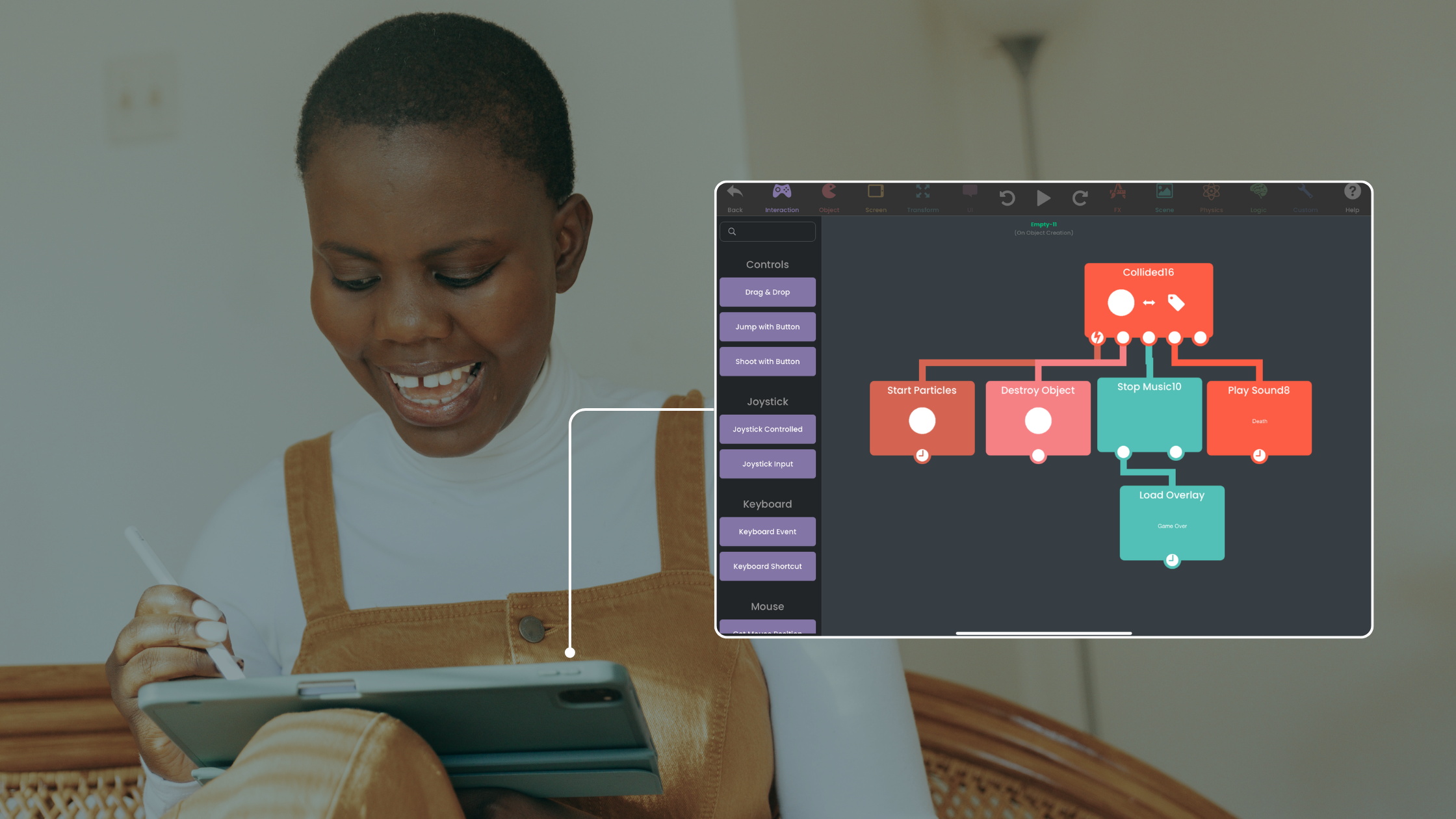
The build app is the one choice that shapes everything else, because it's where your design becomes something people can play. hyperPad is a 2D game engine made for iPad. You place Objects in a Scene, then connect Behaviors into a flowchart of your game's logic. A tap can start a jump, a collision can add a point, and an If Behavior can decide whether the round is over. The Behavior Interface Overview shows how those connections work.
Physics is built in. Set an Object as a Physics Object so it falls and collides, or as a Wall Object for floors and platforms, then adjust its Friction, Bounce and Mass in Object Physics Properties. Press play in the editor to test the change on the same iPad.
hyperPad Starter is free and lets you build and test one Project. The paid hyperPad app is a one-time purchase of $14.99. It lifts the one-Project limit, lets you Publish to the hyperPad Hub for feedback, and lets you Export your game as an Xcode project to submit to the App Store from a Mac with Xcode and an Apple Developer account. You keep 100% of your revenue.
To see what a real Behavior chain looks like, read What Visual Coding in hyperPad Looks Like.
2. Freeform or Notes: plan before you build
You don't need a special planning app. Apple's Freeform gives you an open board where you can sketch a Scene layout, drop in reference images and move sticky notes around. Notes or paper work just as well. Before you build, write down three things:
- The one action the player does most, like jump, tap or aim
- How a round ends
- What makes the player want another try
Keep that list next to you while you build. When you're unsure what to add next, it tells you.
3. Procreate: hand-drawn characters and backgrounds
Procreate is a painting and illustration app for iPad with layers and animation tools. For game art, draw each part that needs to move, such as an arm or a wing, on its own layer. Export each part as a PNG with a transparent background, then bring it into hyperPad with Importing Assets. Each image becomes a Graphic you can put on an Object.
Draw at the size the art will appear in the game, and test it in a Scene early. A character that looks right on a big canvas can be hard to read at gameplay size. Procreate Artists: Make Your First Game on iPad with hyperPad walks through the whole route.
4. Resprite or Pixquare: pixel art
If your game has a pixel art style, a dedicated pixel editor keeps every pixel sharp. Resprite offers layers and timelines for animation. Pixquare is built for game assets and animation. Both run on iPad.
Pick a small, fixed canvas size for your characters and tiles, and keep it the same across the game so everything matches. For a full pixel art build, see How to Make Your Own Pixel Art Game on iPad.
5. GarageBand: music
Apple's GarageBand turns the iPad into a set of Touch Instruments and a recording studio, and its Live Loops let you build music from repeating cells. For a game, make a short loop that can repeat without an obvious seam, export it as an audio file, and import it into hyperPad. Start it with Play Music when a Scene loads.
Keep a second, shorter cue for winning or losing. A change in music tells the player the round is over before they read any text.
6. Sound effects: hyperPad's Sound Effects Editor or Koala Sampler
For classic game sounds, you may not need another app. hyperPad's Sound Effects Editor generates pickup, laser, explosion and other sounds, and you can adjust each one until it fits. Play them with Play Sound.
For sounds you record yourself, Koala Sampler records anything through the microphone, loads your own sounds and adds effects. Record a door, a clap or your own voice, trim it, export it and import it into hyperPad.
7. hyperPad's Particle Editor: effects without another app
Explosions, sparks and smoke can be made inside hyperPad. The Particle Editor Overview explains how to start from a template such as fire or a comet, change the particle count, size and direction, and save your own effect. Play it in the game with Start Particles when something important happens, like a hit or a pickup.
Which apps you need first
Start with hyperPad and a notes app. Build the core action with free placeholder art from Get Assets in the Asset Library. Once the action feels right, add your own art in Procreate or a pixel editor. Add music and sound effects last, when you know which moments need them.
For a closer look at art and audio apps, see Best iPad Apps for Game Art, Sound and Music. To compare build apps in more depth, read A Guide to the Best Game Development Tools for iPad.
Your next step
Write your three planning lines in Notes today. Then open hyperPad, add one placeholder Graphic from the Asset Library to a Scene, and make it do your core action when you tap. How to Use hyperPad: Build Your First iPad Game walks you through that first Scene.