8 Best Sites for Free 2D Game Assets and Pixel Art for iPad

Sources and license terms reviewed September 2026. Licenses can change, so check the source page before you publish.
Eight good sites for free 2D game assets and templates are Kenney, itch.io, OpenGameArt, CraftPix, GameArt2D, Pixel Frog, Ansimuz, and Game-icons.net. For the smoothest start on iPad, pick a pack with transparent PNG files, one consistent style, and a license you understand. Then import it into hyperPad and make one thing move.
For free pixel art assets, start with Pixel Frog and Ansimuz. Kenney and itch.io also have pixel-art packs, and their licenses are covered below.
This guide covers where to look, how to pick a pack that fits your game, how to import graphics, animations, audio, and fonts, and how to check the license before you share.
8 sites for free 2D game assets
| Source | What you'll find | License to check |
|---|---|---|
| Kenney | Matching characters, tiles, UI, and audio in many styles | CC0 on its asset pages |
| Pixel Frog: Pixel Adventure | A pixel-art platformer set | CC0 |
| Ansimuz: SunnyLand | Pixel-art characters, enemies, and scenery | CC0 |
| GameArt2D Freebies | Character sprites, tilesets, and game UI | CC0 for Freebies |
| CraftPix Freebies | Sprites, tilesets, backgrounds, and UI | Its Freebie license, which limits sharing the source files |
| itch.io | A huge range of art, music, and sound from independent creators | Each pack's own license |
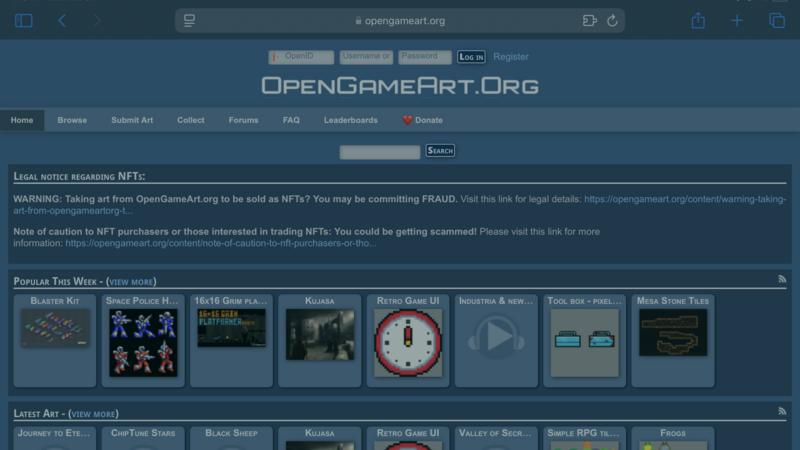
| OpenGameArt | Community art, music, and sound under many licenses | Each download's license and attribution notice |
| Game-icons.net | Thousands of icons for items, skills, and UI in SVG and PNG | CC BY 3.0, so credit the artist |
Kenney is the easiest place to start. Its license guidance says assets on its asset pages are CC0, so you can use them commercially with no attribution required. Keep the included license file with your Project.
Pixel Frog and Ansimuz are good picks for a pixel-art platformer. For Pixel Adventure, download Pixel Adventure 1.zip. For SunnyLand, download Sunny-land-files.zip for the art. The Plus version is paid.
GameArt2D's license page lists its Freebies as CC0. The Free Platformer Game Tileset is a nice first download.
CraftPix's Freebie license allows personal and commercial games without credit. It restricts sharing the art as reusable source files, so check the terms before you put CraftPix art in an Open Source Project that others can Branch.
itch.io and OpenGameArt have the widest variety, and the licenses vary from pack to pack. A free price doesn't mean you can use the art however you want. Read each license, and see OpenGameArt's licensing FAQ for how the different licenses work.
Game-icons.net is the place to go for inventory items, power-ups, and menu buttons. You can set the color and background before you download a PNG. The icons are CC BY 3.0, so add the artist's name to your credits.
What about game templates?
Many free "templates" are built for Unity, Godot, or GameMaker. Their image and audio files can often be reused when the license allows it. Their project logic won't import into hyperPad. Rebuild that logic with Scenes, Objects, Attributes, and Behaviors.
Once a mechanic works in your own Project, Prefabs and Templates let you reuse an Object and its Behaviors across your game. You can also study Open Source Projects on the hyperPad Hub. Branching one lets you see how its Objects and Behaviors are organized. Check the creator's notes before you reuse their art.
Pick a pack that fits your game
Start with the mechanic, then find art for it. A small platformer prototype might only need:
- one player idle frame and a short run or jump animation
- one ground tile
- one obstacle and one collectible
- one background
- a few interface elements
- a sound for collecting and one for failing
Before you download, check that the art uses one scale and perspective, has transparent backgrounds, and includes the interface pieces your game needs.
Stick to one grid size. A 16 by 16 character and a 32 by 32 tileset won't line up. Pick one size for the whole game.
Watch the palette. Packs from different artists rarely share colors. Mixing them can make a game look unfinished even when each pack looks good on its own.
Draw your own art
You can mix free packs with your own drawings. Today, the workflow is to draw in an iPad art app (for example Procreate) and import the result as Graphics through the Asset Library. The Pixquare sprite workflow shows how to export animation frames and bring them into hyperPad. For other options, see these free 2D asset creation tools for iPad, or Pixelorama if you also draw on a computer. For menus, buttons and HUD art, see how to use Figma to create games.
Art Studio, a workspace for drawing Graphics and frame animations inside hyperPad, is coming in an upcoming hyperPad update. Until then, a separate drawing app works well. A common approach is to start with a free tileset, then draw your own hero.
Import your assets on iPad
1. Keep the art and license together
Download the ZIP in Safari, then tap it in the Files app to unzip it. Apple's ZIP guide shows how. Keep the art, the license, and the source link in one folder, like My Game / Art / Pack Name.
Rename unclear files while the pack is still easy to review. Names like player_idle.png, coin_01.png, and jump.wav are easier to find later. Start with one character, one ground tile, and one background.
For a longer walkthrough of every import option, read Importing Your Game Assets.
2. Import a PNG
In your hyperPad Project, open the Asset Library and choose Import, then Graphics, then Files. Pick your PNG. PNG keeps transparent backgrounds, so your character won't sit in a white box. An imported image can be up to 2048 × 2048 pixels. The Importing Assets guide covers every option.
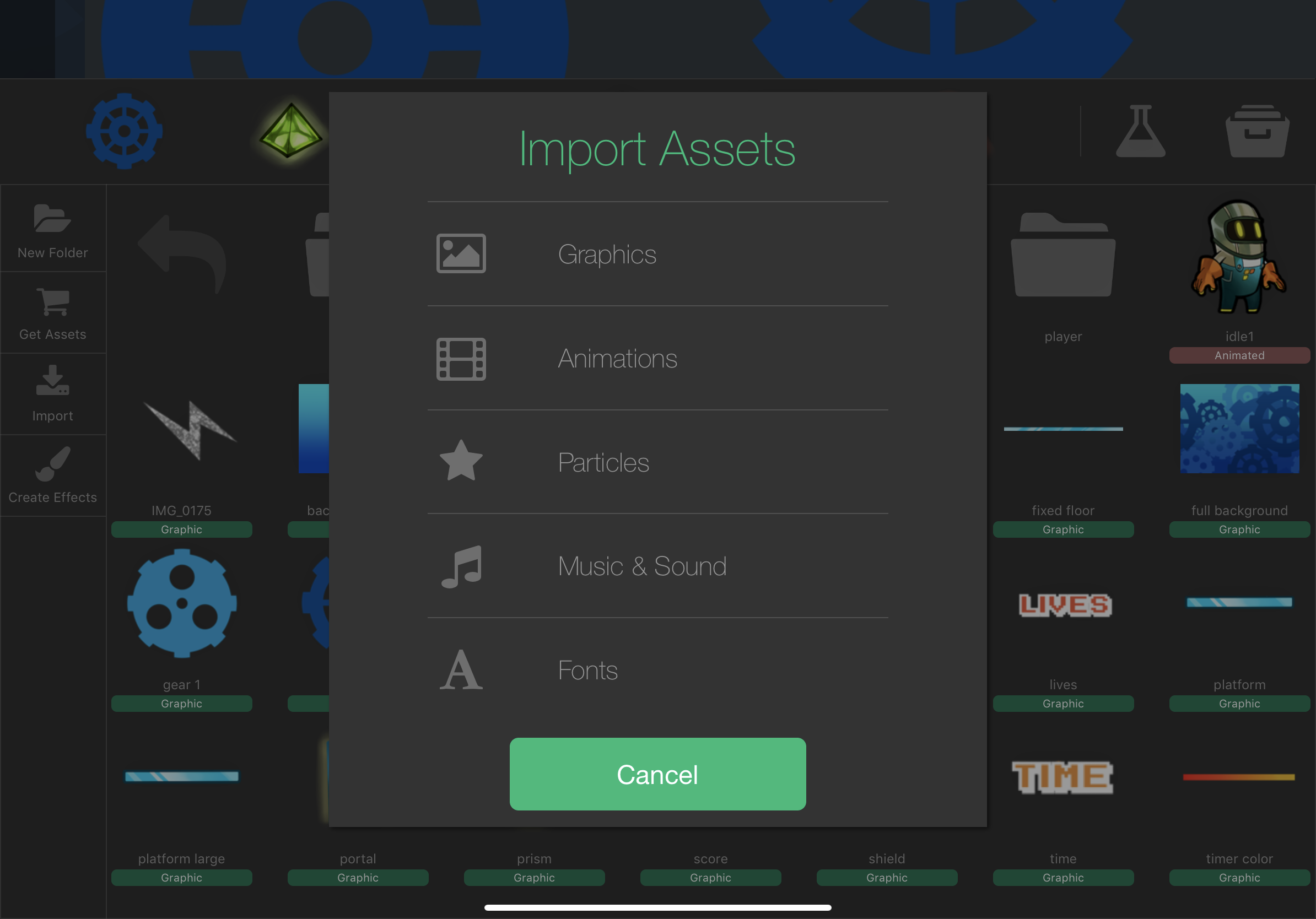
Choose Graphics for a still image.
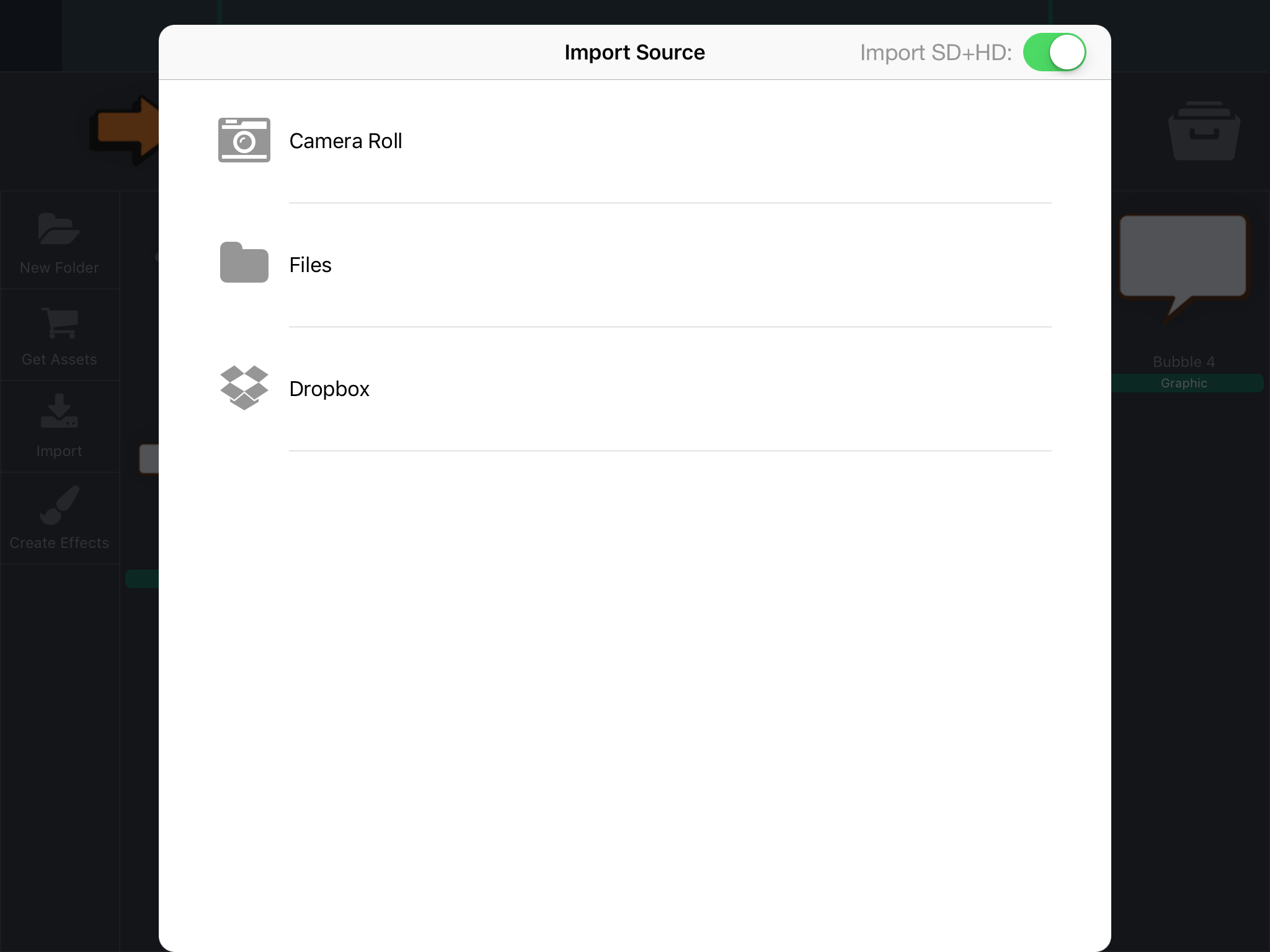
Choose Files to browse your unzipped pack. Leave Import SD+HD off for a normal import, and hyperPad makes the standard-definition version for you.
3. Import animations
For separate frames, choose Import, then Animations, then Create Animation. Keep every frame the same size, center the character the same way in each one, and name them in playback order. All the frames together have to fit inside one 2048 × 2048 sheet, so a long animation with large frames can hit the limit even when each image is small enough on its own.
A single PNG with many poses on it isn't an animation yet. The sprite sheet route needs the PNG plus its matching PLIST data file. Importing and Using Animations explains both routes.
4. Import sound, music, and fonts
The Asset Library also imports music, sound effects, and fonts. Keep sound effects short, trim the silence at the start, and test them on the iPad you build on. hyperPad supports TrueType fonts and bitmap fonts. A font that's free to download isn't always licensed for use inside a commercial game, so check its license on its own. Supported Asset Types lists the current formats.
5. Make one thing happen
Place your character in the Scene. In the Behavior Editor, connect Started Touching to Play Animation, choose the animation, and press Play. Tap your character. If it animates, your art and your logic both work.
Then turn one asset into a game Object. For a collectible coin, detect the collision with the player, add one to a score Attribute, play a sound, remove the coin, and update the score Label. That small loop tests the art, the collision size, the sound, and the feedback together.
If something looks wrong
- The whole sprite sheet shows up. You imported the sheet as a still Graphic. Use separate frames, or the PNG and PLIST pair.
- There's a white box around the character. You likely downloaded a preview or a JPEG. Find the transparent PNG.
- The animation jitters. Check that frames are the same size, lined up, and in order.
- The import fails. Check the file type against Supported Asset Types, and try one smaller image first.
- The pack only has engine files. Go back to the creator's page and look for standalone PNGs.
Check the license before you share
Keep a short record for each pack: name, creator, link, license, and download date. Add any required credits to your game.
CC0 allows broad reuse without credit. It doesn't cover someone else's trademarks or characters. Some other licenses allow a finished game but not sharing the original files. Check before you Publish an Open Source Project to the Hub, or Export your game to the App Store.
Credit the artists
When a license asks for attribution, add it in two places: a credits screen in your game, and the description when you Publish to the hyperPad Hub. A simple line works, like “Tiles by Kenney (kenney.nl), CC0.”
Even when CC0 doesn't require credit, it's a kind thing to do. It also helps other creators find packs that match your style. If you end up loving an artist's work, many of them sell larger paid packs, and buying one supports the next free release.
Common questions
Where can I find free game assets?
Kenney, itch.io and OpenGameArt have the largest free collections. Kenney's asset pages are CC0. On itch.io and OpenGameArt, the license changes from pack to pack, so read it before you download.
Where can I get free pixel art assets?
Pixel Frog's Pixel Adventure and Ansimuz's SunnyLand are complete CC0 pixel-art sets for a platformer. For more styles, browse the free pixel-art assets on itch.io and check each pack's license.
Can I use free game assets in a game I sell?
Often, yes. CC0 assets, like Kenney's and GameArt2D's Freebies, can go in a commercial game. CC BY assets can too, as long as you credit the artist. Some other licenses limit how you share the files, so read each one before you Export to the App Store.
Your next step: download one CC0 pack from the table, import a single character and ground tile, and get that character animating on tap before you import anything else.