Creating Custom Game Assets for No-Code iPad Development


There are a lot of iPad games out there, and unique, high-quality assets help yours stand out. Custom art and sound make your game look and sound better. They also carry your game's story and personality. In this post, we'll cover tools and techniques for creating your own game assets, optimizing them for iPad, and bringing them into a no-code game maker like hyperPad.
The Importance of Unique Assets
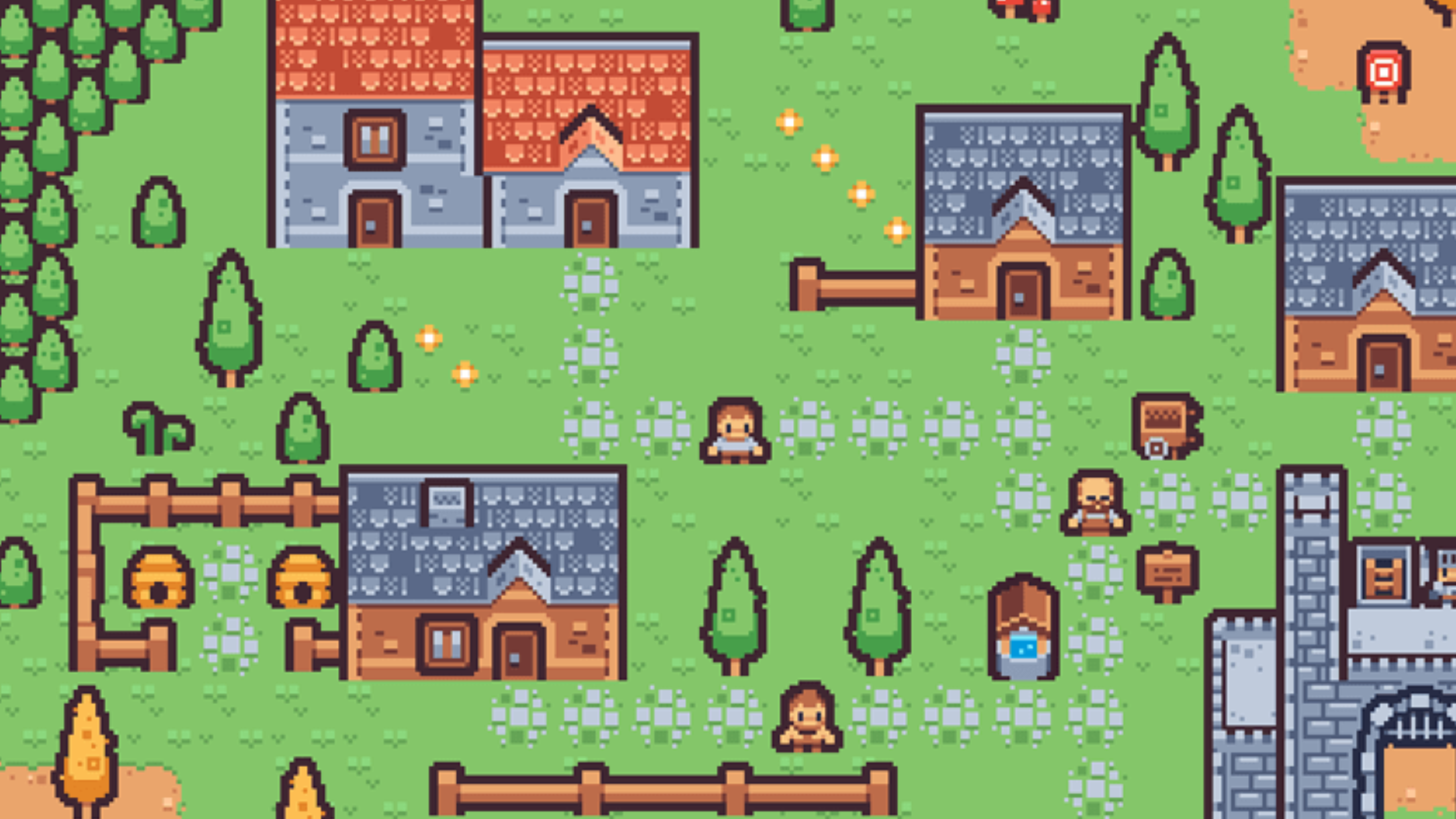
Unique assets give your game its own identity in a crowded market. Custom characters, backgrounds, and sound effects make your game memorable and immersive. They also help you connect with players, because hand-made designs show your passion and vision.
Tools for Creating Game Assets
Making your own assets is easier than ever, with plenty of accessible tools that work well for no-code developers.
Characters
- Tools: Procreate, Adobe Fresco, and Piskel.
- What to create: 2D sprites, animations, or characters with traits that reflect your game's theme.
- Tip: Keep animations smooth by focusing on key frames and transitions.
Backgrounds
- Tools: Canva, Krita, and Affinity Designer.
- What to create: Colorful landscapes, cityscapes, or abstract designs that set the stage for your game.
- Tip: Use layers to separate the foreground, middle ground, and background for depth.
UI Elements
- Tools: Figma, Sketch, and Adobe XD.
- What to create: Buttons, menus, and icons that make your game easier to use.
- Tip: Stick to a consistent color palette and typography.
Sound Effects
- Tools: Audacity, GarageBand, and Bfxr.
- What to create: Sounds for actions like jumping, collecting items, or tapping menus.
- Tip: Match your sound effects to the tone of your game: lighthearted or intense.
Music
- Tools: FL Studio, Logic Pro, and BandLab.
- What to create: Background music that fits your gameplay.
- Tip: Use loops so the music flows smoothly between Scenes or levels.
Asset Optimization for iPad
Optimize your assets so your game runs smoothly on iPad:
- Resolution: Pick a resolution high enough to avoid pixelation, but no bigger than you need.
- File Formats: Save images as PNG or JPEG, and audio as WAV or MP3.
- Compression: Compress files without visible quality loss so they load faster.
- Testing: Test your assets on different iPad models to make sure they work everywhere.
Working with Asset Marketplaces
If making assets isn't your strength, you can buy high-quality assets from marketplaces like:
- GraphicRiver (2D art and UI kits)
- Unity Asset Store (sprites and effects)
- AudioJungle (sound effects and music)
When you use pre-made assets, customize them to match your game's style.
Integration with No-Code Platforms
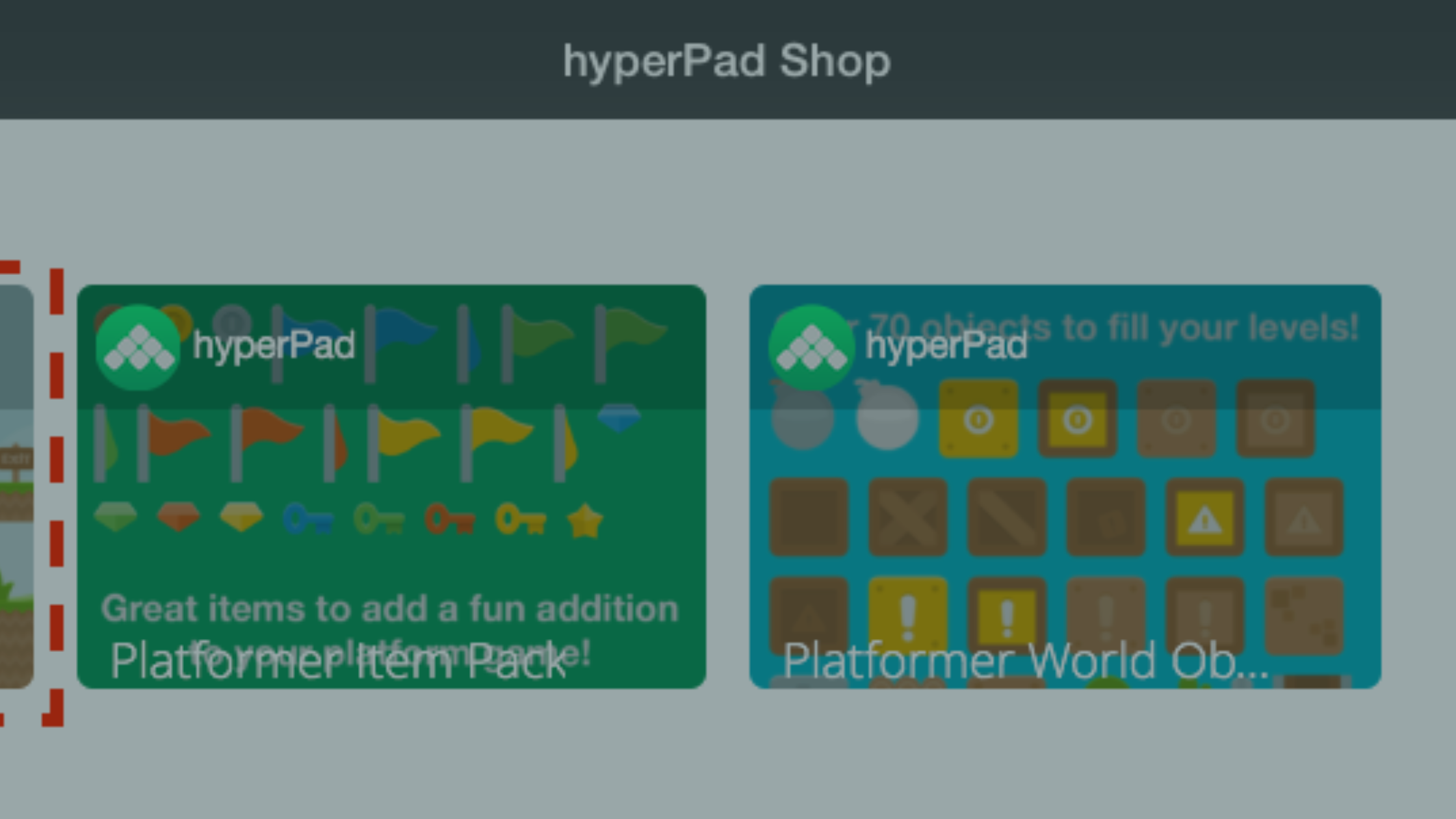
A no-code game maker like hyperPad makes it easy to import and use your assets:
- Drag-and-drop: Import assets straight into your project.
- Asset libraries: Keep your assets organized and easy to find.
- Behaviors: Add animations or interactions to your Objects and UI elements.
Tips for Cohesive Game Design
- Consistency: Use one art style across every element.
- Theme: Match your assets to your game's genre and story.
- Player feedback: Test your designs with players to make sure they're clear and appealing.
Resource List and Tutorials
Here are some resources to get started with asset creation:
- Free Asset Sources:
- OpenGameArt
- Freesound
- Kenney.nl
Making games on iPad has never been more fun
Custom assets are a big part of what makes a no-code iPad game stand out. Whether you design them yourself or buy them from a marketplace, good assets improve how your game looks, sounds, and feels. hyperPad makes it easy to bring them in, so you can spend your time on the gameplay.
Test each asset inside the running Scene, not only on its own. Keep it when it makes the action clearer, strengthens feedback, or supports the atmosphere.