Play Animation
Description
The Play Animation behavior will allow your selected object to play a keyframe animation cycle. You can select a pre-made animation cycle, or create one from individual image frames.
_ Note: If your object an animation frames are not the same shape or size, the objects collision/bounding box will not change. This means if your animation frames are physically larger, your object collision shape will remain the same size even if the playing animation appears visually larger._
This behavior will trigger an event every time the animation sequenced has finished or looped.
Rigged Objects
This section describes the live-rig update and requires a build with Rigged Objects. A public release date has not been assigned. Existing sprite/object workflows remain supported.
For a complete pose, choose Full Animation. For an independent arm action, choose Body Part → Upper Body. For an authored posture change, choose Additive and Whole Rig or a group.
Loop Animation, loop counts where shown, Reverse Animation, Skip if Animating, and Animation Priority still matter. Priority and interruption are evaluated for the selected playback layer. Two actions using the same mode and Body Part share that layer; different groups can still overlap on bones.
Restore Frame releases a completed body-part/additive layer when enabled, allowing the underlying animation to show again. With it disabled, the completed pose can remain. For main rig playback, restoration can return to the scene's configured starting animation. This does not rewind every independent action to an earlier time. Additive mode by itself does not make a one-shot hold until an input is released—configure Loop/Restore appropriately or use the relevant controller.
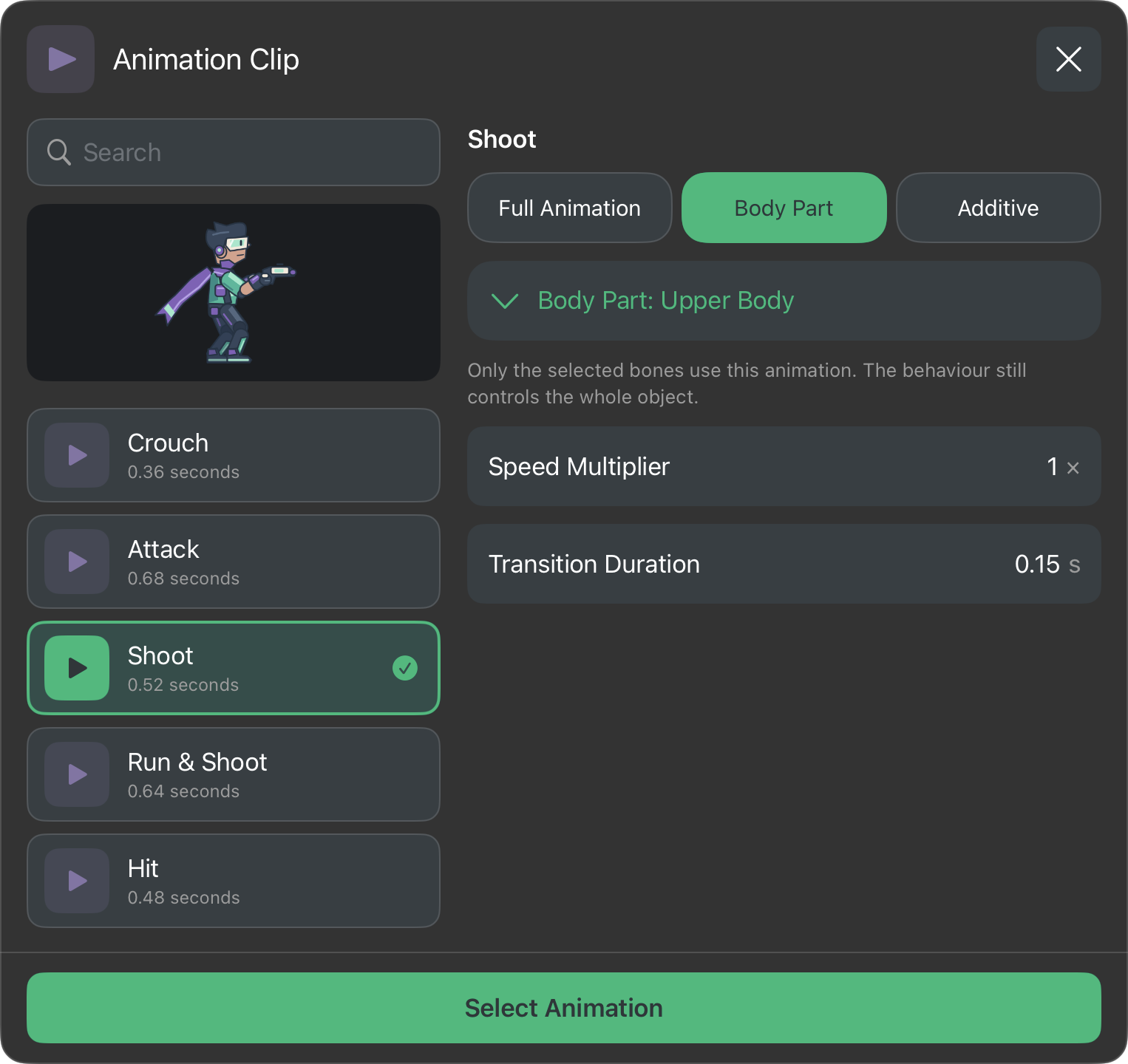
A compatible Rigged Object opens the rig clip picker; an ordinary animated object keeps the sprite-frame picker. On a wide picker, selecting a clip starts its small looping preview. In a narrow picker, tap the play icon beside a cycle to reveal the preview; close it to make more room for cycles. Then choose Full Animation, Body Part, or Additive. The preview shows that clip on its own; test combined animations in your scene. Speed Multiplier controls rig clip speed; the frame FPS control is for sprite animations. Set Transition Duration for a softer change. On a compact screen, compare clips under Animation, tap Next for Playback settings, then Select Animation to confirm.
Body Part requires a named bone group from the exported rig. Additive can use Whole Rig or a group and adds changes from the clip's first frame. Custom rigs must define their own groups in Art Studio, save, and update the Rigged Object export. The behaviour still targets the complete character.
If the target is supplied dynamically by an Object ID, choose a reference asset in the Asset Library when prompted. That determines which animation picker opens without replacing the dynamic target. At runtime the target must use a compatible rig asset and selected clip/group identities; matching names on an unrelated skeleton is not enough.
See Body Parts and Animation Blending for modes, priority, parent motion, and custom-rig setup, or follow Walk, Crouch, Jump, and Shoot together.
Properties
Triggers Immediately
| Object A |
This is the object you want to animate. By default the current object is selected. You can change this to any other object in your scene. |
| Animation |
Select the animation for the target. Sprite assets open the frame strip, where you can choose a cycle or individual images. Rigged Objects open the clip picker described below. |
| Animation Priority |
You can prioritize the animation animations so it does not conflict with another playing animation. The animation system will play a cycle with a higher priority. So if another animation is interrupting your desired animation, try increasing the priority on the one you want to play. |
| Frames Per Second (FPS) |
For sprite animations, this is how many image frames play each second. Rig clips use Speed Multiplier in the rig picker instead; FPS is hidden for a rig selection. |
| Reverse Animation |
If this toggle is on it will play the animation frames in reverse order. By default, this toggle is off. |
| Loop Animation |
If this toggle is on, your animation will repeat when it's done. By default, this toggle is on. |
| Restore Frame |
When this toggle is on, it will restore the last frame of the previous animation. If there was no previous animation it will restore to the original object graphic. IF the toggle is off, the last frame of the animation will stay instead. By default, this toggle is on. |
| Skip if Animating |
When this toggle is on, the animation will not play if your object is already playing another animation. By default, this toggle is off. |
Outputs
| Object ID |
This outputs the Object ID. |
Examples
You can use this behavior to make an object play an animation.