Art Studio + Runtime Bones: Create and Animate on iPad

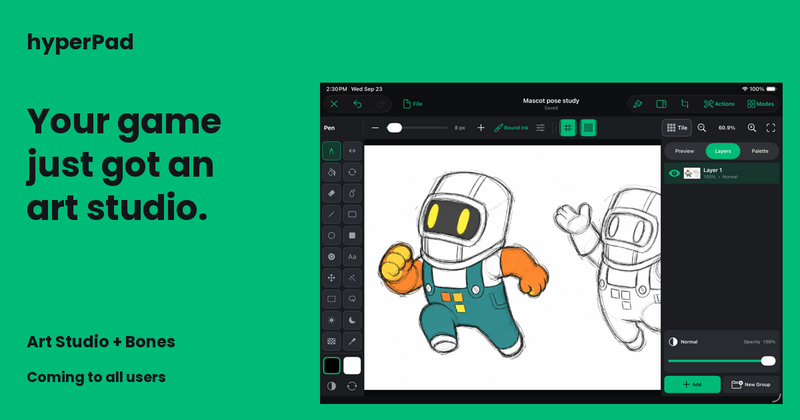
Draw your game’s art inside hyperPad. Bring its characters to life during play.
A built-in art studio changes what you can create on your iPad. Runtime skeletal animation changes what your game can do with those creations. Both are coming to hyperPad!
We’re bringing two major additions to all hyperPad users:
- Art Studio: a dedicated workspace for drawing game art, making frame animations, slicing sprite sheets, and building character rigs.
- Bones: skeletal animation support in the hyperPad engine, so you can blend animations and control your characters dynamically during gameplay.
Art Studio gives you the tools to create the artwork and author its movement. Bones lets your game work with the live character as your players interact with it.
Together, these additions take hyperPad from the place you build your game to the place you can create its original artwork and bring it into play. For the workflows below, you won’t need to buy a separate drawing or animation app. Your hyperPad purchase goes further, and you get more control over the game you’ve been imagining.
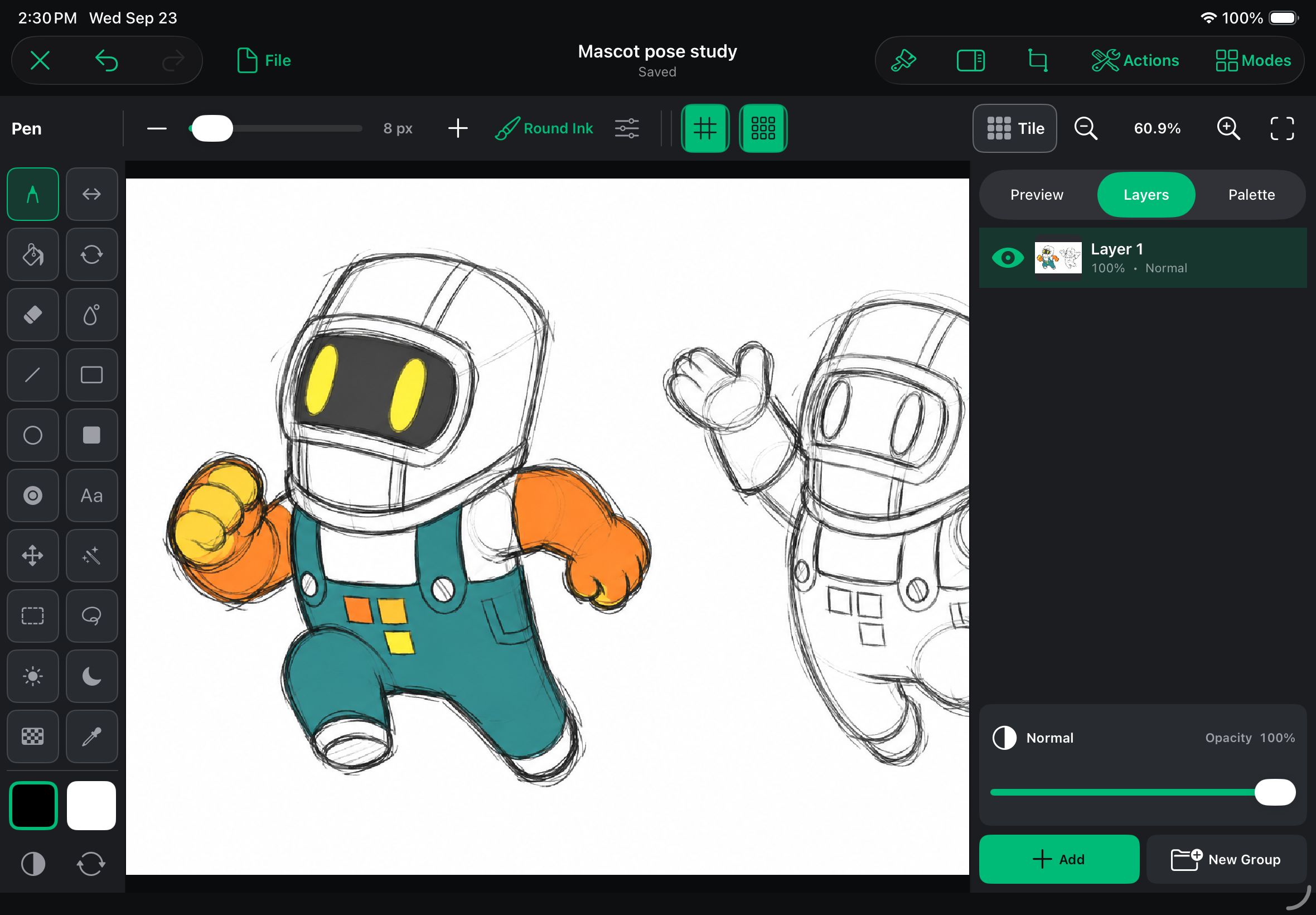
A character starts taking shape inside Art Studio. A rough idea is enough to begin.
Bones: a major animation upgrade to the hyperPad engine
The hyperPad engine is gaining native support for bone animations. Export a live Rigged Object from Art Studio, put it in your scene, and use Behaviors to drive what it does during play.
Your game can work with the character’s skeleton, animation clips, and attached artwork in real time. A player’s input or an event in your game can change the pose, combine animations, or redirect a limb toward a target. That control lives in the engine, where your game is running.
Blend actions on the same character
Imagine your player walking forward, ducking under an obstacle, and firing while they keep moving.
With Bones, you can combine those actions on one live character. Keep the walk running as the main animation. Add a crouch posture. Play a shooting action on an upper-body group while the legs continue their movement.
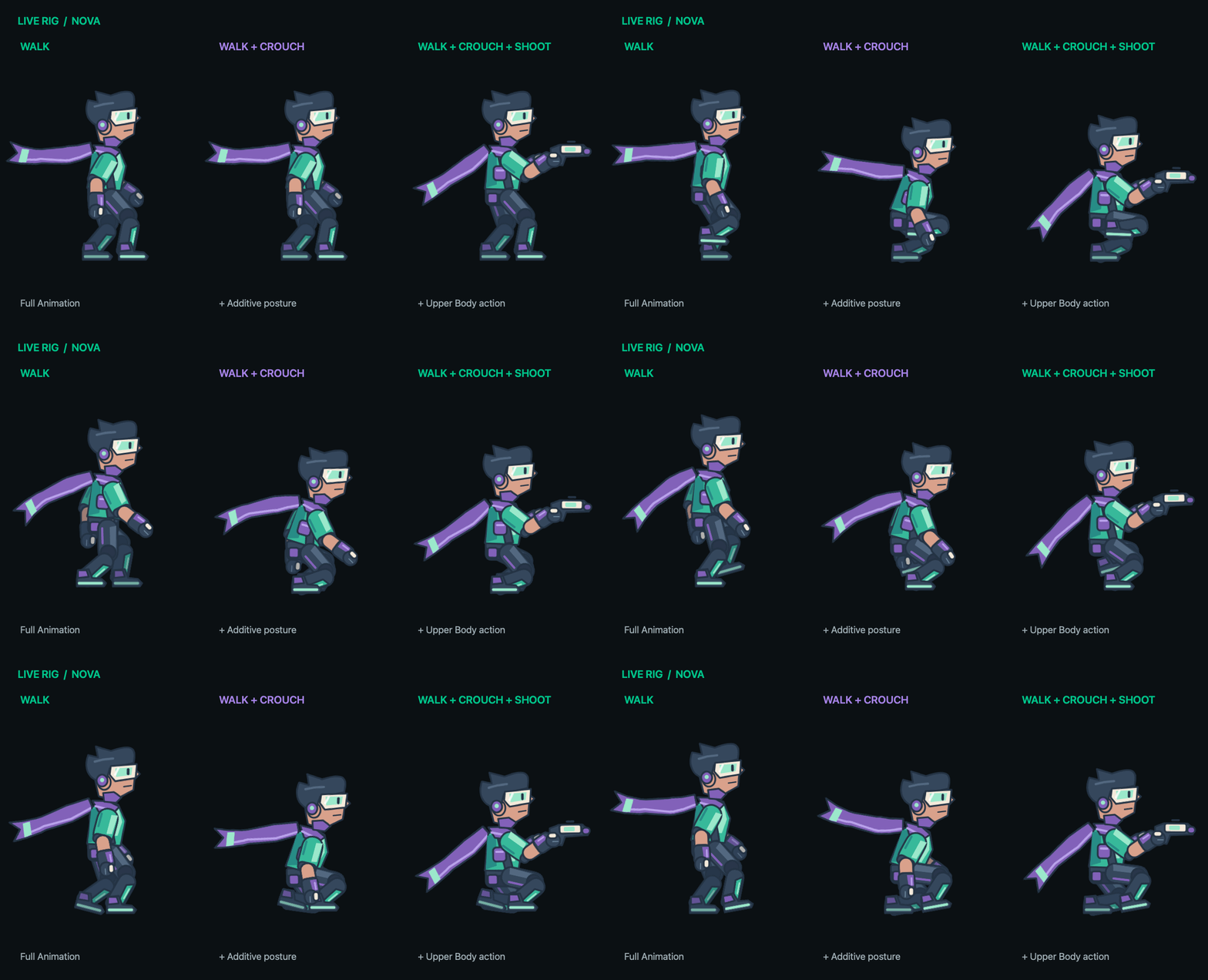
Bones at runtime: a walk, an added crouch posture, and an upper-body shooting action combined on a live character.
You can author reusable clips and combine them for the situation your player creates. A shooting action can work with different movement, and an additive posture change can sit over the animation already playing. You can build more combinations from the actions you’ve already made. Playback speed and transition controls give you more say in how those changes feel.
Let gameplay control the pose
Bones also gives you direct control over the rig through Behaviors. You can:
- Pose a bone during play with Set Bone Transform, or read its position with Get Bone Transform.
- Aim a limb toward a target using an IK chain you’ve set up in the rig. Set IK Target can follow a position or another Object in your scene.
- Make a separate visual Object follow a bone, so something your character carries stays with its hand.
- Change the character’s look during play by switching attachments or applying skins authored into the rig.
Think of a character reaching toward an Object, changing equipment, or aiming as the action moves around it. Your game logic can drive those details, and animation blending can keep the rest of the character moving.
This gives you a new set of tools for making characters feel responsive. You create the movement you need, then decide how it responds to your players through hyperPad’s visual Behaviors.
Explore Rigged Objects and runtime Behaviors, or see how animation blending works.
Art Studio: make your game’s artwork inside hyperPad
A game can start with a character you want to draw or a world you want to see. Art Studio gives those ideas a workspace, right beside the tools you use to build the game.
It brings several creative tools into one place. Here’s what each lets you make.
Draw freely or work pixel by pixel
You know the feeling: you have a game idea, but the artwork still belongs to the placeholder stage. Art Studio gives you a place to change that.
Draw the odd little creature your game needs. Paint a background around it. Make the expression that tells your players they’ve found trouble. You can work on the look of your game right inside hyperPad, with brushes, selections, and layers to develop the drawing.
Pixel art gets its own tools, too. Work on a grid, place each pixel where you want it, and keep your character’s face on a separate layer while you try different expressions. A tiny robot can have a lot of personality.
You can choose the style that fits your game: loose drawings, clean shapes, or carefully placed pixels. You don’t have to settle for whatever artwork you happen to find.
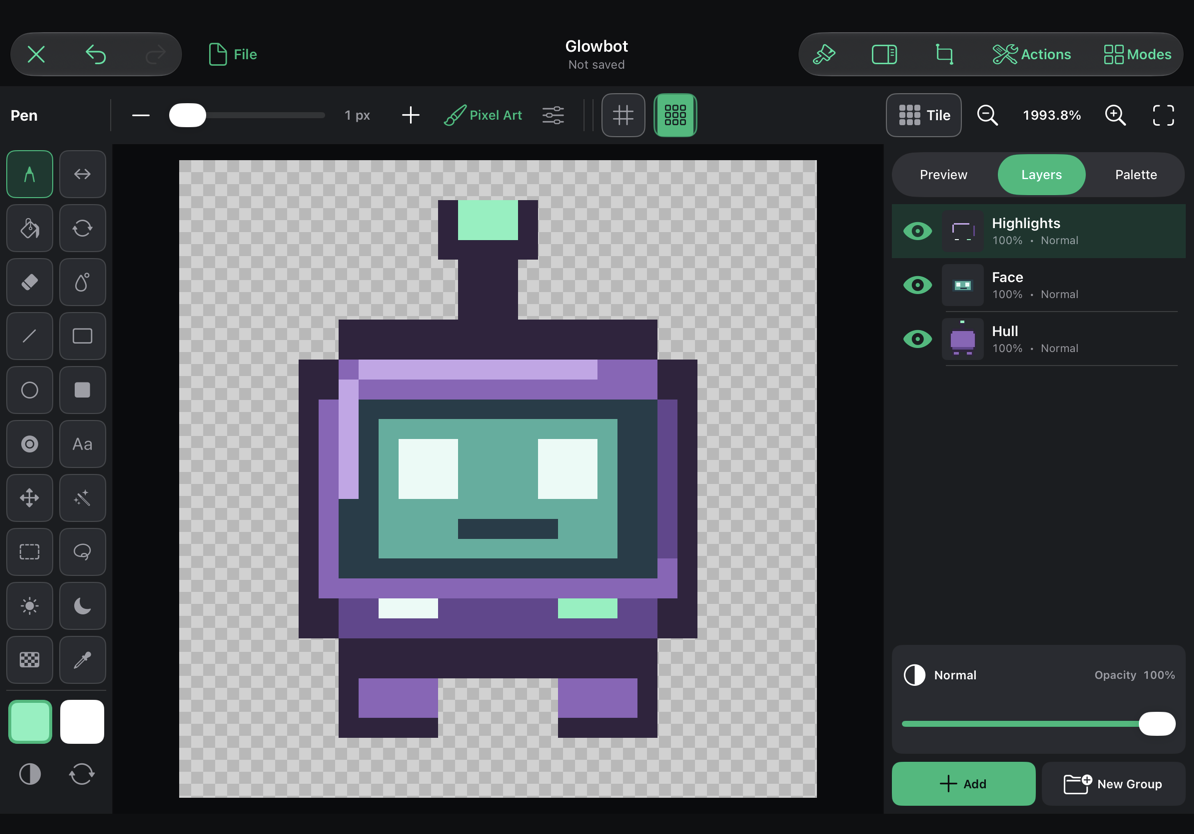
Your character, right down to the pixels in its face.
Turn a drawing into a character with Keyframe Animation
The first time your character blinks back, the drawing starts to feel alive.
Keyframe Animation gives you a frame animation tool inside Art Studio. Draw a frame, add or duplicate the next one, and change what happens. You decide how long each frame stays on screen. Onion skin shows neighboring drawings so you can line up the movement.
Make a robot glance at the player. Let a torch flicker in a dungeon. Give a collectible a spin that makes it hard to walk past. A few deliberate frames can make your world feel much more responsive.
You can build named animation cycles as your character grows, with different timing for each. The tool is there for your first two-frame blink and the longer sequence you want to try next.
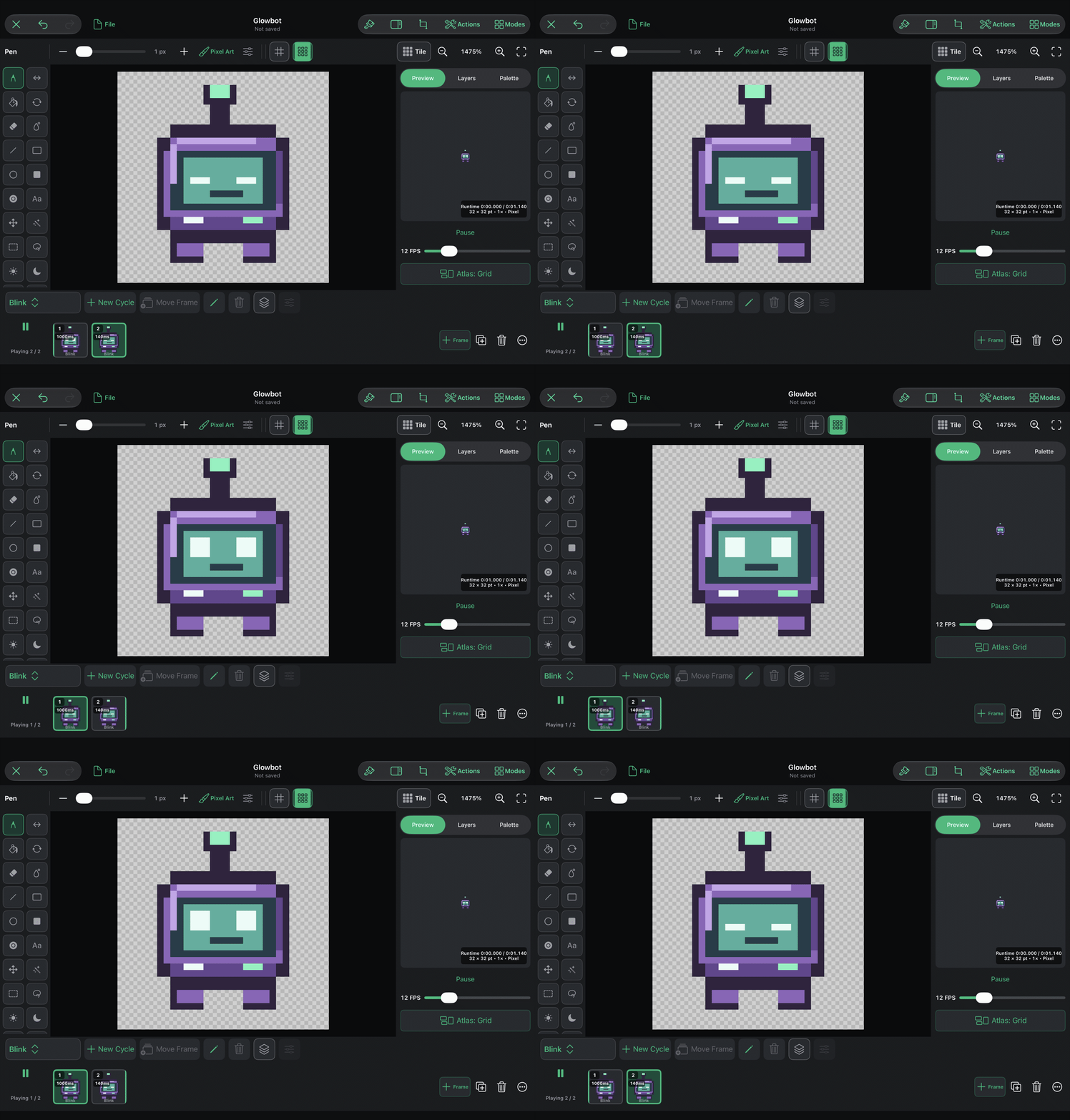
A two-frame blink gives this little robot a personality.
This tool works with the frames you draw. Art Studio’s rig animation tools let you animate a connected skeleton, ready for the engine’s Bones support.
See how to make a frame animation.
Draw a panel once. Let 9-slice make it fit.
Your dialogue box should have room for the story. Your button should have room for its label.
With the 9-slice tool, you can design a Graphic that changes size while keeping its corners intact. Set four guides on your artwork. The corners stay in shape, the edges stretch along one direction, and the middle fills the space.
That gives you one panel design you can use for a short message or a much larger conversation. Build a consistent look for your inventory and menus without drawing every possible size by hand.
Preview different sizes as you work. You can see whether your border holds up before bringing it into the game.
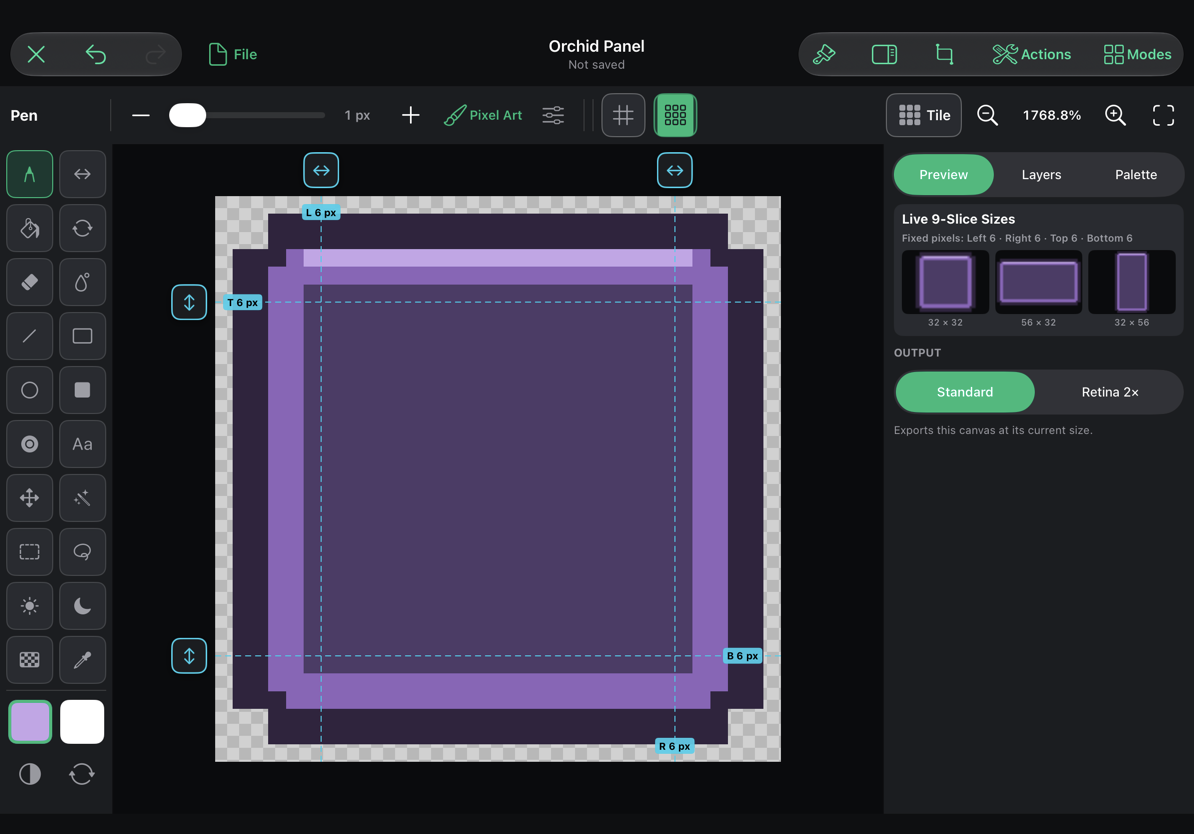
One design, with room for whatever your game needs to say.
Import animated sprite sheets and slice them into frames
Already have a character animation on a sprite sheet? Bring it with you.
Art Studio includes a sprite sheet slicer that turns a regular grid of artwork into individual animation frames. Load the sheet, set the frame dimensions, and adjust the spacing or offsets to match the file. The preview shows the frame boundaries over your artwork before you import.
Your walk cycle can go from a sheet of poses to frames you can preview and time inside hyperPad. You can also import a sequence of image frames.
That makes your existing artwork part of the same creative workflow. A sheet from an older game can become the starting point for your next one.
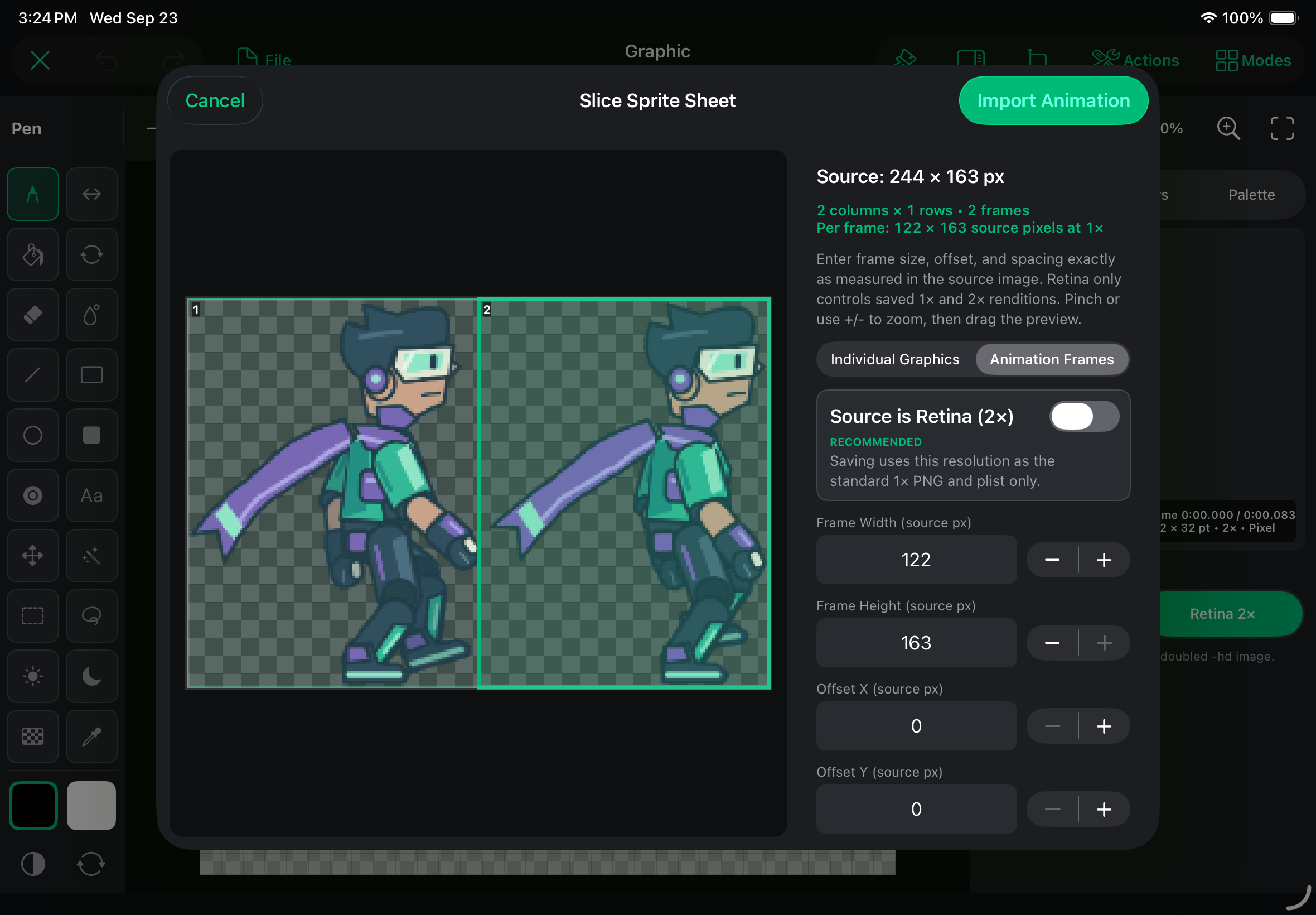
The sprite sheet slicer in use: match the grid to your sheet, check the frame boundaries, then import the animation.
Give your worlds a texture of their own
The look of a game lives in its smaller details, too. A mossy wall or a patterned floor can make a place feel like it belongs to your world.
Art Studio’s live tile preview shows your artwork repeating while you paint. You can spot where the edges meet and fix a seam with the surrounding pattern in view.
Design a tile inside hyperPad, see how it repeats, and use it to build out your level. Your environment can share the same personal style as your characters.
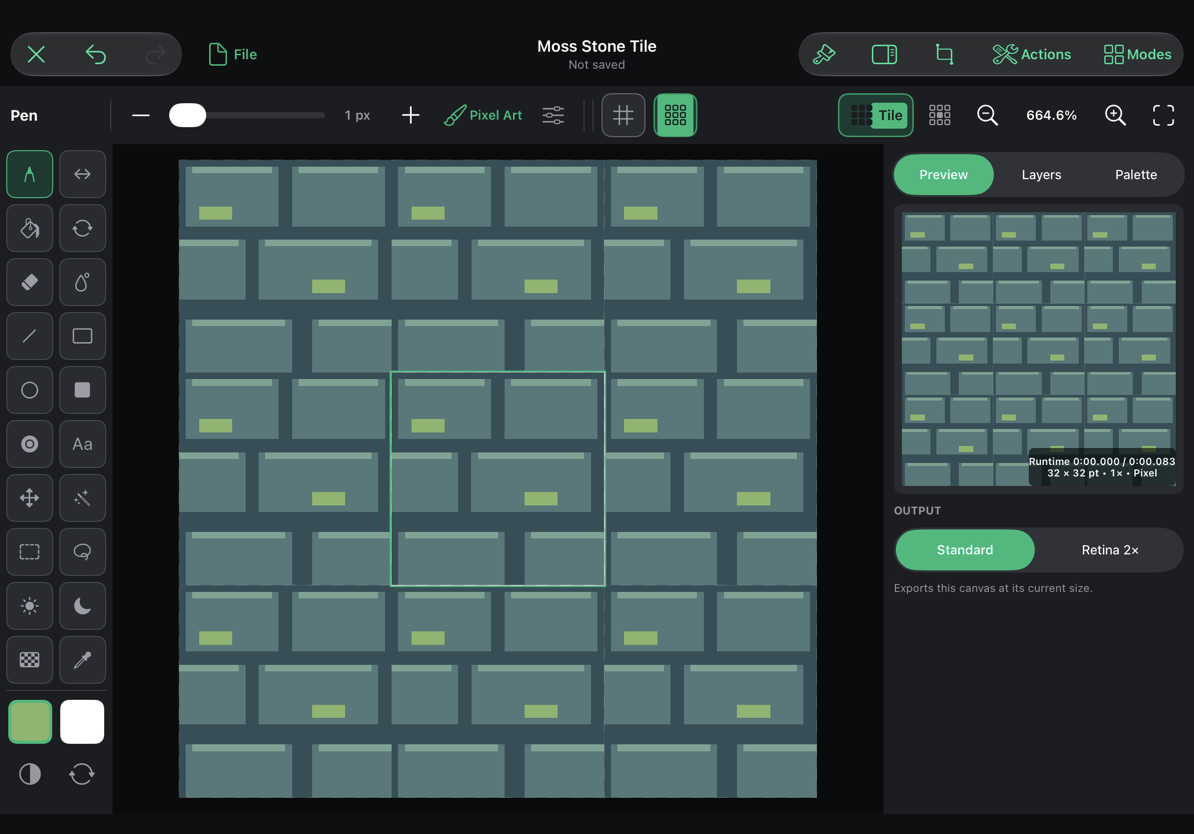
Paint one tile while you see the larger pattern it creates.
Explore tileable textures and 9-slice graphics.
Build the rig and author its animations in Art Studio
Art Studio is also where you prepare a character for Bones. Connect the artwork to a skeleton, pose the limbs, and set keyframes on the rig animation timeline. Build the walk or action you want your game to use.
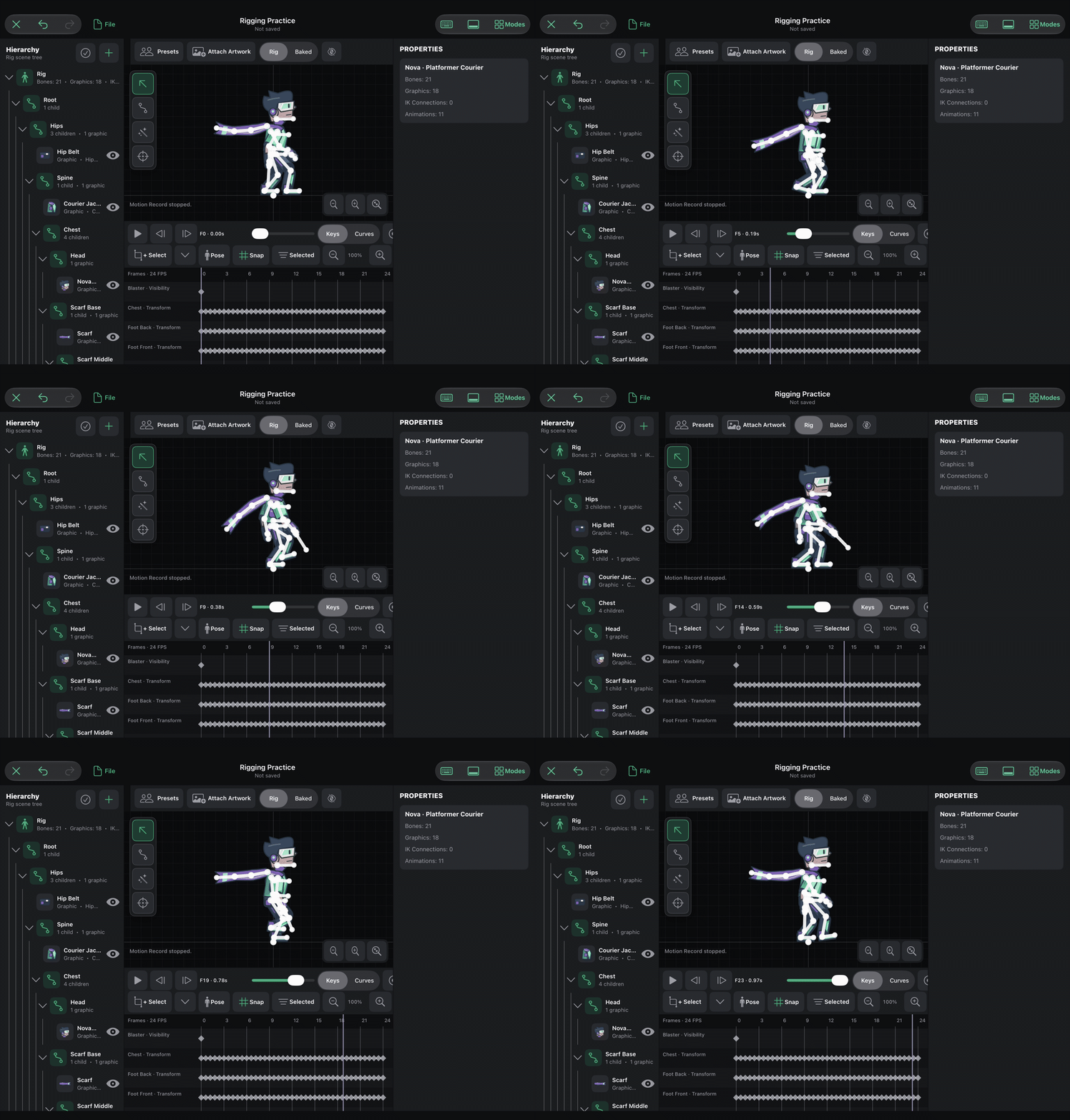
Author a walk in Art Studio, ready to use on your character.
For softer characters, mesh deformation lets the artwork bend. A little jelly creature can squash into the ground and spring back up. You control how its mesh follows the bones through the weights you set.
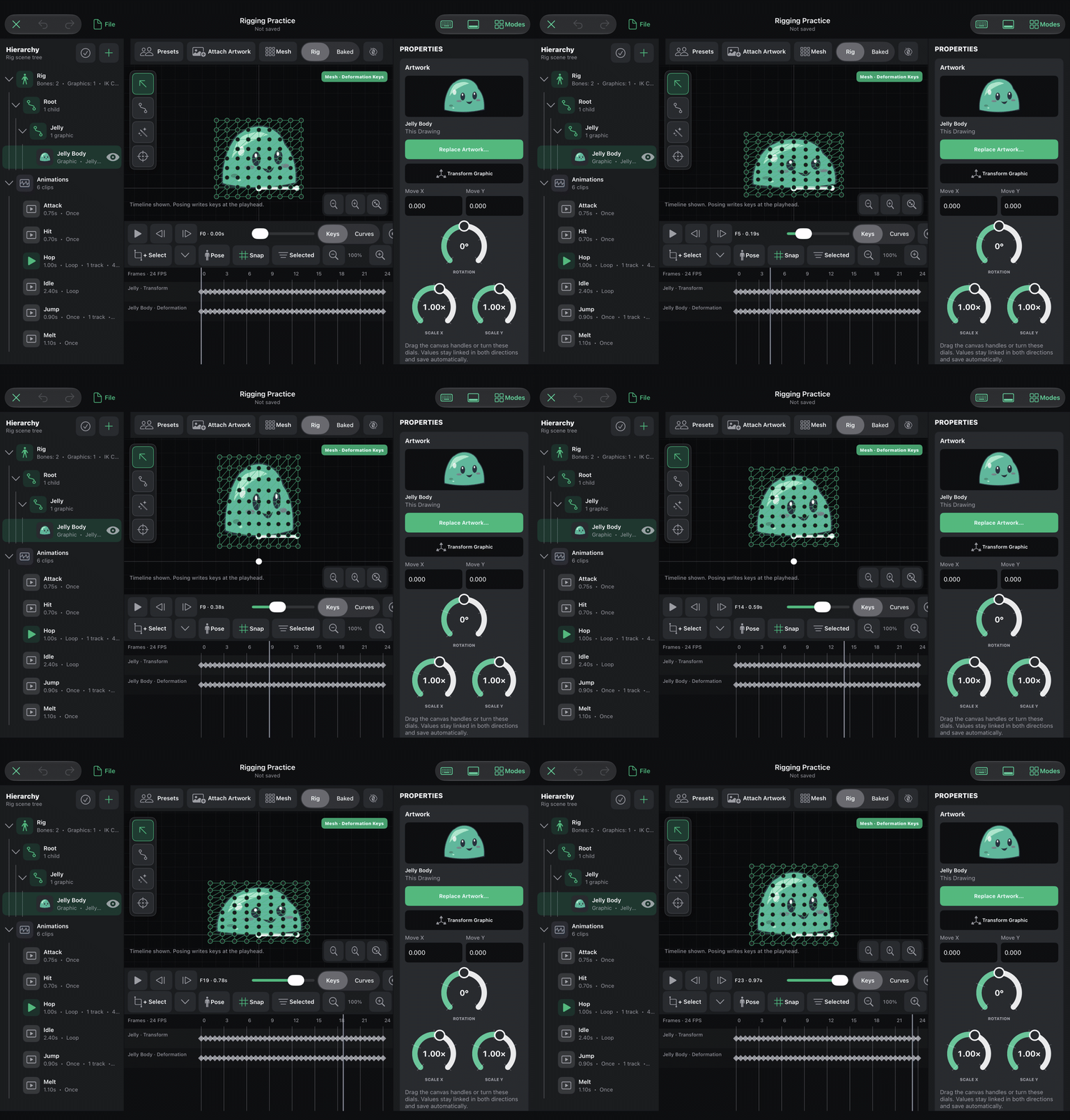
A simple creature gets a bounce of its own.
Save the editable Art Studio project so you can keep developing the character. Then export a live Rigged Object to use the engine’s runtime Bones features, or export a baked animation when your game needs frame playback.
You have a place to create the rig and a game engine that can bring it into play.
Explore rigging and animation in Art Studio.
Your hyperPad purchase goes further
If you’ve been using Photoshop, Pixelmator, or Procreate to prepare artwork for a hyperPad game, you know that the creative work can span several apps.
Art Studio brings the drawing, asset preparation, and rig authoring tools shown here into hyperPad itself. The engine’s Bones support adds live animation control when those characters reach your game. For these workflows, you won’t need to buy a separate art or animation app to get started.
That is a substantial addition to the value of hyperPad. You get more of the tools needed to make a game, in the app you already use to build it.
It also makes room for more experiments. Try a different face. Rework a walk. Paint the background you were putting off. Save your editable Art Studio project so you can come back to it, then export the updated asset into your game.
Both additions are coming to all hyperPad users. You get more ways to create your game’s art and more control over what its characters can do.
Your art can become someone’s next favorite game
If you’re an artist, you’ll have a new place to take your characters. Draw one in Art Studio, give it movement, and use hyperPad’s visual Behaviors to decide what happens when a player interacts with it. You can turn an illustration into something people can play, without traditional coding.
If you already build games in hyperPad, you’ll have more control over how they look and feel. The character on screen can be the one you imagined, with the expressions and movement you made for it.
And every creator will have access to these new tools. That gives the hyperPad community more to create together: original characters to meet in the Hub, playable art experiments to try, and Open Source projects you can Branch to learn how they work.
We can’t wait to play the games you make with these tools.
Start thinking about the character you want to bring to life. Art Studio gives you a place to create it. Bones gives your game new ways to make it move.
Explore the Art Studio guides for a closer look at what you’ll be able to make.