How iPad Changed Mobile Game Creation

Apple introduced the iPad on January 27, 2010. The original announcement presented it as a device for browsing, reading, watching video, listening to music, playing games, and using Multi-Touch apps.
The iPad later became a place where you could create the game as well as play it. With hyperPad, you can arrange a Scene, import your own art and audio, connect visual Behaviors, and test the result directly on iPad.
From playing games to making them
Apple's original iPad announcement emphasized direct interaction with apps through the Multi-Touch display. That input model also suits game creation.
When you build in hyperPad, the same screen serves two roles:
- the editor where you arrange Objects and connect Behaviors
- the test device where you play the current version
You can change a jump value, run the Scene, and feel the result through the same touch interface your players will use.
What visual game development looks like
A hyperPad Project is organized around visible parts of the game:
- Scenes hold levels, menus, and other screens.
- Objects represent characters, buttons, collectables, labels, and scenery.
- Graphics control how Objects look.
- Attributes store values such as score, health, inventory, or state.
- Behaviors connect events, decisions, and actions.
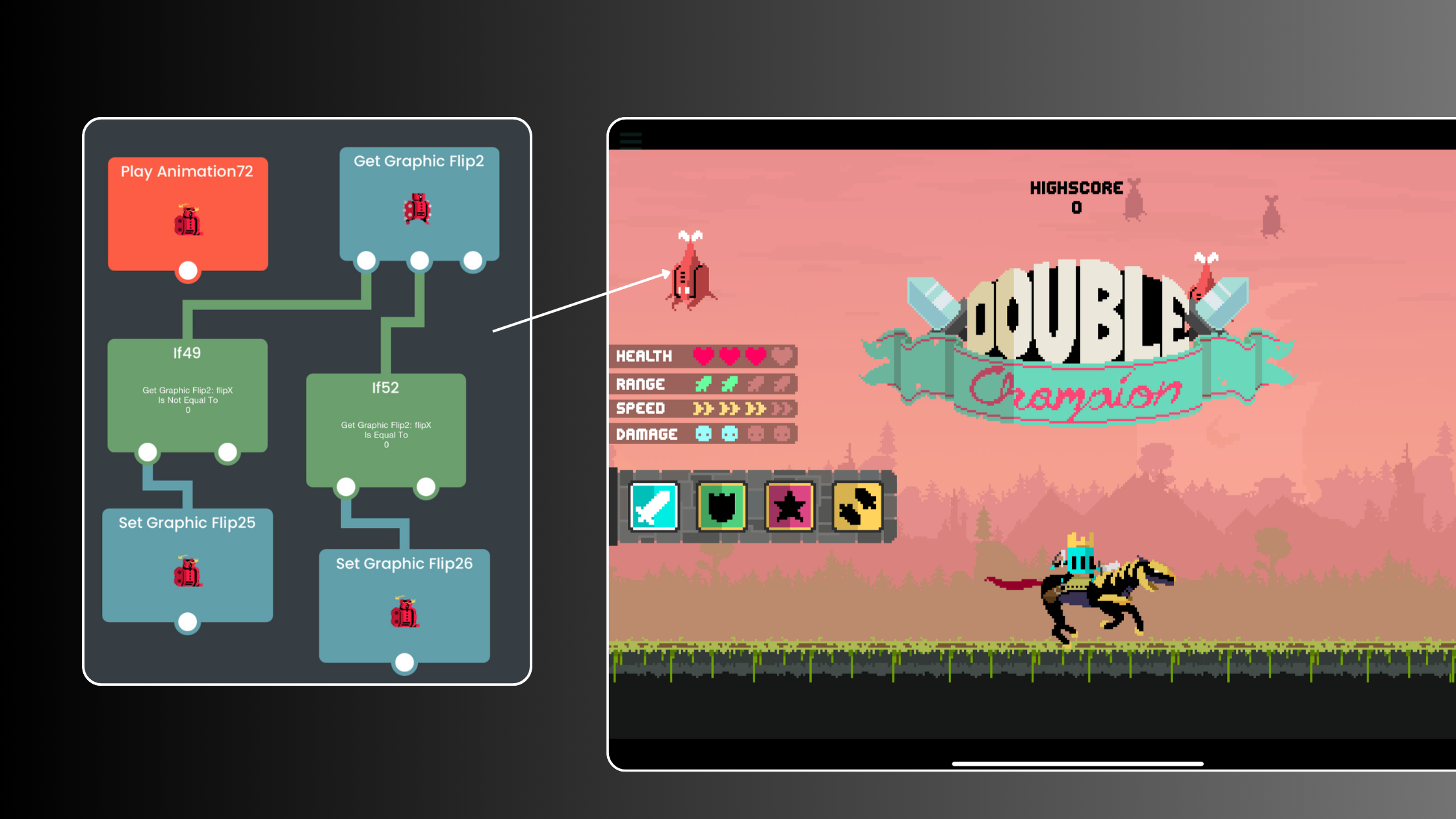
The Behavior Editor overview explains how events start an execution chain and actions change the game.
This is visual programming. A player touch can start a chain that checks a condition, changes an Attribute, plays audio, updates the interface, and moves to another Scene.
A small iPad game loop
A collect-and-score mechanic shows how these parts work together.
- Place a player Object and a coin Object in the Scene.
- Add an Attribute named Score and set it to 0.
- Detect when the player touches or collides with the coin.
- Add 1 to Score.
- Update the score label.
- Disable or move the coin.
- Test the complete loop on iPad.
The Object Attributes guide explains how values can be stored and changed during play.
Start with placeholder Graphics. Once the mechanic is reliable, replace them with your own art and add sound or animation that clarifies the action.
Why the iPad workflow matters
An iPad-first workflow reduces the distance between editing and testing. It is useful when your game depends on touch input, tilt, screen layout, or short playtest cycles.
Different creators can enter through different parts of the Project:
- an artist can import character and environment Graphics
- a musician can build interaction around original audio
- a teacher can use a small game to demonstrate events, state, and conditions
- a developer can prototype a risky mechanic before expanding the design
The workflow is approachable because the logic is visible. It can still represent programming concepts such as input, values, conditions, state, object relationships, transforms, physics, and Scene changes.
From prototype to community feedback
A first version should answer one question. For example: does the jump feel predictable, does the rhythm stay aligned, or can the player understand the choice?
When the mechanic works, the broader hyperPad workflow can continue through the Hub and Forum:
- Build and test the Project on iPad.
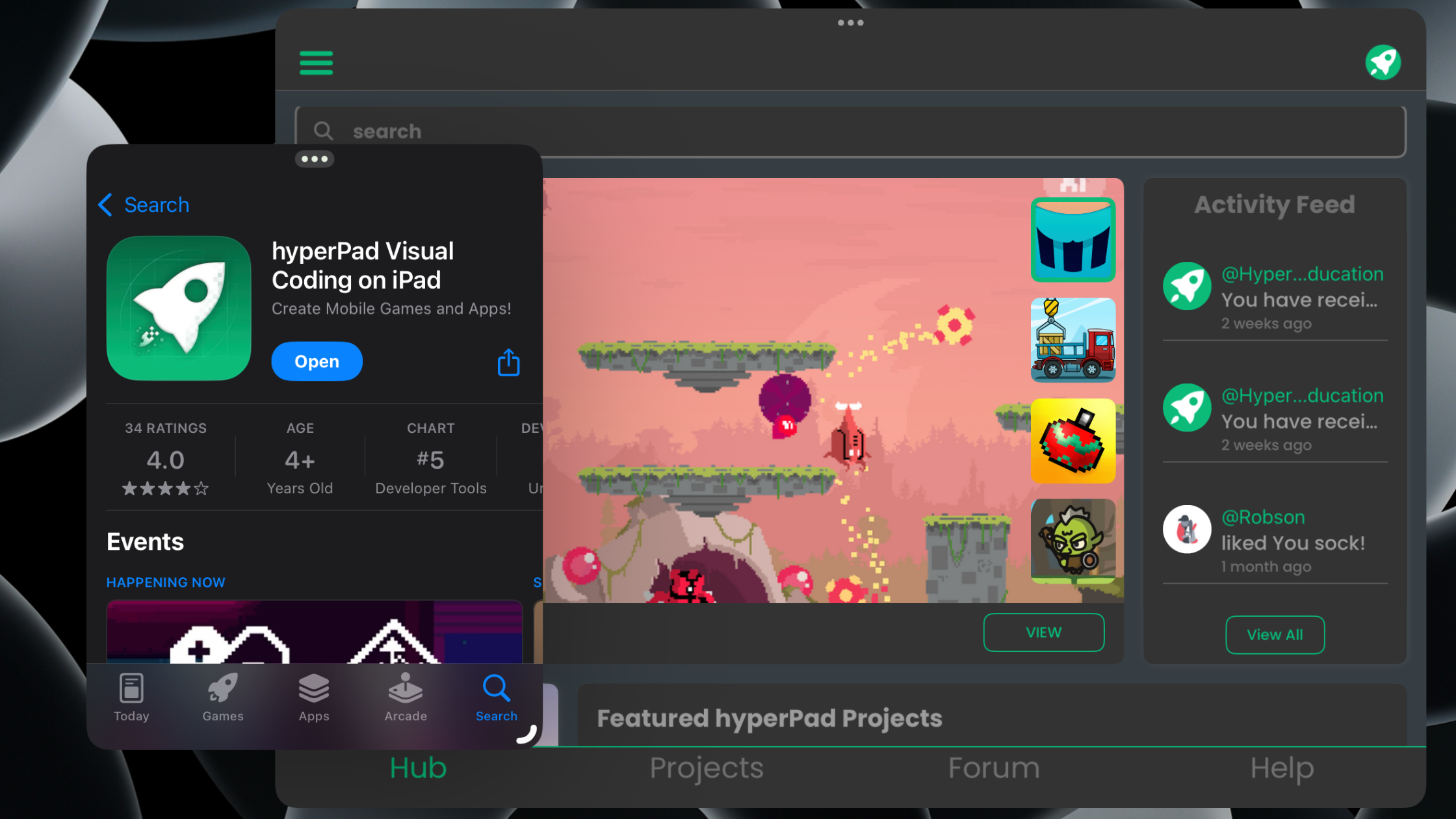
- Publish an eligible Project to the hyperPad Hub.
- Ask for focused feedback in the Forum.
- Revise the Project based on repeated observations.
- Prepare the Apple release workflow when the game is ready.
Publishing to the Hub and exporting for the App Store are different actions. A standalone App Store release uses hyperPad's Xcode Export workflow and also requires a compatible Mac, Xcode, an Apple Developer account, and App Store Connect.
What changed after the first iPad
The hardware, operating system, accessories, and App Store have changed since 2010. The useful idea for a game creator is simpler: the iPad can be both the creative workspace and the player's device.
That makes rapid testing practical. You can build one mechanic, play it, record what happened, and change one value before the next test.
For the complete current workflow, read iPad Game Development: How to Make a 2D Game on iPad.
Choose one interaction that depends on the iPad itself. Build the smallest version, test it with another person, and use what they do to decide the next change.