

Pair Phone Controller
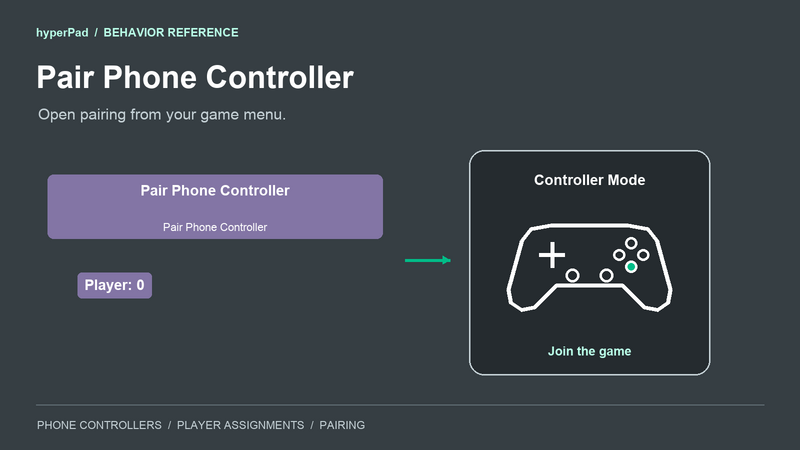
Open a pairing screen from your game's own menu. Your players can connect a phone or iPad and use it as a controller.
You can find Pair Phone Controller in Interaction > Controls.
What it does
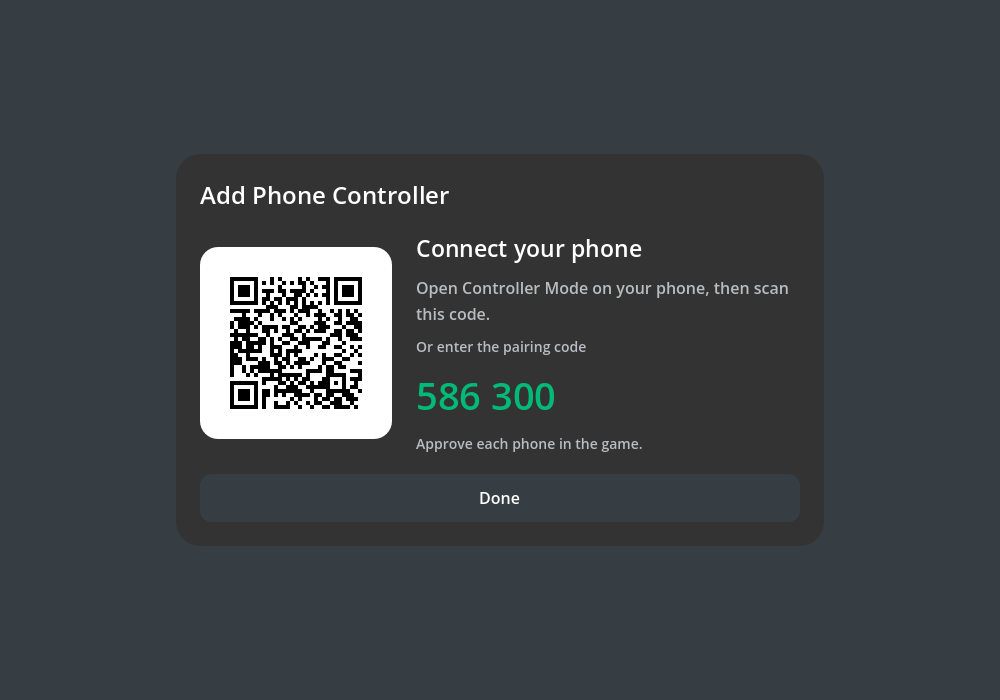
When this behavior runs, it opens Add Phone Controller and starts accepting pairing requests. Players open Controller Mode on their other device. You approve each request in the game.
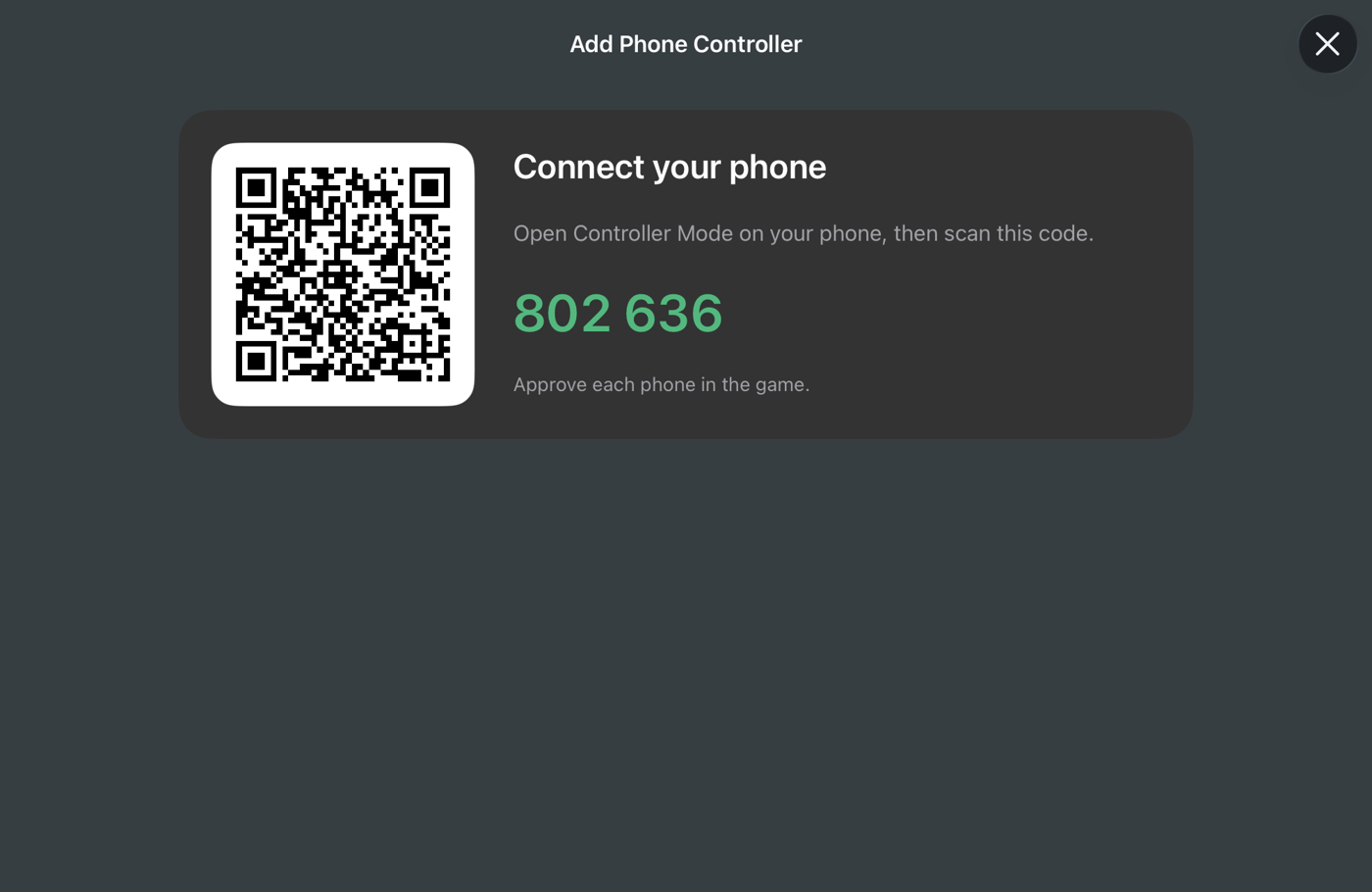
The provided native screen handles the pairing code and incoming requests. Tap a request to open the approval prompt.
Pairing uses the same controller inputs as Controller Event and Map Control Inputs. A phone can use your existing controller bindings. It shows the controls your game uses for its assigned player.
Connections
- Input connection: Opens the pairing screen when a connected behavior triggers it.
- Output connection: Runs after the screen opens. It does not wait for a phone to connect.
Use Controller Status to respond when a phone connects. You can read the connected devices with Get Controllers.
Properties
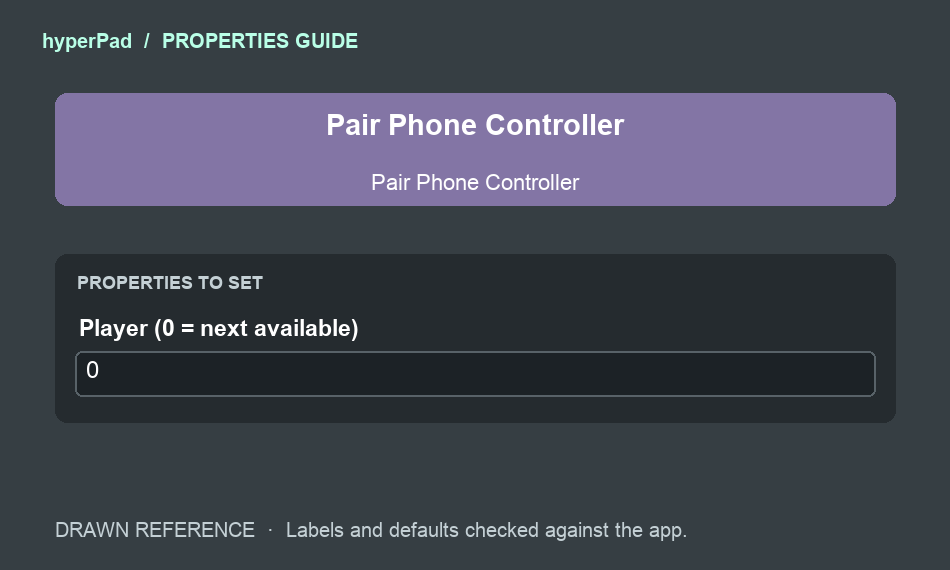
Properties guide. Labels and defaults match the Behavior Editor.
- Player (0 = next available). Default:
0. Keep0to use the next free player slot. Set a positive number to request that player. An occupied slot is never replaced automatically.
For a shared Add Controller button, use 0. For a Player 2 join button, use 2 and keep that slot free.
Outputs
success(Boolean): Whether the pairing flow is accepting requests when this behavior finishes. This does not confirm a phone connection.code(Text): The current six-digit pairing code. It can be empty while an online code is being prepared.pairing(Boolean): Whether the game is accepting new pairing requests.
These outputs describe the moment the screen opens. For updates to the code or pending requests, use Phone Controller Pairing.
Example: add a pairing button
- Add an Object for your Add Controller button.
- Add Started Touching and select that button as Object A.
- Connect its output connection to Pair Phone Controller.
- Keep Player at
0.
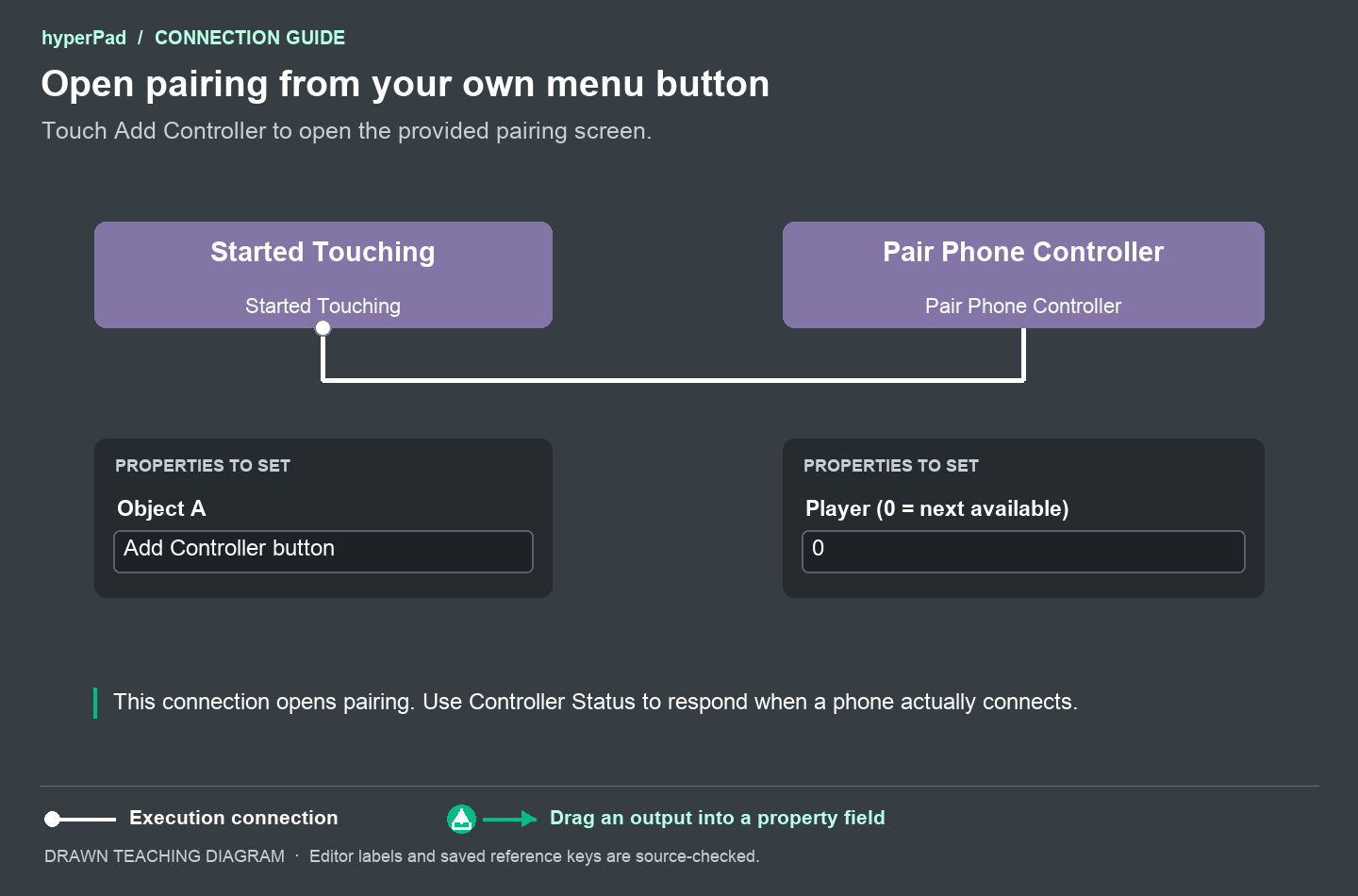
The white line triggers pairing when you touch the button. It is an execution connection.
Run your game and tap the button. On another device, open Controller Mode and join. Accept the request in your game.
Closing the pairing screen stops new requests. Phones you have already accepted stay connected. Use Assign Controller if your game lets players change their assignments.
Choosing a pairing UI
Use this behavior when you want the provided screen. Use Phone Controller Pairing when you want to display the code, build a request list, and add your own Accept and Decline buttons.
Browser games need an available online pairing service for code-based pairing. Opening this screen does not set up that service. Nearby discovery is for supported native games on the same local network.
The browser player shows Accept and Decline beside each incoming request.
For instructions you can share with your players, see Play with your phone: virtual controllers and pairing.