

Play with your phone: virtual controllers and pairing
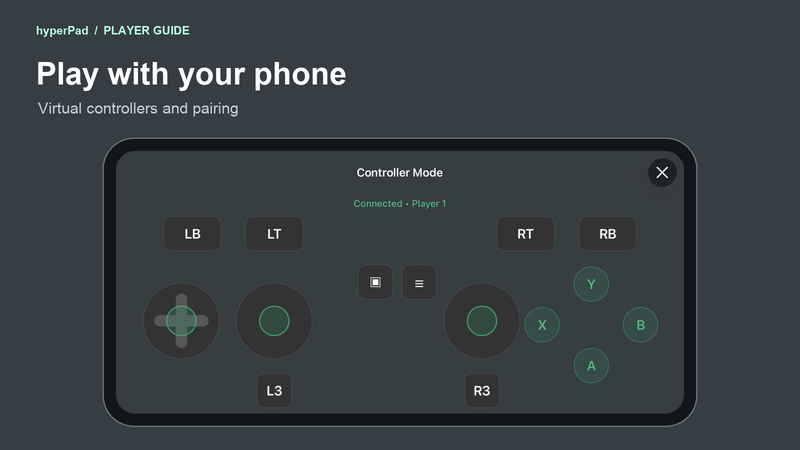
Use your phone or iPad to play a hyperPad game on another screen. After you pair, your device shows touch controls for the game you're playing.
This guide is for players. You can join a game without opening the editor.
Before you pair
You need hyperPad or hyperPad Hub on the device you'll use as a controller. The game on the other screen must support phone controllers and provide a pairing screen.
For a nearby game, connect both devices to the same Wi-Fi network. Browser games use the game's pairing QR code or online pairing code. They do not appear automatically in the Nearby games list.
1. Open pairing in the game
On the screen running the game, open its menu and choose Add Phone Controller. A game with its own menu may put pairing behind a different button.
Keep the pairing screen open. It shows a QR code or a six-digit code for this game session.
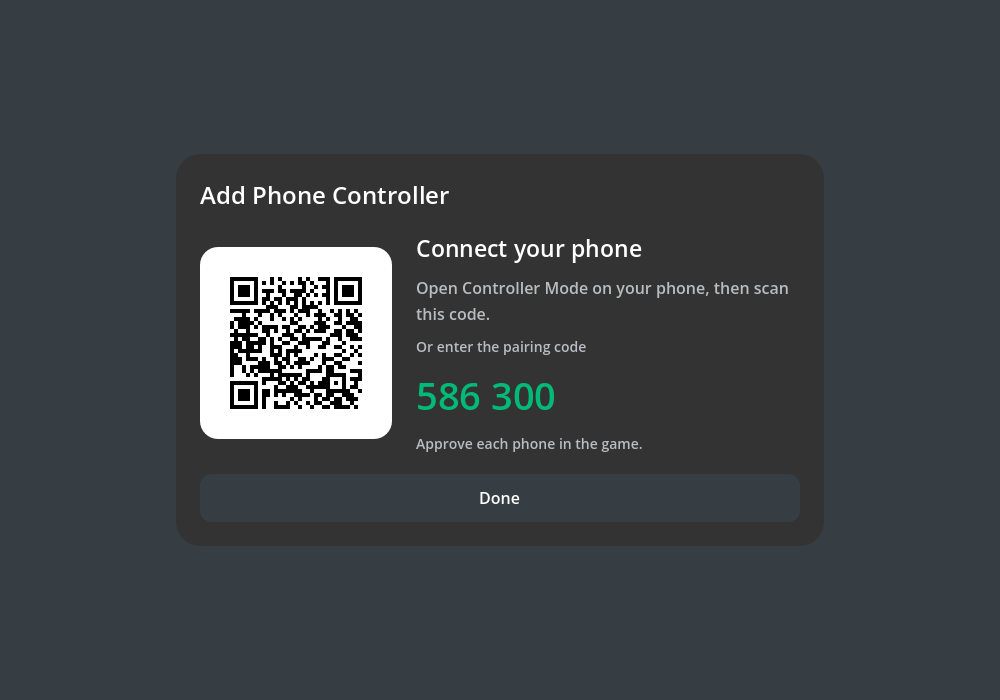
Example from a browser game. Your game may use a different pairing screen. The code shown here is a screenshot example.
2. Open Controller Mode on your phone
Open hyperPad or hyperPad Hub on the device you want to hold. From the main screen, open the hamburger menu and tap Controller Mode.
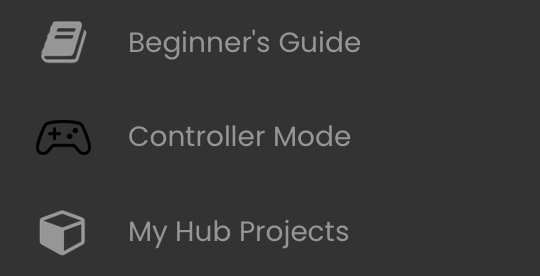
Open this menu outside a Project.
3. Choose the game
You can join in three ways:
- Nearby game: Tap the game in Nearby games. Both devices need to be on the same local network.
- QR code: Tap Scan Pairing Code and scan the code on the game's pairing screen. Allow camera access when asked.
- Online pairing code: Enter the game's current six-digit code and tap Pair with Game. The game needs its online pairing service available.
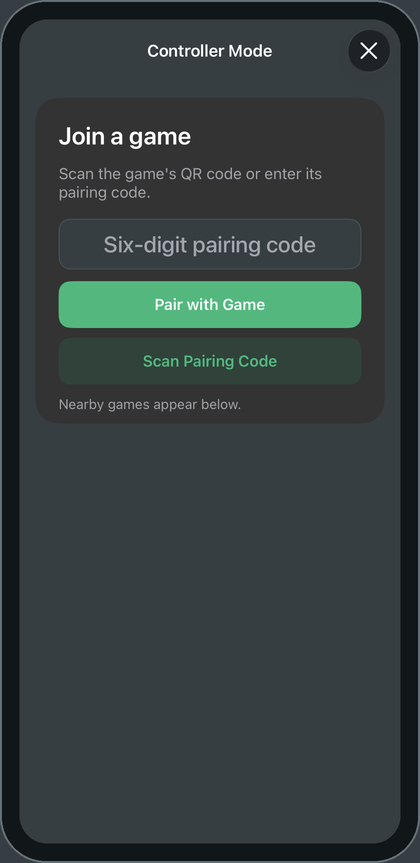
If more than one nearby game appears, choose the name shown by the game you want to join. A QR code points to its game directly. When a QR code connects to a nearby game, keep both devices on the same network.
4. Accept the phone in the game
Return to the game's pairing screen. Find your device's request and choose Accept. In the provided native screen, tap the request first to open the approval prompt.

The game approves each device before it can send controls.
If you decline by mistake, send a new request from Controller Mode. Closing the game's pairing screen keeps phones you've already accepted connected.
5. Start playing
Your phone shows Connected · Player followed by your player number. Hold the device in landscape and use the touch controls.
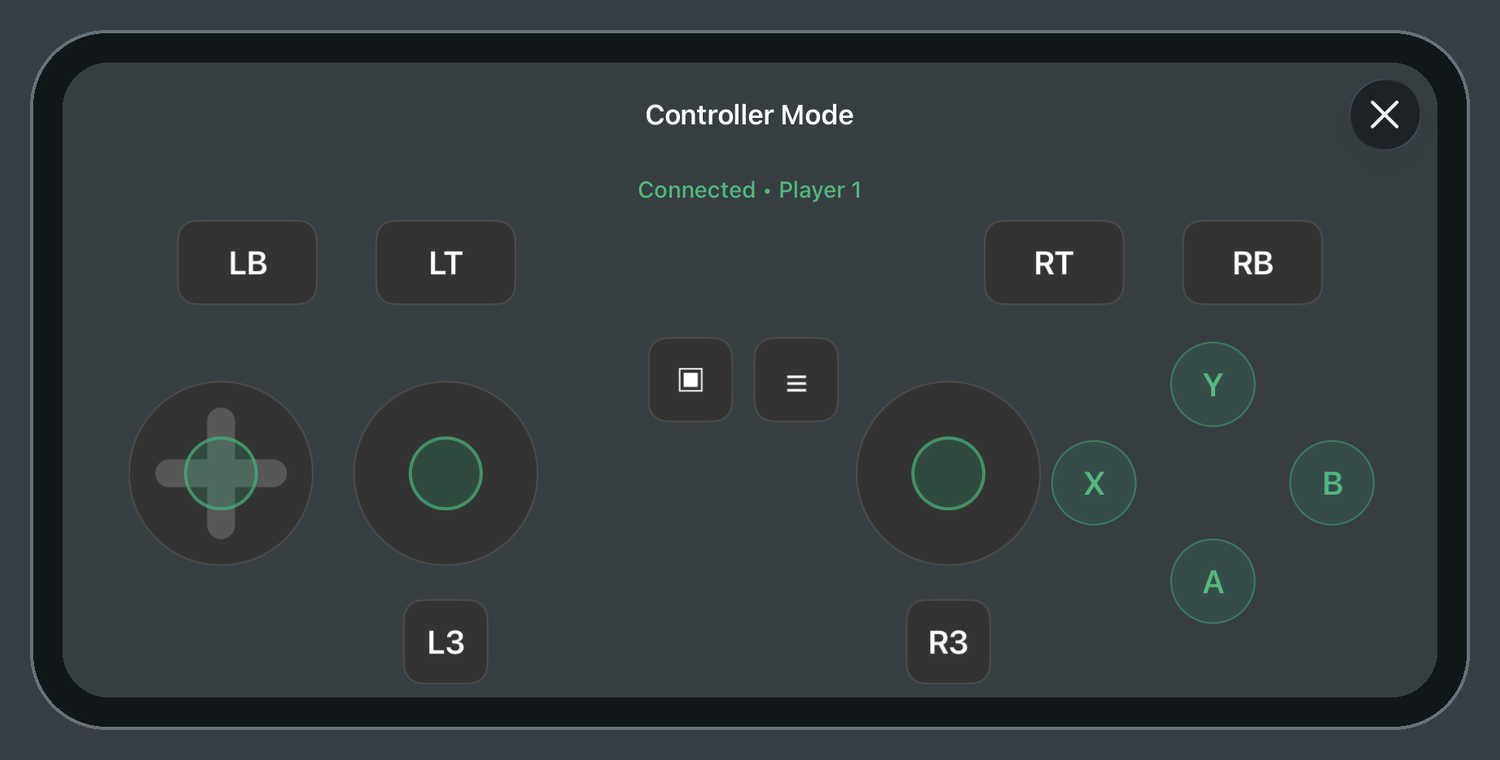
This example uses every controller input. Your game shows only the controls it uses.
The phone shows the buttons and sticks the game uses for your player. Unused controls stay hidden. The button labels follow the standard controller layout. Look at the game's controls screen or instructions to learn what each button does.
Keep Controller Mode open while you play. Tap the close button on your phone when you want to disconnect.
Play with friends
For a game that supports multiplayer, each friend opens Controller Mode on their own phone and sends a request. Accept each phone in the game.
The game gives each accepted device a free player slot. Check the player number on each phone. If the game has a player-selection screen, use it to change who controls each player.
A game can use phone controllers alongside physical controllers. The number of players and the assignment options depend on the game.
Change your controls
If the game provides a Controls screen, open it and choose the action you want to change. Start rebinding, then press the new control on your phone.
During a controller rebind, your phone shows the full layout. Afterward, it returns to the controls the game uses. The game's controls screen shows your new binding.
If pairing doesn't work
- Nearby games is empty: Keep the game's pairing screen open. Check that both devices use the same Wi-Fi network and allow Local Network access for hyperPad or hyperPad Hub. Guest networks can prevent devices from finding each other. For a browser game, use its QR code or online pairing code.
- The code is rejected or has expired: Reopen pairing in the game and use the new code. Pairing sessions accept new requests for five minutes.
- Pair with Game cannot connect: Check your internet connection. The game must have its online pairing service available. If the game offers a nearby connection or a local QR code, try that on the same network.
- The phone is waiting for approval: Accept its request on the screen running the game. If the request disappears, join again.
- The QR scanner won't open: Allow camera access for the app, then try Scan Pairing Code again.
- The phone connects but shows no controls: The game needs controller inputs for your assigned player. Check the game's instructions or ask its creator which player to use.
- The connection stops after you lock your phone or leave the app: Return to Controller Mode. A brief interruption may reconnect. If it keeps waiting, reopen pairing in the game and join again.
When the game ends, its controller session ends too. Open pairing in the next game to join it.