

Controller Event
Description
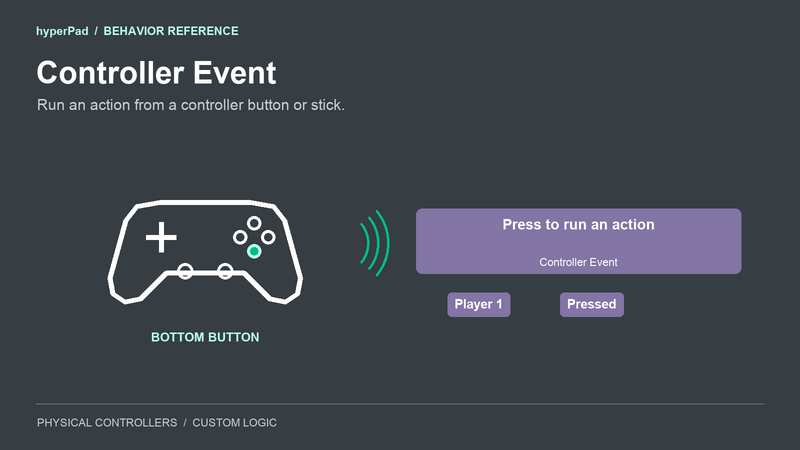
Use Controller Event to run your own behaviors from a physical controller. You can build controller controls from the start without adding an on-screen joystick or button.
Choose a player, a control, and the event you want to receive. Connect its white event output to your next behavior. For custom movement or aiming, drag its numeric outputs into the behaviors that calculate your movement.
If your game already uses Joystick Controlled, Jump with Button, or a touch button, Map Control Inputs can add an alternative to that existing input.
Play a sound when a button is pressed
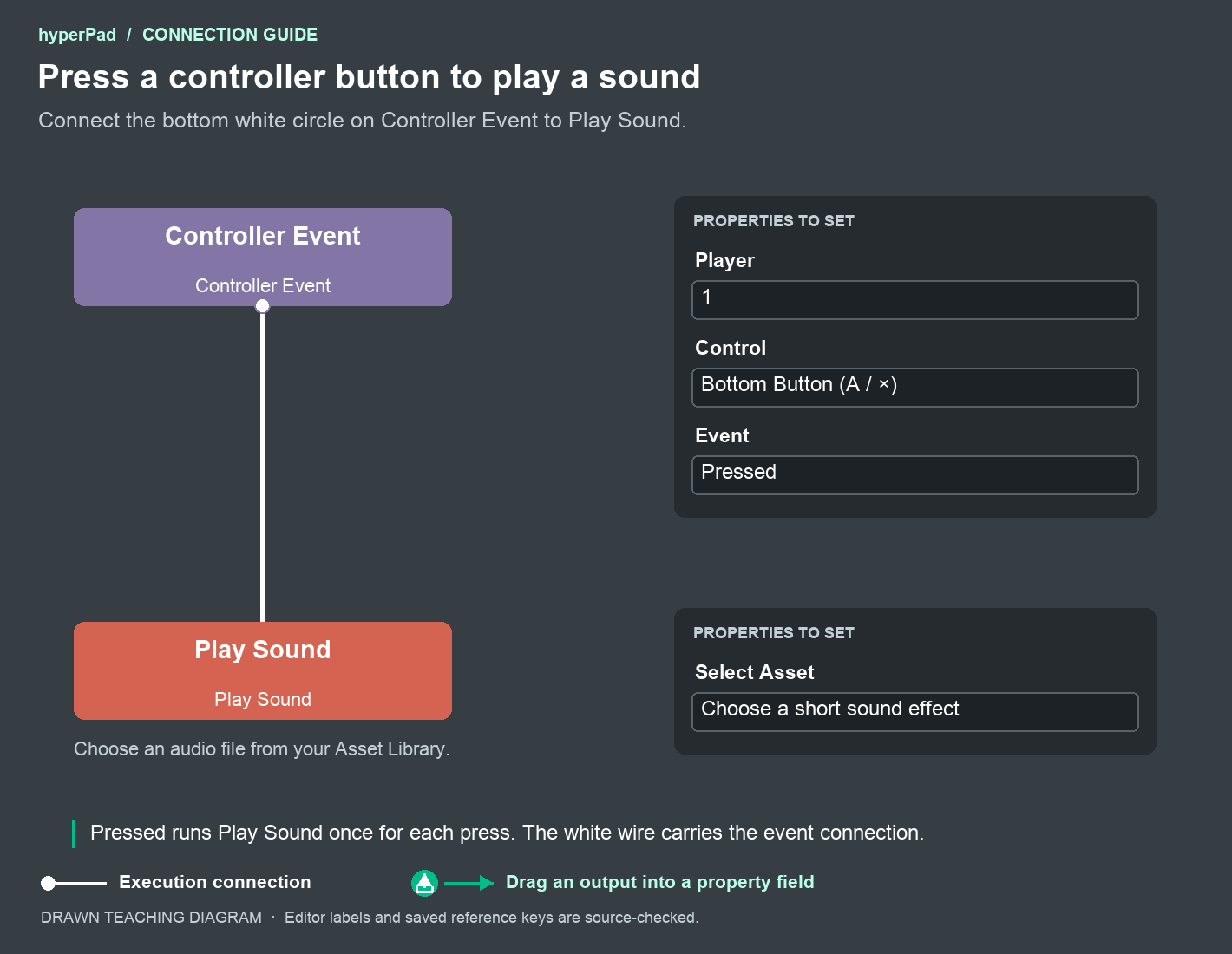
The white connection runs Play Sound when the press occurs. This example does not need a green data drag.
- Add Controller Event and let it listen from Scene start.
- Set Player to 1, Control to Bottom Button (A / ×), and Event to Pressed.
- Add Play Sound. Use Select Asset and choose a short sound effect from your Asset Library.
- Connect a free bottom white circle on Controller Event to the top white circle on Play Sound.
- Connect a supported controller and play your Project. Press the bottom face button.
You should hear the sound once for each press. Holding the button does not repeat this Pressed event. While Held would run the connected behavior every active frame, so use it only when repeated execution is what you want.
The green Input output identifies this controller input for input-related features. Use the white execution connection to trigger Play Sound.
Properties
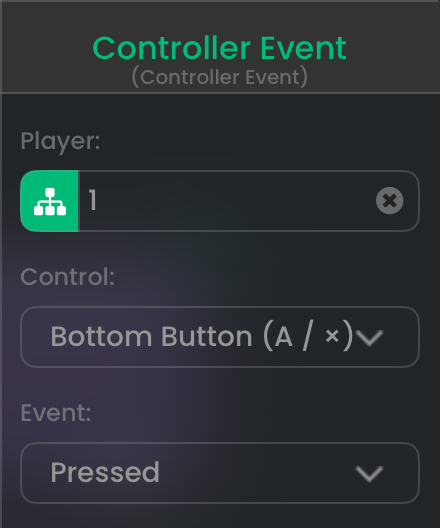
| Property | Default | What you set |
|---|---|---|
| Player | 1 | The assigned player whose controller you want to read. Enter 0 to listen to any connected controller, including one that is not assigned to a player. |
| Control | Bottom Button (A / ×) | The controller position to listen to. Choose one of the controls below. Your connected device must support it. |
| Event | Pressed | Choose when the white event connection runs. |
Control choices
| Kind | Exact choices |
|---|---|
| Directional controls | D-pad, Left Stick, Right Stick |
| Face buttons | Bottom Button (A / ×), Right Button (B / ○), Left Button (X / □), Top Button (Y / △) |
| Shoulders and triggers | Left Shoulder, Right Shoulder, Left Trigger, Right Trigger |
| Stick clicks | Left Stick Click (L3), Right Stick Click (R3) |
| Menu buttons | Menu, Options |
Face buttons are named by position so you can use the same setup across supported controller brands. The printed letter or symbol on a controller can differ.
Event choices
| Event | When your connected behaviors run |
|---|---|
| Pressed | Once when the control becomes active. For a stick or D-pad, this happens when it moves away from neutral. |
| Released | Once when the control becomes inactive or returns to neutral. |
| While Held | Every active frame while the control remains active. |
| Value Changed | Whenever its value changes, including changes in direction or pressure and a return to neutral. |
Changing direction while a stick remains active does not create another Pressed event. Use Value Changed to read those changes, or While Held when your calculation should run every frame.
Outputs
| Output | Type | Meaning |
|---|---|---|
Input | Input reference | Identifies this controller input, including its Player and Control. It is available before the first hardware event. Select this behavior in Rebind Input to change its own controller binding. |
value | Number | Button or trigger pressure, or directional magnitude, from 0 to 1. Digital buttons normally use 0 and 1. |
x | Number | Horizontal directional value from −1 for left to 1 for right. Buttons output 0. |
y | Number | Vertical directional value from −1 for down to 1 for up. Buttons output 0. |
pressed | Boolean | True while the control is active; false when it is inactive. |
deviceID | Text | Runtime ID of the controller that supplied the event. You can pass it to Assign Controller. Use it during the current session rather than saving it as a permanent hardware ID. |
playerIndex | Number (integer) | The current assignment of the controller that fired. 0 means unassigned. This can differ from the Player property when you listen with Player 0. |
dt | Number | Elapsed seconds for a While Held frame update. Use this output for frame-based calculations with While Held. |
The numeric and device outputs describe the event that just fired. Input provides the persistent input reference. Changing an output's value does not change the Player you selected in the properties.
Build custom movement
Choose Left Stick and use x and y in your own movement calculations. For each data connection, select the receiving behavior first. Drag Controller Event's green output icon into the receiving property, then choose x or y from the output list.
A full push to the right supplies x = 1, y = 0. A full push upward supplies x = 0, y = 1. Scale those values to the speed or force your game needs.
Plan what should happen when the stick is released. While Held stops running when the control becomes inactive. If your graph sets a velocity that stays active, add a release action that stops it, or use Value Changed so your graph receives the neutral values. Your movement behaviors decide how your character accelerates, collides, and animates.
For keyboard or mouse alternatives to a custom action, connect Keyboard Event or Mouse Event to the same action where appropriate. Controller Event reads controller controls. Its Input reference cannot be used as a reverse mapping that creates touch input through Map Control Inputs.
Multiple players
Use Player 1 for one player's event and Player 2 for another's. Both players can use the same Control name. Assign Controller and the Controls overlay choose which connected device belongs to each slot.
With Player 0, each device can fire independently. The deviceID and playerIndex outputs tell you who supplied that event. This is useful for a join action. For While Held, two held controllers can produce separate callbacks in the same frame.
Connect or pair controllers through the platform's supported Bluetooth or USB setup. Your game selects among the connected devices.
Rebinding and execution
Controller Event begins listening when it starts. If you connect another behavior to its top white circle, that execution starts the listener. Registration alone does not fire the selected input event.
The editor's editable Controls overlay and Rebind Input can change this event's controller binding. The generated per-player Controls list omits Player 0 listeners, which are often used for joining or menu navigation. You can select such an event explicitly in Rebind Input when you need to change it.
Disabled behaviors and paused gameplay do not run these input actions. During rebinding, captured input is kept out of gameplay. Use Controller Status for a disconnect response. Treat Released as an input event rather than relying on it to identify a disconnected device.