

Vibrate
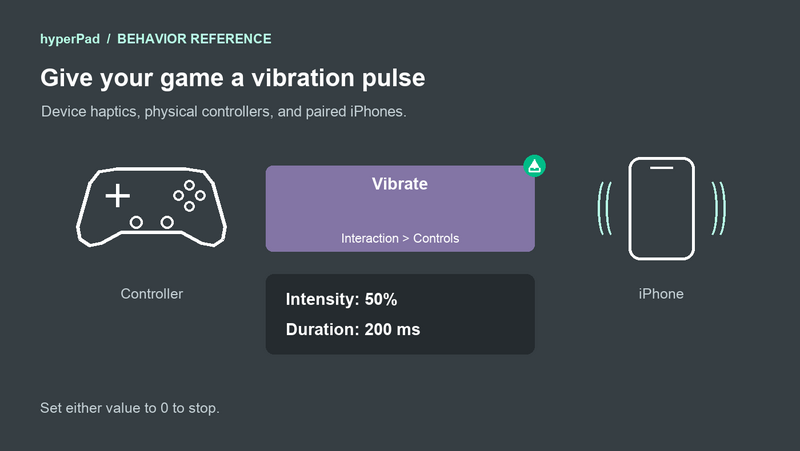
Add a vibration pulse to a hit, jump, or button press in your game. Vibrate sends feedback to the device running the game, a supported physical controller, or a paired iPhone controller.
Find it in Interaction > Controls.
Properties
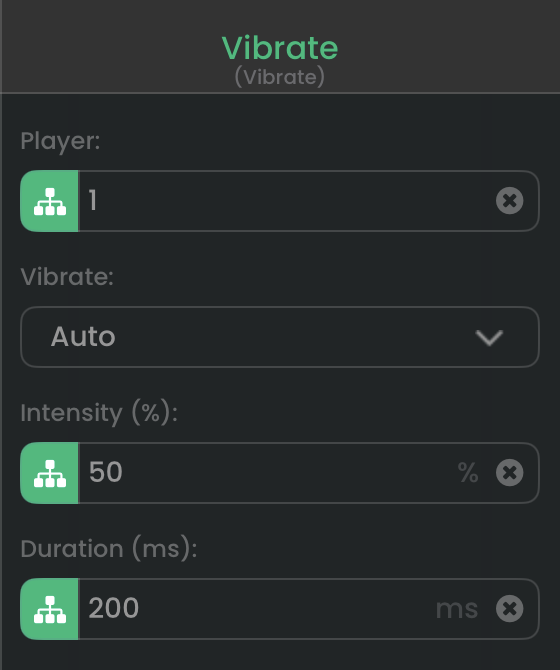
The native property panel rendered in dark mode, using Vibrate's default settings.
| Property | Default | What you set |
|---|---|---|
| Player | 1 | The player whose assigned controller should vibrate. Use a positive player number for one player. 0 requests feedback on all connected controllers. Device ignores this property. |
| Vibrate | Auto | Where the pulse goes. Choose Auto, Device, Controller, or Device and Controller. See the choices below. |
| Intensity (%) | 50 | Strength from 0 to 100%. Set 0 to stop. Values outside the range are clamped. |
| Duration (ms) | 200 | Length from 0 to 30000 milliseconds. 1000 ms is one second. Set 0 to stop. Use 150 ms for a short pulse. |
You can drag numeric outputs into Player, Intensity, or Duration. Intensity expects a percentage. If your source output runs from 0 to 1, multiply it by 100 first. Duration expects milliseconds.
Choose where the pulse goes
- Auto: Tries the selected player's controller first. If the controller request is unavailable, it tries the device running the game.
- Device: Uses the built-in haptics of the device running the game. For example, an exported game running on a supported iPhone can vibrate that iPhone.
- Controller: Uses the controller assigned to Player. This can be a supported physical controller or a paired iPhone. It keeps feedback on that player's controller.
- Device and Controller: Requests feedback on both the device running the game and the selected player's controller.
Device always means the device running your game. If your game runs on an iPad and a player uses a paired iPhone, choose Controller to vibrate the iPhone. The iPad has no built-in haptics.
Input and event connections
Each execution requests one pulse. Connect a gameplay event to Vibrate's top white circle. Its bottom white event connection runs after the request, including when the destination cannot vibrate. It does not wait for Duration to finish.
A new request replaces the current pulse on the same destination. Set Intensity or Duration to 0 to stop it. In Auto mode, a stop also clears any earlier device fallback.
Use Pressed for one pulse per button press. While Held can run Vibrate every frame and restart the pulse repeatedly.
Output
success(Boolean):truewhen at least one destination accepts the request.falsewhen no selected destination accepts it. A request sent to a paired phone does not confirm that the player felt it. Browser or device settings can also prevent feedback after a request is accepted.
Your connected gameplay behaviors still run when success is false. Use this output if your own UI needs to check the request result.
Example: one pulse per button press
- Add Controller Event. Leave it without an incoming white connection so it listens from Scene start.
- Set Player to 1, Control to Bottom Button (A / ×), and Event to Pressed.
- Add Vibrate. Set Player to 1, Vibrate to Controller, Intensity (%) to 70, and Duration (ms) to 150.
- Connect Controller Event's bottom white circle to Vibrate's top white circle.
- Run your game with a controller assigned to Player 1. Press its bottom face button.
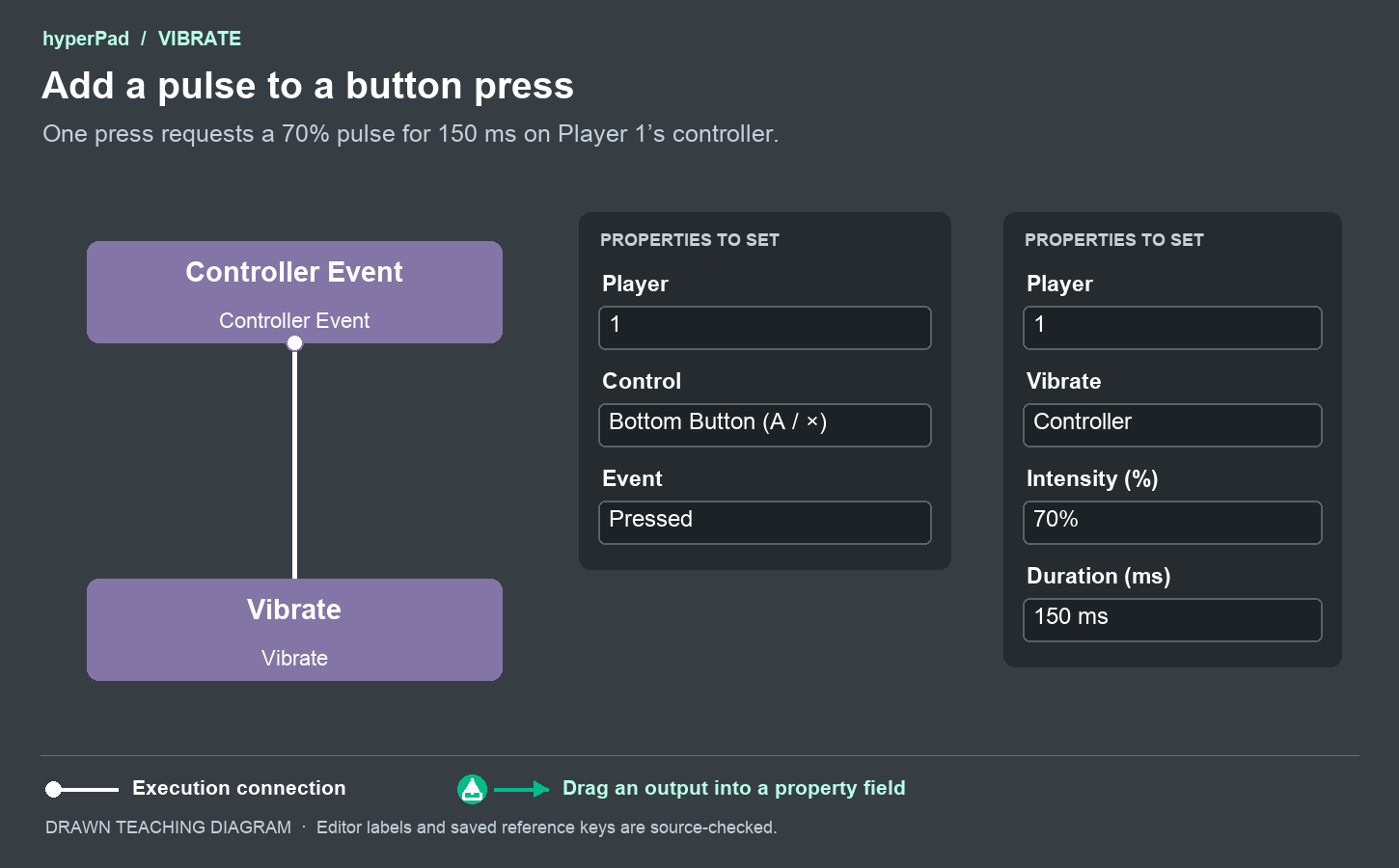
The white connection requests the pulse. This example needs no data drag.
Try this with a paired iPhone as Player 1 too. You use the same behavior settings. The phone must support built-in haptics and keep Controller Mode open.
Feedback for each player
Vibrate uses the current controller assignment. Set Player to 2 to send feedback to Player 2's controller. If that player chooses a different controller through Assign Controller or the Controls overlay, the next pulse follows the new assignment.
You can also use Controller Event's playerIndex output:
- In this example, set Controller Event's Player to 2.
- Select Vibrate so its properties are open.
- Drag Controller Event's green output icon into Vibrate's Player field. Choose
playerIndex. - Keep the white execution connection. The green reference supplies the player number; the white connection requests the pulse.
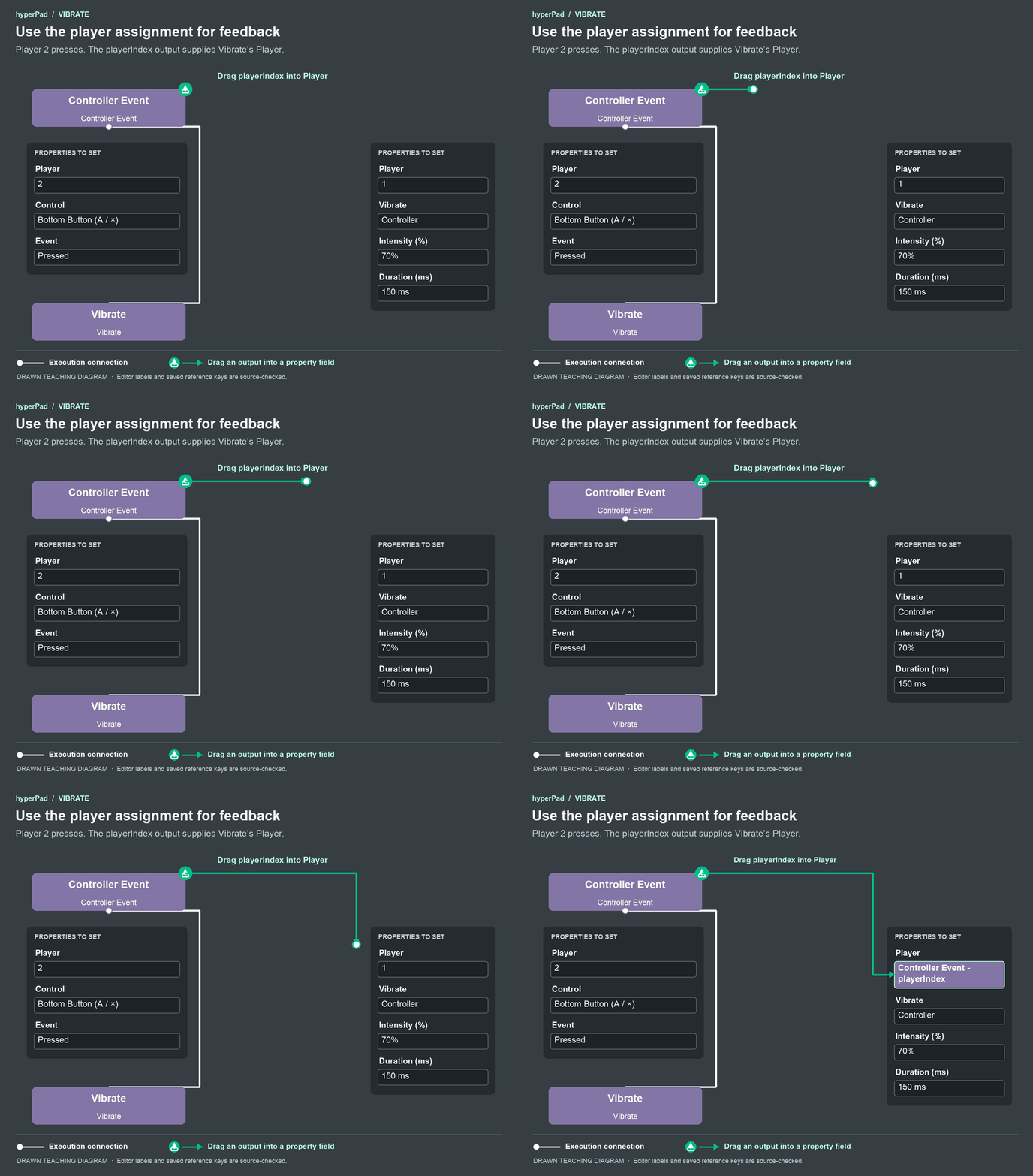
Teaching animation. Both the player reference and the execution connection are shown.
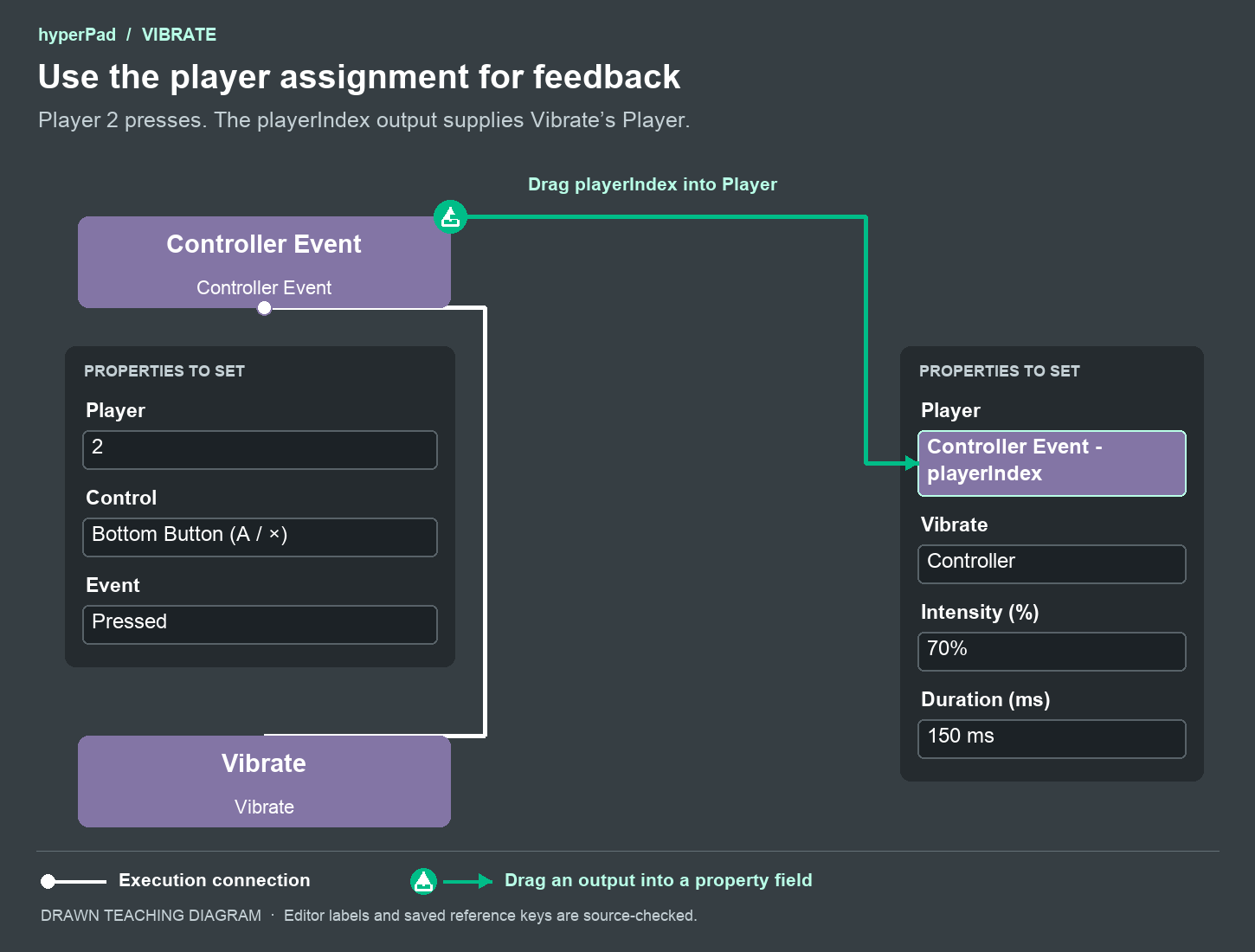
If you listen with Controller Event's Player 0, an unassigned controller can output playerIndex = 0. Vibrate interprets 0 as all connected controllers. Assign the controller to a positive player slot before using that output for feedback to one player.
Add feedback to an existing game
Keep your existing touch, keyboard, or controller action. Connect Vibrate after the gameplay event or action that should produce the pulse. You do not need a separate input mapping for vibration.
For example, a custom Started Touching button that already has a controller alternative through Map Control Inputs can reach the same Vibrate behavior from either input. Choose Controller for feedback on the player's controller, or Auto when you want a device fallback.
Vibrate does not add a new button to a paired phone's layout. That layout still comes from your Controller Event and Map Control Inputs bindings. Players do not rebind vibration in the Controls overlay.
Compatibility and stopping
Feedback needs hardware and platform support. A controller can work for input while lacking vibration. Paired iPhones report their haptics support; paired iPads cannot vibrate through built-in haptics.
The native player and Universal player use the same authored intensity and duration units. Browser feedback depends on the browser, the connected controller, and its settings. Some browser device-vibration APIs cannot vary intensity.
Feedback stops when the game loses focus, its controller session ends, or the controller disconnects or changes player. Leaving Controller Mode or locking the paired phone stops its local feedback. A lost network connection can delay a stop request, so every pulse has a bounded duration.
Check your setup
- The paired iPhone does not vibrate: Set Vibrate to Controller and check that Player matches the phone's assignment. Keep Controller Mode open. The phone must support built-in haptics.
- The wrong controller vibrates: Check Player. A value of 0 requests all connected controllers.
- The pulse lasts too long: Duration uses milliseconds. Enter 150 for 150 ms, or 1000 for one second.
- The pulse keeps restarting: Check whether your input event is While Held. Use Pressed for a single pulse.
- The game works but no vibration is felt: Check the controller's vibration support and platform settings. Read
successto see whether a request was accepted.