

Controller Status
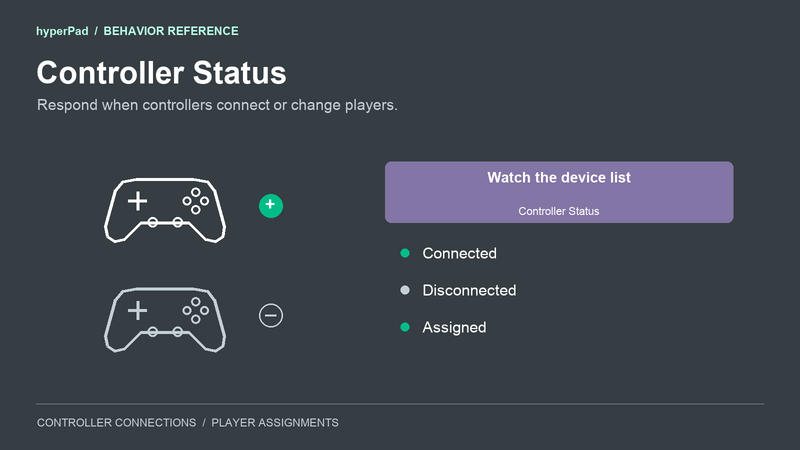
Use Controller Status to refresh your controller chooser when a controller connects, disconnects, or moves to a different player. You can also use it to show a disconnect message.
Find it in Interaction > Controls.
Properties
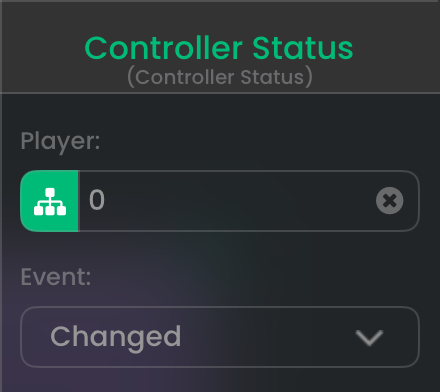
These settings listen for changes from any player in the controller-count example.
| Property | Default | What it does |
|---|---|---|
| Player | 1 | Watches the controller assigned to this player. Use another positive number for another player, or 0 to watch all controllers. An assignment change also reaches the player slot the controller is leaving. |
| Event | Changed | Chooses which changes run your connected behaviors. |
Event options
- Changed: Runs for connection, disconnection, and assignment changes.
- Connected: Runs when a controller connects.
- Disconnected: Runs when a controller disconnects.
- Assigned: Runs when a controller's player assignment changes, including unassignment.
Input and event connections
When this behavior starts, or receives an execution connection, it begins watching for matching changes. Starting it does not produce a snapshot of controllers already connected. Use Get Controllers when your screen first opens.
Its bottom event connection runs after a matching change. Disabled behaviors and paused gameplay do not receive these callbacks. An active overlay can use its own Controller Status behavior to keep a controller chooser current.
Outputs
| Output | What it contains |
|---|---|
controllers | The current array of connected-controller records. A disconnected controller has already been removed from this array. |
deviceID | The session ID of the controller whose status changed. |
name | That controller's reported name. A name can be generic or shared by several controllers. |
connected | true while the controller is connected; false for a disconnection. |
playerIndex | The controller's assigned player for this event. An assignment to 0 means unassigned. A disconnection reports the player the controller was using when it disconnected. |
previousPlayerIndex | The player the controller left during an assignment change. It is 0 when no previous assignment is supplied. |
The controllers output uses the same record fields as Get Controllers, described below.
Controller records
Each item in controllers is a dictionary for one connected physical controller. Read a dictionary from the array before reading a field such as deviceID.
| Field | What you can read |
|---|---|
deviceID | The controller's ID for the current play session. Use this value with Assign Controller. |
name | The name supplied by the platform. Two controllers can have the same name. |
vendorName | The vendor or name reported for the controller. This may match name. |
connected | true for an item in this connected-controller list. |
playerIndex | Its assigned player number. 0 means it is connected but unassigned. |
deviceType | controller. Keyboard and mouse are outside this list. |
connectionOrder | A number used to keep devices in connection order. Use deviceID to identify a device, rather than its array position. |
controls | When available, an array of control identifiers such as buttonA, leftStick, and buttonMenu. Check whether this field is present before using it. |
The Universal player can also supply capabilitiesKnown, standardizedProfile, and observedControls. These fields are optional across platforms. capabilitiesKnown tells you whether the full control list is confirmed. standardizedProfile tells you whether the platform recognizes a standard gamepad layout. observedControls lists controls that have produced input during this session. A recognized layout describes possible controls; it does not confirm that every button exists on the connected device.
Use the behavior's controller list for a chooser. Avoid treating a missing capability field as proof that a controller has no buttons.
Connection guide: refresh a controller count
This is an illustrative example you can add to your own controller-selection UI.
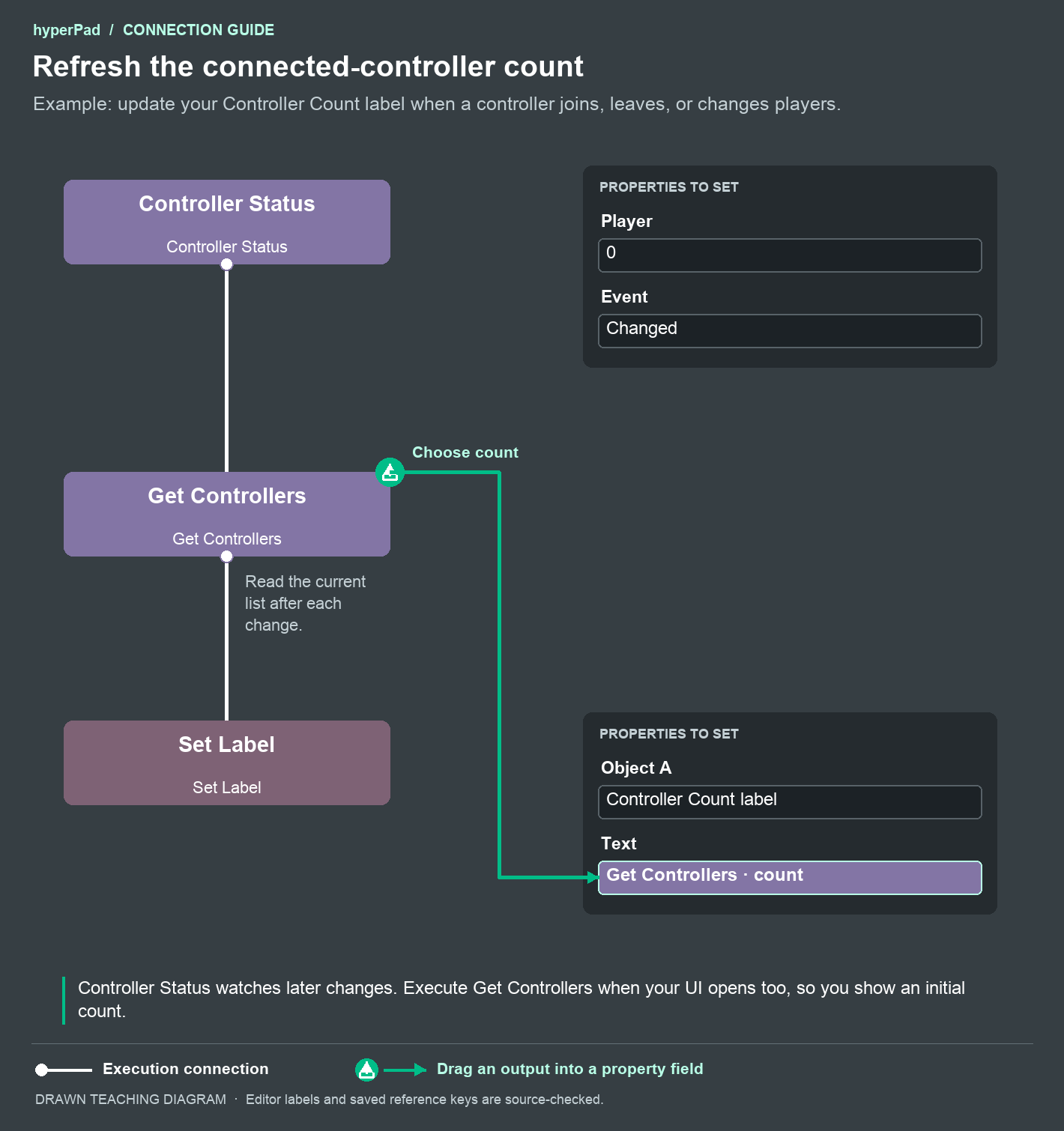
- Create a label Object called Controller Count.
- Add Controller Status. Set Player to
0and Event to Changed. - Connect its bottom event connection to Get Controllers.
- Connect Get Controllers to Set Label. Select your Controller Count label as Object A.
- Drag the green
countoutput from Get Controllers into Set Label's Text property.
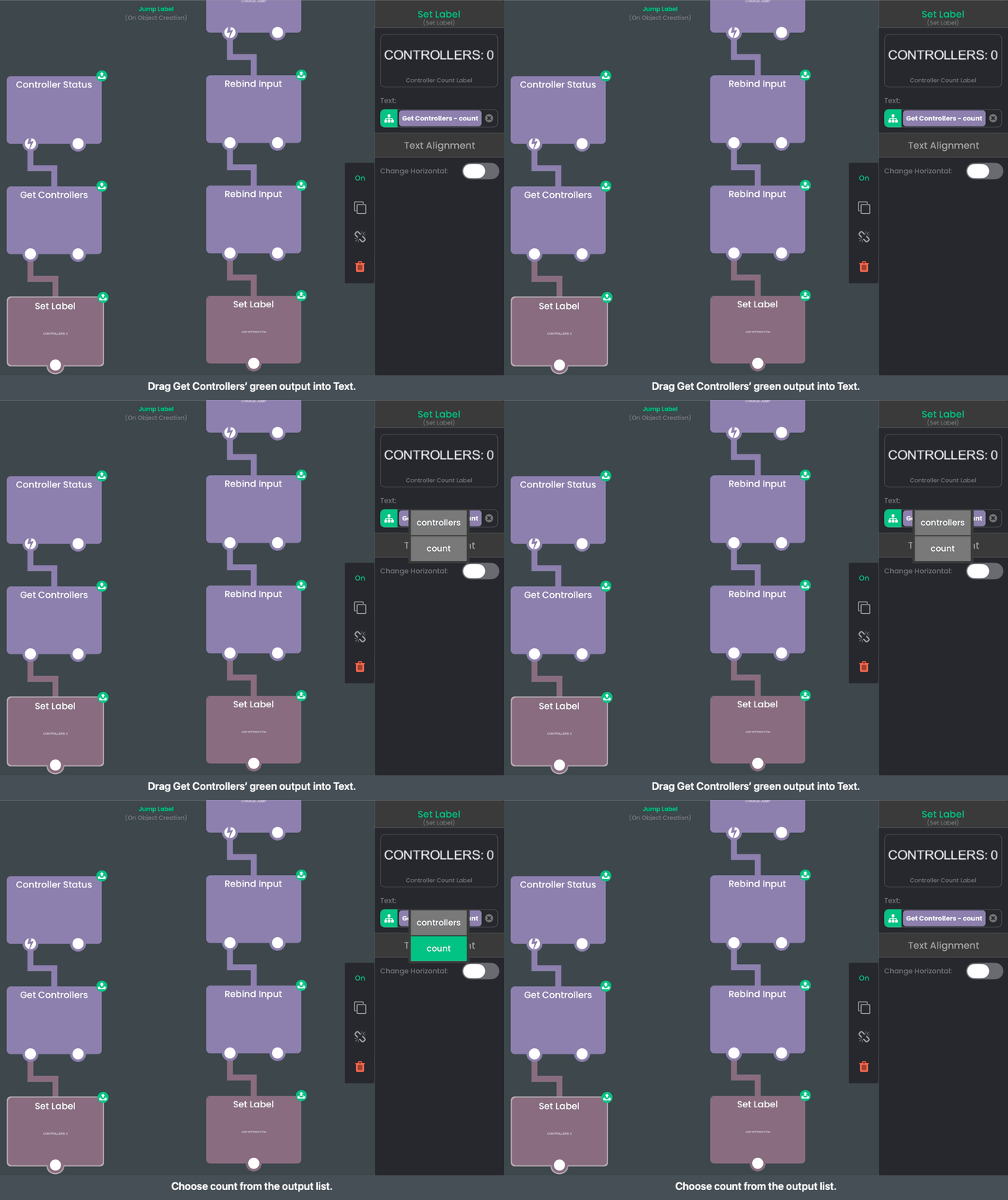
The white connections decide when each behavior runs. The green drag tells Set Label which value to display. It displays 2 when two controllers are connected.
Execute Get Controllers separately when this UI first opens. Controller Status handles later changes.
Controller setup
Players connect controllers through their device's supported Bluetooth, USB, or other controller setup. Controller Status observes that connection. It does not open system pairing or connect nearby hardware.
Player numbers are logical slots in your game. The number of controllers you can connect depends on the device and operating system. Their session IDs can change after a restart or reconnection.