

Controls Overlay
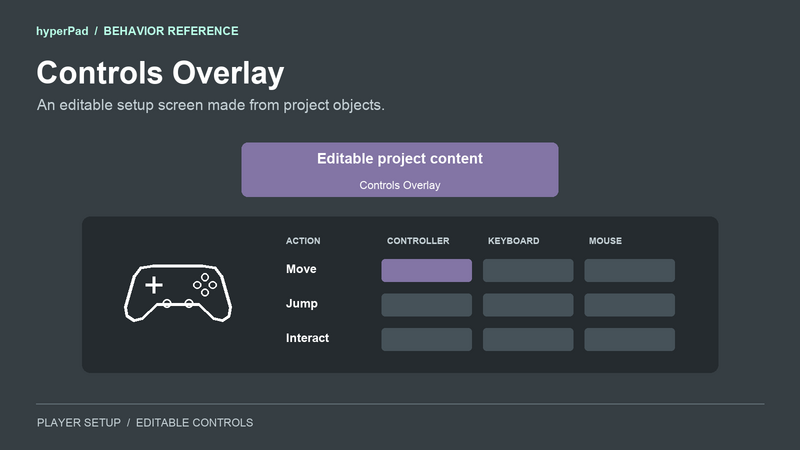
Use the generated Controls overlay to let your players choose a controller and change their bindings. You can change its graphics, fonts, positions, and colors in the editor.
Controls Overlay is the internal behavior that updates this menu. The template adds it to the menu’s Behavior Trees. It is hidden from the Add Behavior list. For your own input actions, use Controller Event. For a custom binding menu, use Rebind Input.
Open the menu
The editor adds one editable Controls overlay when you configure mapped inputs. Open it with Load Overlay and select the generated overlay. Keep the pause setting on when you want gameplay to wait while the player changes controls. Active overlays can still receive input.
The template adds Menu and Escape shortcuts when those keys are available for its opener. It also adds a Controls entry to pause overlays that it recognizes. If your game already uses Menu or Escape, or has its own pause flow, add a Load Overlay connection to the UI you want to use.
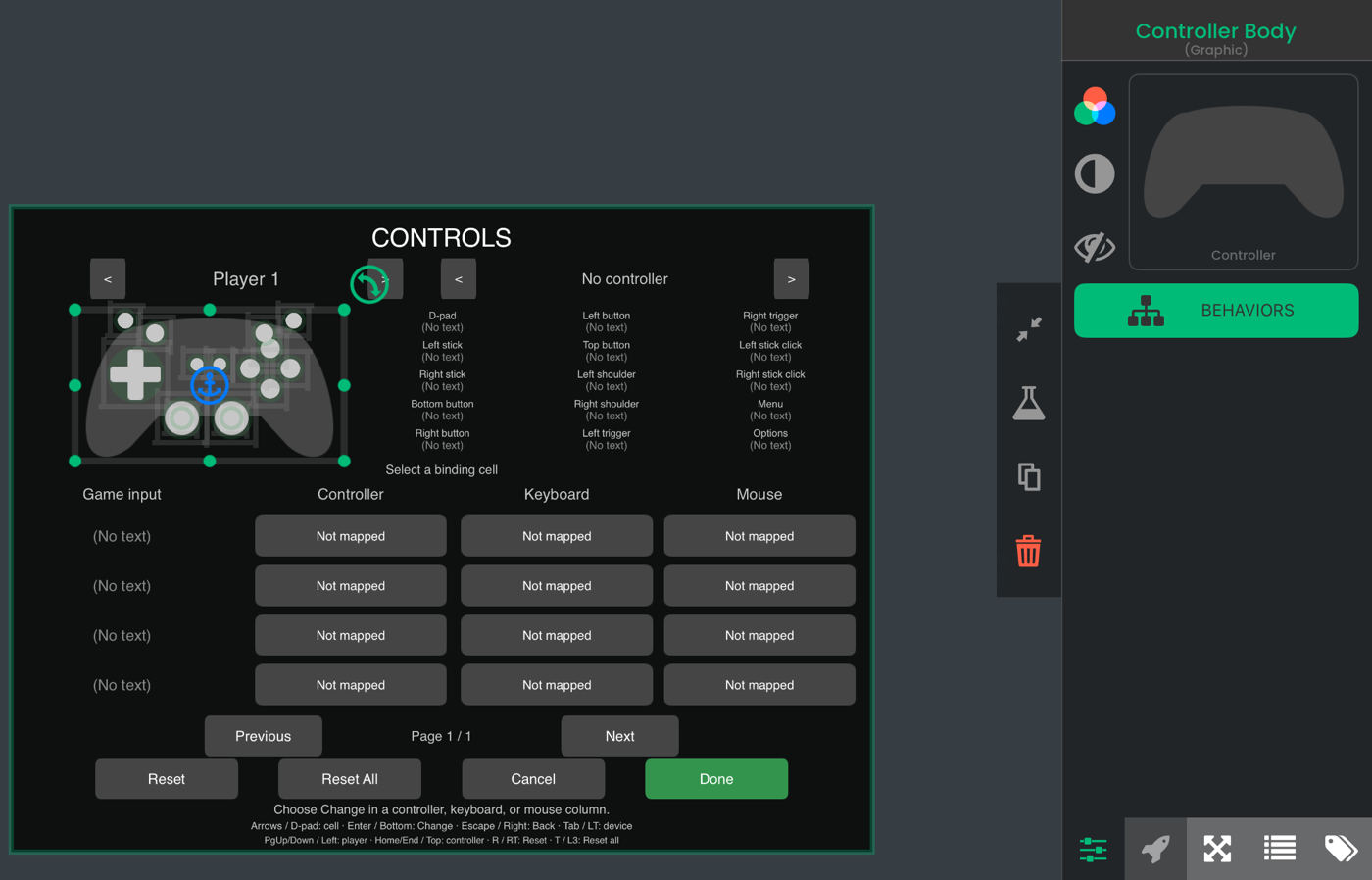
Select the generated Objects to change the menu’s graphics, text, and layout.
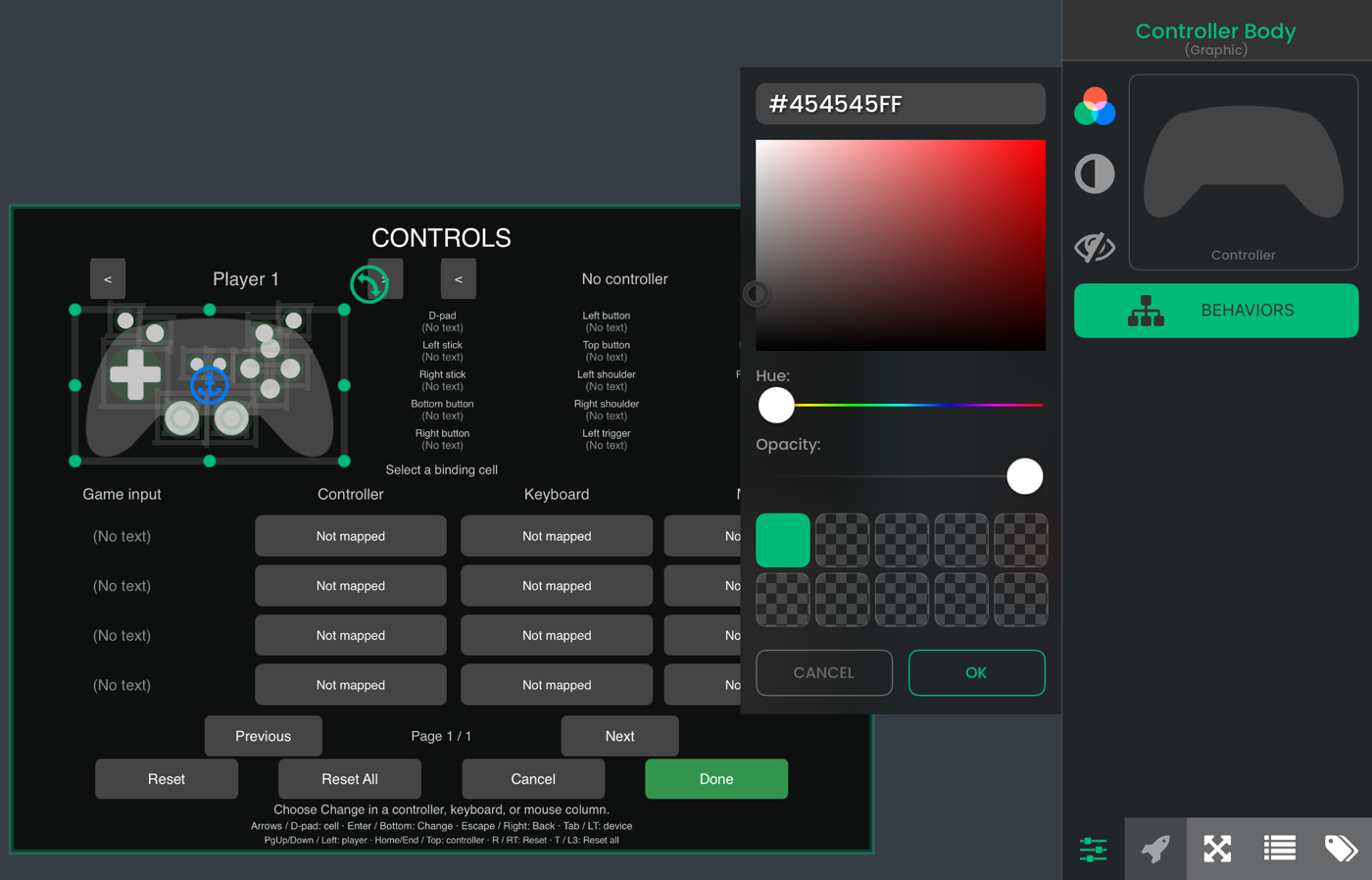
Select Controller Body, then open its color picker to change the tint.
What your players can change
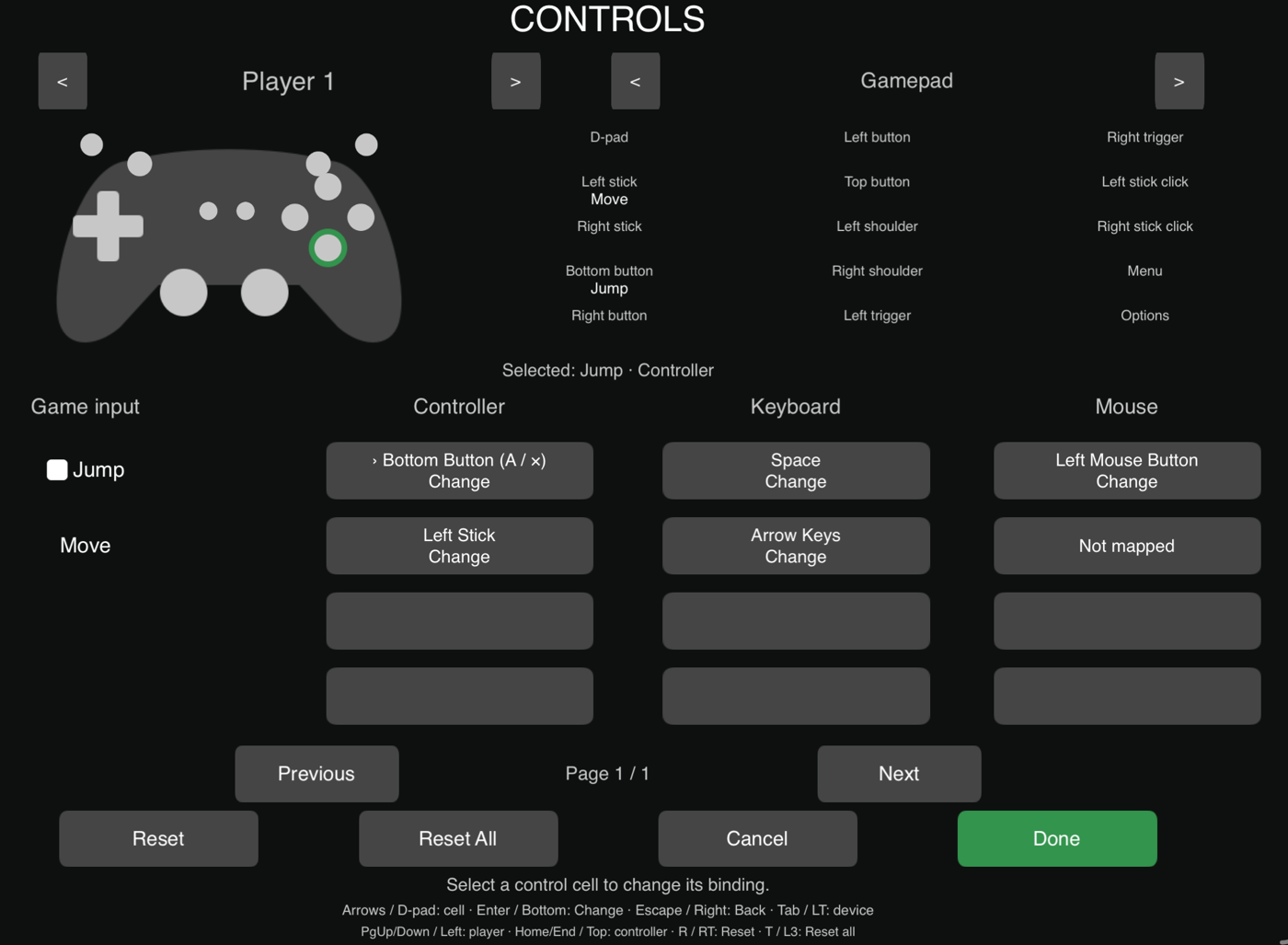
The menu shows the selected player, the assigned controller, and a binding table. Each game input can have Controller, Keyboard, and Mouse cells. A cell shows Not mapped until you author an alternative for that device. Changing a binding keeps it within that device family.
The template shows four rows at a time. Previous and Next move between pages. The table can include more than four game inputs. Alternatives with the same source and action name share a row. A second alternative in the same device family uses another row.
The controller diagram shows action names at standard control positions. The native player highlights the selected controller binding. The Universal player highlights active controller input. You can replace the artwork with your own graphic. The mapping still uses standard controller positions.
The source graphics are white with transparent backgrounds. The template applies gray, green, and other default tints. Change an object’s tint to match your game.
Keep the generated connections
This teaching diagram shows the generated Done button’s complete execution chain. All three behaviors belong to the object named Controls: Done. It is a focused part of the generated template; the other menu connections stay in place.
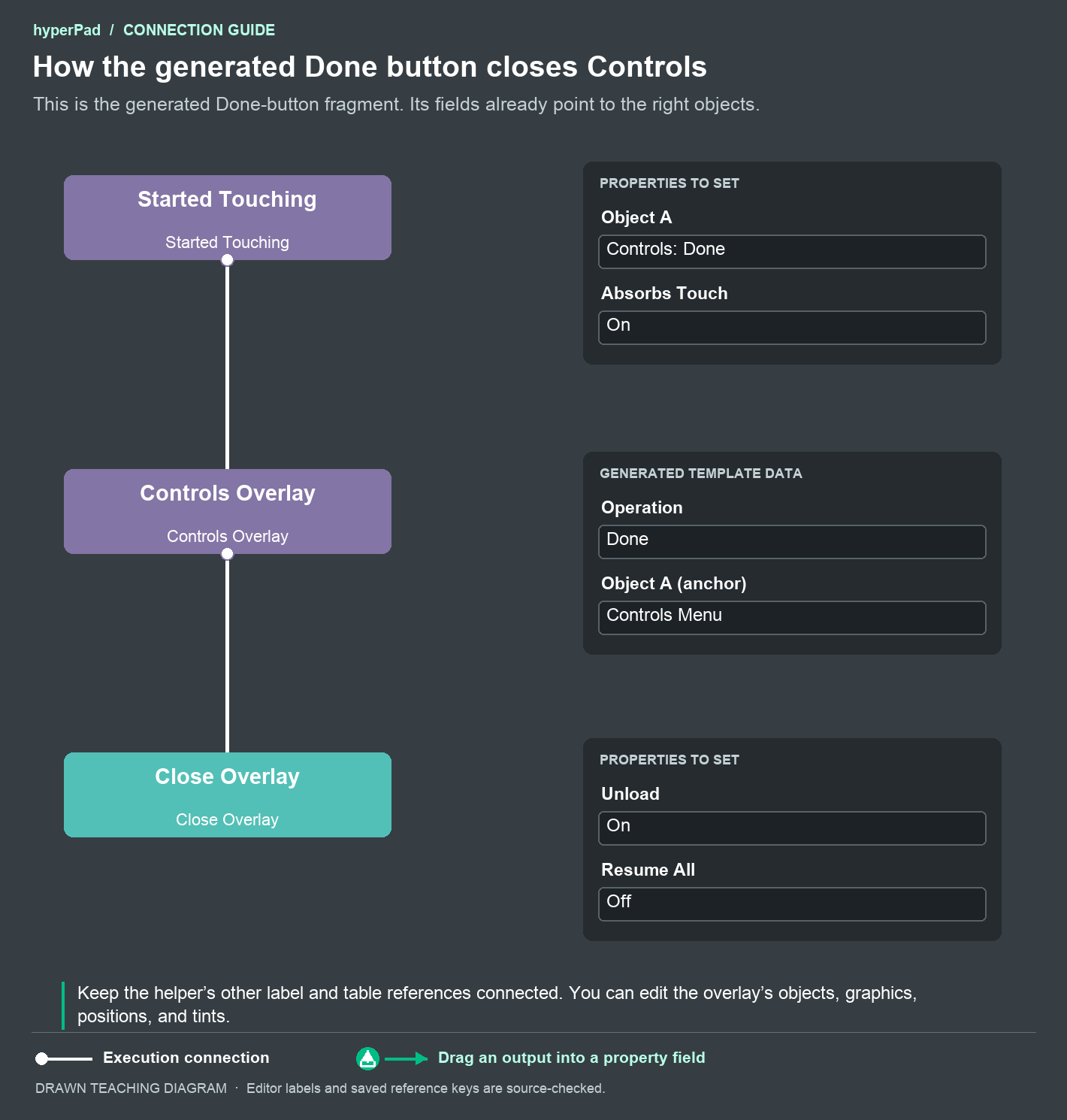
- Started Touching listens to the Controls: Done object and absorbs its touch.
- Its bottom white execution connector runs Controls Overlay with Operation
Done. Object A identifies the shared Controls Menu anchor. - Controls Overlay’s bottom white execution connector runs Close Overlay. The generated close action has Resume All Scenes off and Unload When Finished on.
Done cancels an active capture before the close action runs. Keep this order when you customize the button. The timer, controller, and keyboard connections are separate parts of the same template.
Operations
These operations are saved on the generated helper behaviors. You normally customize the menu objects and keep these helpers connected.
| Operation | What it does |
|---|---|
Refresh | Updates labels, binding cells, capture status, page information, and controller highlights. The generated Timer runs it every 0.2 seconds and starts immediately. |
NextPlayer, PreviousPlayer | Selects another player slot that appears in the menu’s bindings or controller assignments. |
NextController, PreviousController | Cycles connected controllers and assigns the selected device to the selected player. |
Navigate, NextSource | Moves the selected table cell between actions and device families. |
NextBinding, PreviousBinding | Selects the next or previous game input. |
NextPage, PreviousPage | Moves through the binding table’s pages. |
SelectCell | Selects a visible row and its device-family column. |
Rebind, RebindCell | Starts capture for the selected authored binding. A Not mapped cell cannot create a new alternative. |
Cancel | Stops capture and keeps the existing binding. |
Reset | Restores the selected authored default. |
ResetAll | Restores every saved binding for the selected player. |
Done | Cancels capture, then allows the connected Close Overlay action to run. |
Back | Cancels an active capture and stays in the menu. When no capture is active, it continues to the connected close action. |
Object references and input values
The template stores these references on its helper behaviors. Keep them pointed at the corresponding objects when editing its Behavior Trees.
| Reference or value | Purpose |
|---|---|
| Object A | The shared Controls Menu anchor. It holds the selection state for this overlay instance. |
| Player Label, Controller Label | The labels showing the selected player and assigned controller. |
| Binding Label, Source Label, Selection Label | Optional labels showing the selected action, device family, and binding. |
| Status Label, Page Label | The capture prompt or result, and the current page. |
| Table Rows | Records containing each row’s action label and Controller, Keyboard, and Mouse cell labels. |
| Diagram Labels, Diagram Highlights | Object IDs for the action labels and highlights at each standard controller position. |
| Row Index, Source | The visible row slot and device-family column used by Rebind Cell or Select Cell. |
| x, y, Navigation Step | Direction values used to move the selection. Keyboard steps move one cell per press. |
| Event Player | The Controller Event output that identifies the player operating the menu. |
Outputs
Controls Overlay has no draggable data outputs. It writes the referenced labels and updates the selected binding or assignment. Its white execution output continues to the behaviors connected after the operation.
Capture and pairing
Your player pairs a controller through the platform’s Bluetooth, USB, or other supported setup. The overlay selects a controller that is already connected.
Escape or the controller’s Menu button cancels a capture. The template also has a Cancel button. When a selected controller has no confirmed Menu control, controller capture has a 15-second fallback timeout. Keyboard and mouse capture should use Cancel or Escape. Captured inputs stay out of gameplay until they return to neutral.
For keyboard movement, the player presses four different keys in this order: Up, Right, Down, Left. The menu displays the keys that were saved. A mouse row captures a button, a wheel direction, or movement according to the authored input’s type.
Device assignments apply to the current session. Binding choices are saved for the project, player, and authored binding. Phone controllers and Apple TV are not supported by this input system.