
Mouse Event
The Mouse Event behavior listens to events from an external hardware mouse or trackpad and triggers behaviors once an event has been received.
⚠️ Warning: This feature is only fully supported on iOS 14.0 and above.
| Event Type | Description |
| On Left Click |
Trigger an event when a left click has been triggered. By default, this triggers when pressed but this can be changed to trigger on release. |
| On Right Click |
Trigger an event when a right click has been triggered. Pressing with two fingers on an Apple supported trackpad will be treated as a right click. By default, this triggers when pressed but this can be changed to trigger on release. |
| On Move |
Trigger an event when the mouse moves. This outputs the mouse position and the raw amount it has moved on the x and y axes. |
| On Connection |
Trigger an event when a hardware mouse or trackpad is connected. |
| On Disconnection |
Trigger an event when a hardware mouse or trackpad is disconnected. |
| Output Fields | Description |
| x |
The current horizontal position of the mouse in screen space at the time the event was received. Units are in meters. |
| y |
The current vertical position of the mouse in screen space at the time the event was received. Units are in meters. |
| dx |
The raw amount the mouse has moved horizontally. |
| dy |
The raw amount the mouse has moved vertically. |
| vendor |
The vendor name of the external mouse or trackpad. e.g "Magic Keyboard". |
Example: Successfully Connected
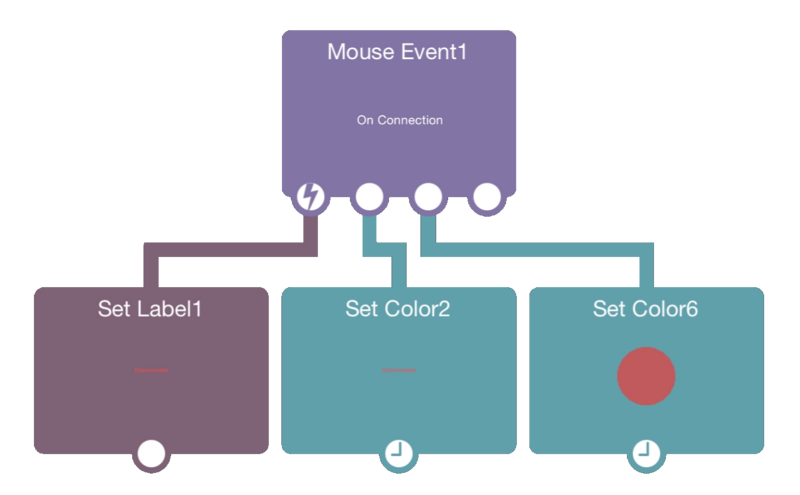
When a mouse has been successfully registered, change the color of an object and display information about the mouse to let the user know that the mouse has connected.
Example: Mouse Pointer
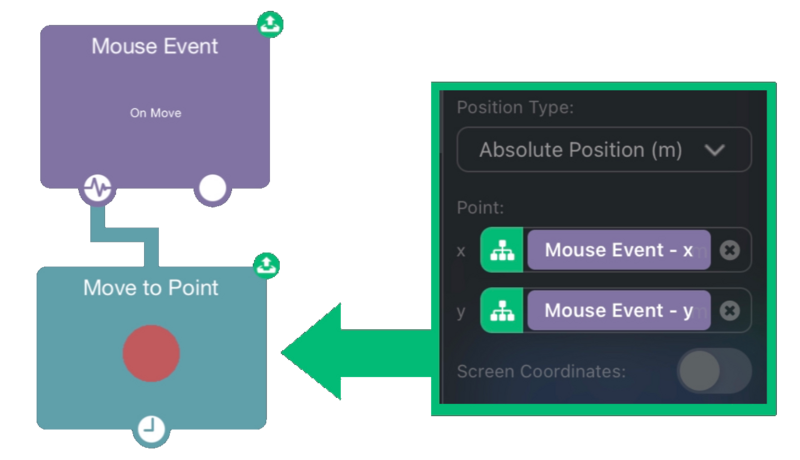
Every time the mouse moves, an object moves to the position of the mouse, making it appear that the mouse is controlling the object.