

Stop Animation
Description
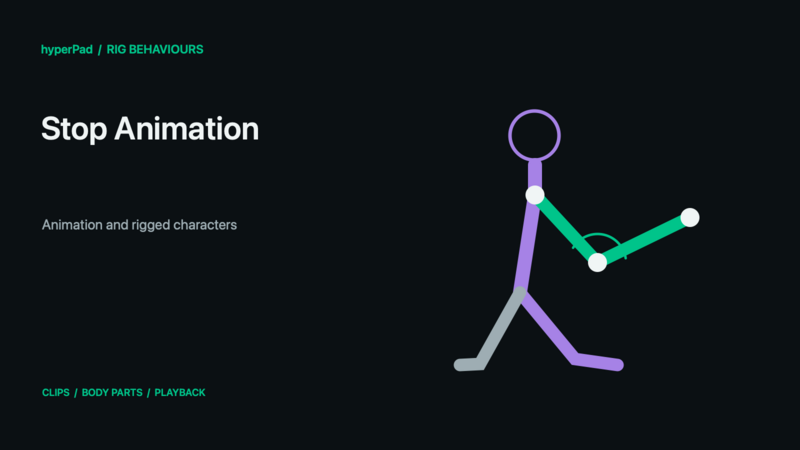
The Stop Animation behavior will stop the playing animation on a selected object.
This behavior will trigger an event immediately.
Rigged Objects
This section describes the live-rig update and requires a build with Rigged Objects. A public release date has not been assigned. Existing sprite/object workflows remain supported.
Stop stops playback for the selected rigged object. These controls address the whole object's animation playback, including its active Body Part and additive layers. They do not select one Body Part. Use the action/controller that owns a layer to manage an independent action instead of stopping the whole character.
Set Animation State → Set Animation Speed uses a percentage: 100% is a multiplier of 1, 50% half speed, and 200% double speed. It changes the object's animation playback rate; this is different from selecting a clip's Speed Multiplier and does not change physical movement speed. A controller may subsequently update the playback speed it owns.
Stopping does not mean “resume the previous cycle.” For a one-shot action that should reveal the underlying pose again, configure Play Animation's Restore option or use the controller's normal completion/release. To start Idle immediately on scene entry, choose it in rig properties and enable Start on Play.
See Body Parts and Animation Blending for modes, priority, parent motion, and custom-rig setup, or follow Walk, Crouch, Jump, and Shoot together.
Properties
Triggers Immediately
| Object A |
This is the animated object you want to stop. By default, the current object is selected, you can change this to any other object in your scene. |
Outputs
| Object ID |
This outputs the Object ID. |
Examples
You can use this if you want to stop an object from animating then play a new animation.