

Set Rig Attachment
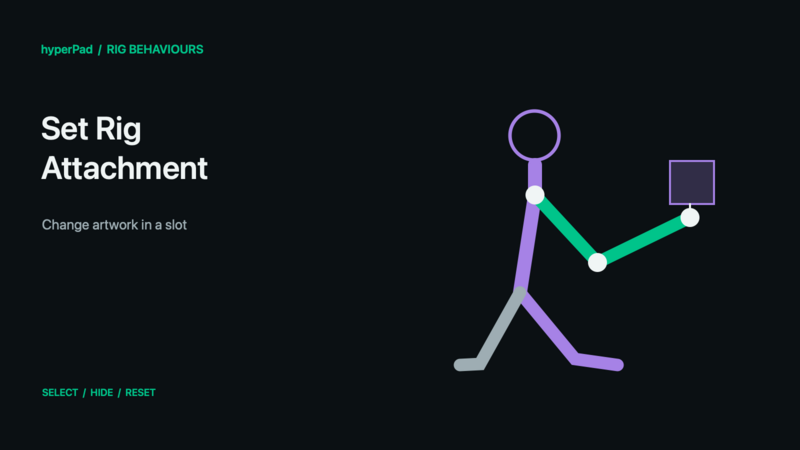
Replace or hide artwork in one slot of a live rig, such as a hand, weapon, face, or limb graphic.
Requires the live-rig update and a build with Rigged Objects. A public release date has not been assigned. These controls do not operate on baked sprite frames.
Find this advanced behaviour under FX → Animation. Triggers immediately.
Properties
| Property | Meaning |
|---|---|
| Object A | The rigged character. |
| Slot | The rig slot whose displayed artwork should change. |
| Artwork | An attachment available to that slot in the rig asset. Choose None to hide it. |
| Reset to Animated Default | Clear this slot override and allow the skin/default and animation-driven attachment choice to apply again. |
Example
- Author alternative artwork for the same slot in Art Studio, such as an open and closed hand or different weapons.
- Save and update the live Rigged Object so those attachments are available at runtime.
- Choose the character and Slot in this behaviour.
- Select the desired Artwork and trigger the behaviour.
- Enable Reset to Animated Default in a later command to return control to the rig's own choices.
Outputs
Object A ID identifies the selected object; Object B ID is also available where the command uses Object B. Valid is true when all resolved targets succeed. Error describes an invalid or missing selection. Invalid commands finish instead of leaving the chain waiting. For a group command, some compatible targets may already have succeeded even if Valid is false.
Notes
None is an explicit hidden-slot override; it is different from Reset. This behaviour selects artwork packaged with the rig, not an arbitrary external PNG. It does not create a new bone or a per-limb collision shape. A skin change does not override an explicit slot choice; reset the slot override when the skin should control it again.
All rig behaviours · Body Parts and blending · Walk, Crouch, Jump, and Shoot tutorial