

Set Bone Transform
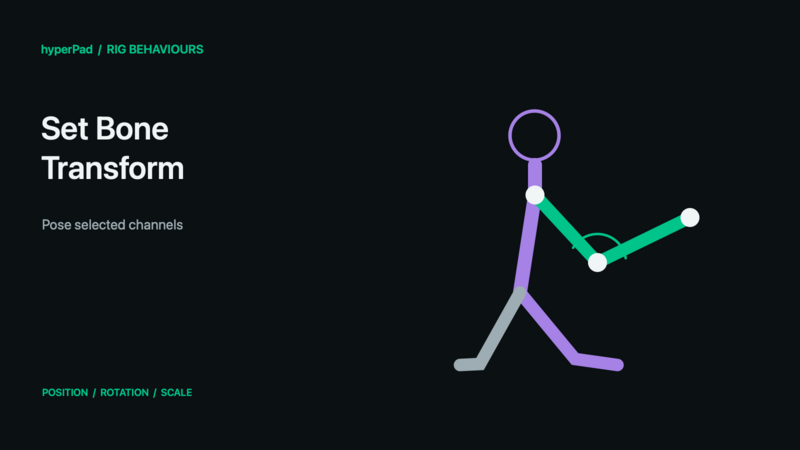
Pose one bone directly, for example to lean a head or offset a hand while an animation runs.
Requires the live-rig update and a build with Rigged Objects. A public release date has not been assigned. These controls do not operate on baked sprite frames.
Find this advanced behaviour under FX → Animation. Triggers on completion.
Properties
| Property | Meaning |
|---|---|
| Object A | The rigged character to control. |
| Bone | A bone from that rig asset. |
| Coordinate Space | Local (parent-relative), Rig (rig-relative), or World (scene-relative). |
| Transform Mode | Replace uses the requested values; Offset applies a change relative to the animated pose. |
| Transform Channels | Enable only Position, Rotation, and/or Scale that this command should affect. Other animation channels remain available. |
| Position X / Y | Artwork points in Local/Rig space; scene metres in World space. |
| Rotation | Clockwise degrees. |
| Scale X / Y | Factors: 1 is normal size. In Offset mode, 1 leaves scale unchanged. |
| Influence | How strongly to apply the override, from 0 (none) to 1 (full). |
| Duration / Easing | How the override reaches its requested influence over time. Zero duration applies immediately. |
| Priority | Arbitrates conflicting procedural controls on the same target. |
Example
- Choose the character and its Head bone.
- Set Coordinate Space to Local and Transform Mode to Offset.
- Enable only Rotation. Try a small value such as 10 degrees with Influence 1 and Duration 0.15 seconds.
- Trigger the behaviour while Walk plays. The head receives the offset while unselected channels continue animating.
- Use Clear Rig Overrides, targeting this bone, to hand control back smoothly.
Outputs
Object A ID identifies the selected object; Object B ID is also available where the command uses Object B. Valid is true when all resolved targets succeed. Error describes an invalid or missing selection. Invalid commands finish instead of leaving the chain waiting. For a group command, some compatible targets may already have succeeded even if Valid is false.
Notes
The override persists after its completion event. Disabling its owning behaviour or clearing it releases its effect. Animation blending happens before procedural overrides; a persistent override can therefore hide an animation's motion. IK runs after bone overrides and may reposition a bone in a solved chain—reduce IK Influence first if you want direct joint control. This changes the pose, not the object's collision shape.
All rig behaviours · Body Parts and blending · Walk, Crouch, Jump, and Shoot tutorial