

Art Studio: Save Projects and Export Game Assets
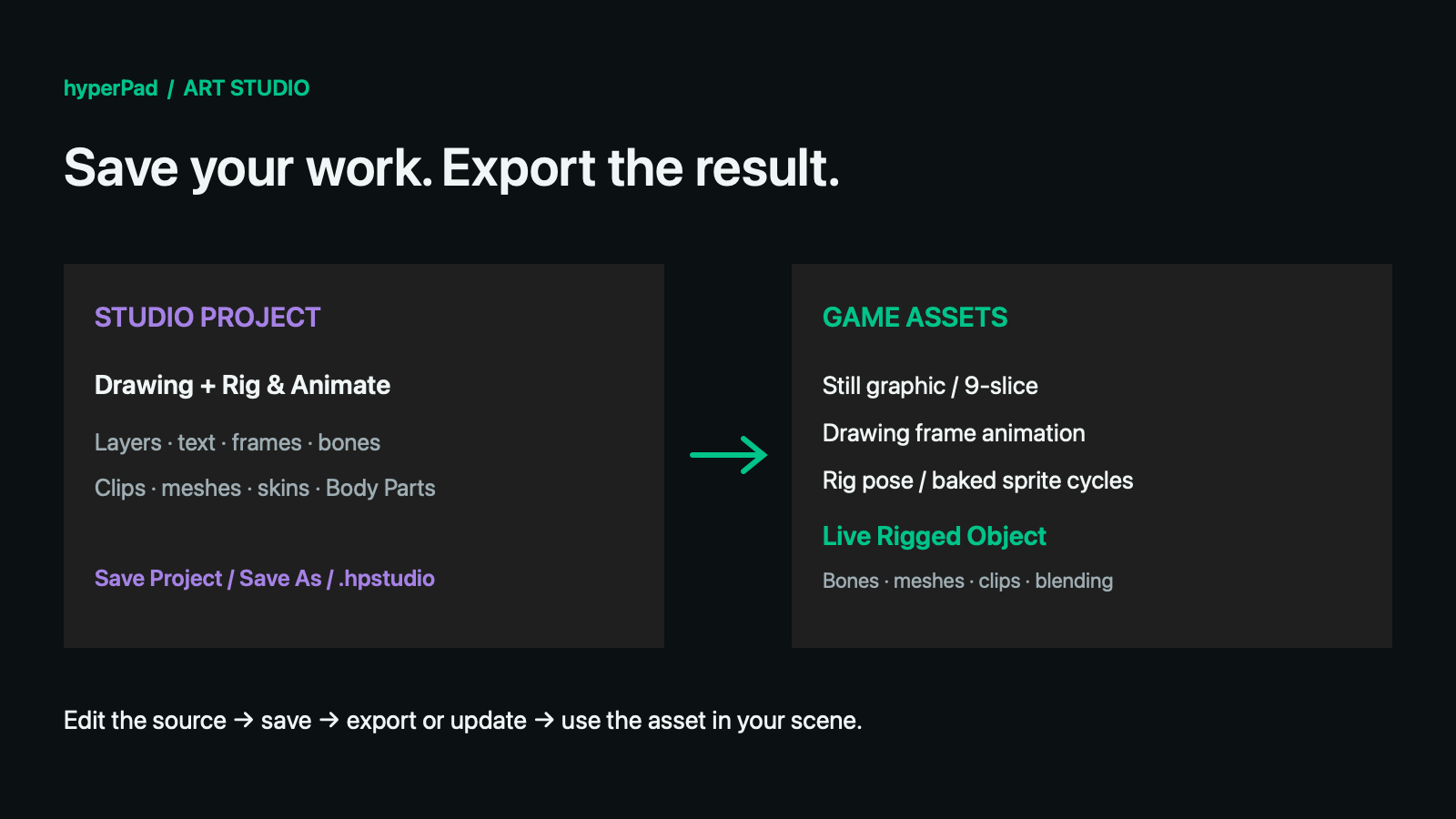
An Art Studio project is the work you can continue editing. A game asset is a result you can use in a scene. Save the project to keep your layers, editable text, drawing frames, rig, and animation clips. Export when you are ready to put a graphic or animation into a game.
You can save a project that contains a complete rig and an empty Drawing canvas. Its rig artwork is still part of the project. You do not need to flatten the character onto the Drawing canvas to save it.
Choose the right operation
| What you want to do | Use | What it creates or changes |
|---|---|---|
| Keep editing the same work later | File → Save Project | The current editable Studio project |
| Make an independent version, save into another game, or save to Files/Finder | File → Save As… | A new editable project; you continue editing the copy |
| Put artwork or an animation into a game | File → Export Game Asset | A graphic, 9-slice graphic, or sprite animation in the Asset Library |
| Refresh a previously exported result | Its Update… item, or Update Asset in baked export | The linked game asset, using the project's latest content |
| Send a PNG image, PNG sprite sheet, or GIF to another app | File → Export Drawing Files | A file shared through the system share interface |
| Open an editable project saved outside a game | File → Open Project… | Opens an .hpstudio file for editing |
Saving a project does not update its exported assets. This lets you experiment without changing the character or button already used in your game.
Start with the right workspace
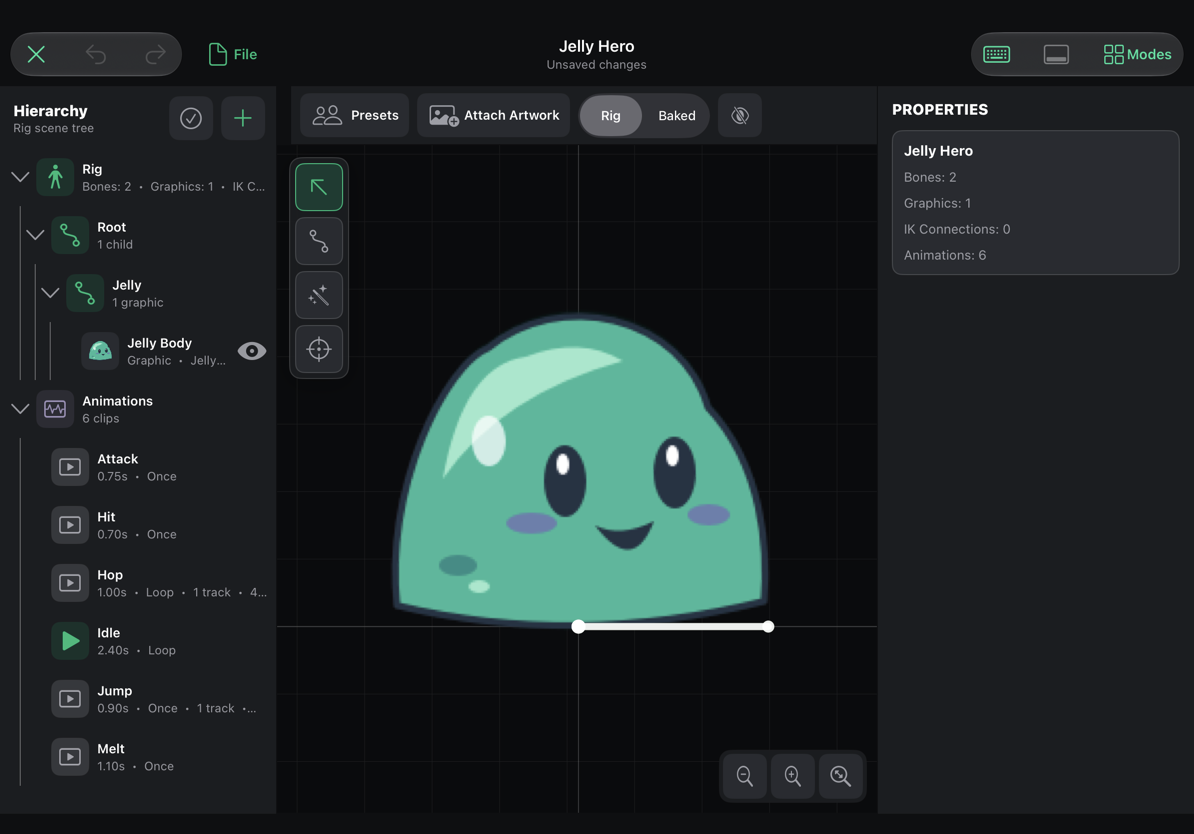
If you are creating your first project, follow Art Studio: Start Here. The starting choices prepare Drawing, frame animation, Bones / Rig, 9-slice authoring, or editable text. You can switch tools later through Modes.
Canvas dimensions are the logical 1× size used in hyperPad. Create Retina asset adds an exact 2× rendition when you export. A rig's baked frame size is calculated from its animation poses; it is not limited to the initial Drawing canvas rectangle.
Where projects are stored
In a game's Asset Library, new Studio projects use this structure:
Your Game
└── Assets
    ├── Studio Projects
    │   └── Art
    │       └── Jelly Hero           ← editable Studio project
    └── Graphics
        └── Jelly Hero - Graphic    ← exported game asset
In the Asset Library, look under Studio Projects → Art. A Studio project has its own project identity and thumbnail. Opening it enters Art Studio; it is not an object that you drag from the dock into the scene. Export a game asset for that workflow.
In-game projects are managed as asset-library packages. You do not need to open or rename their internal files. For a single portable project file, use Save As to Files or Finder: the extension is .hpstudio.
Save your current project
- Open File beside Close and Undo/Redo.
- Choose Save Project, or press ⌘S.
- Check the project status. Saved means the current project save completed. Unsaved changes means you have edited it since that save.
- Close Art Studio when you are finished.
The save includes the Drawing document, rig, animation clips, and editable rig-part drawings stored in the project. It preserves the material you need to reopen and revise the work. Undo/Redo is your editing-session history; saving is not a promise that an entire undo history will reappear after you close and reopen.
If you close with changes, Save Art Studio Project? offers:
- Save Project: save your current editable work, then close.
- Discard: return to the last explicit save rather than keeping the unsaved session changes.
- Cancel: stay in Art Studio.
Exported assets stay unchanged until you export or update them.
Recovery is a safety net, not an export
Art Studio also writes recovery information while you work. After an interrupted session, reopening may show Recover Art Studio Project?:
- Choose Recover to restore the unsaved drawing, rig, and animation changes.
- Review the restored work.
- Use Save Project when you want to keep it.
Choose Discard Recovery to open the saved version instead. Recovery does not update exported game assets. Save important milestones explicitly rather than relying on recovery as your only copy.
Save As: versions, folders, and another game
Save As is useful before an experiment: keep Jelly Hero, then continue in Jelly Hero Ice Variant.
- Choose File → Save As…, or press ⇧⌘S.
- Enter the new project name.
- Under Where, choose the destination game.
- Choose the Folder row to browse that game's Asset Library folders.
- Use New Folder if you want a subfolder, then Choose to select it.
- Choose Save.
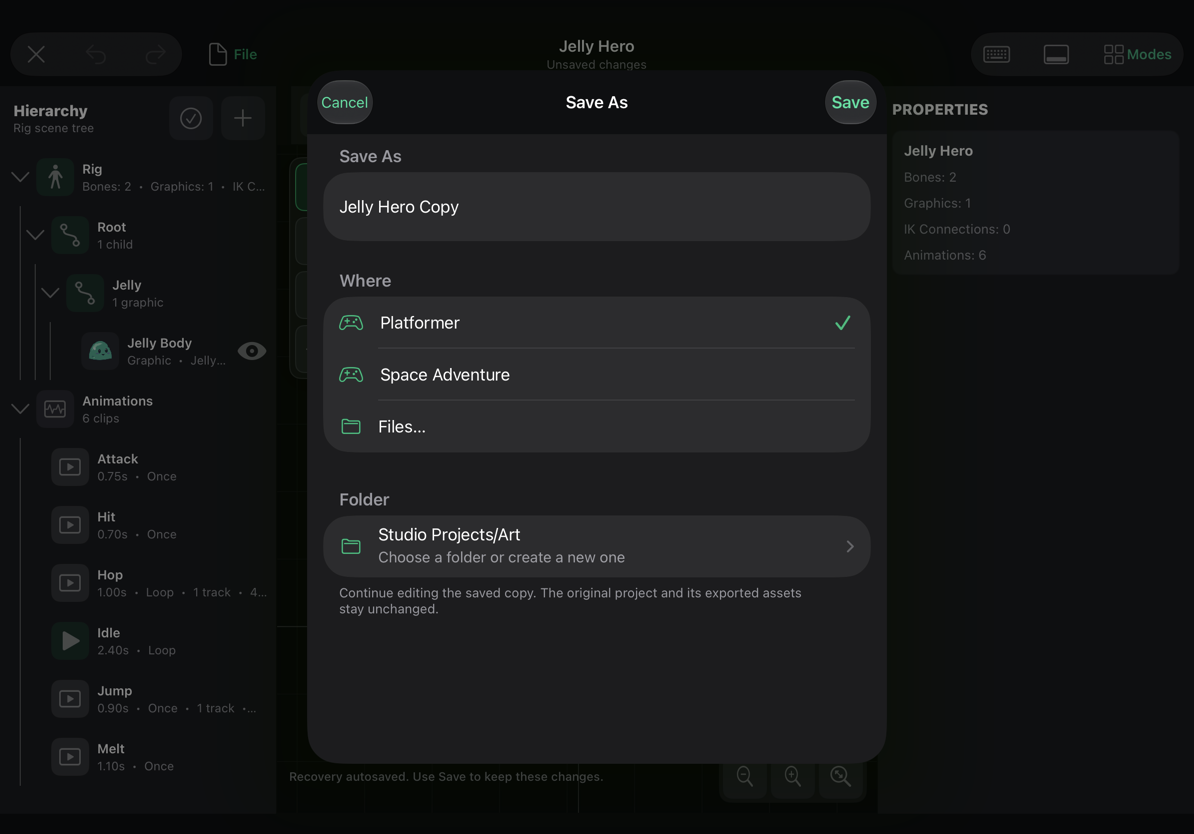
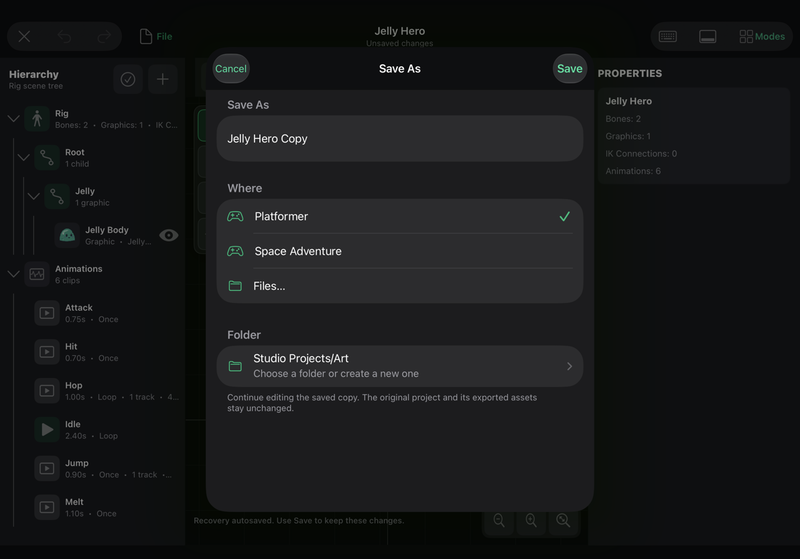
You continue editing the saved copy. The original project's content and exported assets are unchanged. The copy has an independent source identity and starts without links to the original's exported assets. Export it to create its own game assets.
A folder must be inside the selected game's asset library and outside an existing asset package. You cannot nest a project inside a graphic or animation asset. If the name is already taken, choose a new name.
Saving into another game does not open that game's scene. Open the destination game when you want to place and test its exported assets.
Save a portable project to Files or Finder
- Choose File → Save As….
- Enter a project name.
- Choose Files… on iPad or Finder… on Mac.
- Check the Document row: it shows the
.hpstudiofilename. - Choose Save, then choose a destination in the system save interface.
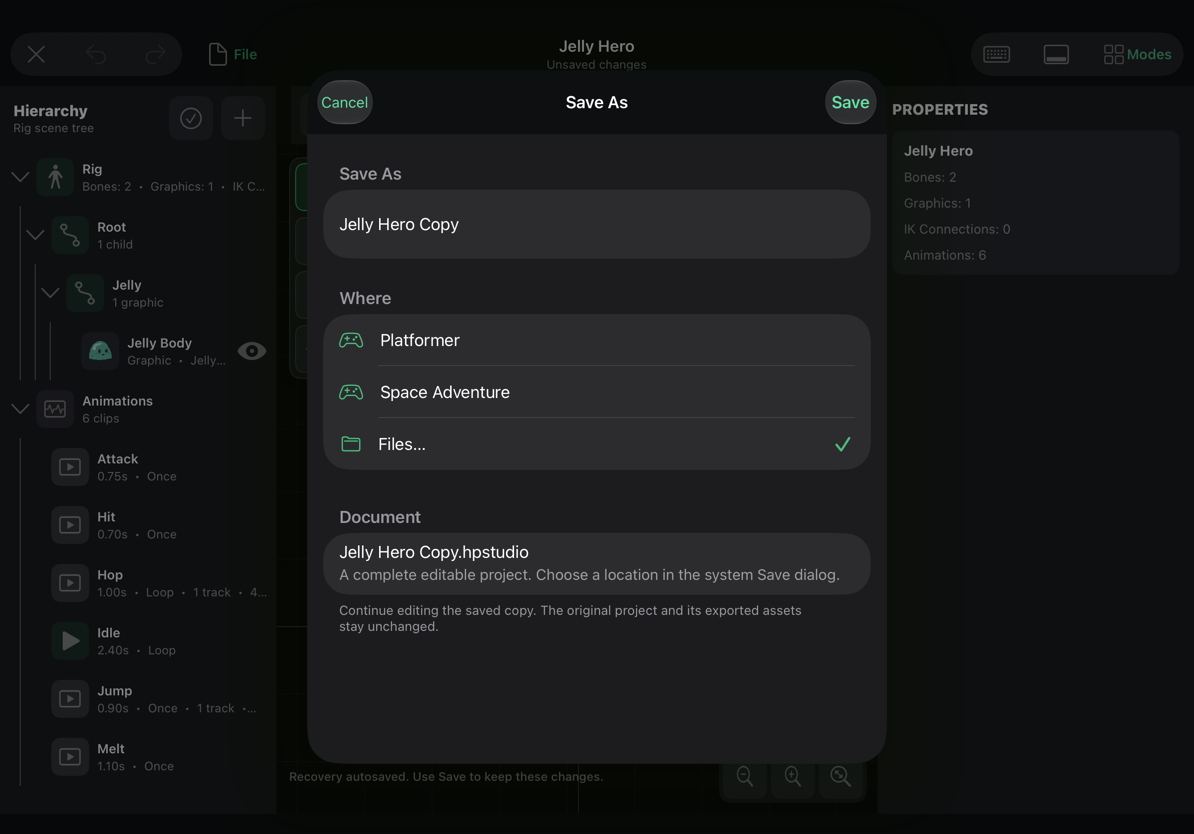
A portable project contains the editable Drawing and rig content. It does not package a game's scenes, behaviors, database, or already exported runtime assets. Use it to keep a separate working file or transfer editable Art Studio work.
After Save As succeeds, ⌘S updates that chosen file. To open it again, choose File → Open Project… or ⇧⌘O, then select the .hpstudio file.
If the file changes elsewhere or is deleted while you edit, Art Studio does not silently overwrite it. Use Save As to preserve your current work, or reopen the file to load its latest version.
Bring a portable project into a game
An external .hpstudio project is not yet a game asset. Before exporting a game asset:
- Open the
.hpstudioproject. - Choose Save As.
- Select a game and an asset-library folder.
- Save the in-game copy.
- Choose Export Game Asset.
The export menu offers Save to a Game Before Exporting… when this step is needed.
Export a still, 9-slice graphic, or drawing animation
Open File → Export Game Asset. Available choices depend on the project: 9-slice requires 9-slice authoring, frame animation requires its timeline mode, and rig outputs require attached artwork.
| Export choice | What becomes the game asset |
|---|---|
| Drawing → Still Graphic | The selected Drawing frame, composited from the visible layers |
| Drawing → 9-Slice Graphic | The Drawing artwork with its authored 9-slice settings |
| Drawing → Keyframe Animation | The Drawing frame animation and its cycles |
| Rig → Current Pose Graphic | A still rendering of the rig at the selected clip and playhead time |
| Baked Rig Animation… | Sprite frames rendered from the clips you choose |
| Rigged Object… | A live skeleton, attached artwork, meshes, clips, skins, and Body Parts for runtime animation |
For a still graphic:
- In Drawing, select the frame you want to use.
- Choose File → Export Game Asset → Drawing → Still Graphic.
- Inspect the preview. If it is blank, make sure you chose the correct source. A rig-only character should use a Rig export.
- Enter the exported asset's name.
- Check Destination in the review.
- Choose Export to Asset Library.
- Return to the Asset Library and use the exported asset in the normal dock-to-scene workflow.
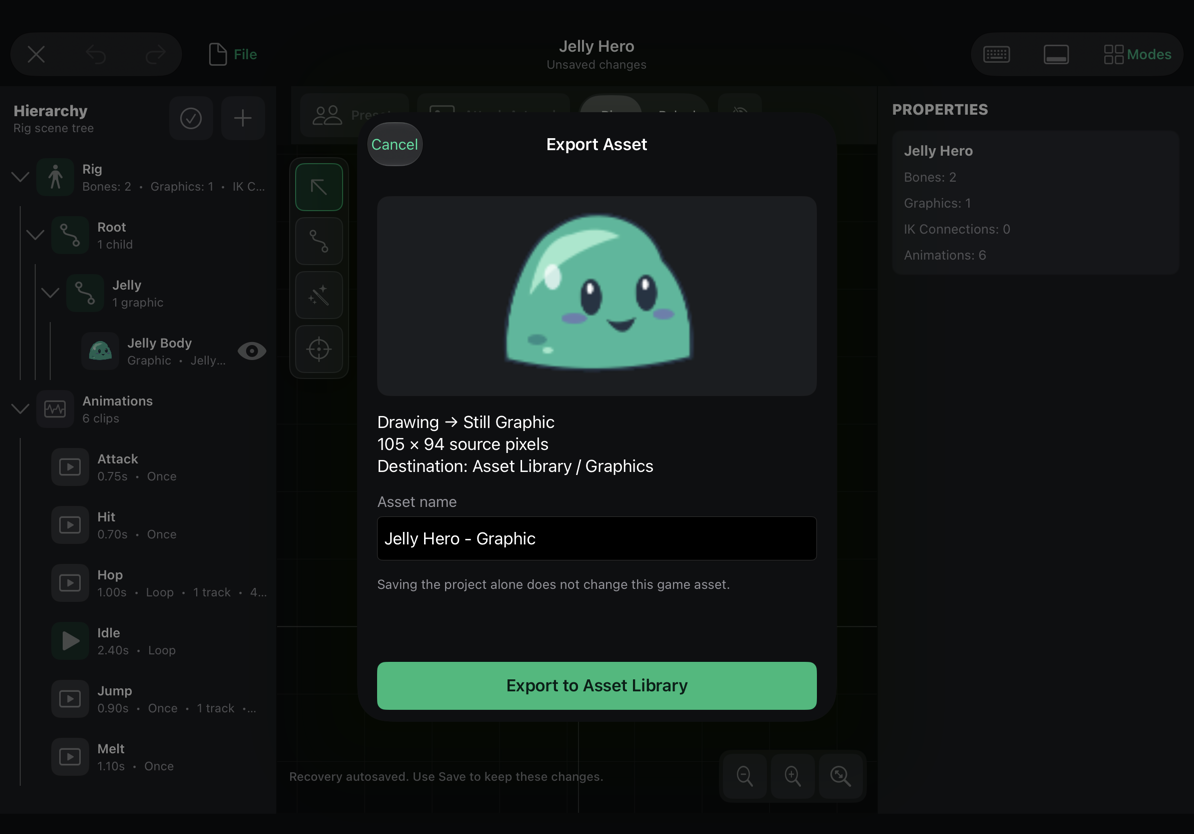
The same review pattern applies to a 9-slice graphic, Drawing animation, or current rig pose. A rig pose export records the chosen clip and time. A still Drawing export records the chosen frame. Updating that output later uses its recorded choice, so moving the playhead alone is not how you choose a different pose for an existing export; make a new export for that pose.
Exports normally go to Assets/Graphics when the project belongs to a game. The project remains under its Studio project folder.
Bake a rig animation for use in a game
Baking means rendering an animation into a sequence of pictures. Your game plays the resulting sprite animation. The editable bones and meshes remain in the Studio project for future changes.
- In Rig & Animate, choose a clip and play it. Check the complete movement and hide bones if you want an unobstructed view.
- Choose File → Export Game Asset → Baked Rig Animation…. In Rig & Animate, ⌘E opens the same baked export review.
- Under Animation clips, include the clips the game actually needs. Use Clear Selection and then choose a few clips to start.
- Check the frame count shown beside each clip.
- Scroll to Output Quality.
- Choose the frame rate, scale, padding, filtering, and Retina setting.
- Check the summary at the bottom. It shows selected clips, total frames, frame rate, and calculated frame dimensions.
- Choose Export to Asset Library.
- Open the exported animation in the Asset Library, preview its cycles, and add it to the scene.
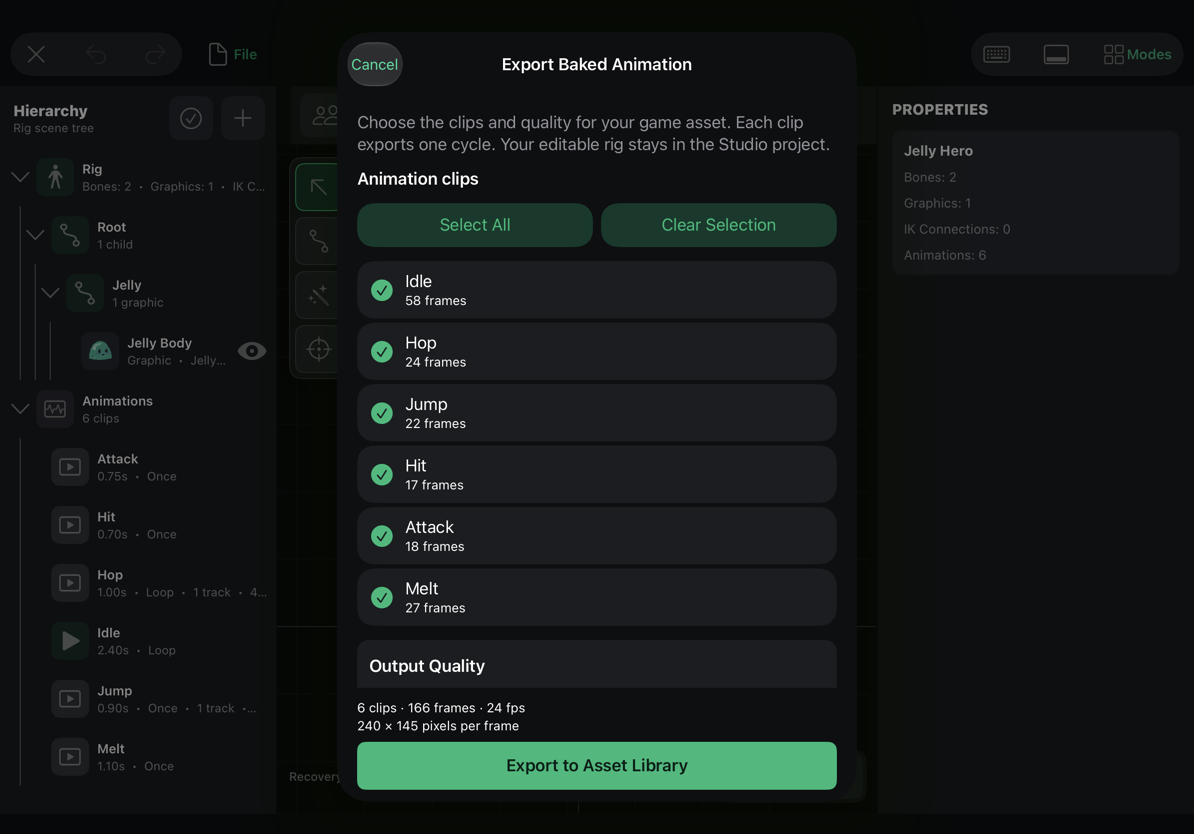
Choose an appropriate frame rate
Start with 12 fps for deliberately stepped motion or pixel art, or 24 fps for smoother character animation. The review also offers 30 fps and 60 fps, plus an exact stepper from 1 to 60 fps.
More frames do not repair stiff or incorrect poses; they only sample the existing motion more often. If a walk is wrong in the rig preview, improve the animation before increasing its export rate.
A one-second loop at 24 fps produces 24 samples. A two-second loop at 24 fps produces 48. Export renders one playback cycle of each selected clip. It does not bake every repeated loop you watched in the preview, and it does not add a frame for every authored key. Looping clips omit the repeated end frame. A one-shot preserves its final pose; a ping-pong cycle includes its forward and backward portions.
Understand the quality controls
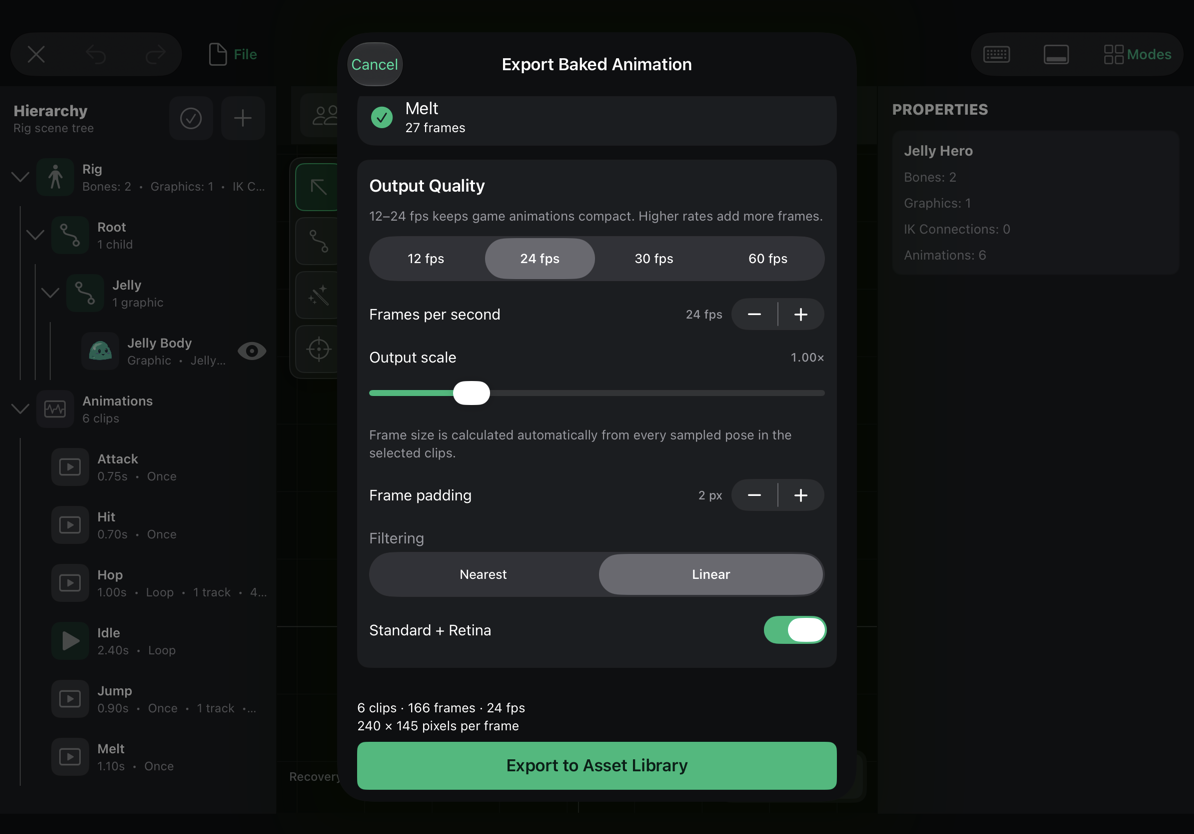
| Control | What it changes | Practical choice |
|---|---|---|
| Frames per second | Number of pictures per second of motion | Start at 12 or 24; increase only when useful |
| Output scale | Raster size of the rendered character, from 0.25× to 4× | Match the size you expect to display in the game |
| Frame padding | Extra room around the automatically calculated bounds, 0–64 pixels | A small amount is usually enough |
| Filtering: Nearest | Keeps sampled pixels sharply separated | Pixel art |
| Filtering: Linear | Blends texture samples when scaled | Smooth illustrated artwork |
| Standard + Retina | Also creates a 2× rendition | Use when the extra resolution is useful |
The frame size is calculated automatically from the selected animation poses. Wide attacks and tall jumps may need more room than Idle. Including an extreme clip can enlarge the common frame used for the export. If one special animation makes every frame excessively large, consider exporting that clip separately.
Update the previous baked asset or make another one
After a rig has a linked baked asset, the export review offers:
- Update Asset: refresh that linked animation.
- New Asset: keep the existing animation and publish another copy.
Choose New Asset for a separate quality variant or a different clip selection that should coexist with the earlier export. Choose Update Asset when revising the character already used by your game.
Canceling the review leaves its clip-selection and quality changes unapplied. Exporting commits the chosen settings to the project and publishes the result.
Update linked drawing or pose exports
The project remembers its exported Drawing graphics, 9-slice graphics, frame animations, and rig stills. File → Export Game Asset lists entries such as Update Jelly Hero - Graphic · Needs update.
- Save your project changes.
- Open Export Game Asset.
- Choose the appropriate Update… entry.
- Review the output.
- Confirm the update.
Up to date means the recorded export matches the relevant project content. Needs update means that content has changed. These labels do not update the asset automatically.
A source link connects the exported asset to its editable project. It is not a second copy of all editing data inside the runtime image. Keep the Studio project if you want to revise bones, layers, text, and clips later. If a linked exported asset was removed or replaced with another type, export a new asset instead of trying to overwrite an unrelated one.
Existing animated objects remain sprite animations. Opening older artwork for editing does not require replacing all the objects already in a scene. Saving editable source and updating runtime output are separate operations.
Export Drawing files to other apps
File → Export Drawing Files works with the Drawing document. It does not bake the Rig & Animate workspace.
| Choice | Contents | Suitable use |
|---|---|---|
| Selected Frame PNG | One composited Drawing frame with transparency | A still image for another tool |
| PNG Sprite Sheet | Drawing frames arranged into a sheet | Image-based interchange |
| Animated GIF | The Drawing animation | Sharing a preview |
Choose a format, then select a destination in the system share interface. A plain PNG or GIF does not preserve rig bones, editable text semantics, or all project data. Save As → .hpstudio is the complete Art Studio project handoff.
Size limits and efficient exports
The current game sprite-sheet path limits each PNG page to 4096 × 4096 pixels. Larger animations can span multiple PNG pages automatically; the accompanying sprite-sheet metadata references the pages. Keep those files together when importing or moving a sprite sheet manually.
Multiple pages allow more frames, but the animation still needs memory when it plays. Large frames, many clips, high frame rates, and Retina output all increase that cost. A single frame must also fit within a page. Art Studio checks the export before enabling its confirmation button and shows a message if the chosen settings are too large.
When an export is too large or impractical:
- Remove unused clips.
- Lower the output scale to the size the game needs.
- Try 24 or 12 fps.
- Reduce unnecessary padding.
- Consider standard-only output if Retina is not needed.
- Separate a very large special move from the ordinary movement set.
The review's frame count and dimensions are useful before you export. Test the result at its intended in-game size; a huge source image rarely benefits a small on-screen character.
Export a live Rigged Object
Use File → Export Game Asset → Rigged Object… when the game needs independent Body Part animations, additive poses, live meshes, IK, or manual bone control. This requires a build with the live-rig update; a public release date has not been assigned.
- Save your Studio project and open Rigged Object….
- Choose a new asset or an update to the linked one under Save as.
- Include the Animation clips you need. Include Takeoff and Fall separately for a physics-driven jump.
- Under Object size and artwork, choose output scale and filtering.
- Start with Fit Artwork → Automatic for logical bounds derived from the artwork. Only enter a custom Logical width/height when you need a deliberate gameplay size.
- Choose Export. The artwork is stored once and shared by the clips; this does not generate a PNG for every frame.
- In the Asset Library, choose the asset labelled Rigged, add it to the dock, and place it in a scene.
- Set the scene object's starting Animation, Skin, and Speed. Enable Start on Play to animate its starting clip immediately.
- Inspect the scene collider, then test its clips and behaviours.
Logical bounds control the object's anchor and default collider. Animation can extend outside those bounds without changing the physics body every frame. Transparent space in a source canvas is not a reason to make an oversized collider. A fitted thumbnail is only a preview and does not define collision geometry.
Saving the source project does not refresh exported clips or Body Parts. Update the live asset after edits. Its selected groups and clips use stable identities; renaming a group preserves it, but deleting or replacing the skeleton can invalidate behaviour selections.
Choose live or baked output
| Need | Output |
|---|---|
| A still pose | Rig → Current Pose Graphic |
| Complete sprite cycles, using ordinary frame-animation controls | Baked Rig Animation |
| Walk while independently shooting or jumping | Rigged Object, with Body Parts configured |
| Crouch as an additive posture over Walk | Rigged Object, with a suitable neutral-first-frame crouch clip |
| Bone/IK controls, changing rig artwork, or bone followers | Rigged Object |
| Editable source for future revisions | Save Project / .hpstudio, regardless of output type |
Baked sprites remain supported. They cannot regain independently animated bones from their pictures. See Body Parts and blending, the combined character tutorial, and Rig Behaviours for live gameplay setup.
Common questions
Will a custom rig know which bones to blend automatically?
For Body Part playback, define named groups in the Studio project and update its Rigged Object export. The behaviour targets the whole object; the group limits the animation's local bone channels. Additive can use Whole Rig or a group. hyperPad does not guess groups from bone names. See custom-rig setup and blending rules.
I saved a rig, but cannot drag the Studio project into my scene.
That is expected. Reopen the project and export Rigged Object, Baked Rig Animation, or Rig → Current Pose Graphic, then use that exported asset.
My export preview is empty even though my rig looks correct.
Check whether you chose Drawing → Still Graphic. Drawing and rig artwork can be independent. Use a Rig output for the rig's artwork.
I changed the character, but the game still shows the old version.
Save keeps the editable work. Use the appropriate Update… / Update Asset export to refresh the game asset.
Why does my portable project say to save to a game first?
A Files/Finder document has no game asset-library destination. Use Save As, select the game, then export.
Why is Save As no longer linked to the original's exports?
It creates an independent project so your variant cannot accidentally update the original character's assets.
Can I edit a rig part without drawing the whole character again?
Use File → Project Artwork. It lists Drawing layers and rig parts; when a suitable rig part is selected, Edit Selected Part… is also available. Keep a rig part's pixel dimensions when applying edits so its pivots and mesh weights remain aligned.
What should I check before considering an export finished?
Reopen the project, preview every exported cycle, check the exported asset in the Asset Library, and place it into a test scene. Check transparent edges, the full attack/jump silhouette, and playback speed at the intended display size.