

Rebind Input
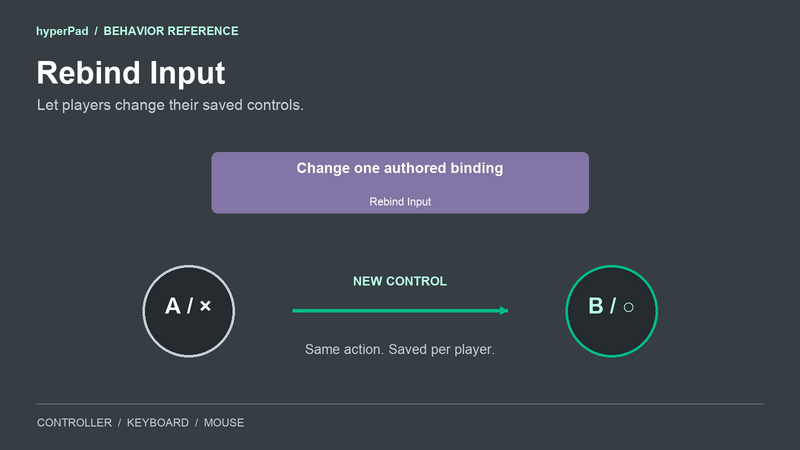
Use Rebind Input to let your players change a control during play. You can also read the current choice or restore the control you authored.
The gameplay connection stays in place. For example, a player can change the controller button for Jump while your existing Jump behavior keeps its movement settings.
Find it in Interaction > Controls.
Properties
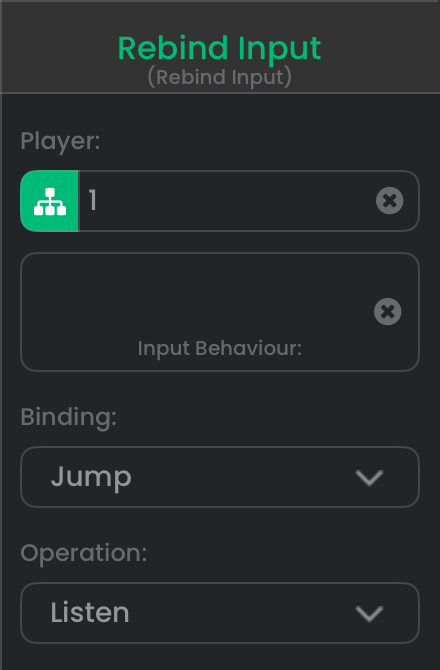
These settings listen for a replacement for Player 1’s Jump binding.
| Property | Default | What it does |
|---|---|---|
| Player | 1 | The player whose binding you want to change or read. Match the target's player number. |
| Input Behavior | No selection | Select Map Control Inputs, Controller Event, or a Keyboard Event or Mouse Event that identifies one specific input. Cancel and Reset All work without a target. |
| Binding | First mapping row, or the event's single input | Select the mapping row by its friendly name. A concrete event has one binding. Different rows keep your controller, keyboard, and mouse alternatives separate. |
| Operation | Listen | Chooses whether to capture, cancel, read, or reset a binding. |
A specific Keyboard Event key can be rebound. Any key and On Sequence do not identify one binding. Mouse Event can identify a click, movement, or one scroll direction. Any scroll does not identify one direction to rebind.
Map Control Inputs uses positive player numbers. To rebind a Controller Event authored with Player 0, use Player 0 here too. That all-controller event is left out of the generated per-player Controls table.
Operations and event timing
| Operation | What happens | When the bottom event connection runs |
|---|---|---|
| Listen | Waits for a compatible input and saves it for the selected binding. | When capture succeeds, is cancelled, or cannot start because the target is unavailable. It does not run for each prompt update. |
| Cancel | Stops the active listening operation. The saved binding stays unchanged. No target is required. | Immediately. The listening behavior also completes with cancellation. |
| Reset | Removes the selected binding's saved override and restores its authored control. | Immediately after the reset attempt. |
| Reset All | Removes every saved binding override for this player in the current project. No target is required. | Immediately. A target-free Reset All reports success. |
| Get Binding | Reads the selected binding's current saved or authored control. | Immediately after the read. |
Starting another Listen replaces the active listening operation. Keep one rebinding request active in your UI.
Which controls can replace each other?
Capture stays within the selected binding's input family and type.
| Selected binding | Compatible capture |
|---|---|
| Controller button or trigger | Another controller button or trigger. |
| Controller movement | A stick or D-pad. |
| Keyboard button | One keyboard key. |
| Keyboard movement | Four distinct keyboard keys, in the order Up, Right, Down, Left. |
| Mouse button or scroll direction | A mouse button or scroll direction. |
| Mouse movement | Relative mouse movement. |
For keyboard movement, follow prompt as each key is collected. If you press a key already chosen for another direction, listening stays on the current step. The four keys are saved only when the complete set is accepted.
An incompatible input leaves listening active. To offer both keyboard and controller support for one action, author separate rows in Map Control Inputs. Rebinding changes an existing row; it does not add another device alternative to your game.
Outputs
| Output | What it contains |
|---|---|
control | The saved or queried control identifier, such as buttonA, keyboard:44, or mouse:1. Read it for a successful Listen, Get Binding, or Reset. Reset All can succeed with no single control to return. |
label | A readable label for control. Controller face buttons use their position. A keyboard movement binding shows the actual four selected keys. |
prompt | The current capture instruction. It changes while listening, such as asking for the next movement key. |
progress | Capture steps completed. It starts at 0; keyboard movement advances through 1, 2, and 3, then finishes at 4. Other successful captures finish at 1. A cancelled Listen returns 0. |
success | true when a binding is successfully captured, read, or reset. Reset All returns true without a target. false means capture was cancelled or the requested binding was unavailable. |
cancelled | true when listening was cancelled. An unavailable target returns false for both success and cancelled. |
deviceID | The input device that supplied a successful capture. A controller returns its session ID. Keyboard and mouse return keyboard and mouse. |
Read prompt and progress while listening if you want your UI to show the next step. Prompt updates do not run the bottom event connection. You can read these outputs from a separate UI update behavior.
Capture outputs describe a capture attempt. Get Binding, Reset, and Reset All do not start a new capture. The separate Cancel operation reports success and cancelled; do not use its other outputs as a fresh capture result. Use Get Binding to show the current control after an operation.
Cancelling capture
Players can cancel with Escape or the controller's Menu button. Those controls are reserved for cancellation while listening. The right face button remains available to bind. Your custom UI should also provide a Cancel action.
Release a control that was already held when listening began, then press it again. Captured input is held back from gameplay until it returns to neutral.
The generated Controls overlay supplies a 15-second fallback for controller capture when a Menu button is unavailable or unconfirmed. Universal also applies this fallback to its controller capture service. A custom native Rebind Input flow should provide Cancel rather than rely on a timeout. Keyboard and mouse capture do not use this controller timeout.
The generated overlay also handles the mouse click that opens capture and clicks on its Cancel button. Prefer that UI for mouse rebinding. This article's custom connection example selects a controller binding.
Connection guide: change Jump and refresh its label
This is an illustrative example. First author a controller row in Map Control Inputs, give it the friendly name Jump, and connect it to your game's jump input.
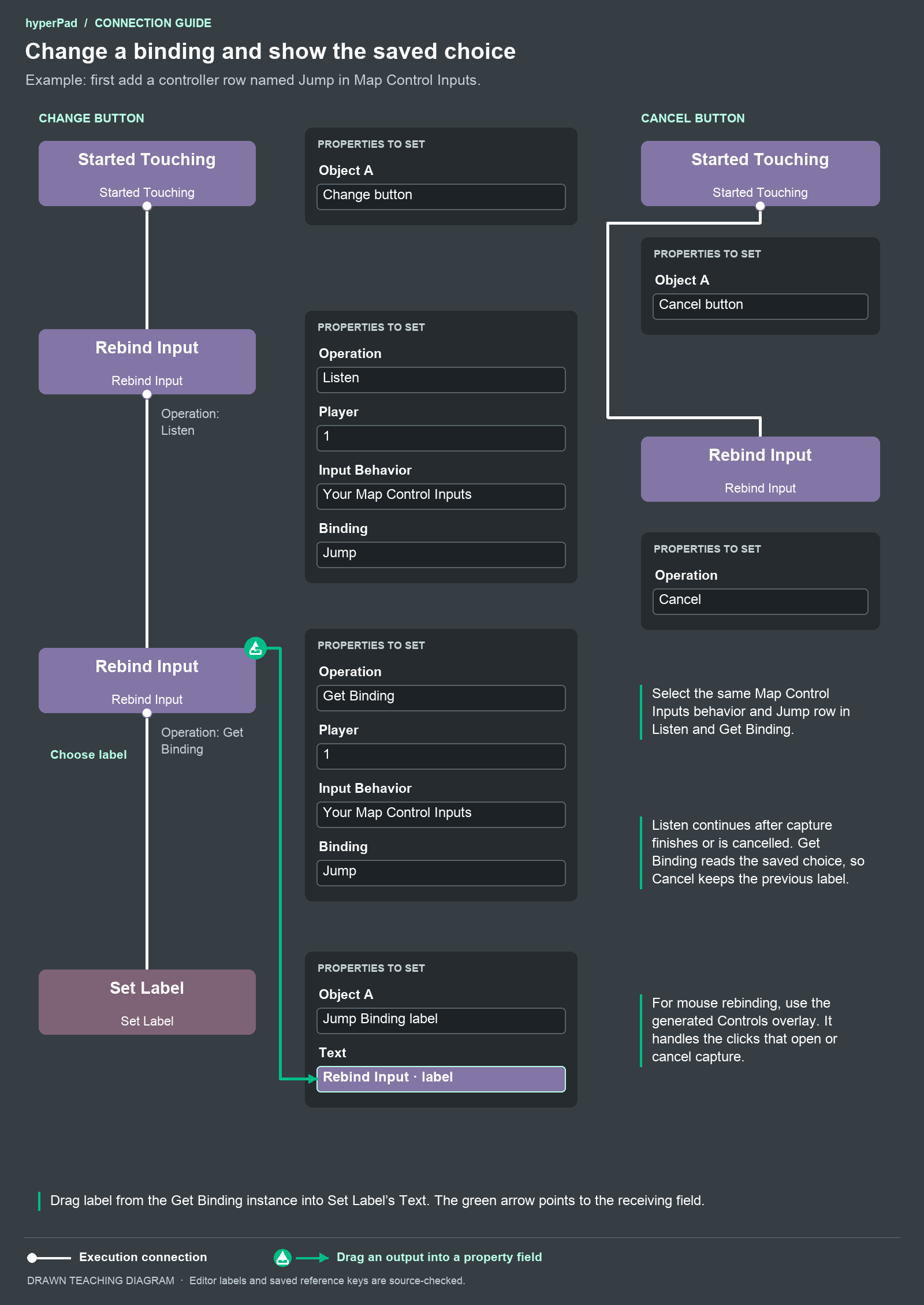
- Create a Change button Object and a Jump Binding label Object.
- Add Started Touching for the Change button. Connect its bottom event connection to Rebind Input.
- Set that Rebind Input to Listen, Player 1, your Map Control Inputs behavior, and the Jump controller row.
- Connect Listen to a second Rebind Input. Set this one to Get Binding with the same Player, Input Behavior, and Binding.
- Connect Get Binding to Set Label. Select Jump Binding as Object A.
- Drag the green
labeloutput from the Get Binding instance into Set Label's Text property. - Create a Cancel button Object. Connect its Started Touching behavior to another Rebind Input set to Cancel. This Cancel behavior needs no target.
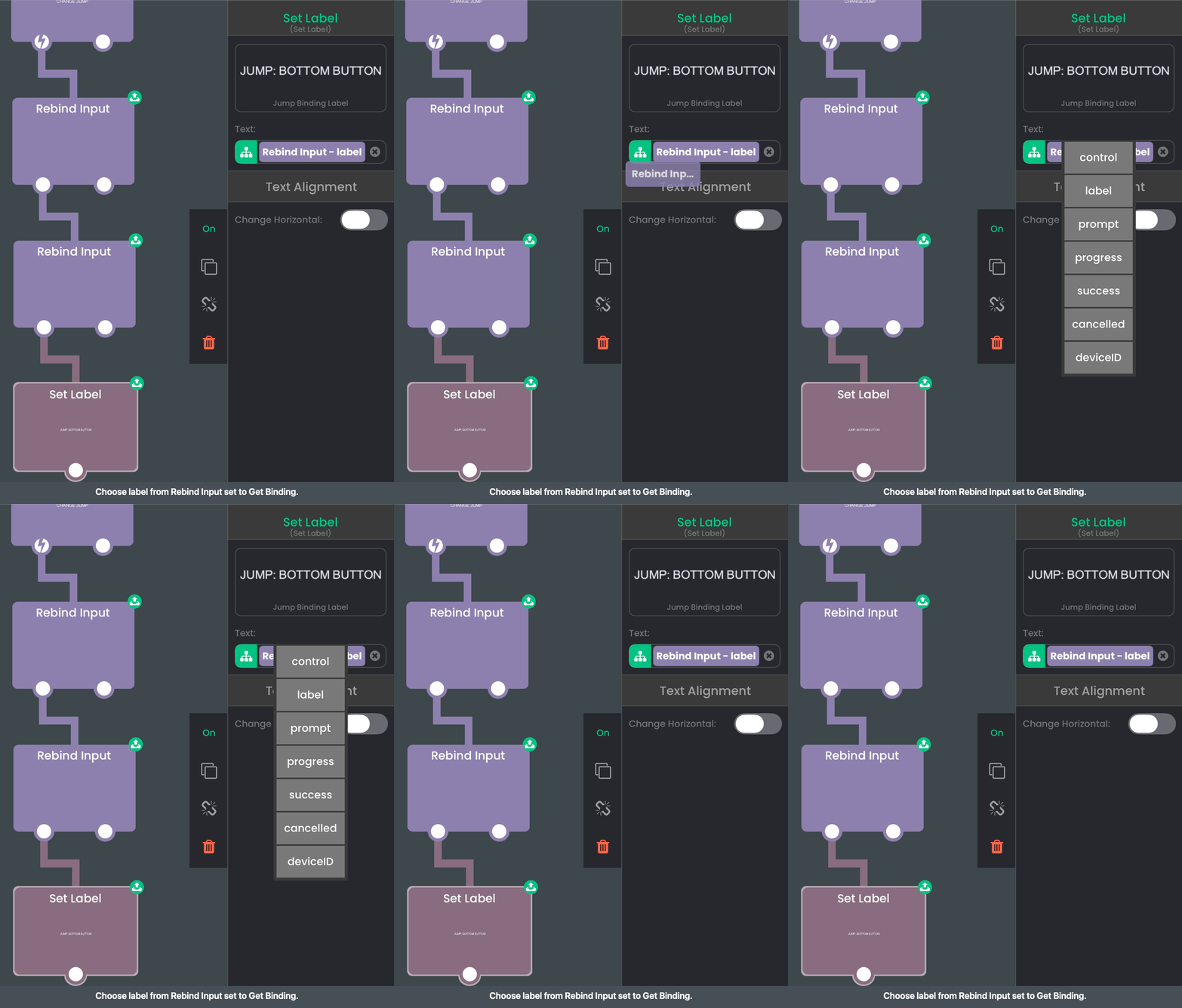
Use the label output from the instance set to Get Binding. It reads the saved choice after Listen finishes.
Listen finishes on either capture or cancellation. Get Binding then reads the current choice, so the label shows the previous control if your player cancels. You can also execute Get Binding when your UI first opens to display the initial choice.
Saved choices
Overrides are saved for the current project, player, behavior, and binding. Changing one controller row leaves its keyboard and mouse alternatives intact. Reset All affects that player's saved bindings across the project, including authored controls in other scenes. It does not reset another player's choices or change controller assignments.
Controls defined in your project can be rebound before their scene loads. If gameplay decides a control's player or input source through another behavior's output, it becomes available after that live behavior resolves those values.
Saved choices are stored by the player runtime. They do not identify a particular piece of controller hardware and do not promise transfer between devices or player apps. Use Assign Controller to choose a connected device for a player. Connect or pair the physical device through the platform's own setup.