

Build OrbitRun with Smart Shape — Part 4: Sound, polish, and recovery
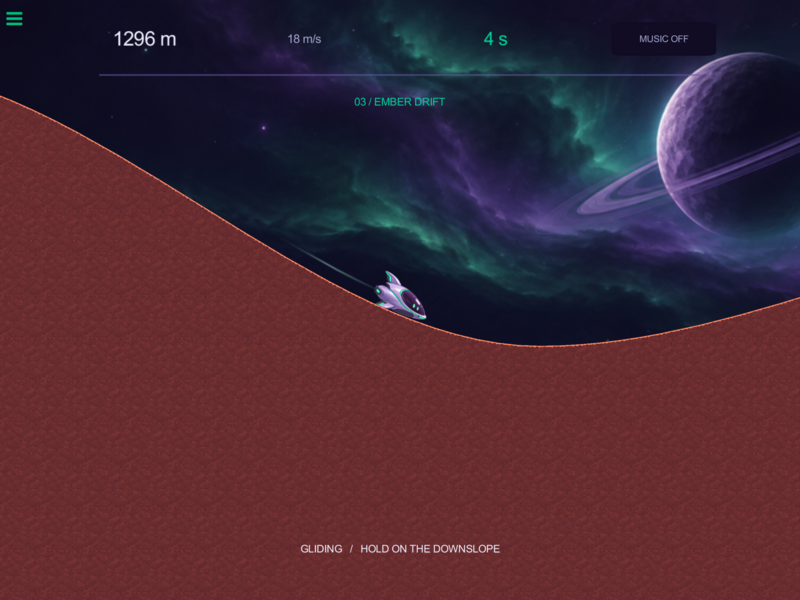
The game works. Now make its actions feel connected: a quiet music loop, a trail behind the ship, short bursts at meaningful moments, and a helpful way to retry if terrain preparation stalls.
Continue from Part 3, or open OrbitRun-12-personal-best.tap from the checkpoint pack. The original asset pack includes the audio and particle files used here. The assets-only starter and every later checkpoint already have them imported.
Tap a screenshot or diagram to open its full-size image and inspect the details.
Reading the diagrams: white connectors run the next behaviour; the green output icon supplies a value to a field. If uses the bottom for true and right side for false. REUSE means keep the existing behaviour. The animated guides add teaching highlights; the editor recordings show the real gestures.
13. Add music that remembers the player's choice
Use these aliases so the two branches stay easy to trace.
Build the button first
The button reads Skimmer’s music attribute. If it is 1, the true branch mutes music; otherwise the false branch turns music on.
Build: Music button: true or false
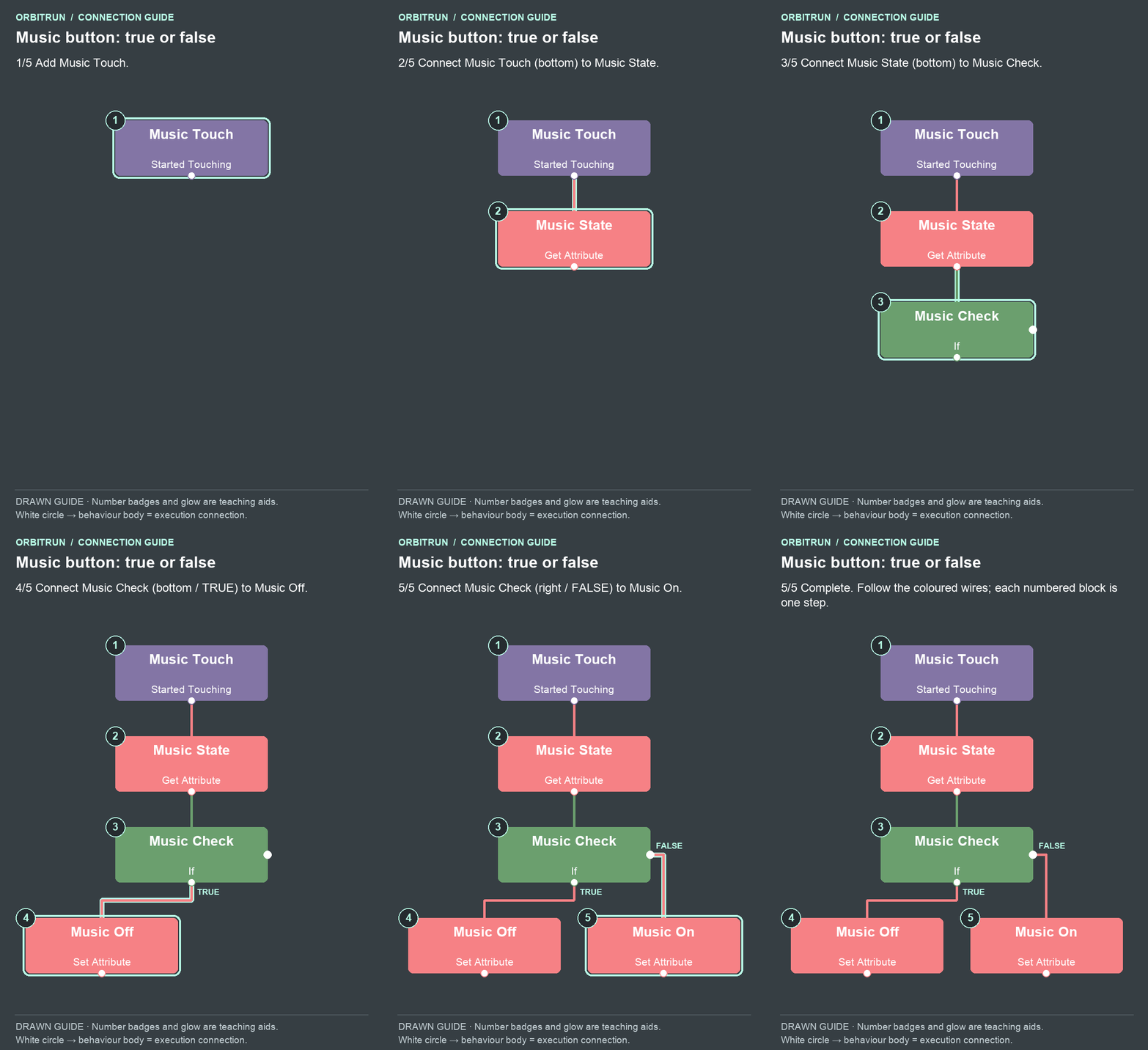
- Add Started Touching and name it Music Touch.
- Add Get Attribute and name it Music State. Drag an unused bottom white circle on Music Touch onto the Music State block.
- Add If and name it Music Check. Drag an unused bottom white circle on Music State onto the Music Check block.
- Add Set Attribute and name it Music Off. Drag an unused bottom white circle (true) on Music Check onto the Music Off block.
- Add Set Attribute and name it Music On. Drag the right-side white circle (false) on Music Check onto the Music On block.
Properties: Music Touch targets Music Button, Touch Anywhere Off, Absorbs Touch On. Music State reads Skimmer’s music attribute. Music Check compares that Attribute Value Equals 1. Music Off sets music to 0; Music On sets it to 1.
Build: Turn music off
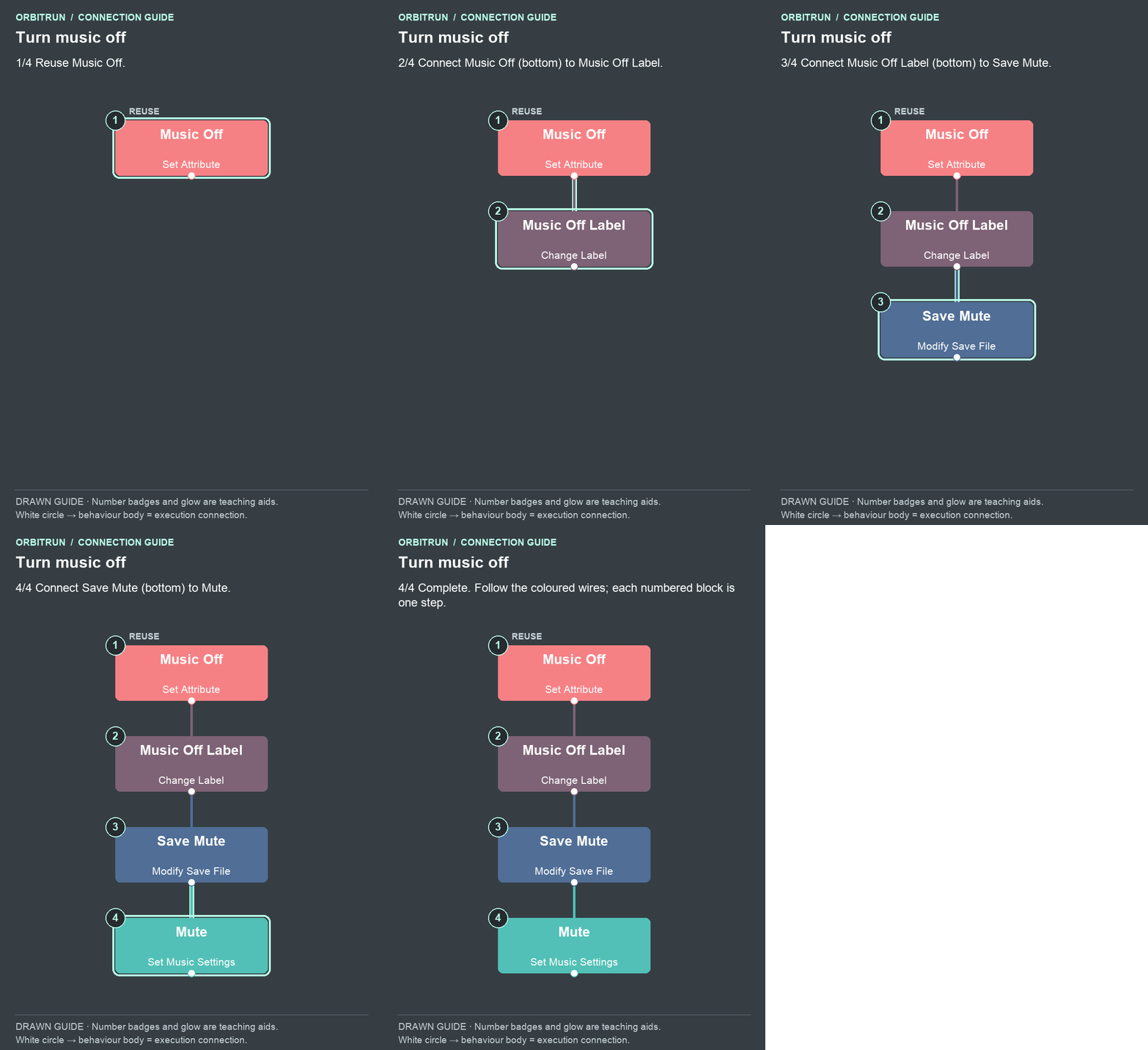
- Reuse Music Off.
- Add Change Label and name it Music Off Label. Drag an unused bottom white circle on Music Off onto the Music Off Label block.
- Add Modify Save File and name it Save Mute. Drag an unused bottom white circle on Music Off Label onto the Save Mute block.
- Add Set Music Settings and name it Mute. Drag an unused bottom white circle on Save Mute onto the Mute block.
Off settings: Music Off Label targets Music Label, text MUSIC OFF. Save Mute uses Modify Save File: Set Key, Dynamic, orbit-music-volume-v1, value 0. Mute uses Set Music Settings: Change Volume On, volume 0, with a short fade.
Build: Turn music on
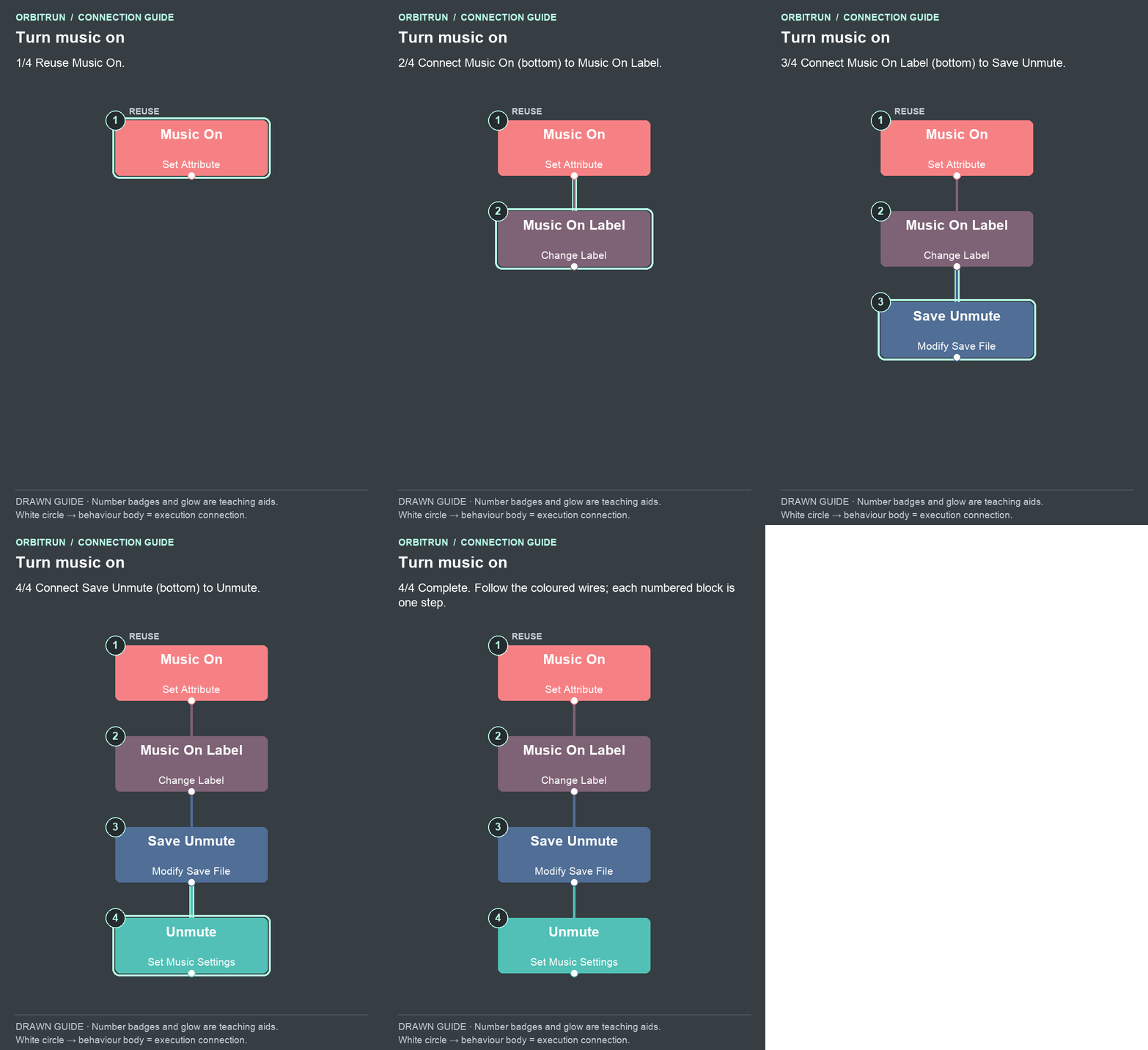
- Reuse Music On.
- Add Change Label and name it Music On Label. Drag an unused bottom white circle on Music On onto the Music On Label block.
- Add Modify Save File and name it Save Unmute. Drag an unused bottom white circle on Music On Label onto the Save Unmute block.
- Add Set Music Settings and name it Unmute. Drag an unused bottom white circle on Save Unmute onto the Unmute block.
On settings: Music On Label targets Music Label, text MUSIC ON. Save Unmute uses the same Dynamic key with value 35. Unmute changes volume to 35, with a short fade.
Load the saved choice
Build: Restore the saved music choice
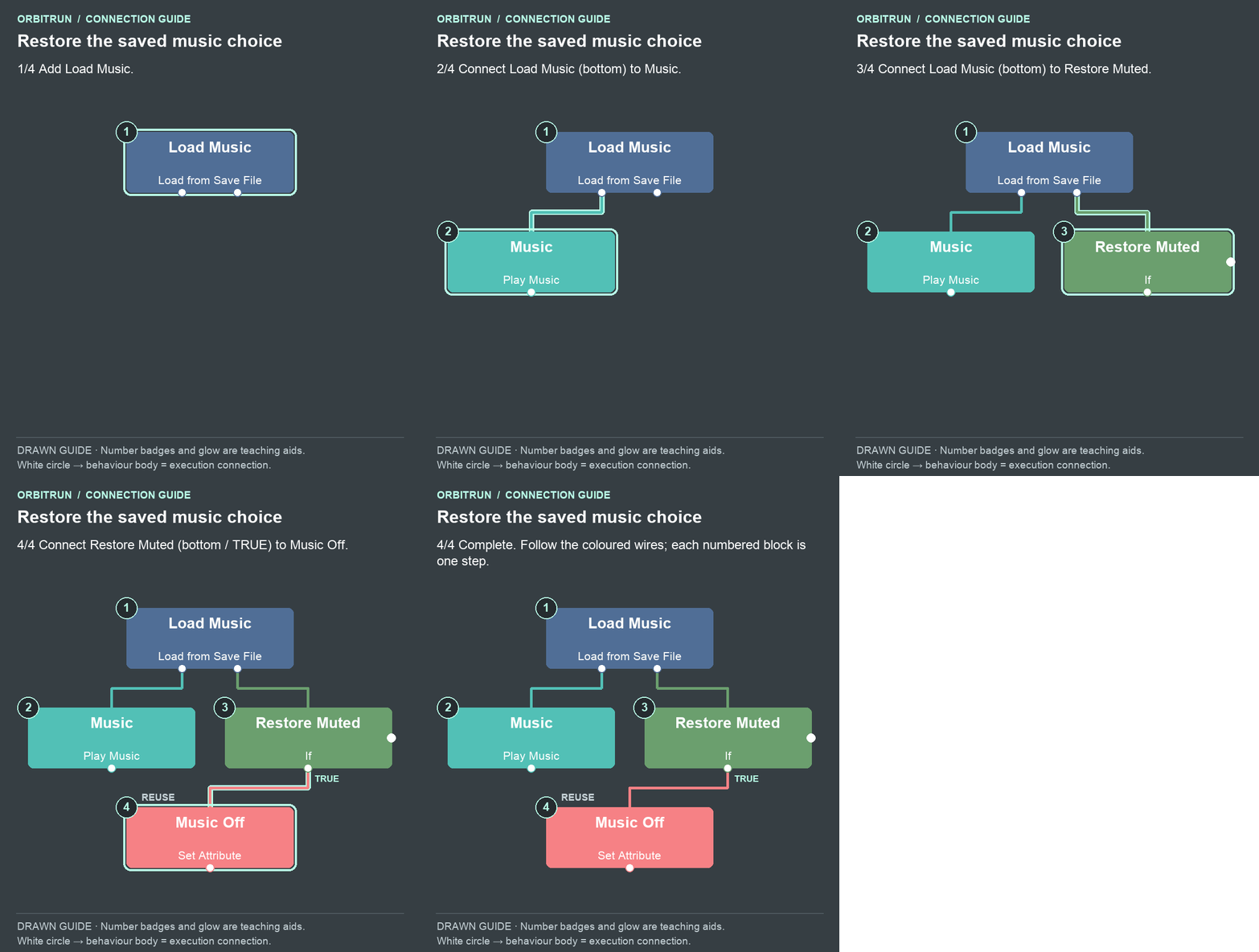
- Add Load from Save File and name it Load Music.
- Add Play Music and name it Music. Drag an unused bottom white circle on Load Music onto the Music block.
- Add If and name it Restore Muted. Drag an unused bottom white circle on Load Music onto the Restore Muted block.
- Reuse Music Off. Drag an unused bottom white circle (true) on Restore Muted onto the Music Off block.
Properties: Load Music uses key orbit-music-volume-v1, default 35, and remains at the top level. The default and saved “on” volume should match; choose a comfortable listening level. Music uses orbit-loop, Loop On, Preload On, Start Time 0, Persistent Off. Restore Muted compares Load Music’s Loaded Value Equals 0. Its true connection reuses Music Off, restoring the attribute, label and sound together.
The Play Music reference explains these controls. Tap the track field, open Sounds, and choose orbit-loop:
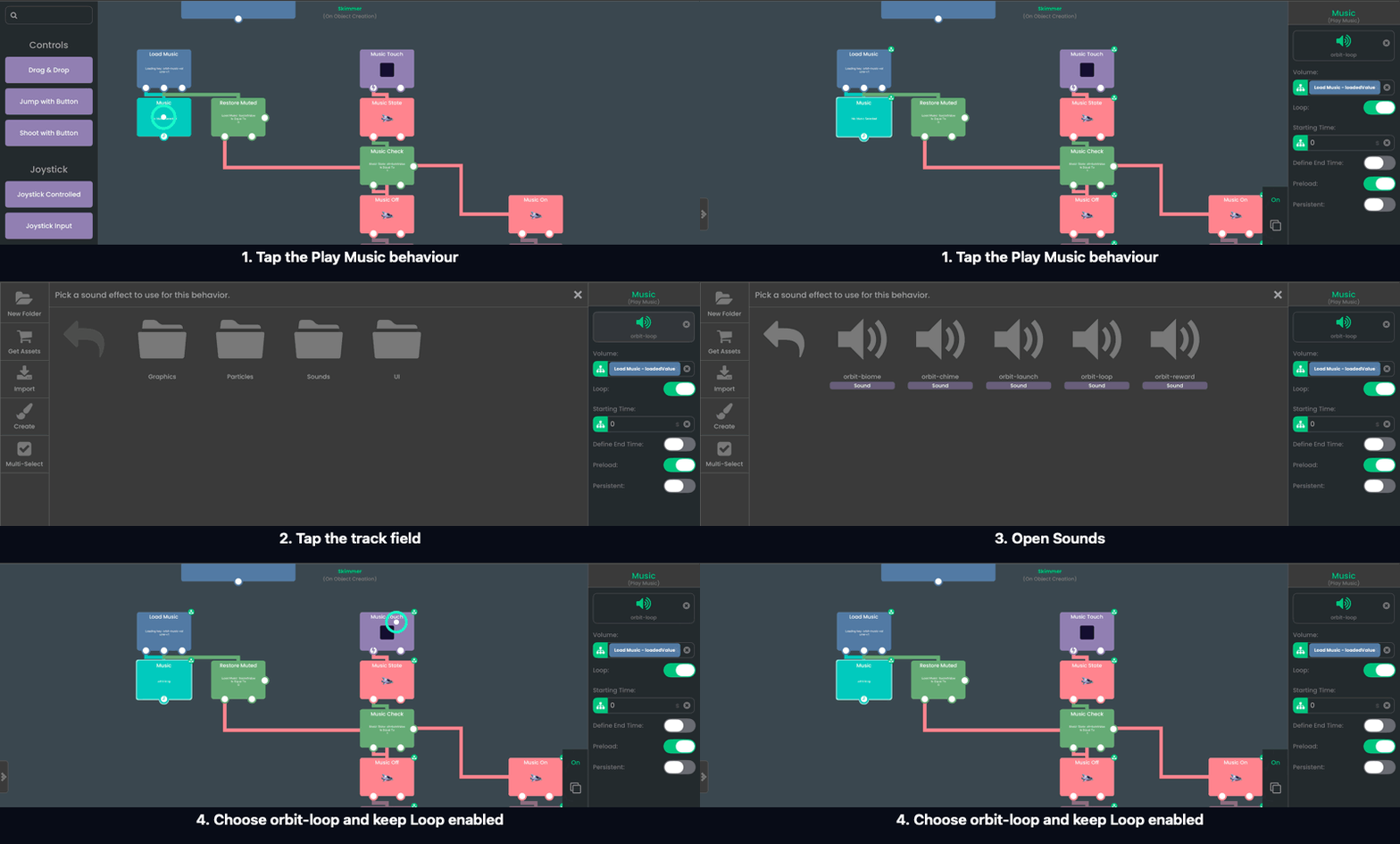
Watch the output drag: use the saved volume
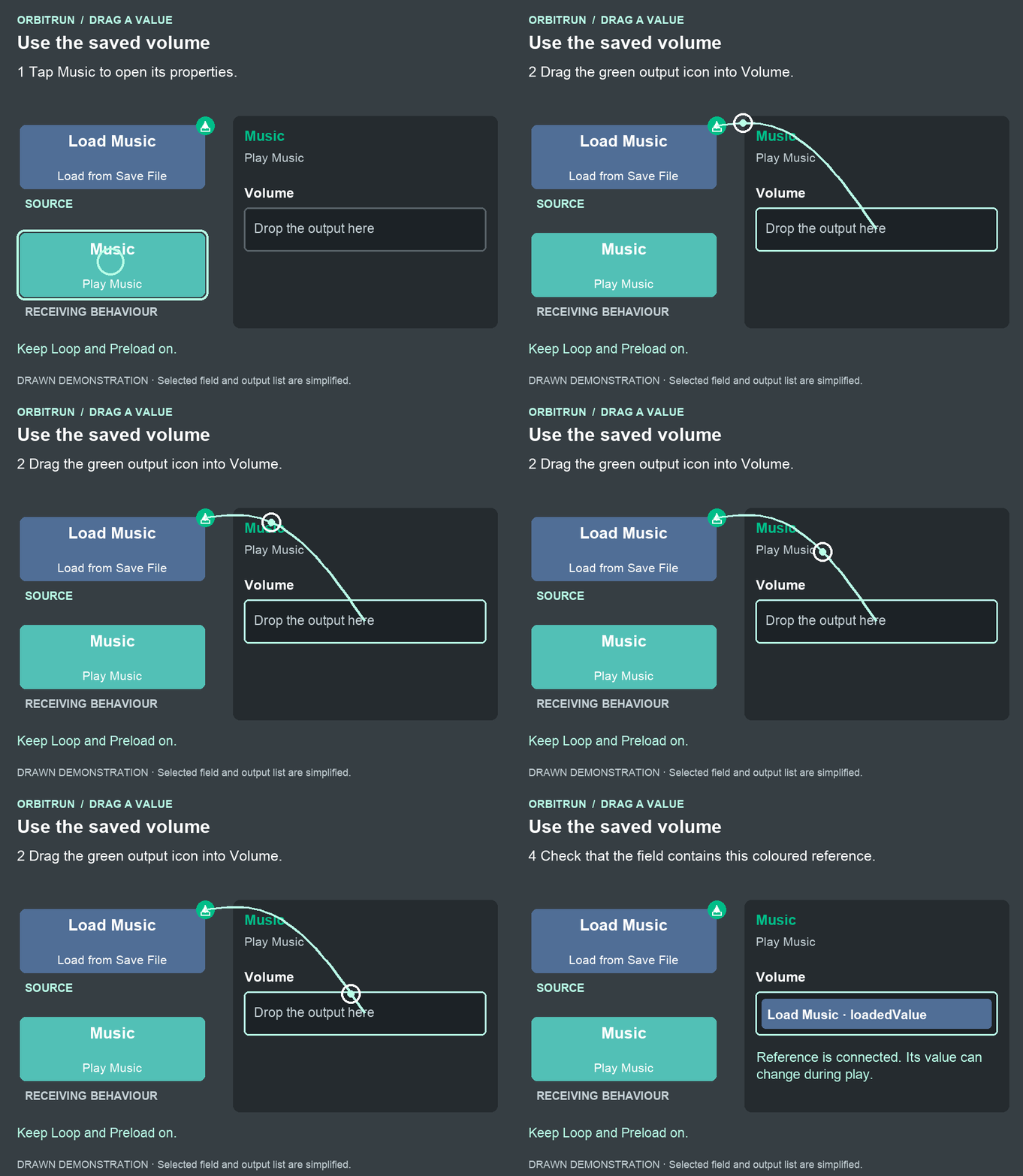
After the drop: Volume contains Load Music · loadedValue. Keep Loop and Preload on.
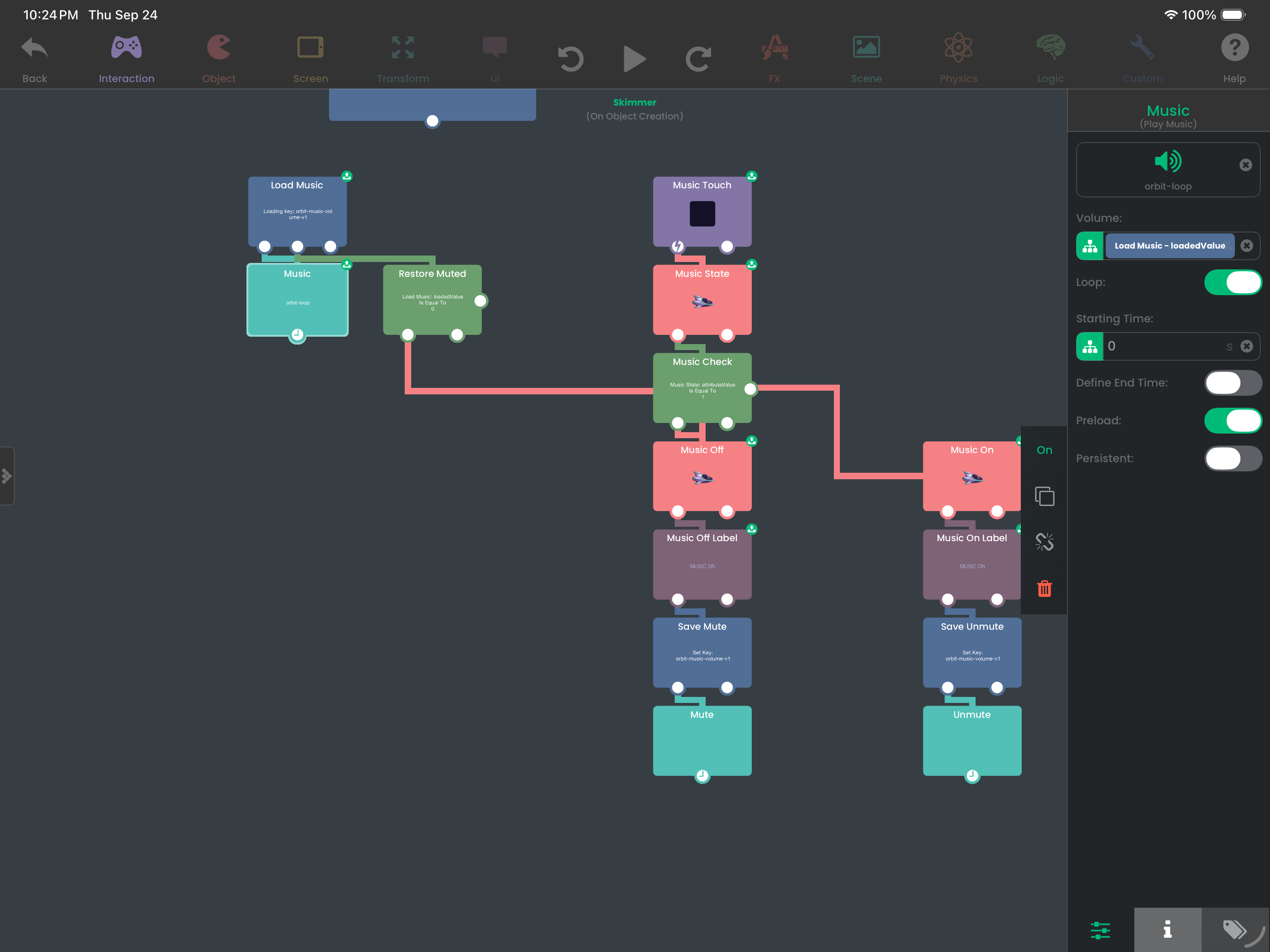
Try it: toggle the button on the title screen and during a run. Its label should update immediately. Replay and confirm the choice is retained. Tapping the music button should not act as a dive touch.
Why it works: update state, update the label, save the choice, then fade the audio. Those first three actions do not depend on a fade-completion event. The music button controls music only; the short sound effects in the next step remain audible.
14. Add motion and reward feedback
Leave a light trail
Aim for a small streak that makes the ship’s movement easy to follow:
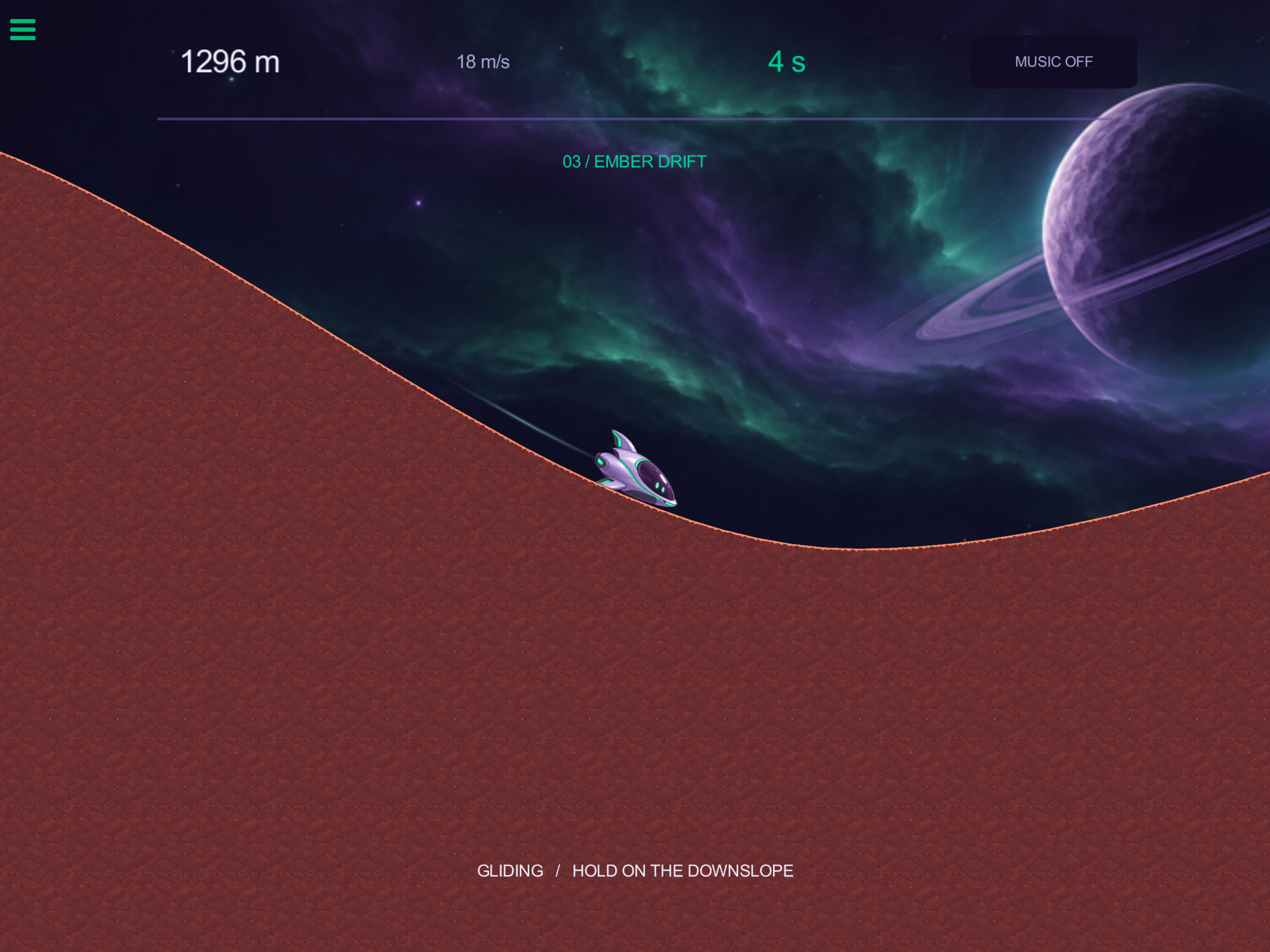
The launch-effects guide below adds Trail (Start Trail). Target Skimmer and choose orbit-trail. Give it a light tint, a thin stroke, and a short fade. Enable Fade to Transparent and draw it behind the ship. Adjust its appearance while playing.
Reward fast flight without repeating constantly
Use the If, Timer, and Play Sound references while setting up this branch.
Properties: Flow Check compares Velocity’s Speed output > 30. Flow Cooldown disables Flow Check using Set Behaviour State. Its four children have these settings:
- Flow Sound — Play Sound —
orbit-chime, Loop Off; keep it quieter than the main effects - Show Flow — Set Visibility — Show Flow Label
- Flow Hide Timer — Timer — 1.4 s, once, Start Immediately Off. Hide Flow (Set Visibility) hides Flow Label
- Flow Reset Timer — Timer — 4 s, once, Start Immediately Off. Flow Rearm (Set Behaviour State) enables Flow Check, Executes Immediately Off
The two guides show the reward and its reset. Both begin at Flow Cooldown.
Build: Reward a fast flight once
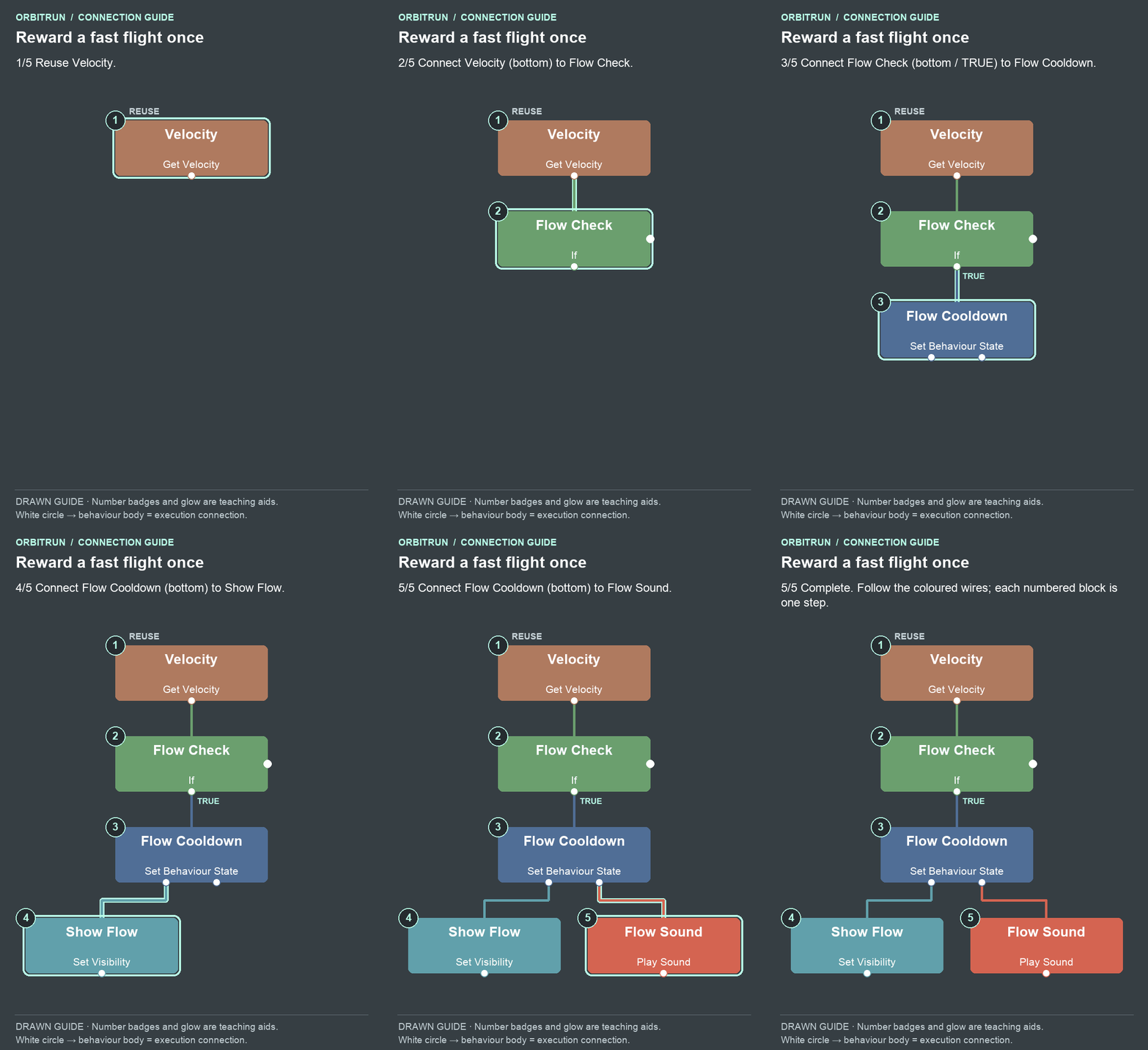
- Reuse Velocity.
- Add If and name it Flow Check. Drag an unused bottom white circle on Velocity onto the Flow Check block.
- Add Set Behaviour State and name it Flow Cooldown. Drag an unused bottom white circle (true) on Flow Check onto the Flow Cooldown block.
- Add Set Visibility and name it Show Flow. Drag an unused bottom white circle on Flow Cooldown onto the Show Flow block.
- Add Play Sound and name it Flow Sound. Drag an unused bottom white circle on Flow Cooldown onto the Flow Sound block.
Build: Hide the message; rearm later
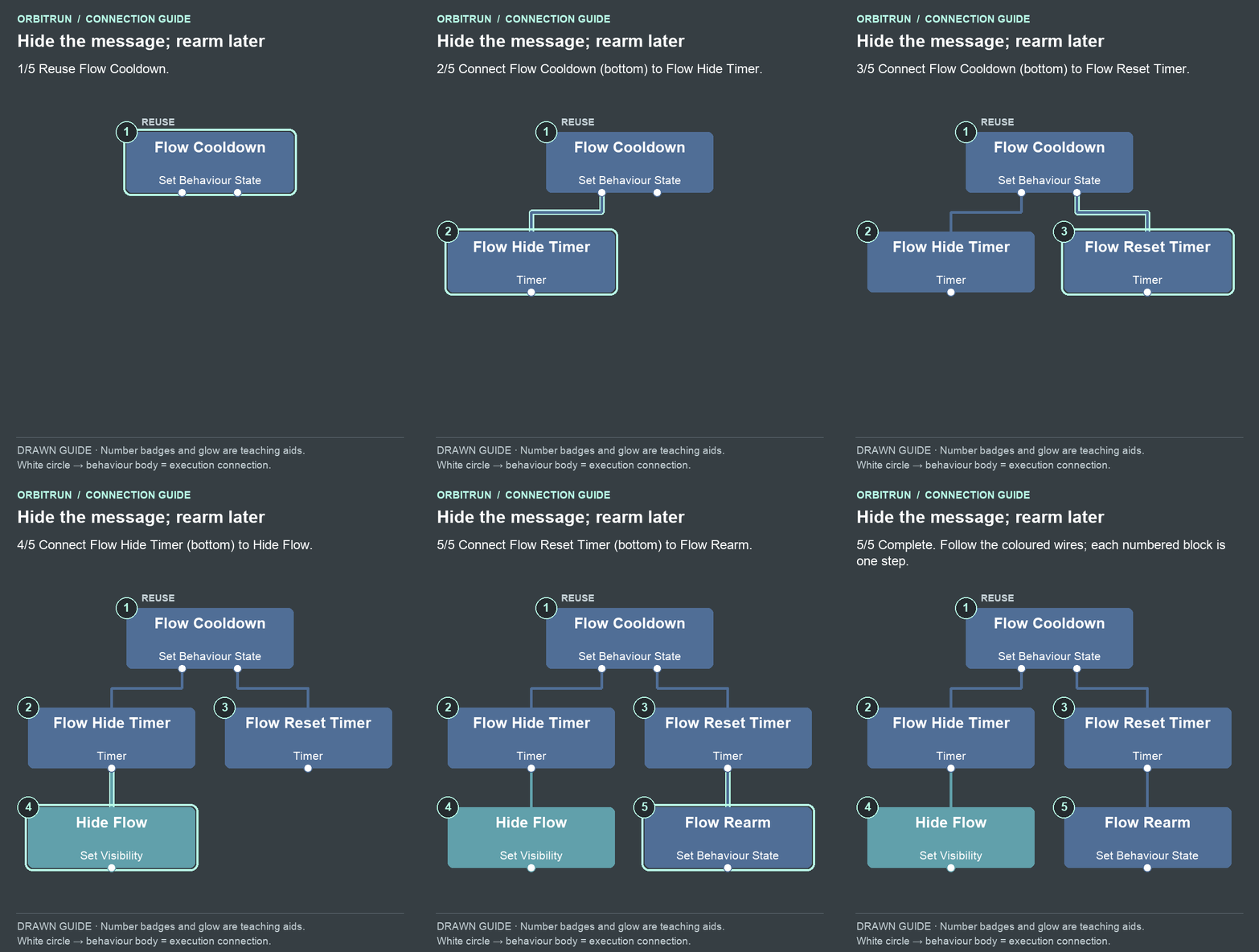
- Reuse Flow Cooldown.
- Add Timer and name it Flow Hide Timer. Drag an unused bottom white circle on Flow Cooldown onto the Flow Hide Timer block.
- Add Timer and name it Flow Reset Timer. Drag an unused bottom white circle on Flow Cooldown onto the Flow Reset Timer block.
- Add Set Visibility and name it Hide Flow. Drag an unused bottom white circle on Flow Hide Timer onto the Hide Flow block.
- Add Set Behaviour State and name it Flow Rearm. Drag an unused bottom white circle on Flow Reset Timer onto the Flow Rearm block.
Why it works: checking speed every 0.05 seconds could trigger a sound twenty times per second. Disabling the check, then re-enabling it after four seconds, makes the reward feel like an event.
Add three small moments of celebration
Use the Start Particles reference for the particle controls. The guides below connect a Play Sound and Start Particles pair to each event. Keep sounds and particles Loop Off. Target Skimmer for particles and let the supplied presets provide the burst. Adjust volume by ear so feedback is clear over the music.
- Launch:
orbit-launchsound andorbit-launch-sparksparticles - Successful world change:
orbit-biomesound andorbit-biome-glowparticles - Finish:
orbit-rewardsound andorbit-reward-starsparticles
Use aliases Launch Sound / Launch Burst, Biome Sound / Biome Burst, and Reward Sound / Reward Burst. Both world-success branches can share the same Biome Sound and Biome Burst nodes. The supplied particle presets are short, bounded bursts; avoid changing them to continuous emitters for these events.
Build: Launch: trail, sound and burst
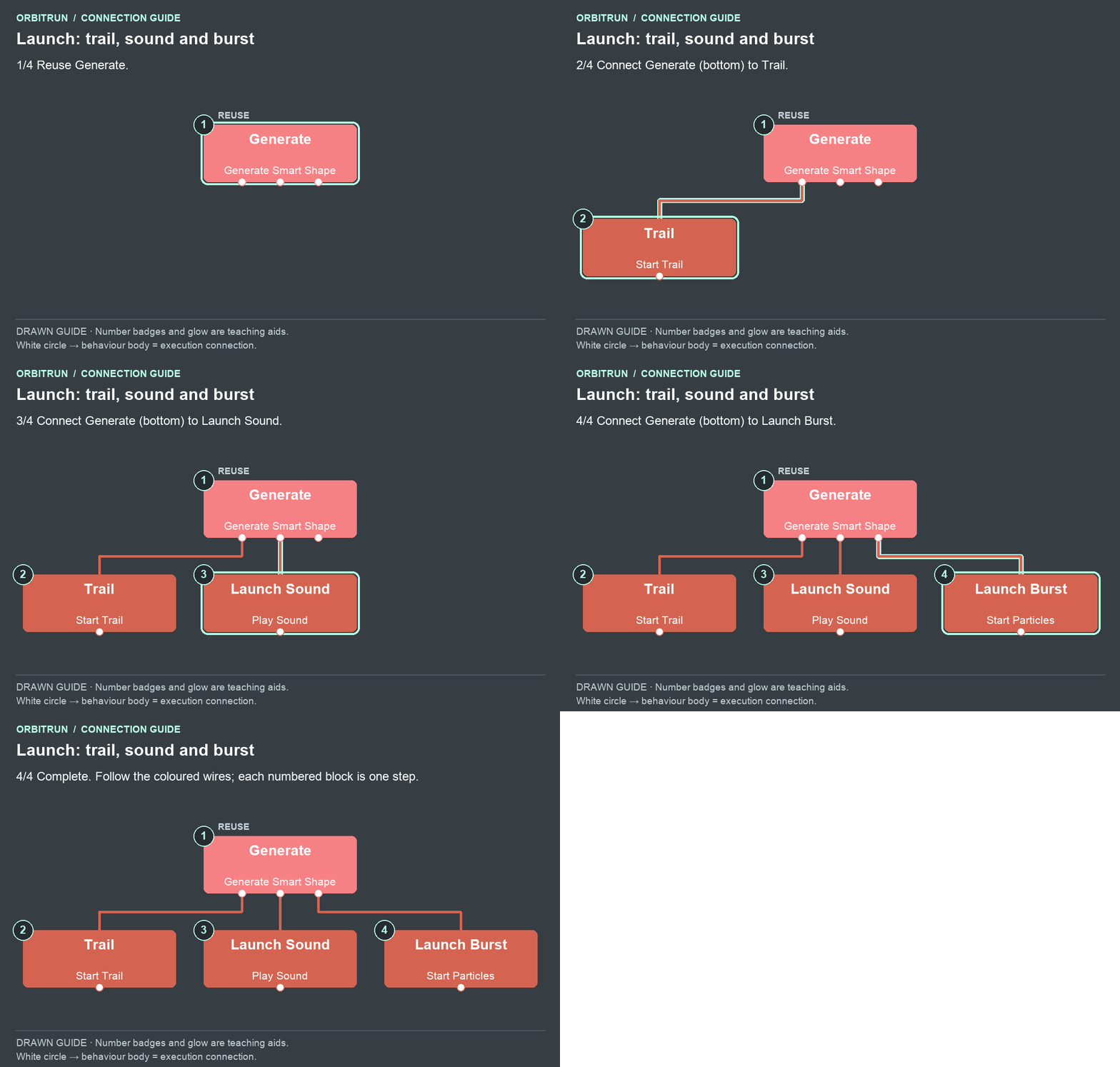
- Reuse Generate.
- Add Start Trail and name it Trail. Drag an unused bottom white circle on Generate onto the Trail block.
- Add Play Sound and name it Launch Sound. Drag an unused bottom white circle on Generate onto the Launch Sound block.
- Add Start Particles and name it Launch Burst. Drag an unused bottom white circle on Generate onto the Launch Burst block.
Build: World change: shared effects
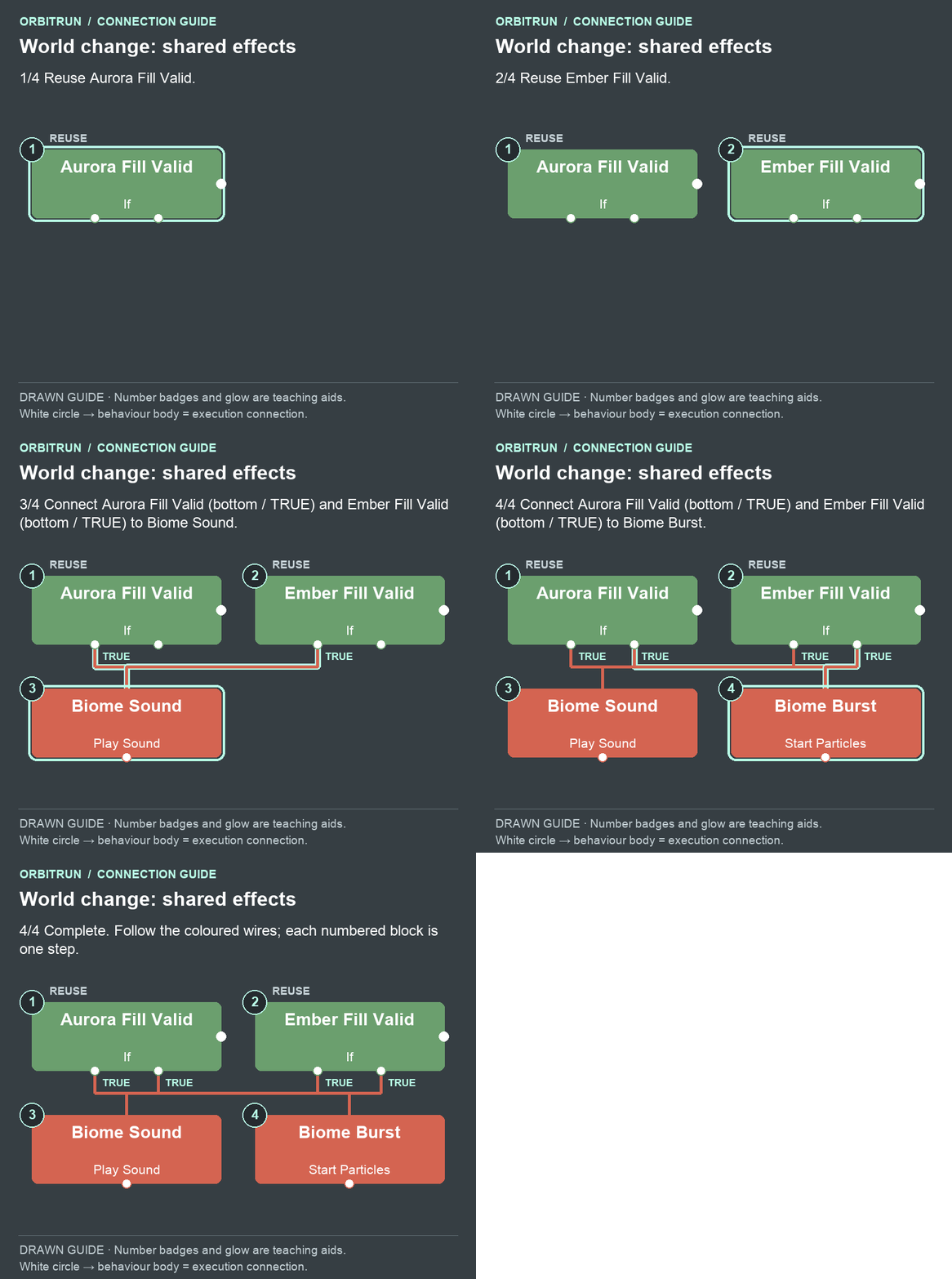
- Reuse Aurora Fill Valid.
- Reuse Ember Fill Valid.
- Add Play Sound and name it Biome Sound. Drag an unused bottom white circle (true) on Aurora Fill Valid onto the Biome Sound block. Drag an unused bottom white circle (true) on Ember Fill Valid onto the Biome Sound block.
- Add Start Particles and name it Biome Burst. Drag an unused bottom white circle (true) on Aurora Fill Valid onto the Biome Burst block. Drag an unused bottom white circle (true) on Ember Fill Valid onto the Biome Burst block.
Build: Finish: sound and burst
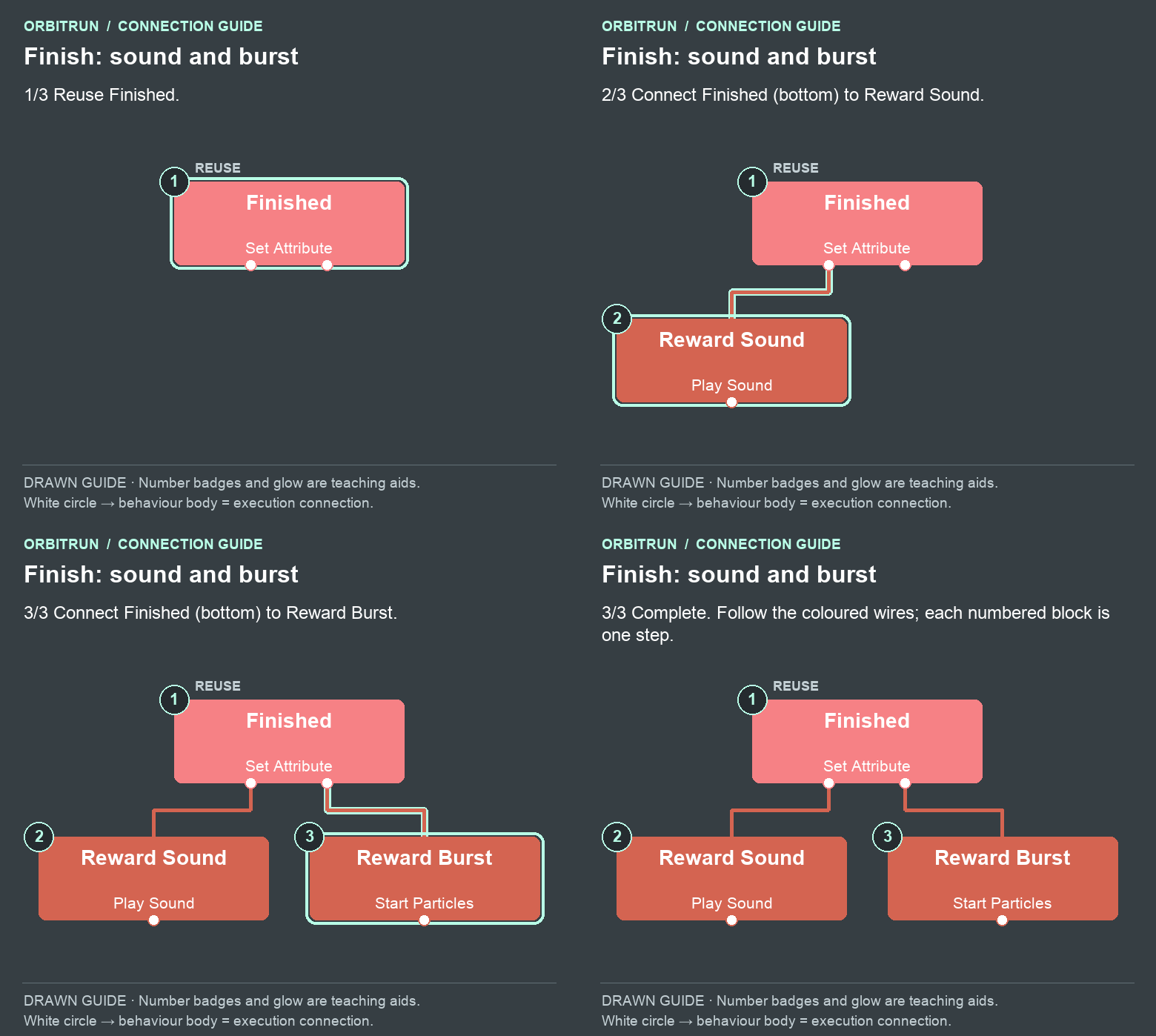
- Reuse Finished.
- Add Play Sound and name it Reward Sound. Drag an unused bottom white circle on Finished onto the Reward Sound block.
- Add Start Particles and name it Reward Burst. Drag an unused bottom white circle on Finished onto the Reward Burst block.
Try it: launch, earn a fast-flight reward, and let the run finish. Listen for a distinct launch, world-change, and finish sound. ORBIT FLOW should disappear after about 1.4 seconds and should not chatter continuously while the ship stays fast.
15. Give a stalled launch a way to recover
This recovery branch is a fallback. It does not create a fake Ready event or push the ship onto an unfinished course.
Properties for the recovery guides: Loading Watchdog is a 15-second timer, once, Start Immediately Off. Loading State reads Skimmer’s runState. Loading Check compares that Attribute Value Equals menu. Cancel Preparation disables Generate. Failed State sets Skimmer’s runState to finished.
Reuse Hide Menu and Show Results. Configure the three new Change Label behaviours:
- Loading Title — Target: Results Title; Text:
LET'S TRY THAT AGAIN - Loading Score — Target: Results Score; Text:
RETRY - Loading Tip — Target: Results Tip; Text:
The moon took too long to prepare.thenTap FLY AGAIN for a fresh course.
Build: Check whether launch is stuck
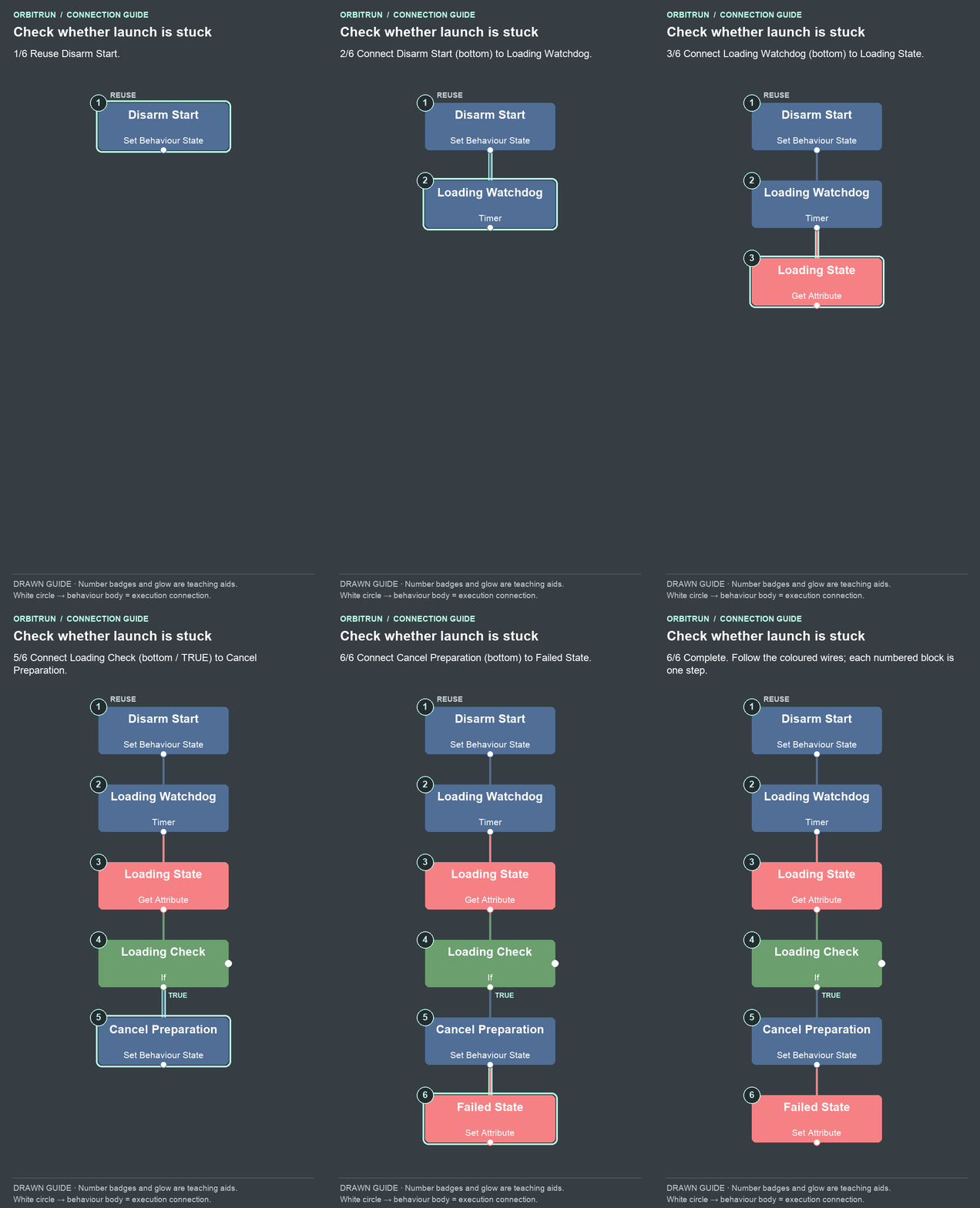
- Reuse Disarm Start.
- Add Timer and name it Loading Watchdog. Drag an unused bottom white circle on Disarm Start onto the Loading Watchdog block.
- Add Get Attribute and name it Loading State. Drag an unused bottom white circle on Loading Watchdog onto the Loading State block.
- Add If and name it Loading Check. Drag an unused bottom white circle on Loading State onto the Loading Check block.
- Add Set Behaviour State and name it Cancel Preparation. Drag an unused bottom white circle (true) on Loading Check onto the Cancel Preparation block.
- Add Set Attribute and name it Failed State. Drag an unused bottom white circle on Cancel Preparation onto the Failed State block.
Build: Recovery: show the retry panel
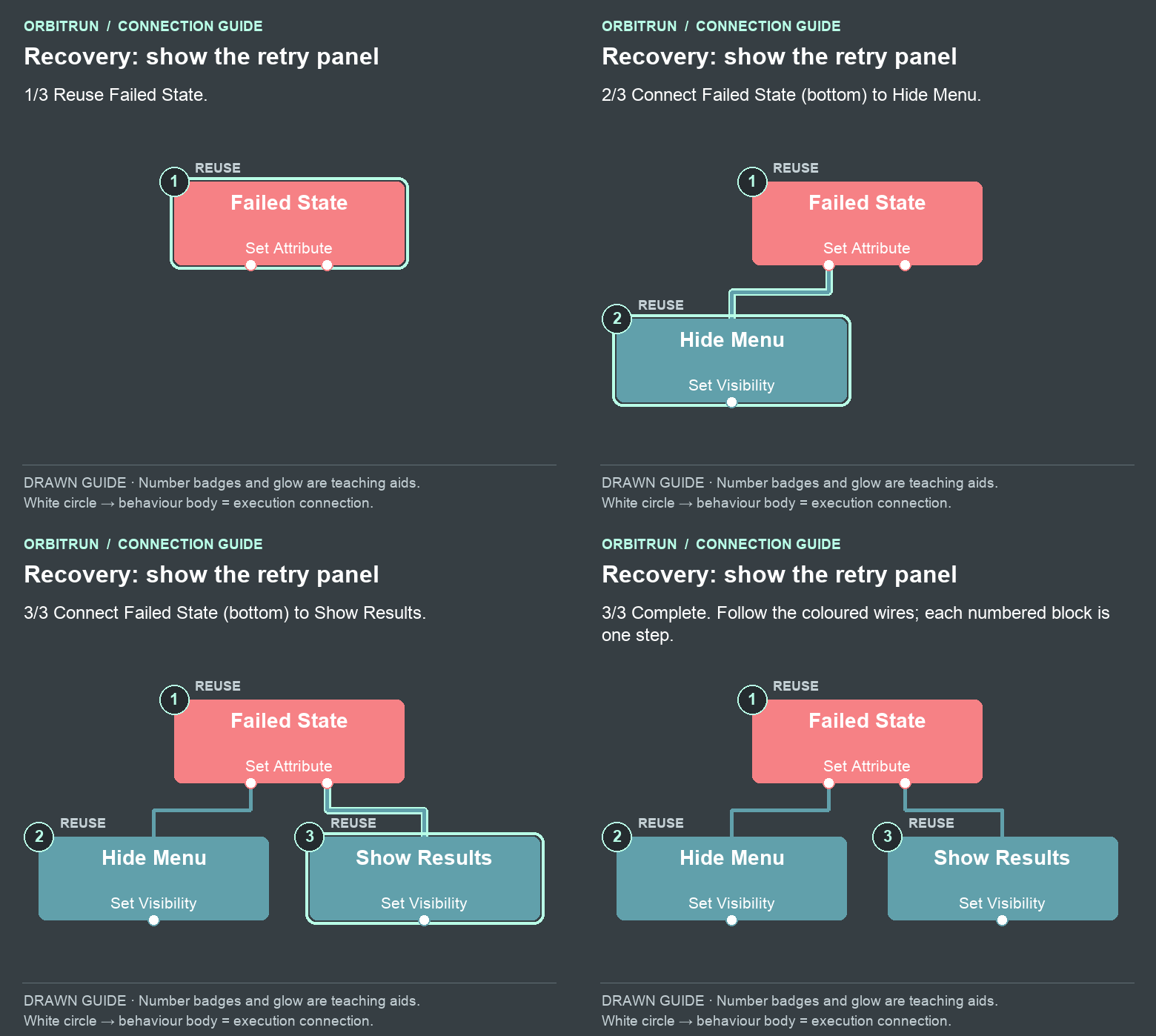
- Reuse Failed State.
- Reuse Hide Menu. Drag an unused bottom white circle on Failed State onto the Hide Menu block.
- Reuse Show Results. Drag an unused bottom white circle on Failed State onto the Show Results block.
Build: Recovery: explain the retry
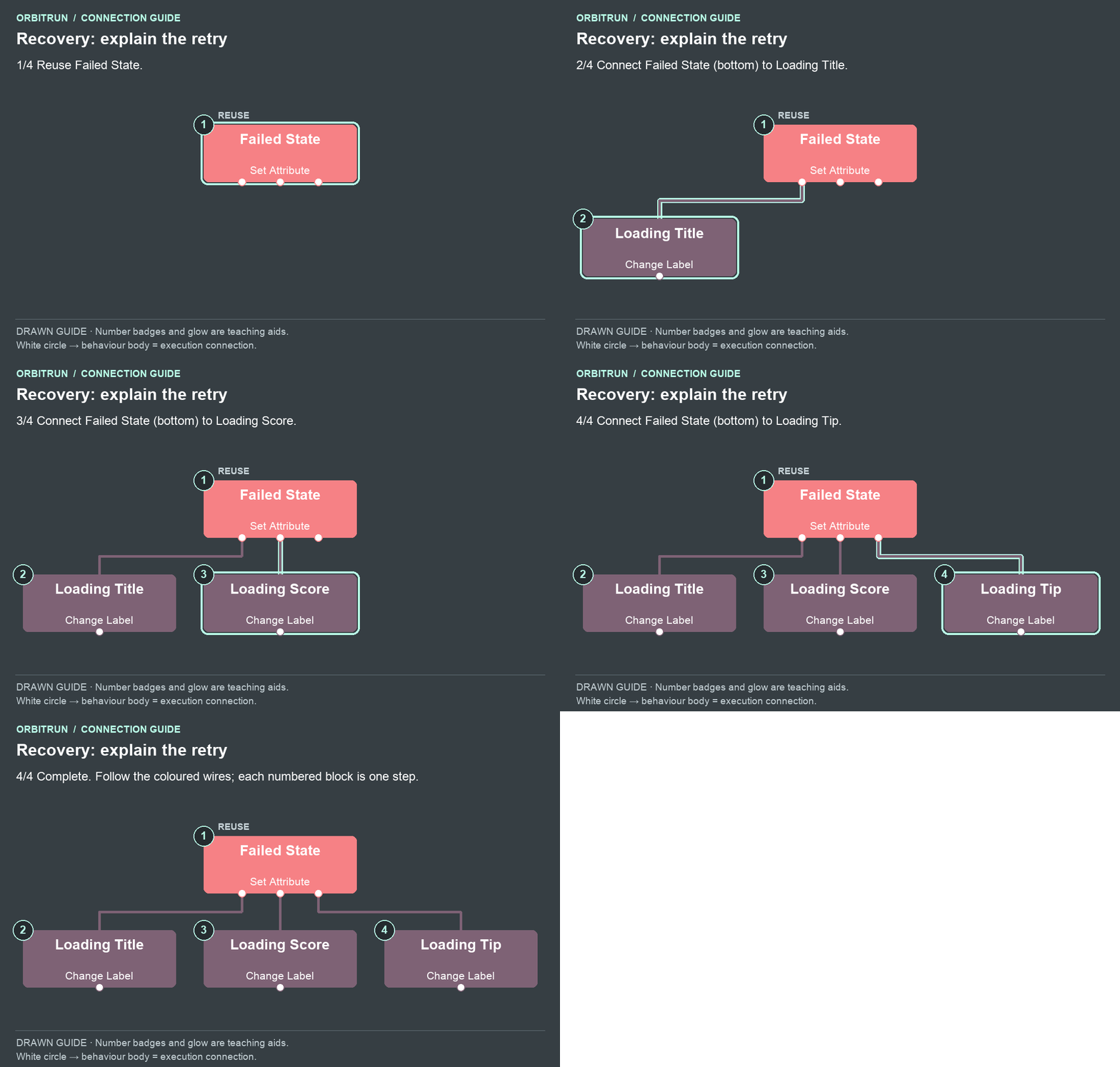
- Reuse Failed State.
- Add Change Label and name it Loading Title. Drag an unused bottom white circle on Failed State onto the Loading Title block.
- Add Change Label and name it Loading Score. Drag an unused bottom white circle on Failed State onto the Loading Score block.
- Add Change Label and name it Loading Tip. Drag an unused bottom white circle on Failed State onto the Loading Tip block.
Try it safely: duplicate your project for this test. In the copy, disconnect Disarm Start → Generate, leaving Loading and Loading Watchdog connected. Play and tap LAUNCH. After about 15 seconds, the retry panel should appear, with no terrain launch or running clock. FLY AGAIN should return to the title screen. Reconnect Generate before keeping or sharing that test copy.
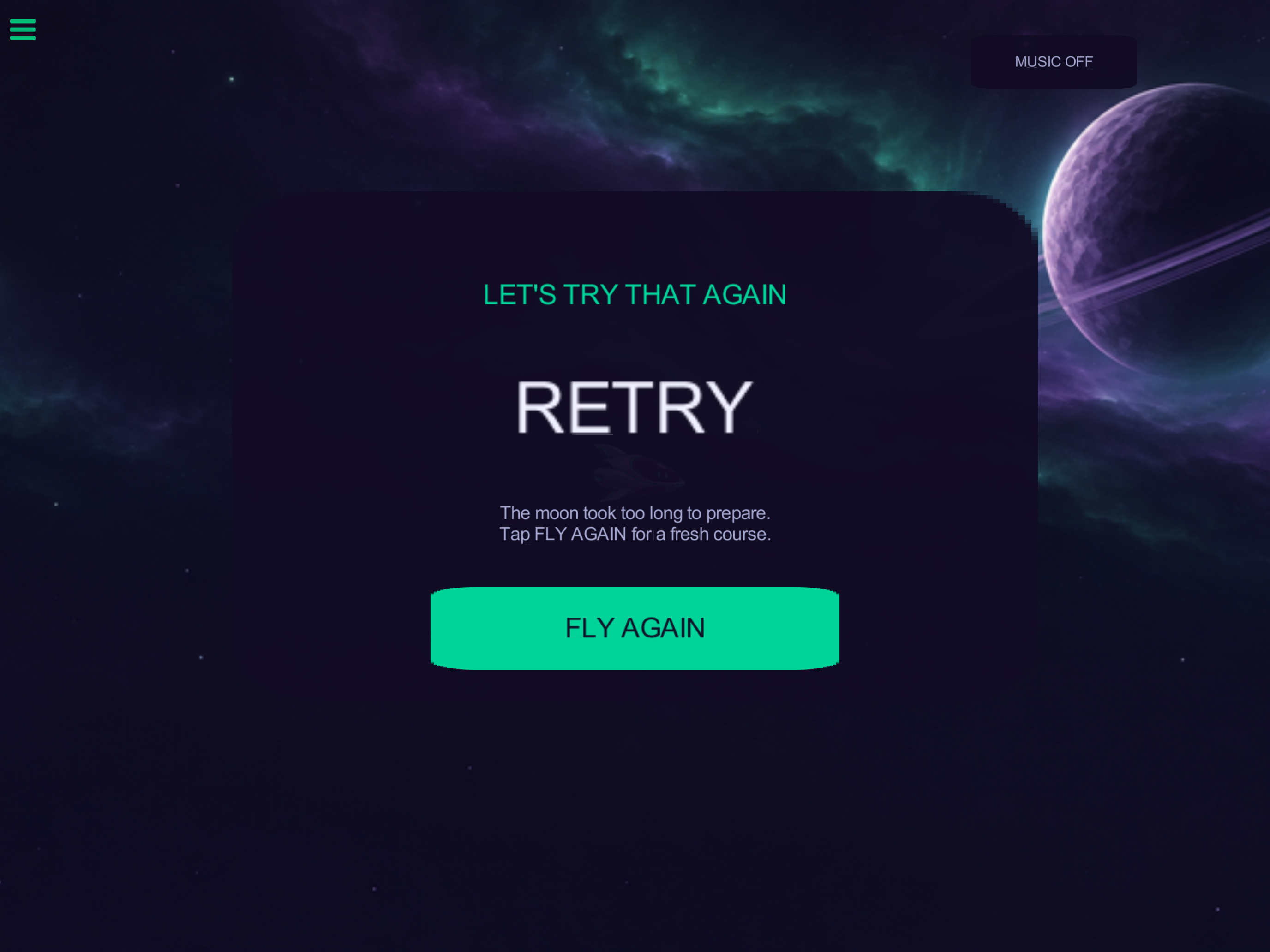
Why it works: a successful Ready event has already set runState to running, so the watchdog's comparison is false during normal play. On failure, it cancels preparation before showing the retry UI. Replay works because the recovery branch deliberately enters the same finished state used by an ordinary completed run.
Playtest the foundation
Run these checks on the normal project, with Generate connected:
- The title screen stays still until LAUNCH, and repeated launch taps do not start extra runs.
- Holding dives, releasing glides, and music-button taps do not trigger the touch surface.
- Distance rises from the starting position; the countdown starts after terrain is ready.
- Luna changes to Aurora at 30 seconds elapsed, then Ember at 60 seconds elapsed.
- At 90 seconds, movement stops and FLY AGAIN works.
- A better distance survives replay; a worse distance does not replace it.
- Music preference survives replay, and short effects still work with music off.
- The separate recovery test reaches RETRY and returns to the menu.
If something looks wrong
- Ship falls before the course exists — World gravity is zero; Menu Gravity targets Skimmer; Launch and Release start from Ready
- LAUNCH never starts a course — Start Touch targets Start; Disarm Start connects to Generate; the generated terrain follows Skimmer
- Touch does nothing — Input Plane is on Scene UI, covers the screen, has opacity 0%, and remains visible
- Rotation jitters or flips — X > 0.1 guard, Y ÷ X order, Arctangent, then multiply by −1
- Score starts at a large number — Read world X and subtract the ship's starting X, 8 m
- World label changes but terrain does not — Target Generate.terrainObjectID, choose Top/Middle slots, and inspect each smartShapeError output
- Ship moves after the results appear — Disable Flight Tick and set both velocities to zero with both Maintain switches Off
- Music label disagrees with sound — Check the
musicattribute and the full state → label → save → fade chains - A save appears to belong to an earlier sample — Use a unique prefix for the two save keys in your own game
Next: find the flow
The foundation is ready. In Part 5, retune the hills and gravity, move the ship toward the left of the frame, ease the camera out during soaring, and make the run grow faster. Then Part 6 adds batteries that extend your flight.