

Build OrbitRun with Smart Shape — Part 3: Three worlds and replay
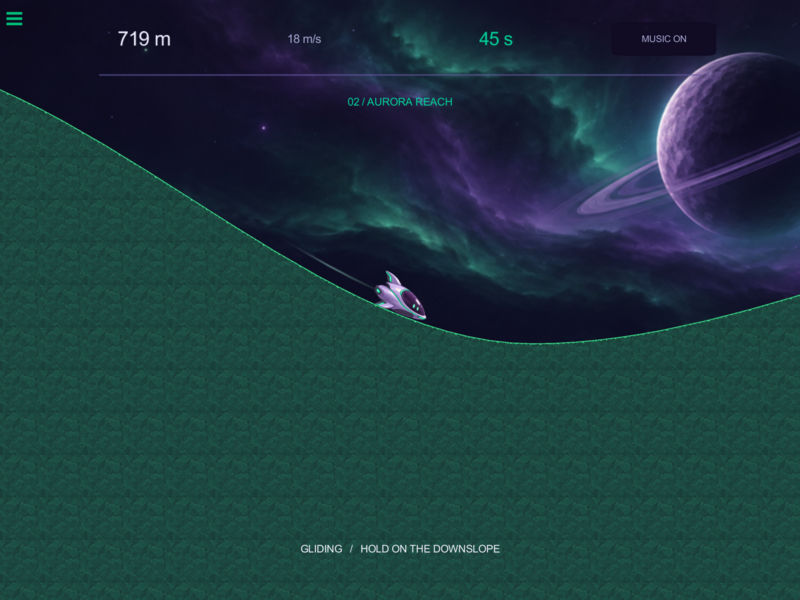
Give the journey a beginning, a changing landscape, and an ending worth replaying. This part changes the terrain's artwork twice, stops the run at 90 seconds, and remembers the player's best distance.
Continue from Part 2, or open OrbitRun-09-countdown.tap from the checkpoint pack. Keep working in Skimmer's behaviour editor.
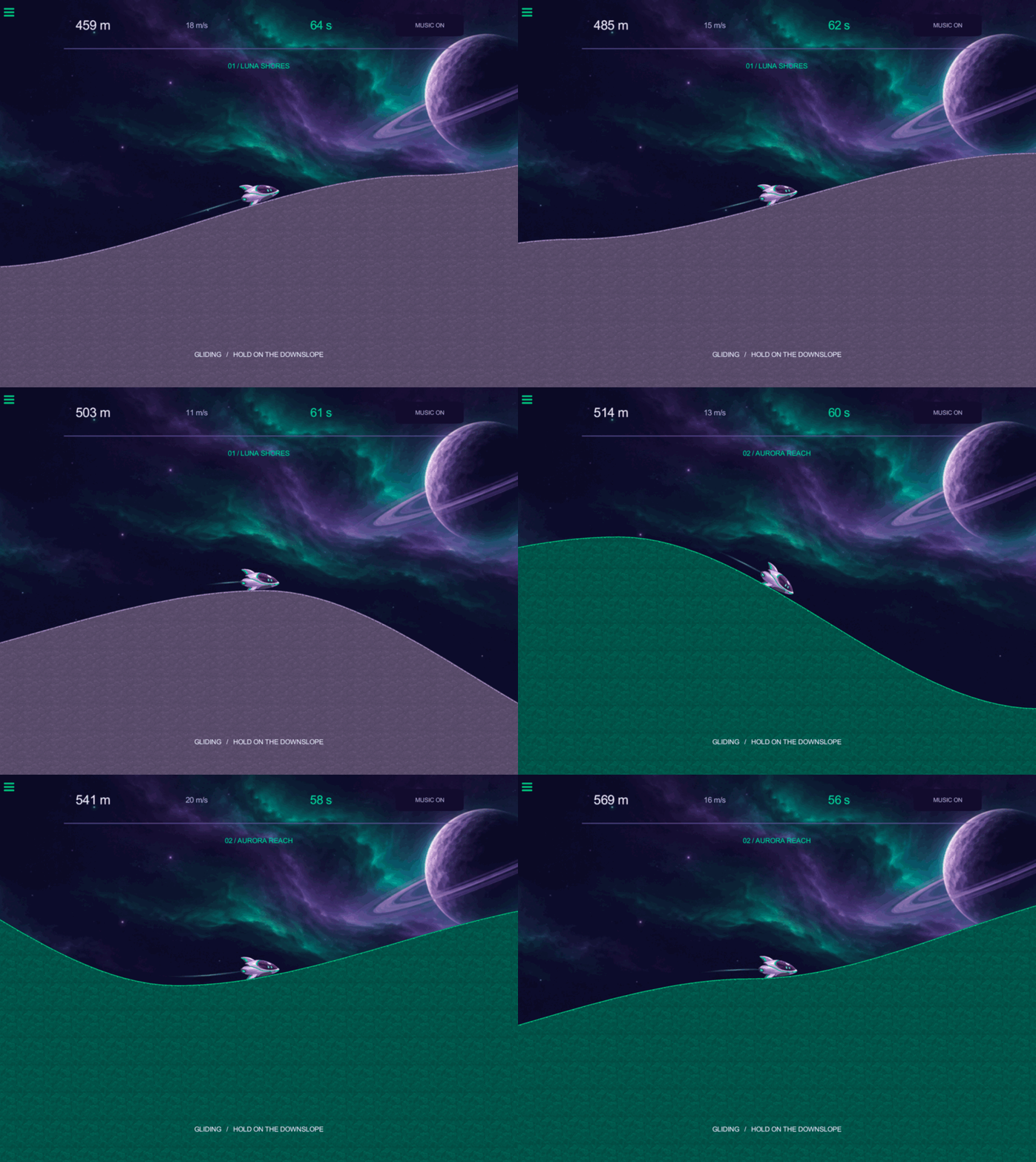
Tap a screenshot or diagram to open its full-size image and inspect the details.
Reading the diagrams: white connectors run the next behaviour; the green output icon supplies a value to a field. If uses the bottom for true and right side for false. REUSE means keep the existing behaviour. The animated guides add teaching highlights; the editor recordings show the real gestures.
10. Travel through three worlds
The run starts in Luna Shores, changes to Aurora Reach after 30 seconds, and changes to Ember Drift after 60 seconds. The hills keep their physics and shape while their artwork changes.
Build Aurora's transition
Use Set Graphic with the generated terrain’s object ID. The Smart Shape Object reference explains its artwork roles.
Build: Aurora: change and check
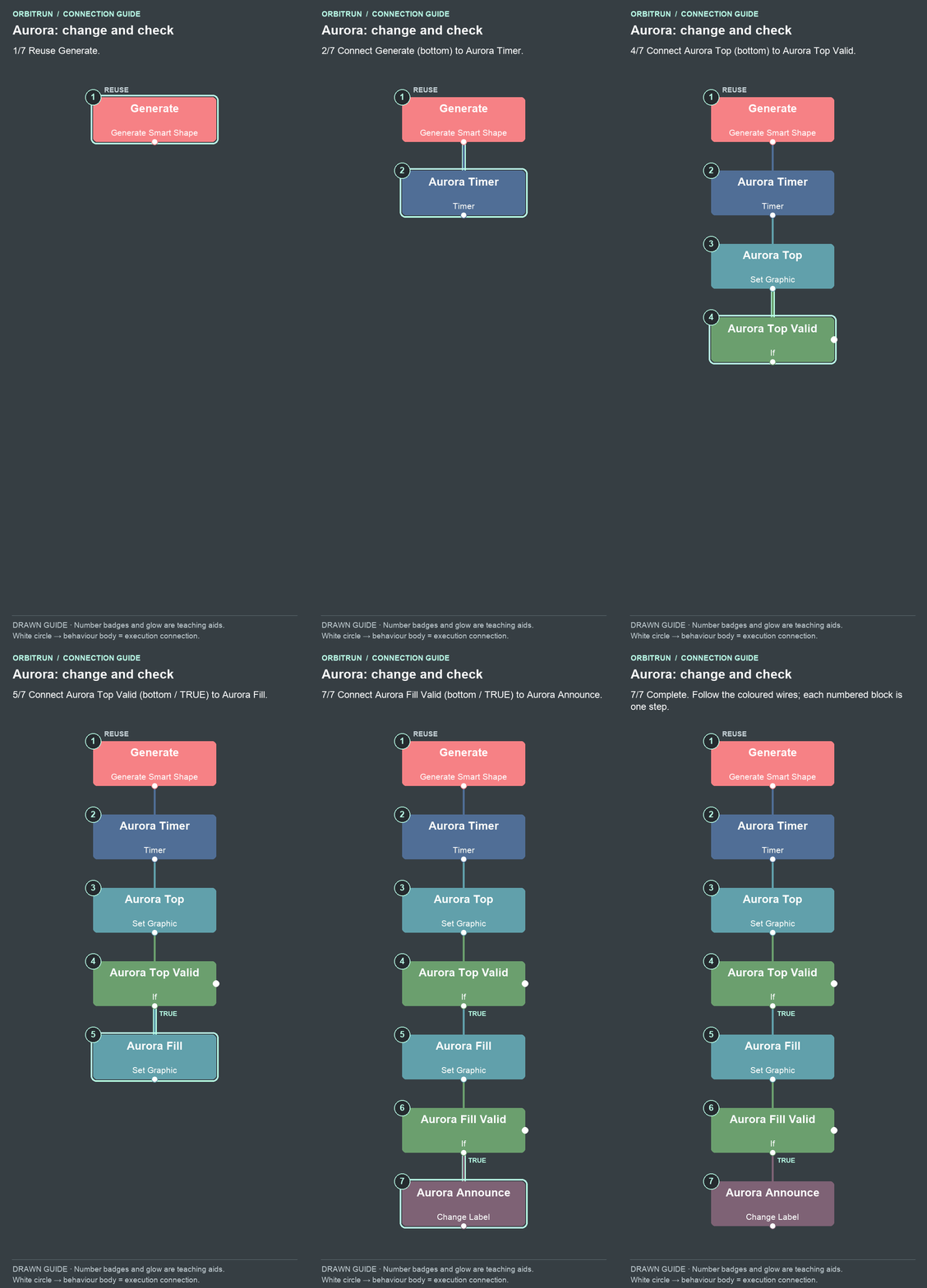
- Reuse Generate.
- Add Timer and name it Aurora Timer. Drag an unused bottom white circle on Generate onto the Aurora Timer block.
- Add Set Graphic and name it Aurora Top. Drag an unused bottom white circle on Aurora Timer onto the Aurora Top block.
- Add If and name it Aurora Top Valid. Drag an unused bottom white circle on Aurora Top onto the Aurora Top Valid block.
- Add Set Graphic and name it Aurora Fill. Drag an unused bottom white circle (true) on Aurora Top Valid onto the Aurora Fill block.
- Add If and name it Aurora Fill Valid. Drag an unused bottom white circle on Aurora Fill onto the Aurora Fill Valid block.
- Add Change Label and name it Aurora Announce. Drag an unused bottom white circle (true) on Aurora Fill Valid onto the Aurora Announce block.
Set these properties as you build:
- Aurora Timer: 30 seconds; Repeat Forever Off; Repeat Count 1; Start Immediately Off.
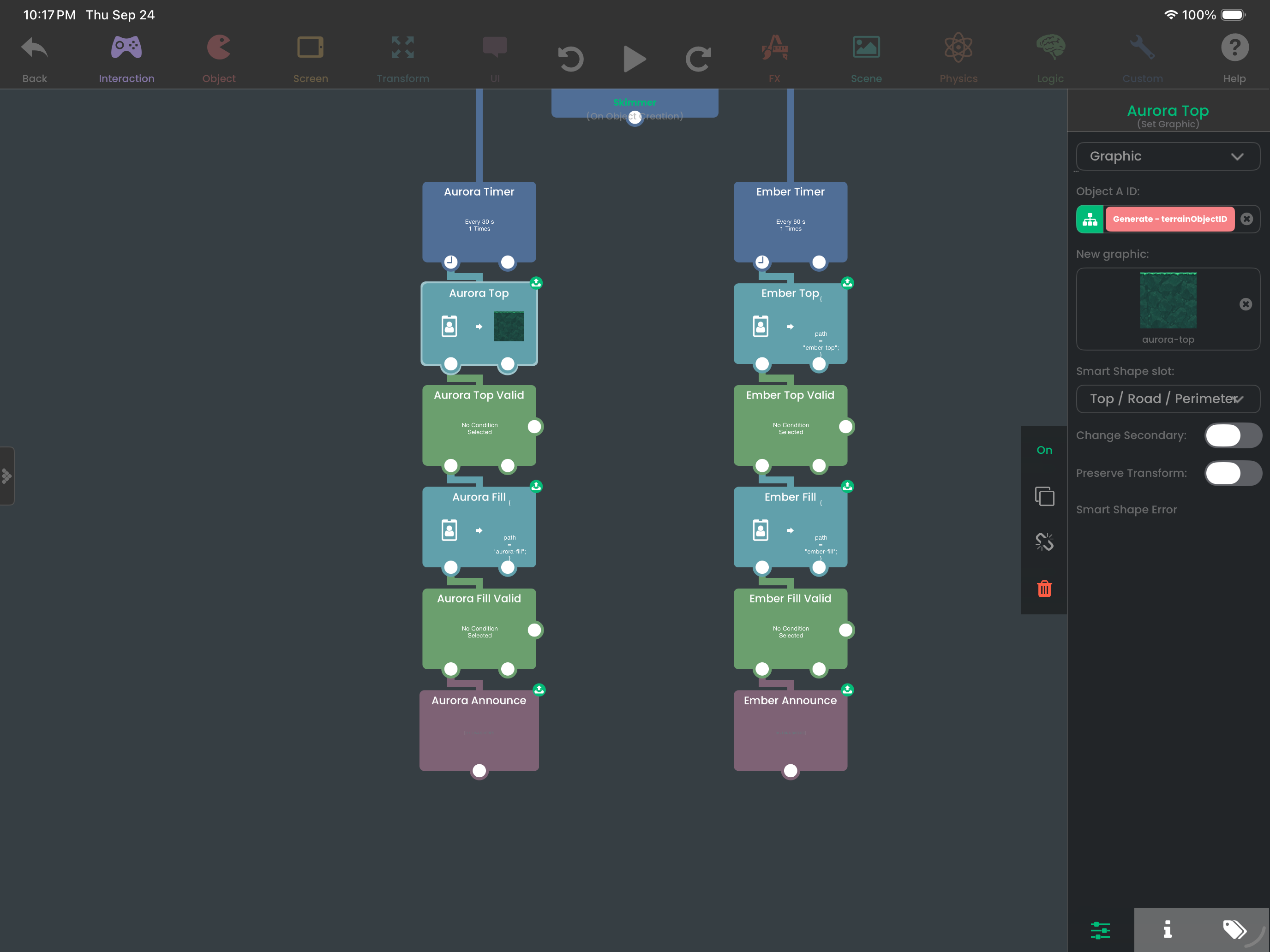
- Aurora Top: target Generate’s terrainObjectID output; graphic
aurora-top; Smart Shape slot Top. - Aurora Top Valid: Aurora Top’s smartShapeError output Equals an empty text value. Leave the second value blank, without quote marks.
- Aurora Fill: target Generate’s terrainObjectID output; graphic
aurora-fill; Smart Shape slot Middle. - Aurora Fill Valid: Aurora Fill’s smartShapeError output Equals empty text.
- Aurora Announce: target Stage; text
02 / AURORA REACH.
Watch the output drag: use the generated terrain id
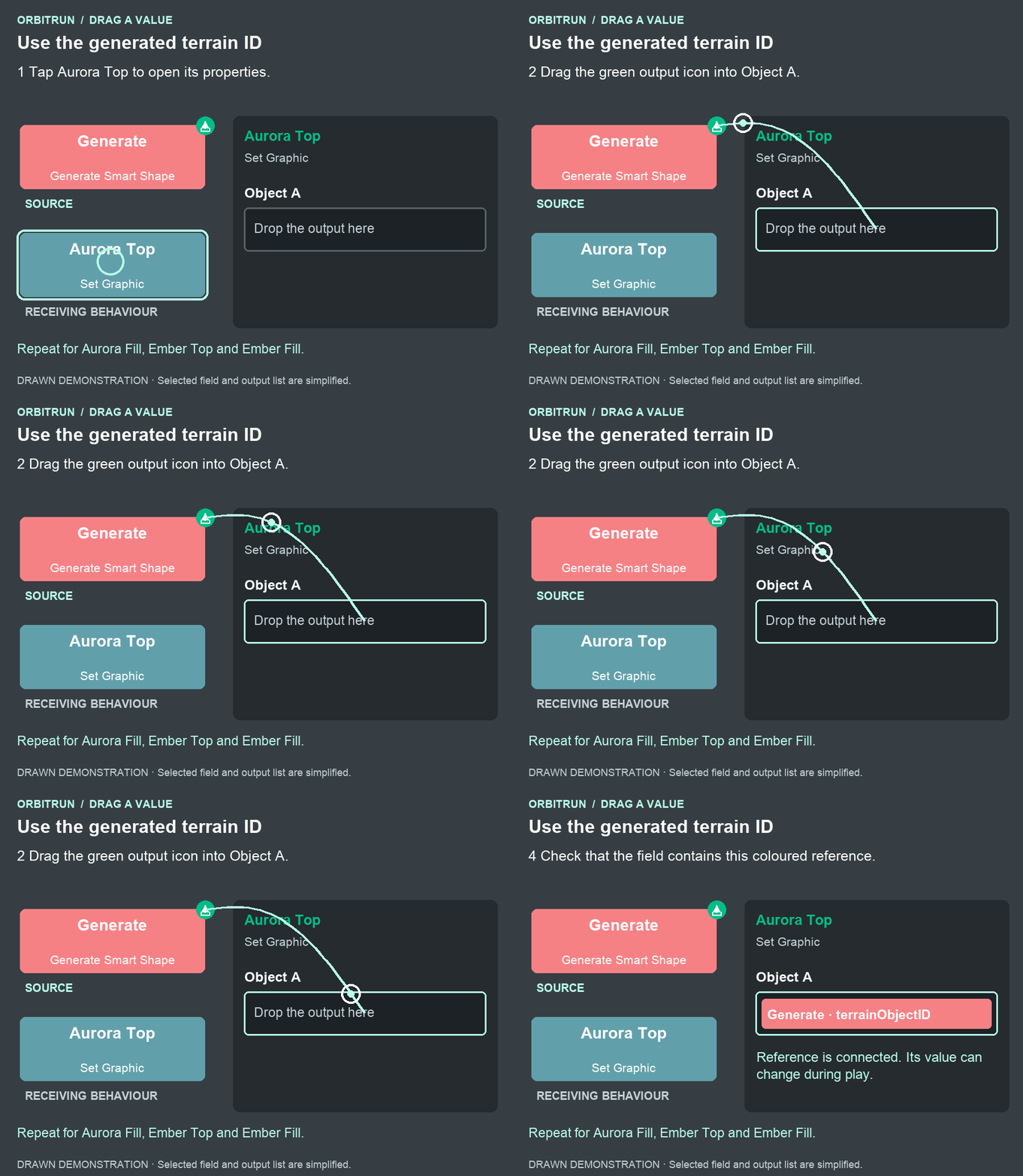
After the drop: Object A contains Generate · terrainObjectID. Repeat for Aurora Fill, Ember Top and Ember Fill.
Watch the output drag: check the graphic change result
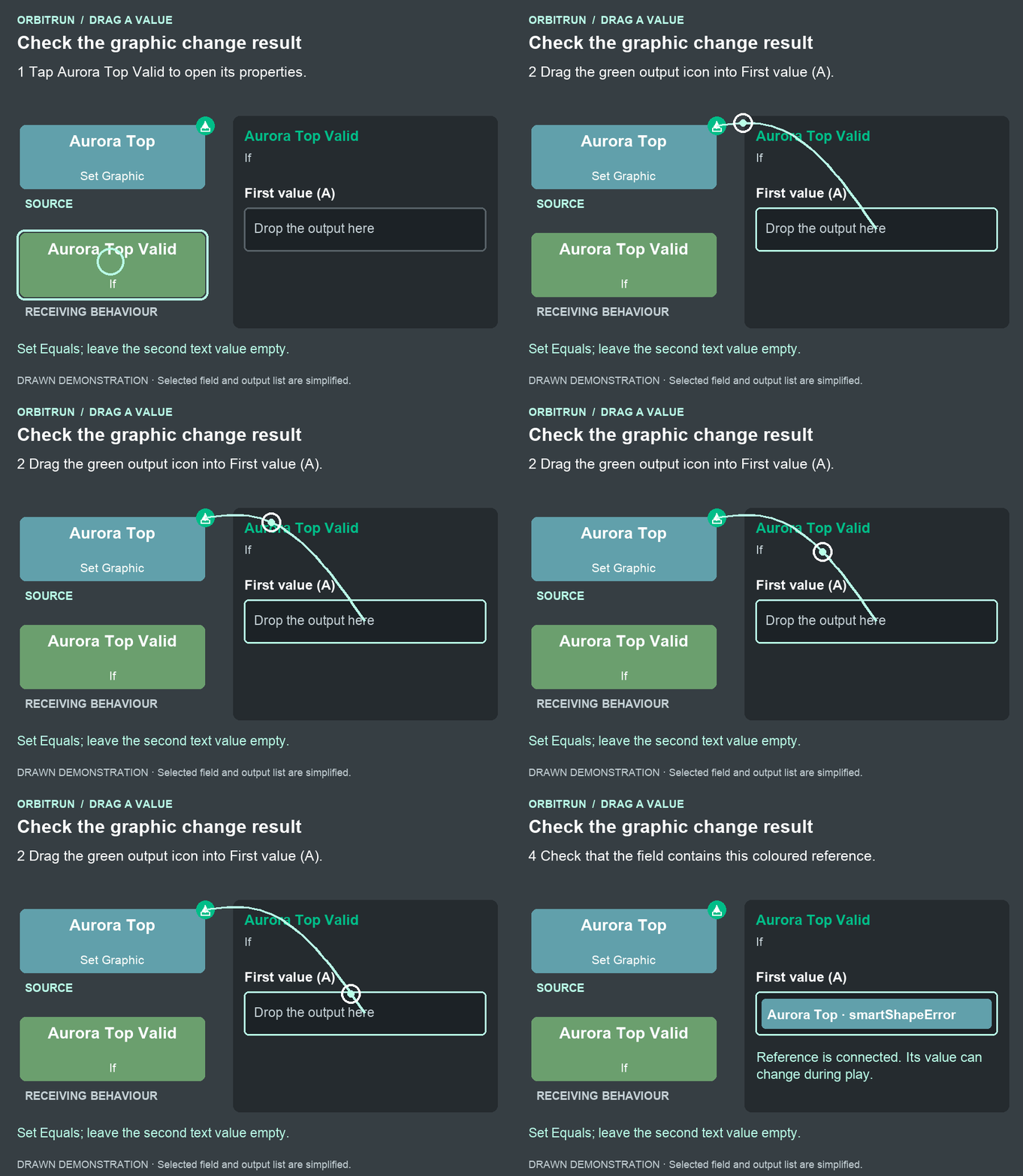
After the drop: First value (A) contains Aurora Top · smartShapeError. Set Equals; leave the second text value empty.
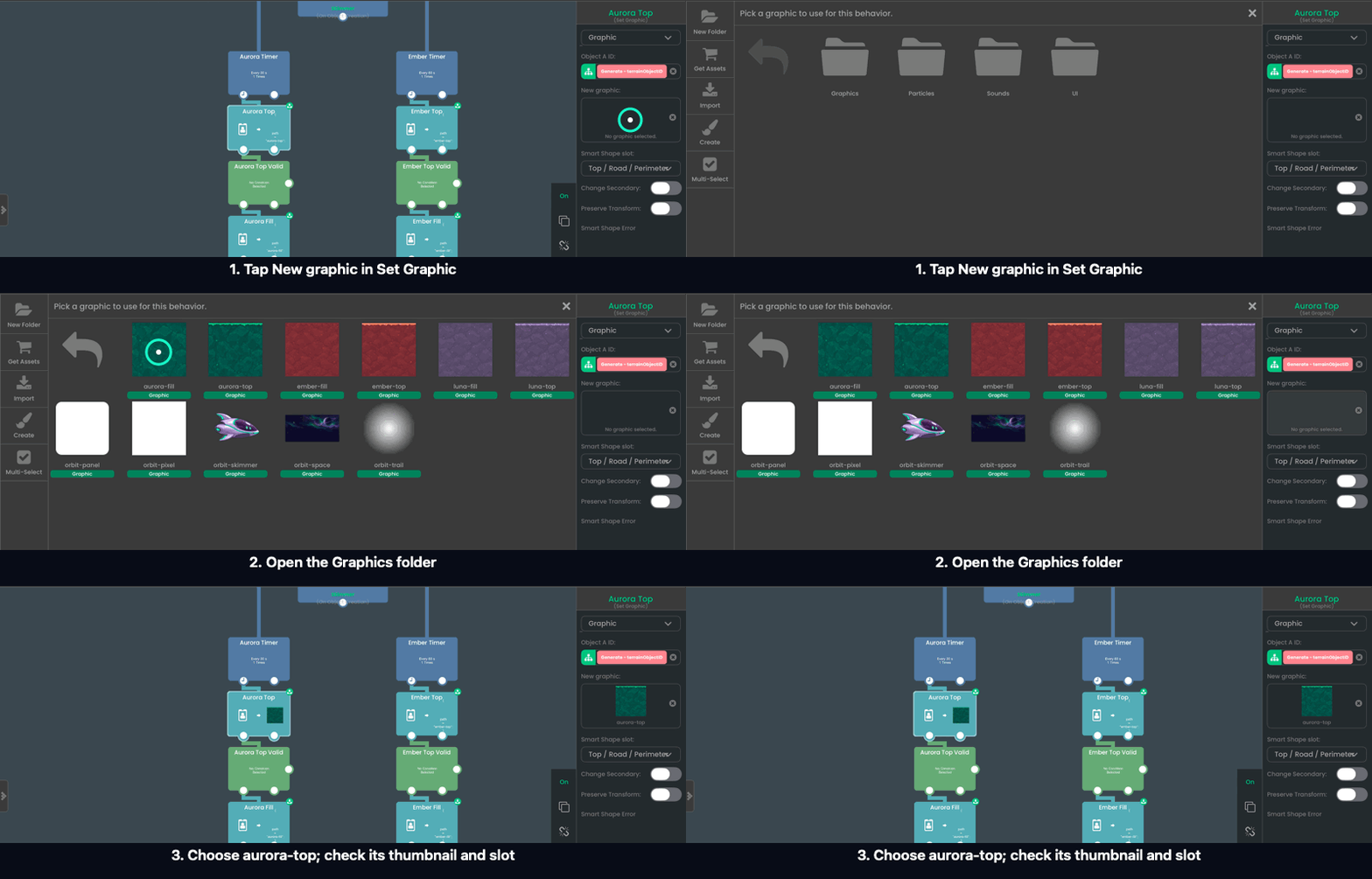
Watch the graphic-selection step. Tap New graphic, open Graphics, and choose aurora-top. Its thumbnail should appear in the properties panel. Keep the Smart Shape slot set to Top / Road / Perimeter; choose Middle when configuring Aurora Fill.
Make Ember's transition
Build the second branch beside the first using the guide below. Use the names Ember Timer, Ember Top, Ember Top Valid, Ember Fill, Ember Fill Valid, and Ember Announce.
Change the timer to 60 seconds, the graphics to ember-top and ember-fill, and the final label to 03 / EMBER DRIFT. Keep both object inputs connected to Generate’s terrainObjectID output. Check that each If reads the output of its own Ember graphic change; the Ember checks must not read the Aurora nodes.
Build: Ember: use its own checks
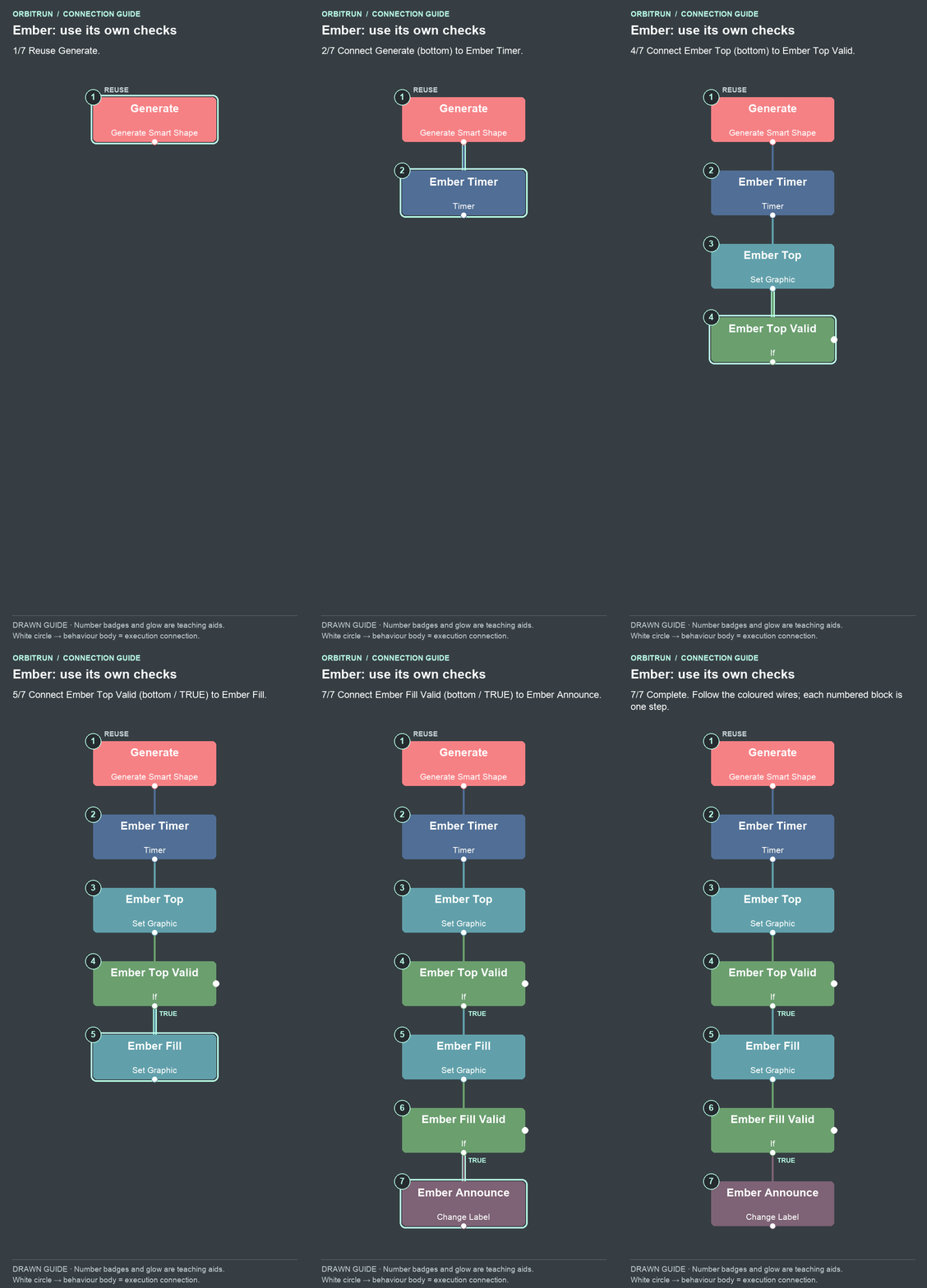
- Reuse Generate.
- Add Timer and name it Ember Timer. Drag an unused bottom white circle on Generate onto the Ember Timer block.
- Add Set Graphic and name it Ember Top. Drag an unused bottom white circle on Ember Timer onto the Ember Top block.
- Add If and name it Ember Top Valid. Drag an unused bottom white circle on Ember Top onto the Ember Top Valid block.
- Add Set Graphic and name it Ember Fill. Drag an unused bottom white circle (true) on Ember Top Valid onto the Ember Fill block.
- Add If and name it Ember Fill Valid. Drag an unused bottom white circle on Ember Fill onto the Ember Fill Valid block.
- Add Change Label and name it Ember Announce. Drag an unused bottom white circle (true) on Ember Fill Valid onto the Ember Announce block.
Try it: launch and watch the first minute. At roughly 60 seconds remaining, the course becomes green and Stage says AURORA REACH. At roughly 30 seconds remaining, it becomes warm red and says EMBER DRIFT. The ship should continue moving through both changes.
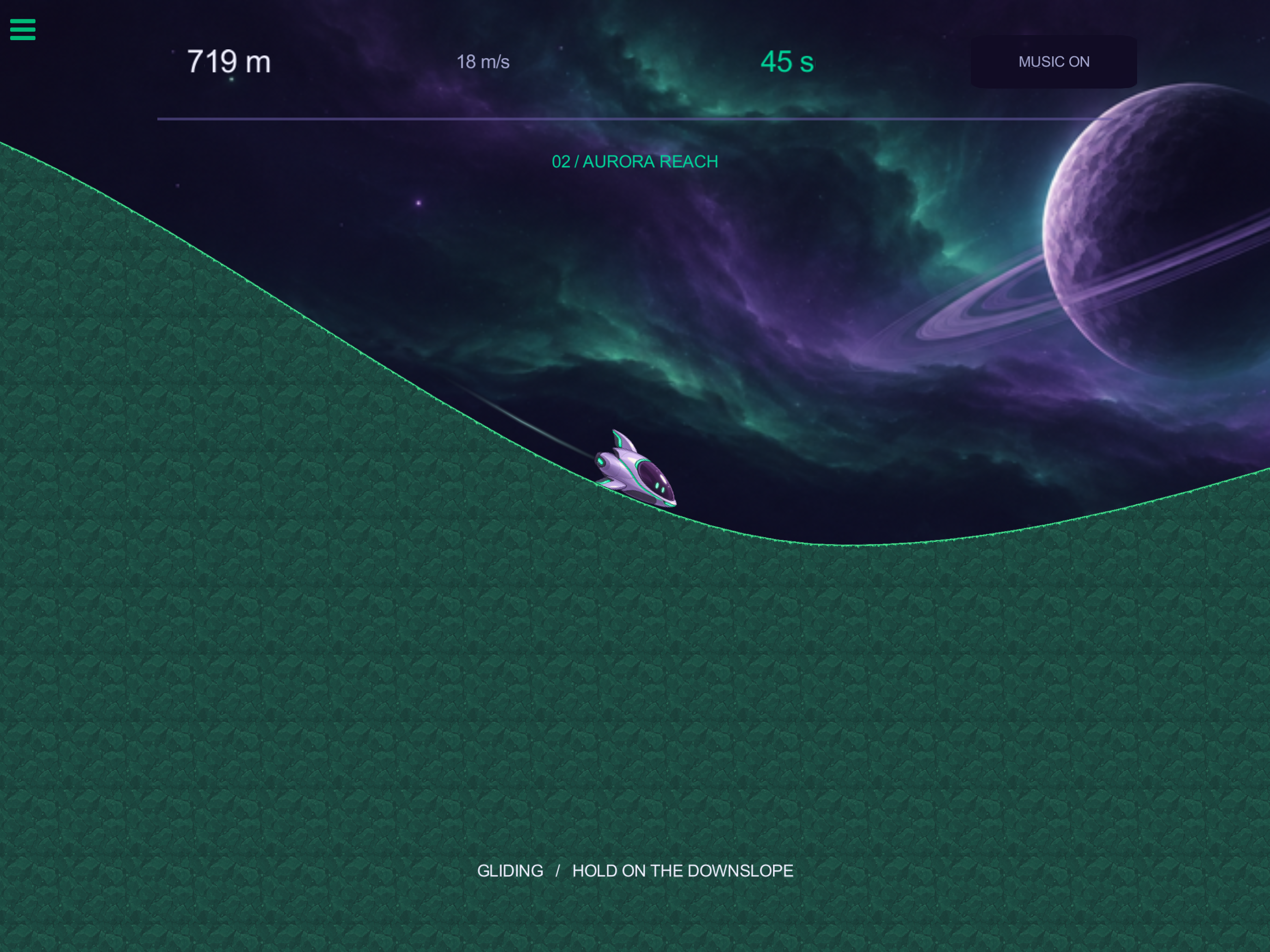
Why it works: terrainObjectID identifies the generated course as a whole. Set Graphic applies the chosen Smart Shape slot across the retained terrain and updates the artwork used for future generated sections. This creates a global world change. For an advanced extension that recolours individual new sections, use the New Section event and sectionObjectID instead; that is a different design from this tutorial's timed whole-course transition.
The two success checks matter. The label changes only after both artwork operations succeed, so the interface does not announce a world that failed to appear.
11. Finish the run and offer another flight
Enter the finished state
Use the three build guides below. Run Limit is a 90-second timer: Repeat Forever Off, Repeat Count 1, Start Immediately Off. Finished sets Skimmer’s runState to finished.
Configure its children as follows:
- Stop Flight (Set Behaviour State) — Disable Flight Tick
- Stop Hud (Set Behaviour State) — Disable Hud Tick
- Stop Clock (Set Behaviour State) — Disable Seconds Tick
- Freeze (Set Velocity) — Skimmer; X 0, Y 0; Maintain X Off, Maintain Y Off
- Zero Gravity (Set Gravity) — Skimmer; Object; X 0, Y 0
- Show Results (Set Visibility) — Show Results Card, Results Title, Results Score, Results Tip, Replay, Replay Label
- Hide Cue (Set Visibility) — Hide Cue, Clock, Flow Label
- Result Score (Change Label) — Target Results Score; text from Distance Text’s Combined Text output
Each action branches directly from Finished, as the diagrams show.
Build: Finish: stop all three timers
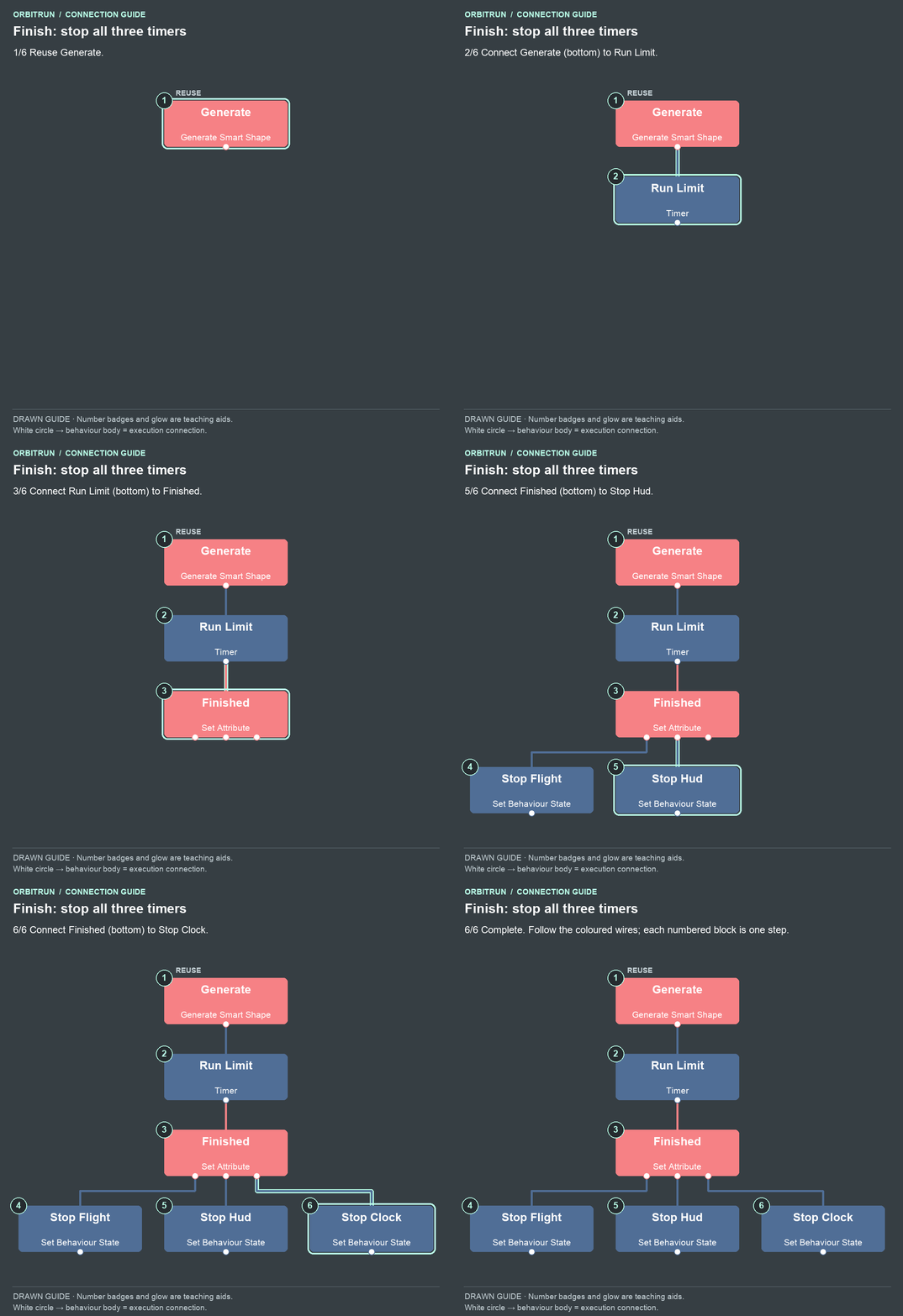
- Reuse Generate.
- Add Timer and name it Run Limit. Drag an unused bottom white circle on Generate onto the Run Limit block.
- Add Set Attribute and name it Finished. Drag an unused bottom white circle on Run Limit onto the Finished block.
- Add Set Behaviour State and name it Stop Flight. Drag an unused bottom white circle on Finished onto the Stop Flight block.
- Add Set Behaviour State and name it Stop Hud. Drag an unused bottom white circle on Finished onto the Stop Hud block.
- Add Set Behaviour State and name it Stop Clock. Drag an unused bottom white circle on Finished onto the Stop Clock block.
Build: Finish: stop the ship
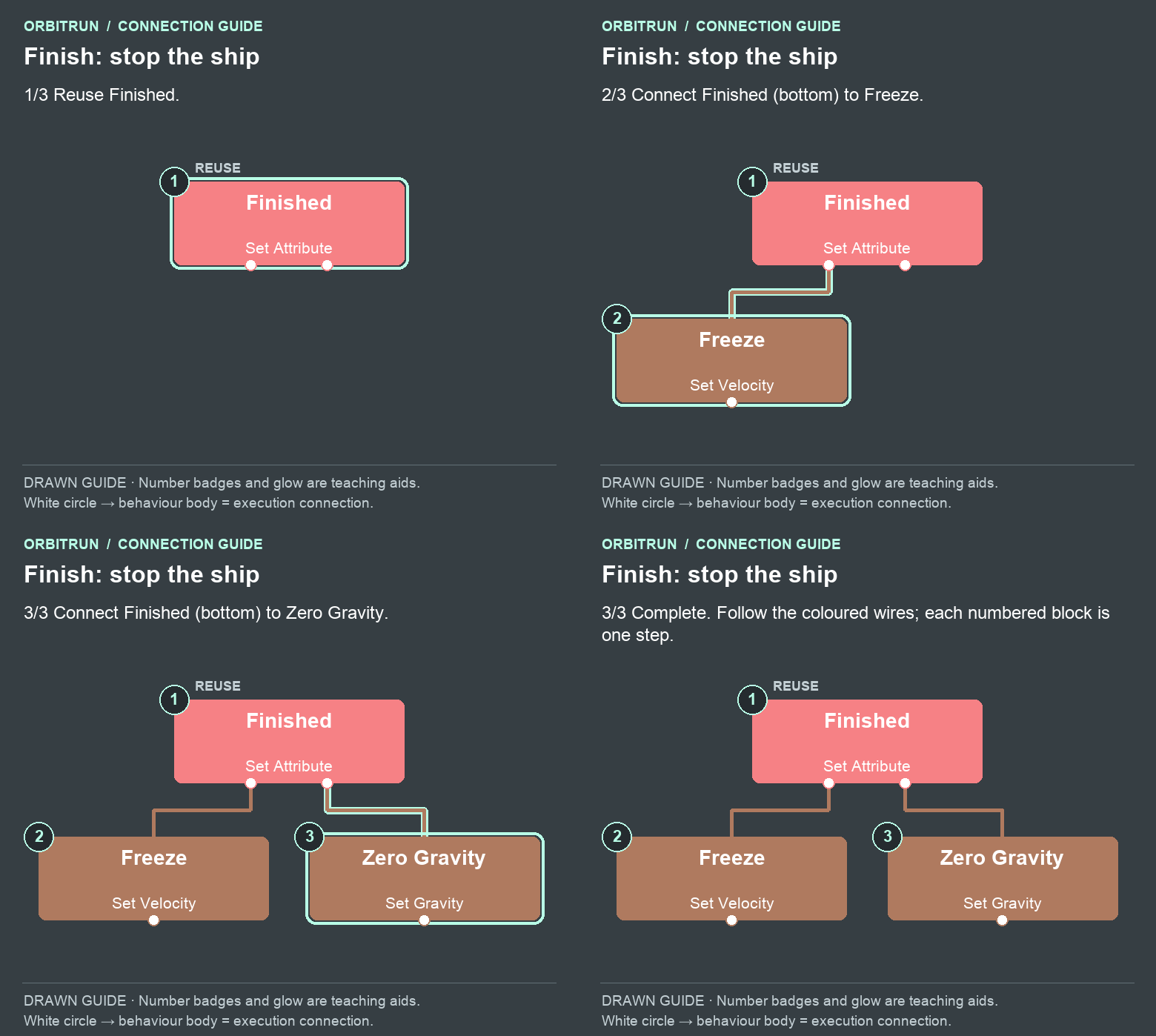
- Reuse Finished.
- Add Set Velocity and name it Freeze. Drag an unused bottom white circle on Finished onto the Freeze block.
- Add Set Gravity and name it Zero Gravity. Drag an unused bottom white circle on Finished onto the Zero Gravity block.
Build: Finish: reveal the result
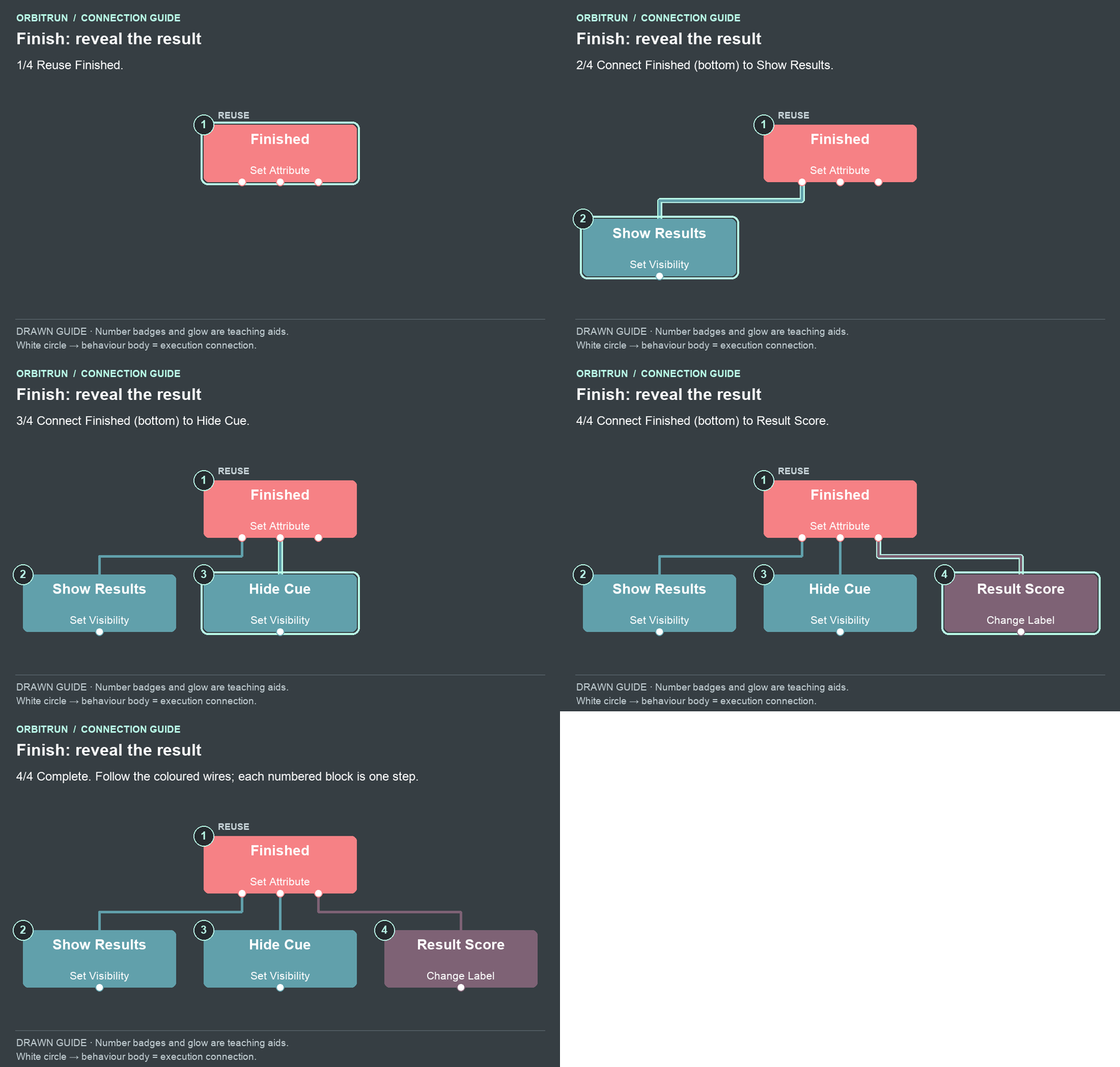
- Reuse Finished.
- Add Set Visibility and name it Show Results. Drag an unused bottom white circle on Finished onto the Show Results block.
- Add Set Visibility and name it Hide Cue. Drag an unused bottom white circle on Finished onto the Hide Cue block.
- Add Change Label and name it Result Score. Drag an unused bottom white circle on Finished onto the Result Score block.
Connect replay
Properties: Replay Touch targets Replay, Touch Anywhere Off, Absorbs Touch On. Replay State reads Skimmer’s runState. Replay Check compares that Attribute Value to finished. Restart uses Restart Scene with Refresh On.
Build: Replay only after finishing
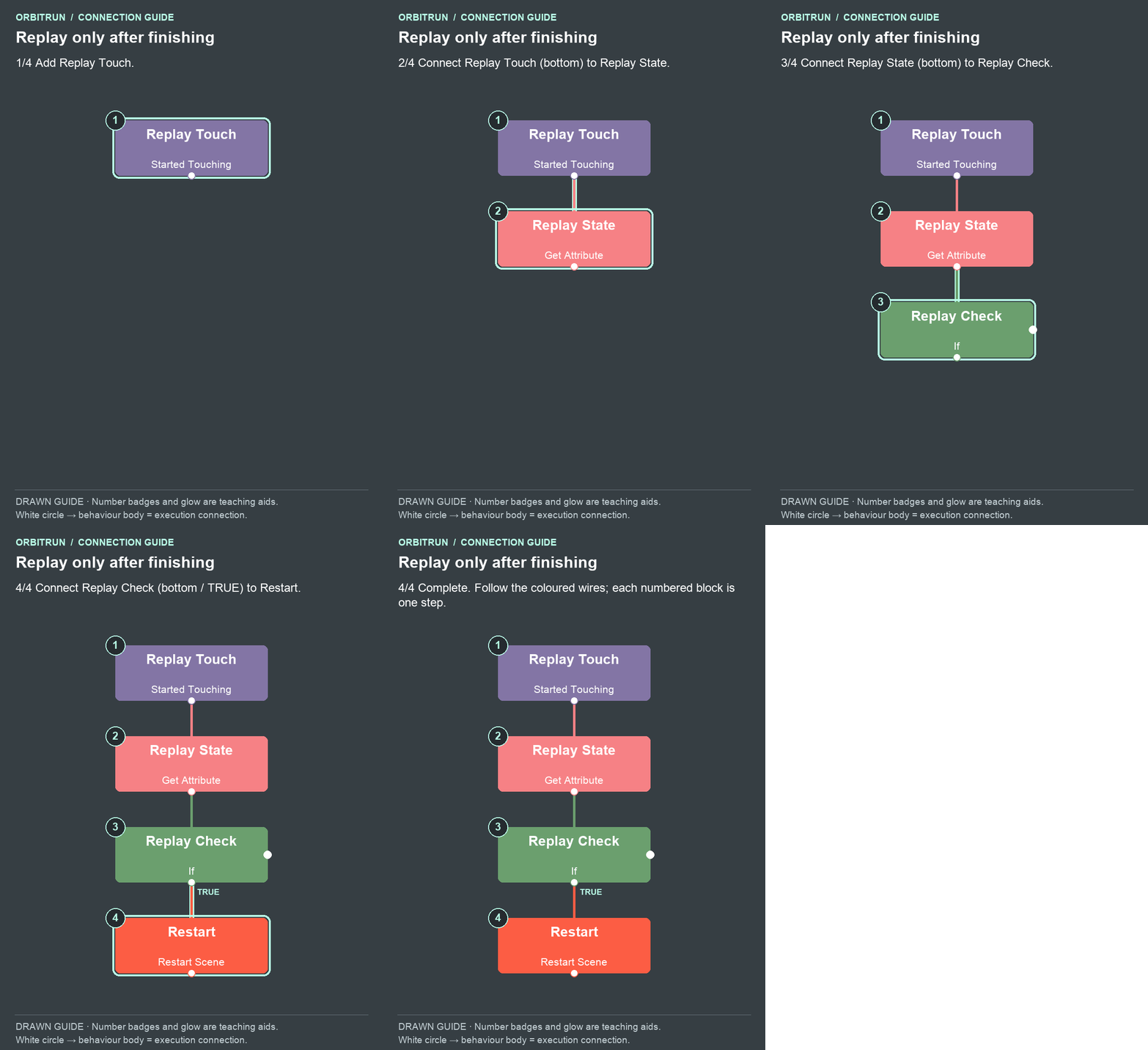
- Add Started Touching and name it Replay Touch.
- Add Get Attribute and name it Replay State. Drag an unused bottom white circle on Replay Touch onto the Replay State block.
- Add If and name it Replay Check. Drag an unused bottom white circle on Replay State onto the Replay Check block.
- Add Restart Scene and name it Restart. Drag an unused bottom white circle (true) on Replay Check onto the Restart block.
Try it: let a full run end. The ship should stop, the results should show the last displayed distance, and touching the play area should not resume diving. Tap FLY AGAIN: the title screen returns, the clock resets, and the next launch generates a new course.
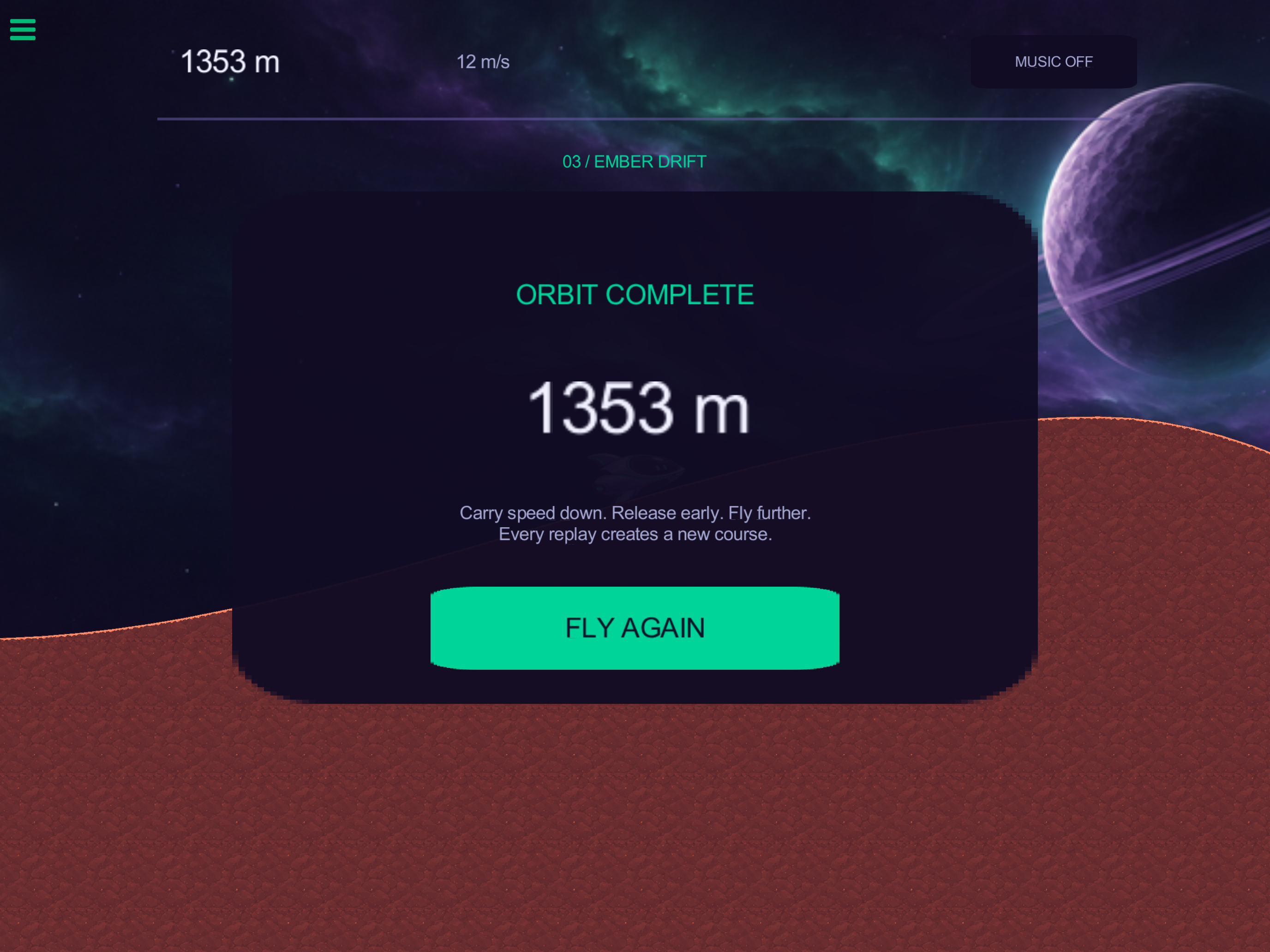
Why it works: setting runState first gives every input listener a consistent answer. Stopping the fast timers prevents an assist or rotation update from undoing the frozen state. For Freeze, both Maintain switches must be off; maintaining Y would preserve a fall.
12. Remember the personal best
Attributes describe the current run. A save-file key stores a value that should survive scene restarts and later play sessions.
Load the previous record
See Load from File and Save to File for keys, defaults, and saved values.
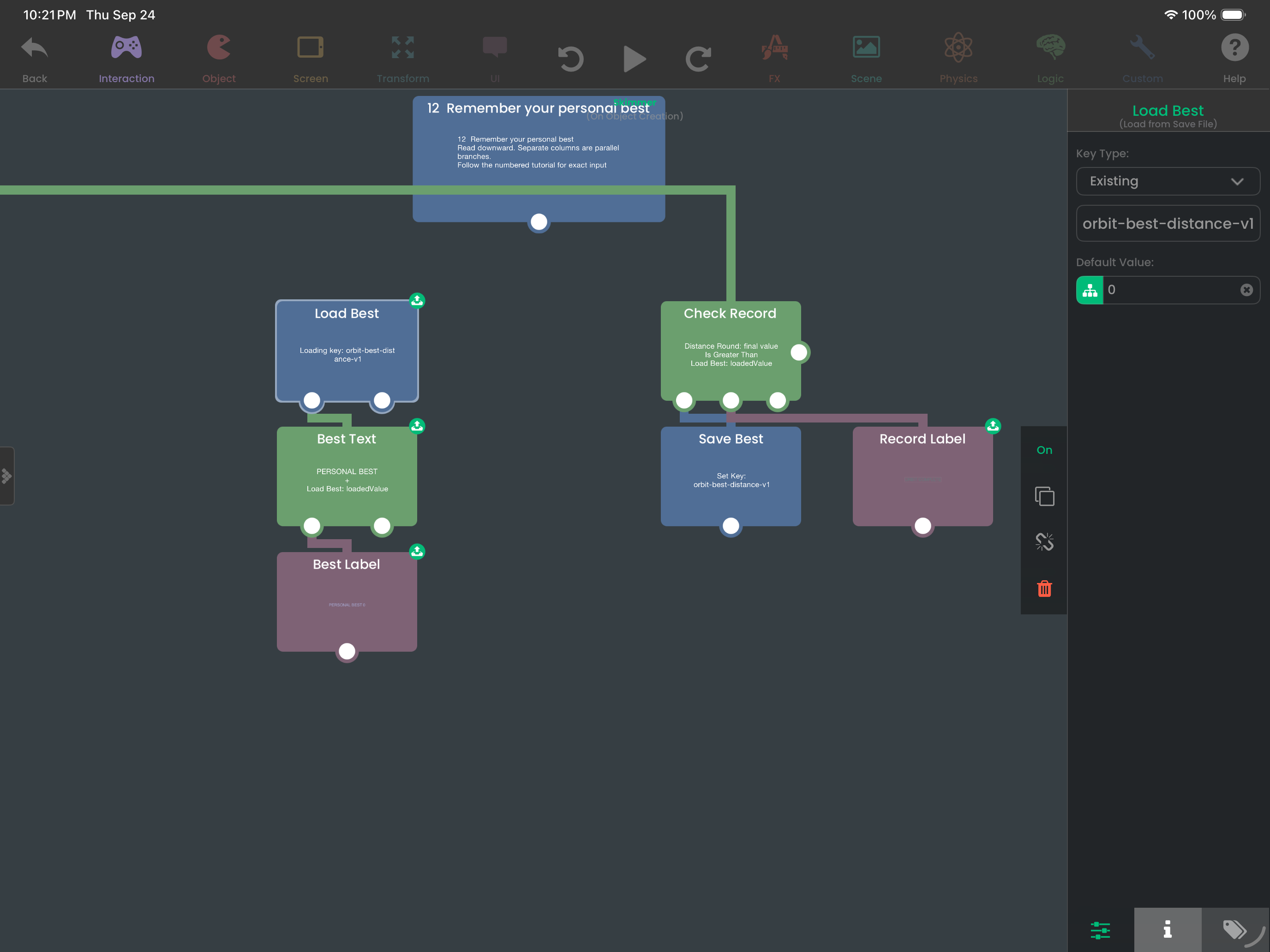
- Load Best (Load from Save File): at the top level, unconnected to Generate. Use key
orbit-best-distance-v1and default value 0. - Best Text (Combine Text): A =
PERSONAL BEST, B = Load Best’s Loaded Value output, Space On. - Best Label (Change Label): target Menu Best; Text = Best Text’s Combined Text output.
Build: Load the personal best
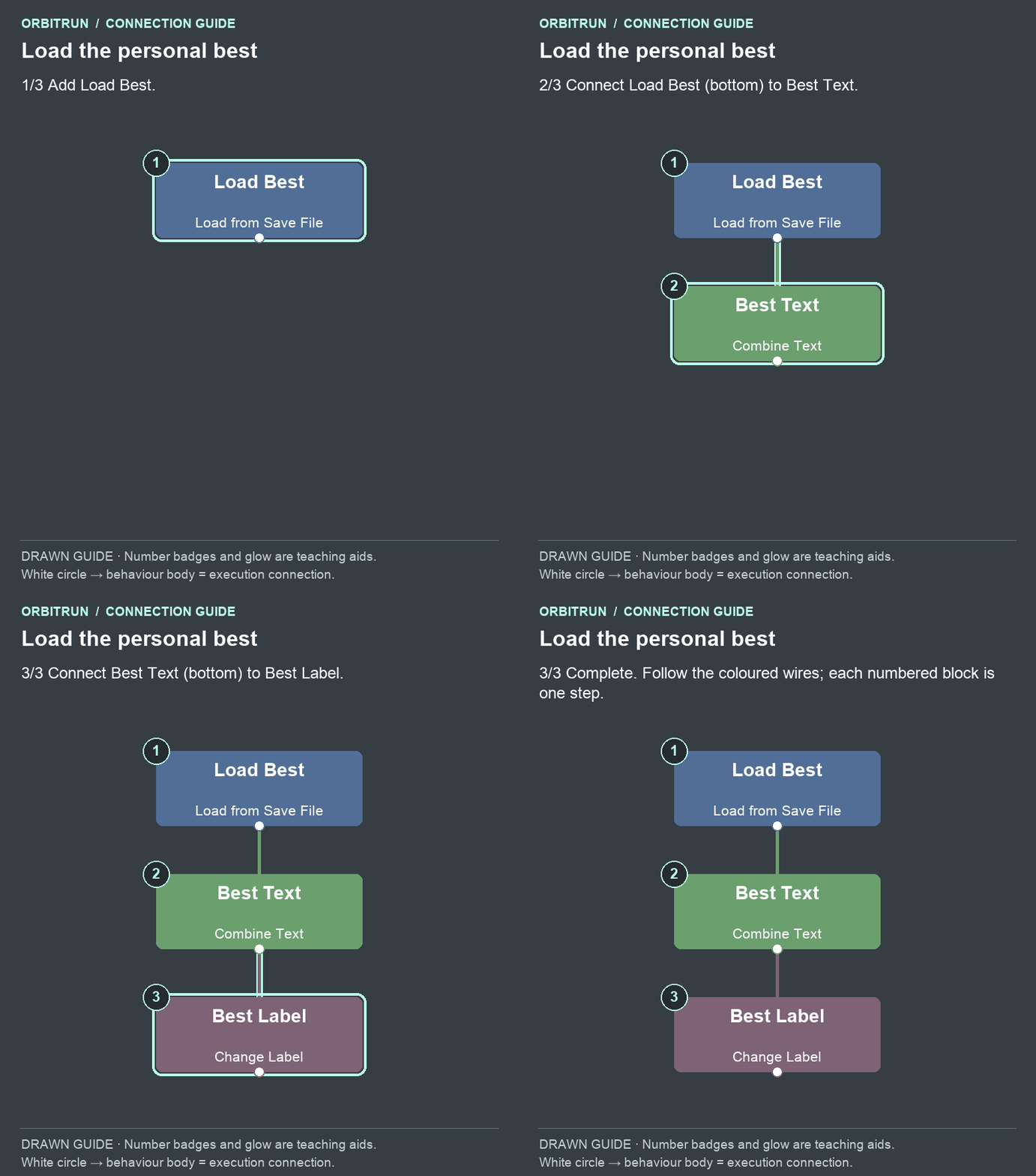
- Add Load from Save File and name it Load Best.
- Add Combine Text and name it Best Text. Drag an unused bottom white circle on Load Best onto the Best Text block.
- Add Change Label and name it Best Label. Drag an unused bottom white circle on Best Text onto the Best Label block.
Save only a better run
Save settings: Check Record compares Distance Round’s result Greater Than Load Best’s Loaded Value. Save Best uses Set Key, Dynamic key orbit-best-distance-v1, and Distance Round’s result. Record Label targets Results Title with NEW PERSONAL BEST.
Build: Save only a better distance
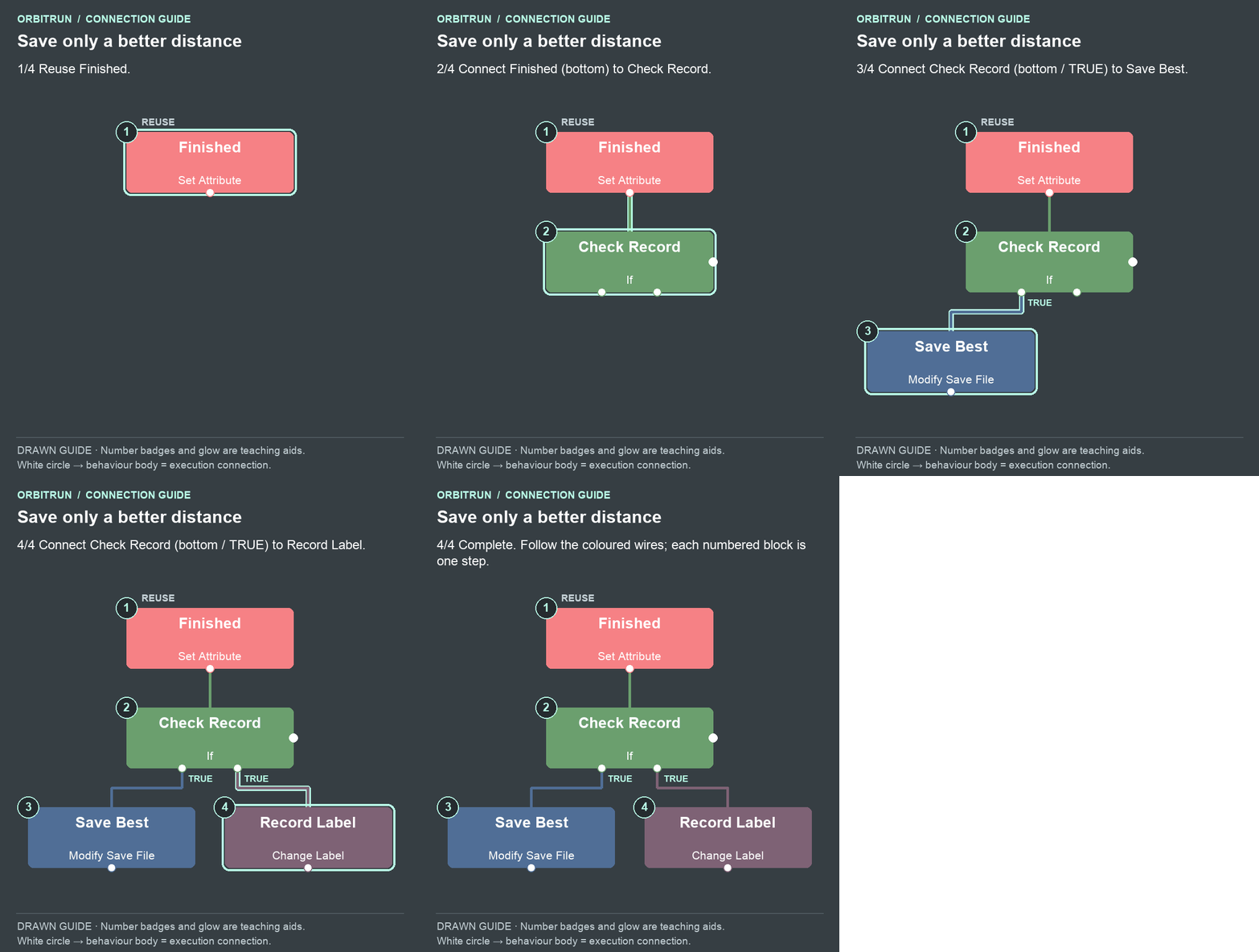
- Reuse Finished.
- Add If and name it Check Record. Drag an unused bottom white circle on Finished onto the Check Record block.
- Add Modify Save File and name it Save Best. Drag an unused bottom white circle (true) on Check Record onto the Save Best block.
- Add Change Label and name it Record Label. Drag an unused bottom white circle (true) on Check Record onto the Record Label block.
Try it: finish a run. If the distance beats the loaded best, the results title should change. Replay and check that Menu Best shows the saved number. A shorter run should leave the existing best unchanged. If you have already played another OrbitRun project using these same save keys, a previous score may already exist.
Why it works: comparisons use the numeric distance, not the formatted text 1353 m. Format values for display at the edge of the system; keep numbers as numbers for scoring. Use a unique save-key prefix when adapting this into a different game, so its preferences and scores do not collide with another project's keys.
Add your own challenge
Try a two-minute version. Change both Remaining's starting value and Run Limit to 120, and change Clock's initial text to 120 s. Then decide when its world transitions should occur. Updating only the label would leave the real run limit at 90 seconds.
Continue to Part 4 — Sound, polish, and recovery, or compare your project with checkpoint 12-personal-best.