

Build OrbitRun with Smart Shape — Part 6: Batteries and longer flights
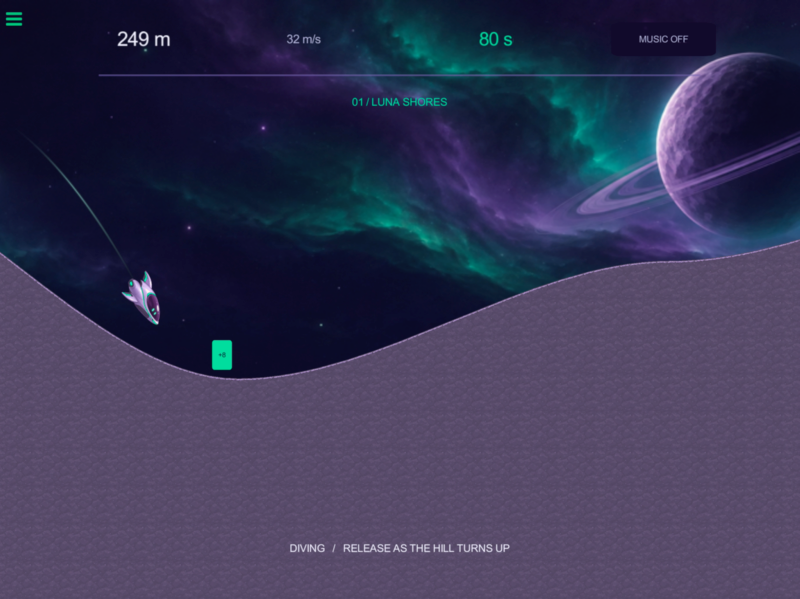
Reward a well-timed dive through a valley. A battery restores 8 seconds of energy, so collecting one lets the player keep flying into an increasingly fast run.
Continue from Part 5, or checkpoint 18-rising-pace in the checkpoint pack. We will use the original OrbitRun panel and font assets to make the pickup. No extra artwork is required.
Tap a screenshot or diagram to open its full-size image and inspect the details.
Reading the diagrams: white connectors run the next behaviour; the green output icon supplies a value to a field. If uses the bottom for true and right side for false. REUSE means keep the existing behaviour. The animated guides add teaching highlights; the editor recordings show the real gestures.
19. Put the battery in a valley
A battery in a valley rewards the timing we want to teach: press into the downhill, collect near the bottom, then release into the uphill. The terrain changes on every run, so a fixed pickup height is not enough.
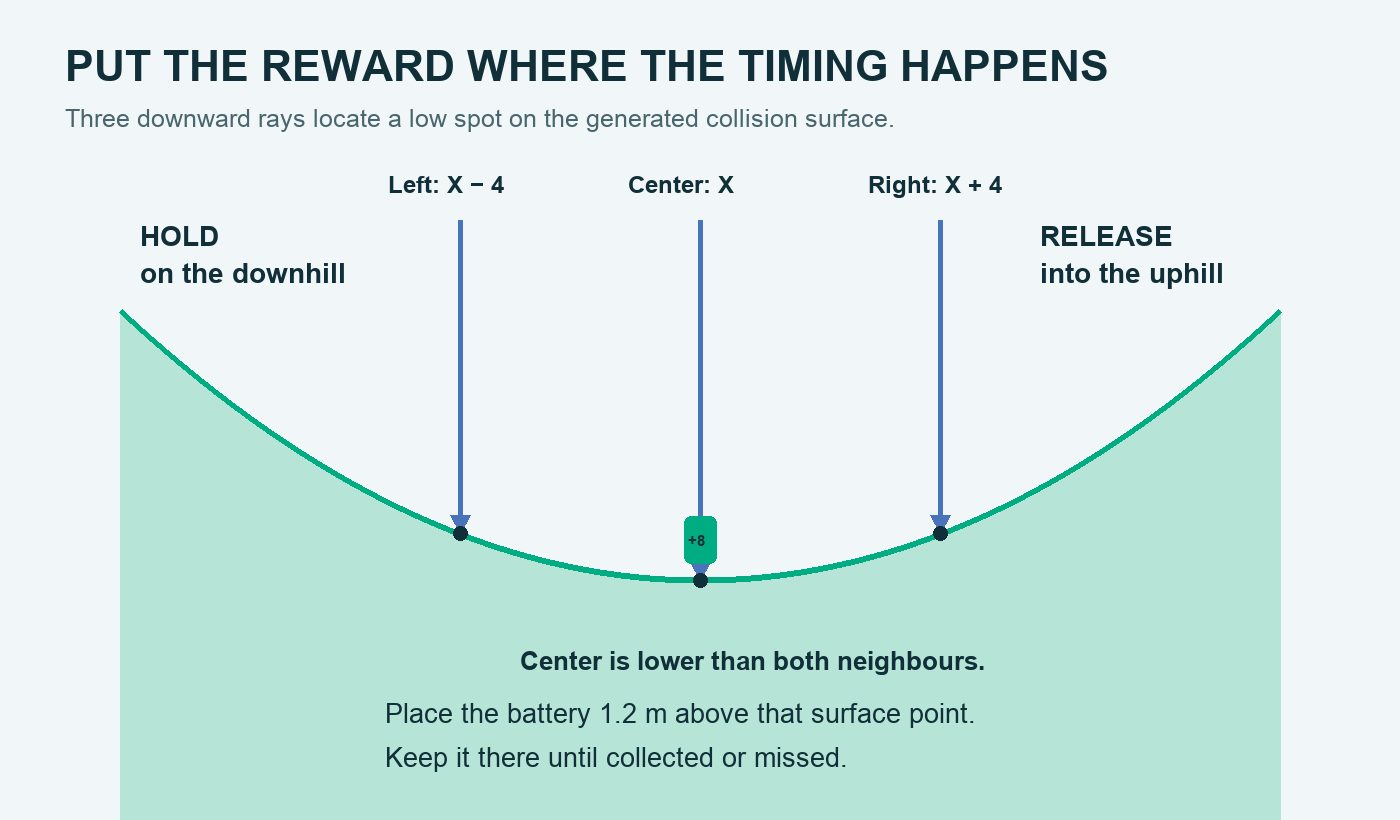
We will sample three points on the generated surface with Raycast Test. If the middle point is lower than both neighbours, it is near the bottom of a valley. One reusable pickup is enough to learn the system before building a larger pool.
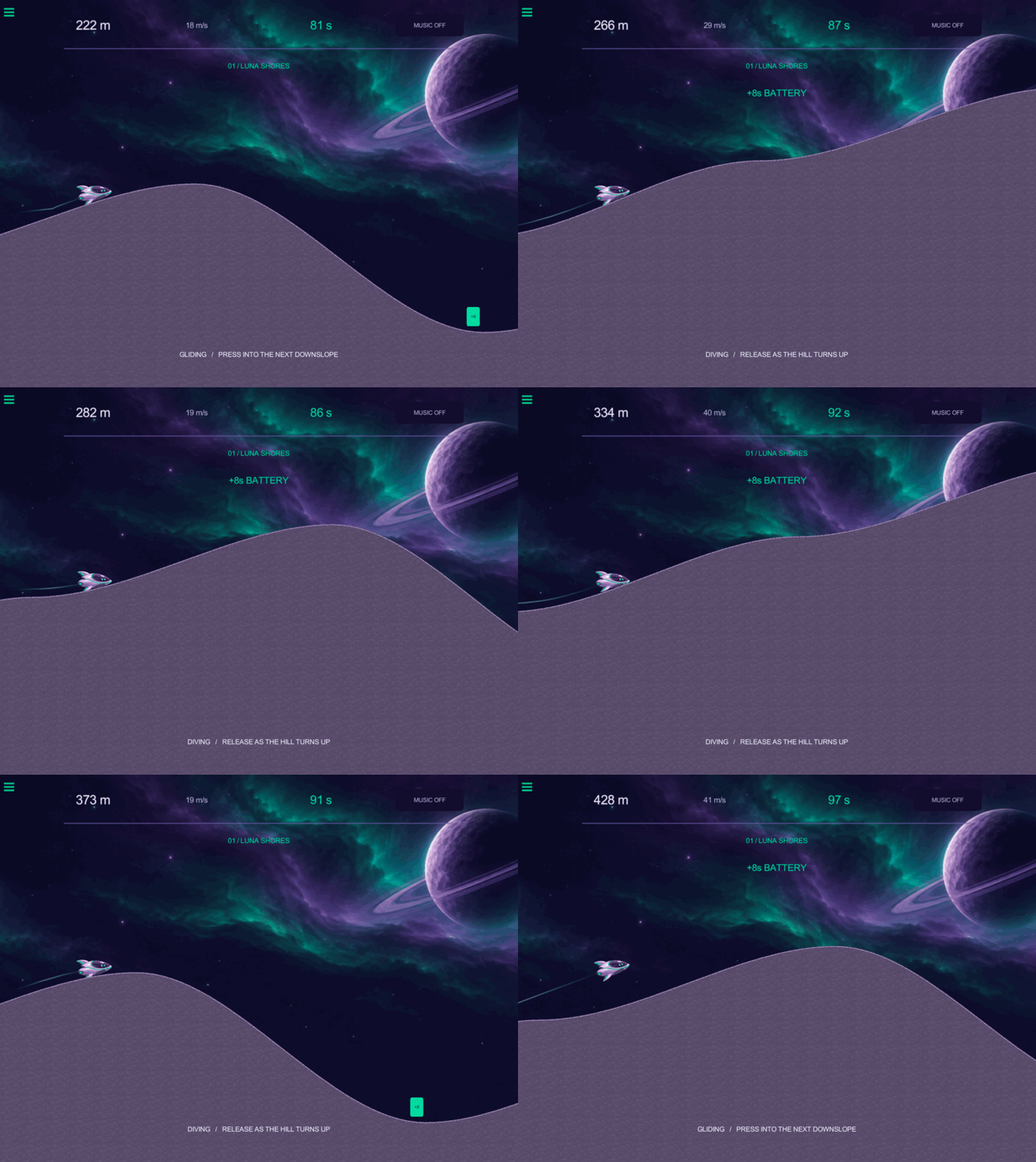
Watch the countdown gain eight seconds and the green cell disappear when collected.
Build the cell
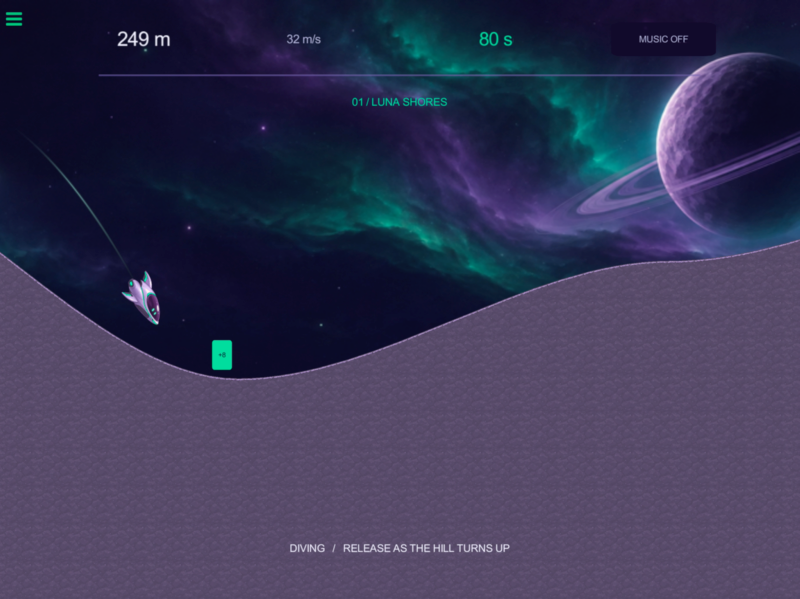
Make a small, bright pickup that stands out against the ground:
- Add
orbit-panelto the world layer, name it Battery, and resize it into a small badge. Give it a bright tint and place a+8label named Battery Label over it. - Use centered anchors so the graphic and label line up when moved together. Set Battery to Static, disable its collisions, and hide both objects initially. The placement behaviours will choose their position.
- Add
batteryActive=0to Skimmer’s attributes. Zero means search for a valley; one means keep the current pickup in place.
Search the terrain ahead
See Raycast Test for origins, destinations, layers, and hit outputs. Use the data-output drag demonstrated in Part 2 whenever a field below names another behaviour’s result.
Keep these behaviours on Skimmer. Follow the small diagrams in order: search, sample the ground, place the battery, then recycle a miss.
Begin the search chain:
- Battery Search State (Get Attribute) — Skimmer,
batteryActive - Battery Search Idle (If) — Attribute Value equals 0
- Battery Place Position (Get Position) — Skimmer, Screen Coordinates Off
- Battery Next X (Add Values) — Skimmer's X Position + 35
- Battery Left X (Subtract Values) — Battery Next X result − 4
The first guide connects Flight Tick to Battery Search State. The existing 0.05-second timer checks ahead frequently enough to notice a valley even as speed increases. It only casts rays while batteryActive is zero.
Build: Search only while inactive
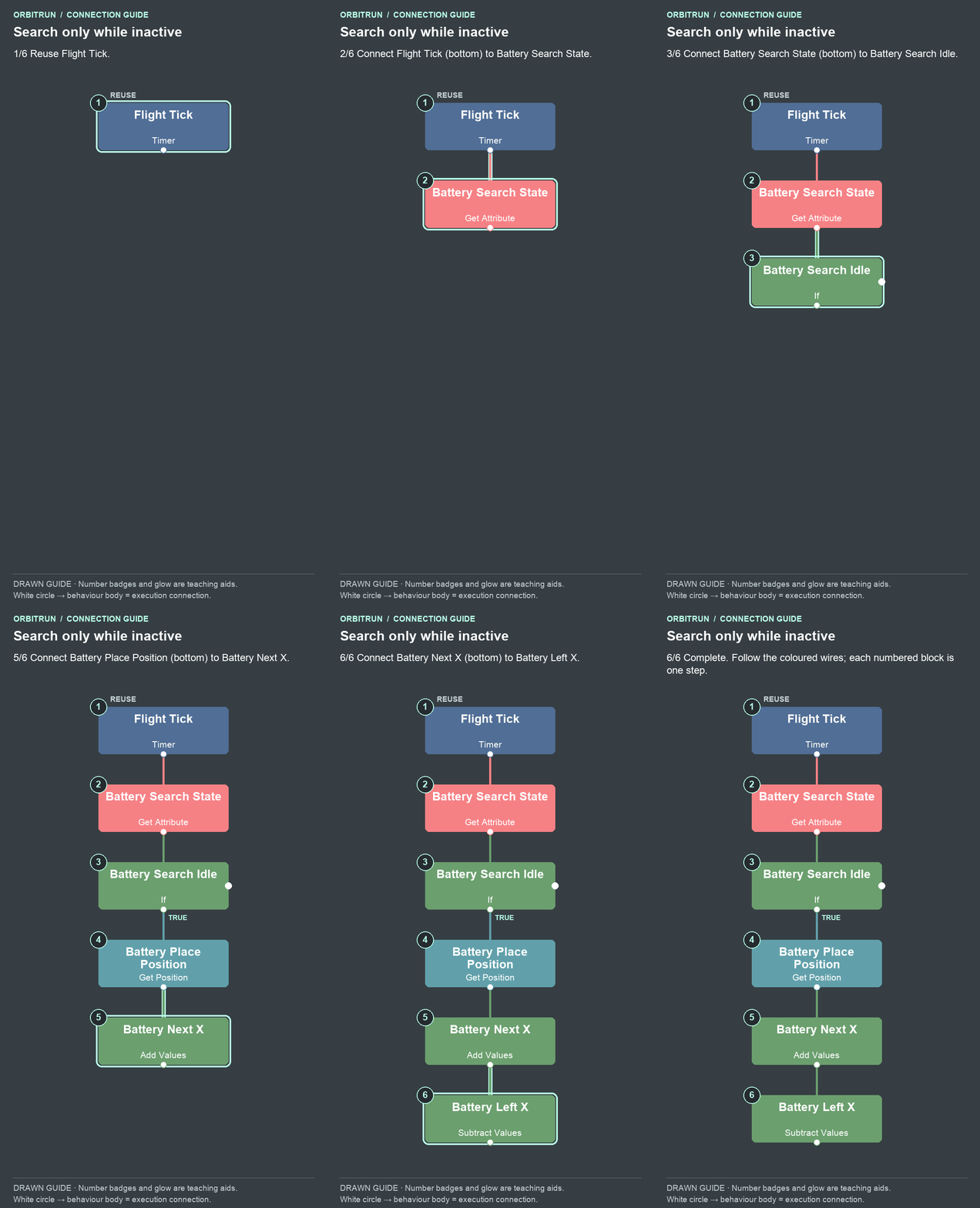
- Reuse Flight Tick.
- Add Get Attribute and name it Battery Search State. Drag an unused bottom white circle on Flight Tick onto the Battery Search State block.
- Add If and name it Battery Search Idle. Drag an unused bottom white circle on Battery Search State onto the Battery Search Idle block.
- Add Get Position and name it Battery Place Position. Drag an unused bottom white circle (true) on Battery Search Idle onto the Battery Place Position block.
- Add Add Values and name it Battery Next X. Drag an unused bottom white circle on Battery Place Position onto the Battery Next X block.
- Add Subtract Values and name it Battery Left X. Drag an unused bottom white circle on Battery Next X onto the Battery Left X block.
The next two guides add three Raycast Test behaviours. They all use Closest Object, Any Object, world layer 0, All Layers Off, and destination type Position. Each ray starts at Y 80 and ends at Y −40, so it passes vertically through the course. Use the same X at both ends:
- Battery Ray Left — Battery Left X result
- Battery Ray Center — Battery Next X result
- Battery Ray Right — Battery Right X result, an Add Values calculation of Battery Next X + 4
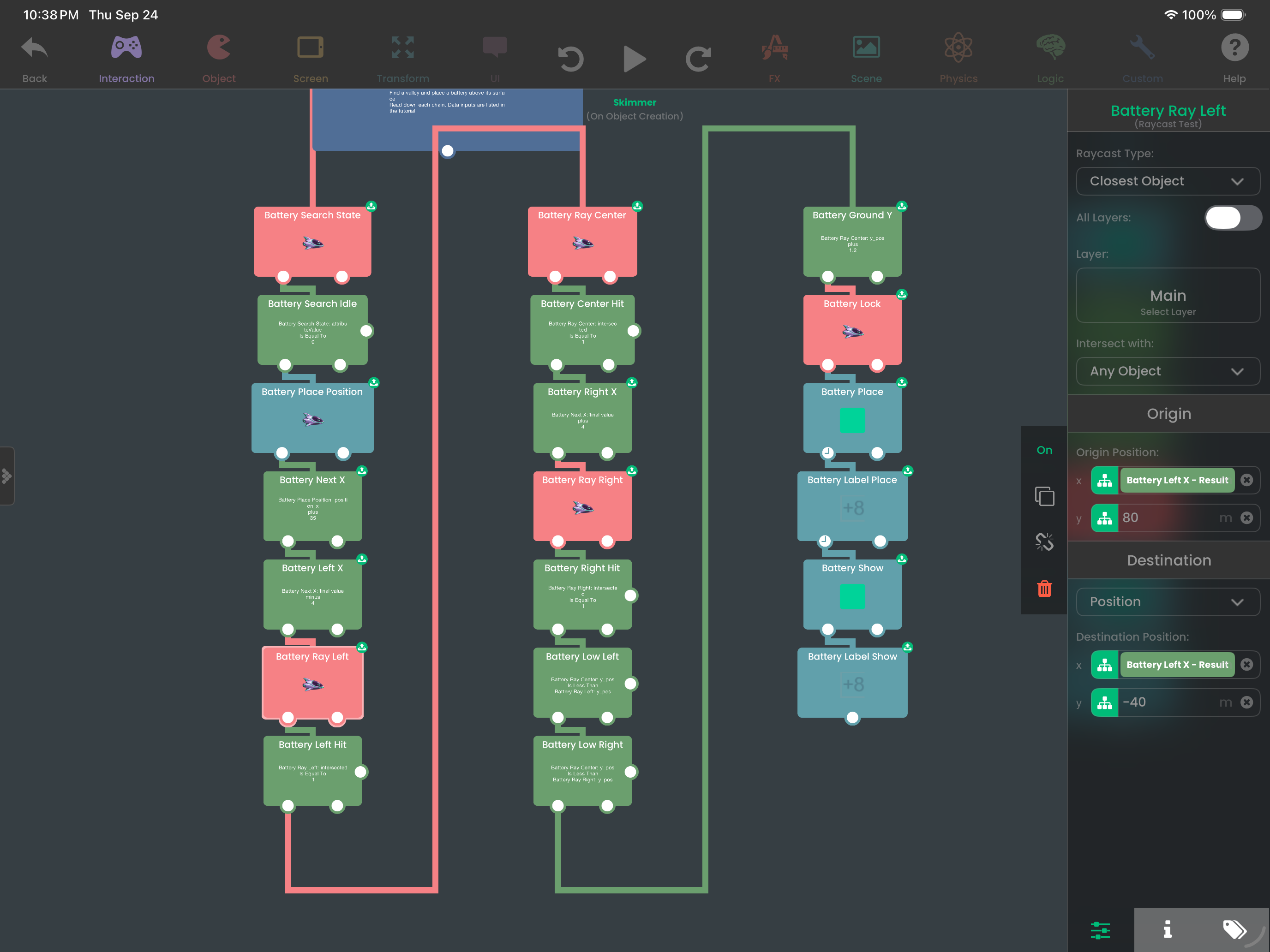
After each ray, the guide places an If comparing that ray's Intersected output equals 1. Name these Battery Left Hit, Battery Center Hit, and Battery Right Hit. Continue only from the true output. Missing collision data should produce no pickup, rather than placing one at an invalid height.
Configure the two valley checks in the second sampling guide:
- Battery Low Left: Center ray's Y Position < Left ray's Y Position.
- Battery Low Right: Center ray's Y Position < Right ray's Y Position.
Build: Sample left, then center
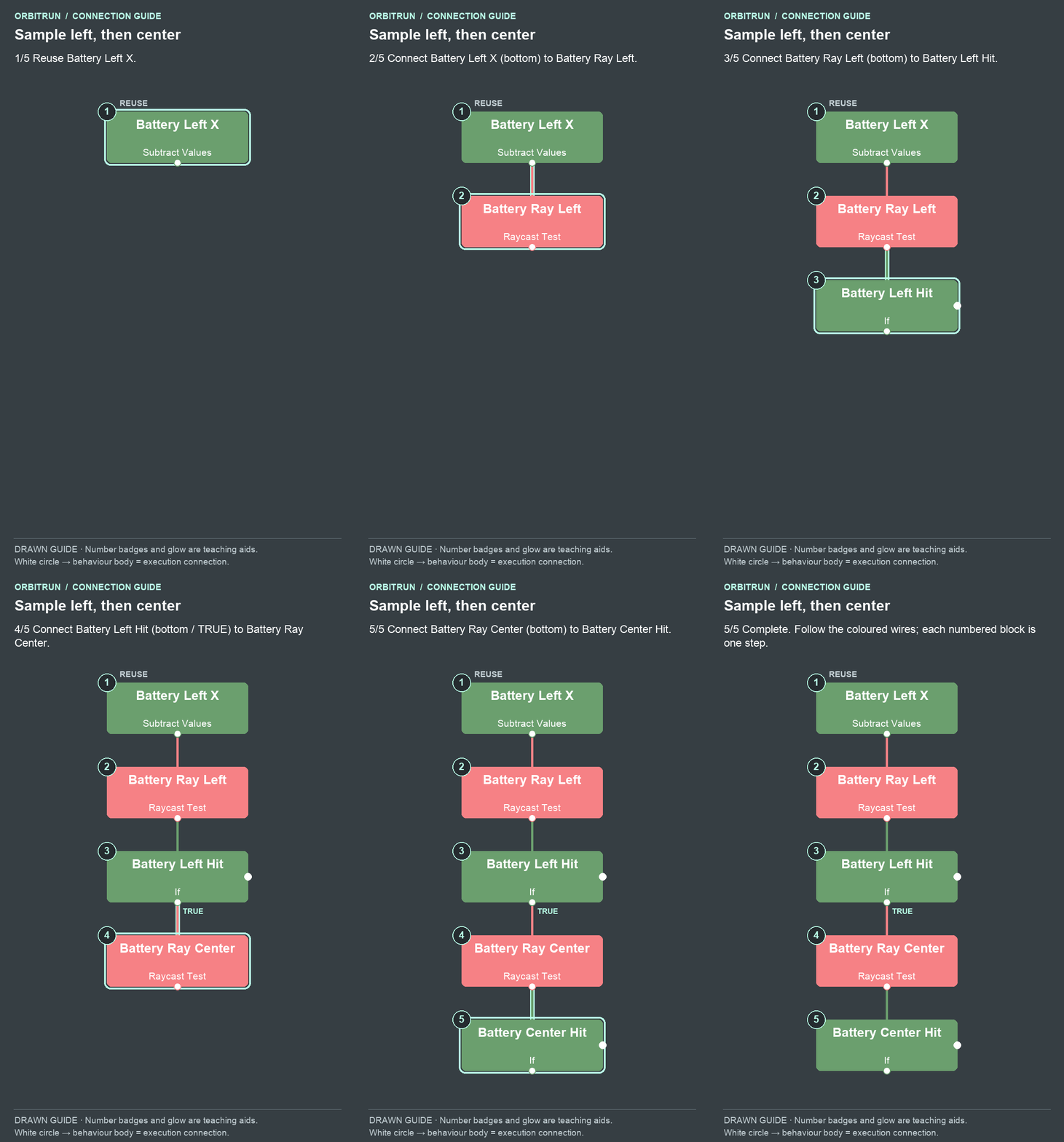
- Reuse Battery Left X.
- Add Raycast Test and name it Battery Ray Left. Drag an unused bottom white circle on Battery Left X onto the Battery Ray Left block.
- Add If and name it Battery Left Hit. Drag an unused bottom white circle on Battery Ray Left onto the Battery Left Hit block.
- Add Raycast Test and name it Battery Ray Center. Drag an unused bottom white circle (true) on Battery Left Hit onto the Battery Ray Center block.
- Add If and name it Battery Center Hit. Drag an unused bottom white circle on Battery Ray Center onto the Battery Center Hit block.
Watch the output drag: aim the ray at the sampled x
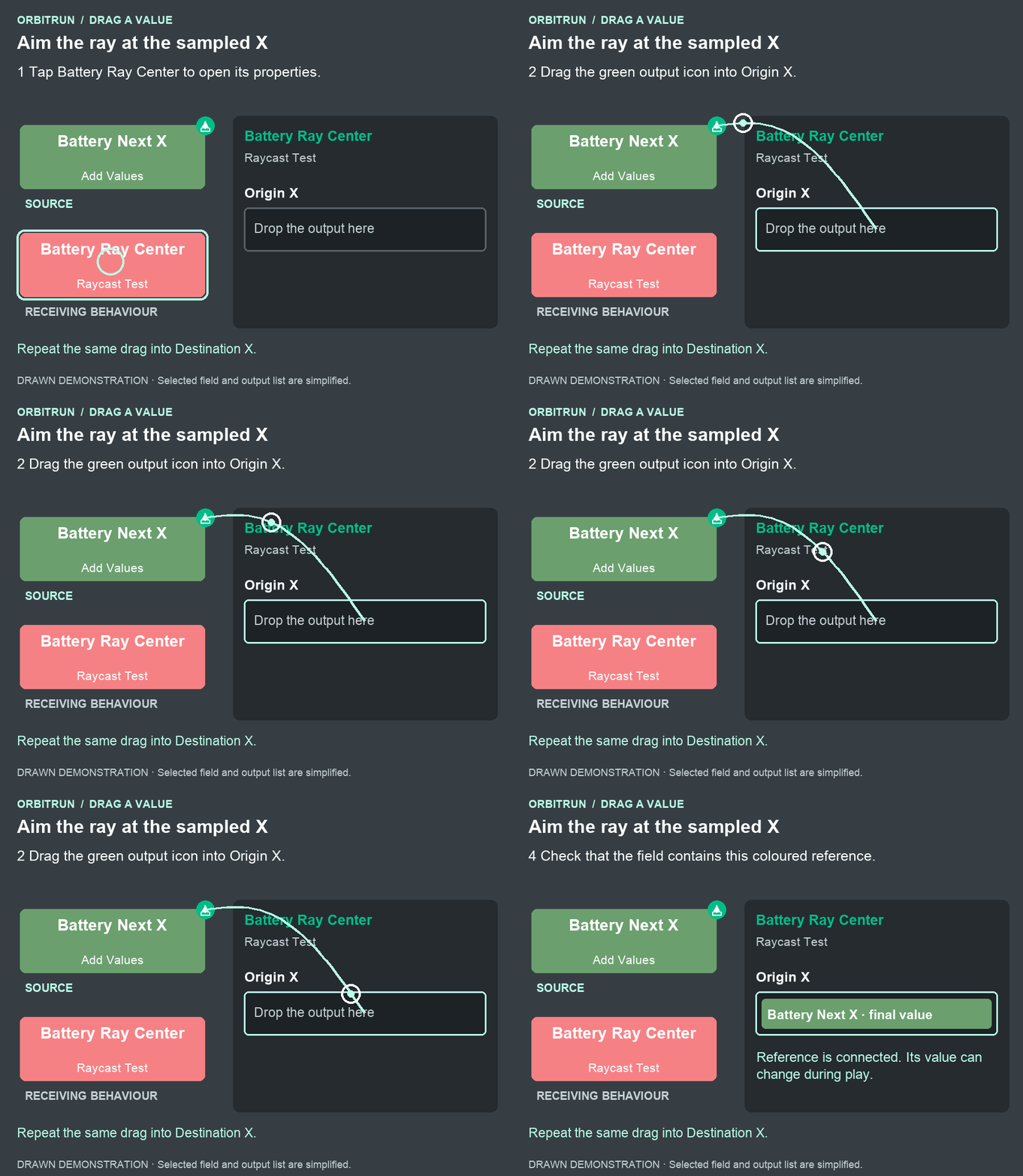
After the drop: Origin X contains Battery Next X · final value. Repeat the same drag into Destination X.
Build: Sample right, then find a valley
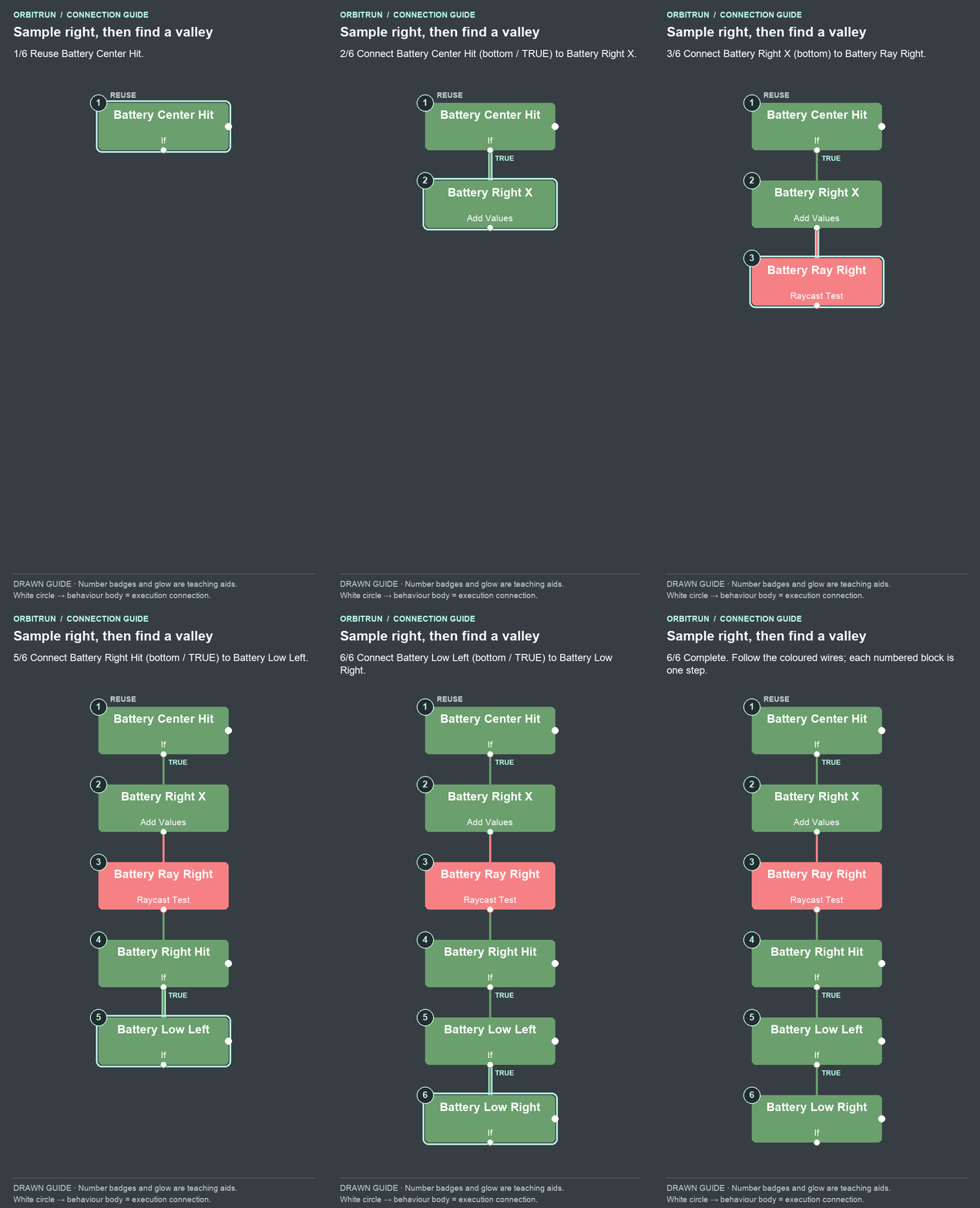
- Reuse Battery Center Hit.
- Add Add Values and name it Battery Right X. Drag an unused bottom white circle (true) on Battery Center Hit onto the Battery Right X block.
- Add Raycast Test and name it Battery Ray Right. Drag an unused bottom white circle on Battery Right X onto the Battery Ray Right block.
- Add If and name it Battery Right Hit. Drag an unused bottom white circle on Battery Ray Right onto the Battery Right Hit block.
- Add If and name it Battery Low Left. Drag an unused bottom white circle (true) on Battery Right Hit onto the Battery Low Left block.
- Add If and name it Battery Low Right. Drag an unused bottom white circle (true) on Battery Low Left onto the Battery Low Right block.
Place and hold the pickup
The placement guide continues from Battery Low Right’s true output. Use these settings:
- Battery Ground Y (Add Values) — Center ray's Y Position + 1.2
- Battery Lock (Set Attribute) — Skimmer,
batteryActive= 1 - Battery Place (Move to Point) — Battery; X = Center ray's X Position; Y = Battery Ground Y result; duration 0, Screen Coordinates Off
- Battery Label Place (Move to Point) — Battery Label; same X and Y, duration 0, Screen Coordinates Off
- Battery Show (Set Visibility) — Battery, Show Graphic
- Battery Label Show (Set Visibility) — Battery Label, Show Graphic
Build: Lock and place the battery
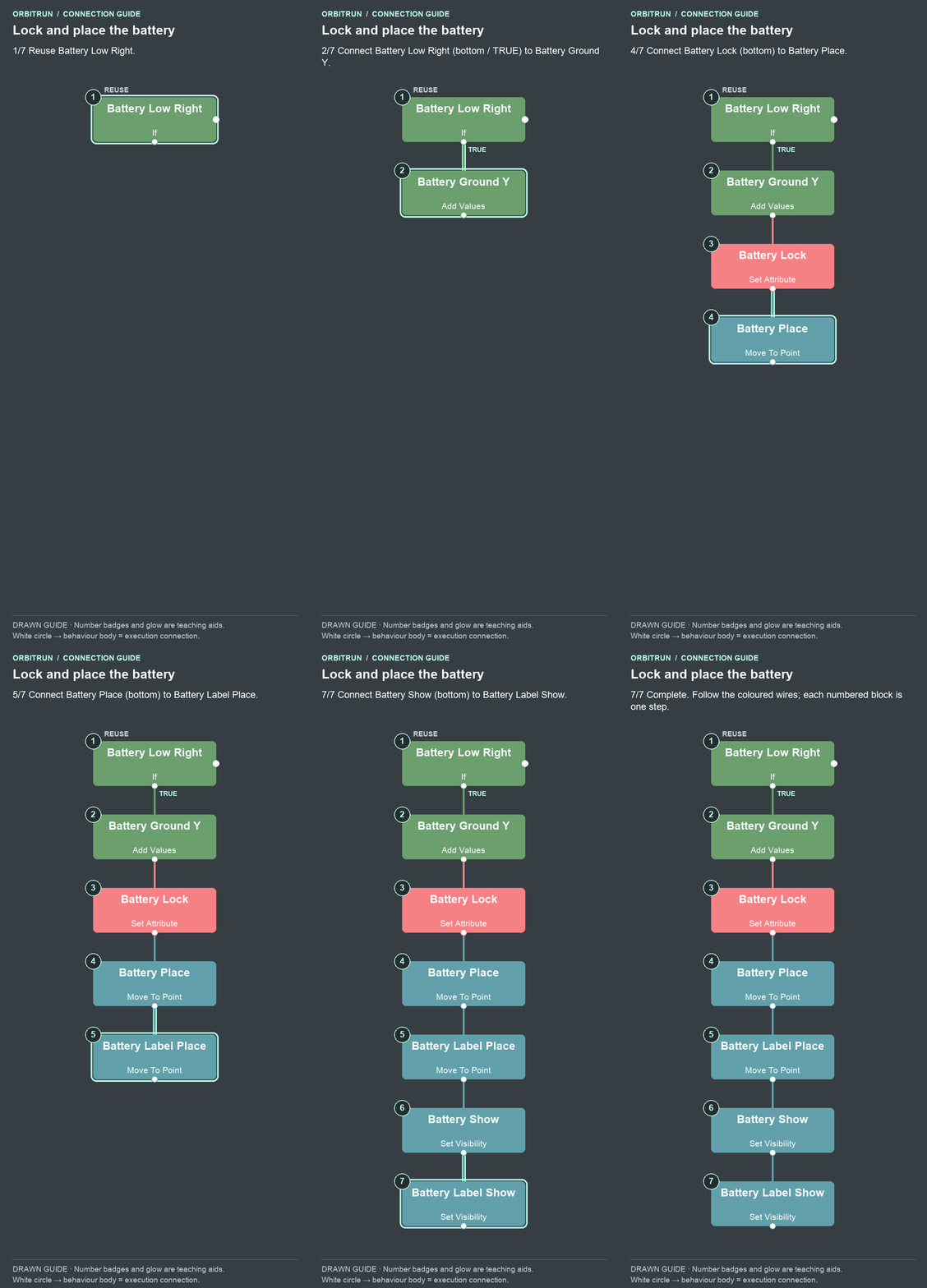
- Reuse Battery Low Right.
- Add Add Values and name it Battery Ground Y. Drag an unused bottom white circle (true) on Battery Low Right onto the Battery Ground Y block.
- Add Set Attribute and name it Battery Lock. Drag an unused bottom white circle on Battery Ground Y onto the Battery Lock block.
- Add Move To Point and name it Battery Place. Drag an unused bottom white circle on Battery Lock onto the Battery Place block.
- Add Move To Point and name it Battery Label Place. Drag an unused bottom white circle on Battery Place onto the Battery Label Place block.
- Add Set Visibility and name it Battery Show. Drag an unused bottom white circle on Battery Label Place onto the Battery Show block.
- Add Set Visibility and name it Battery Label Show. Drag an unused bottom white circle on Battery Show onto the Battery Label Show block.
Watch the output drag: use the surface height
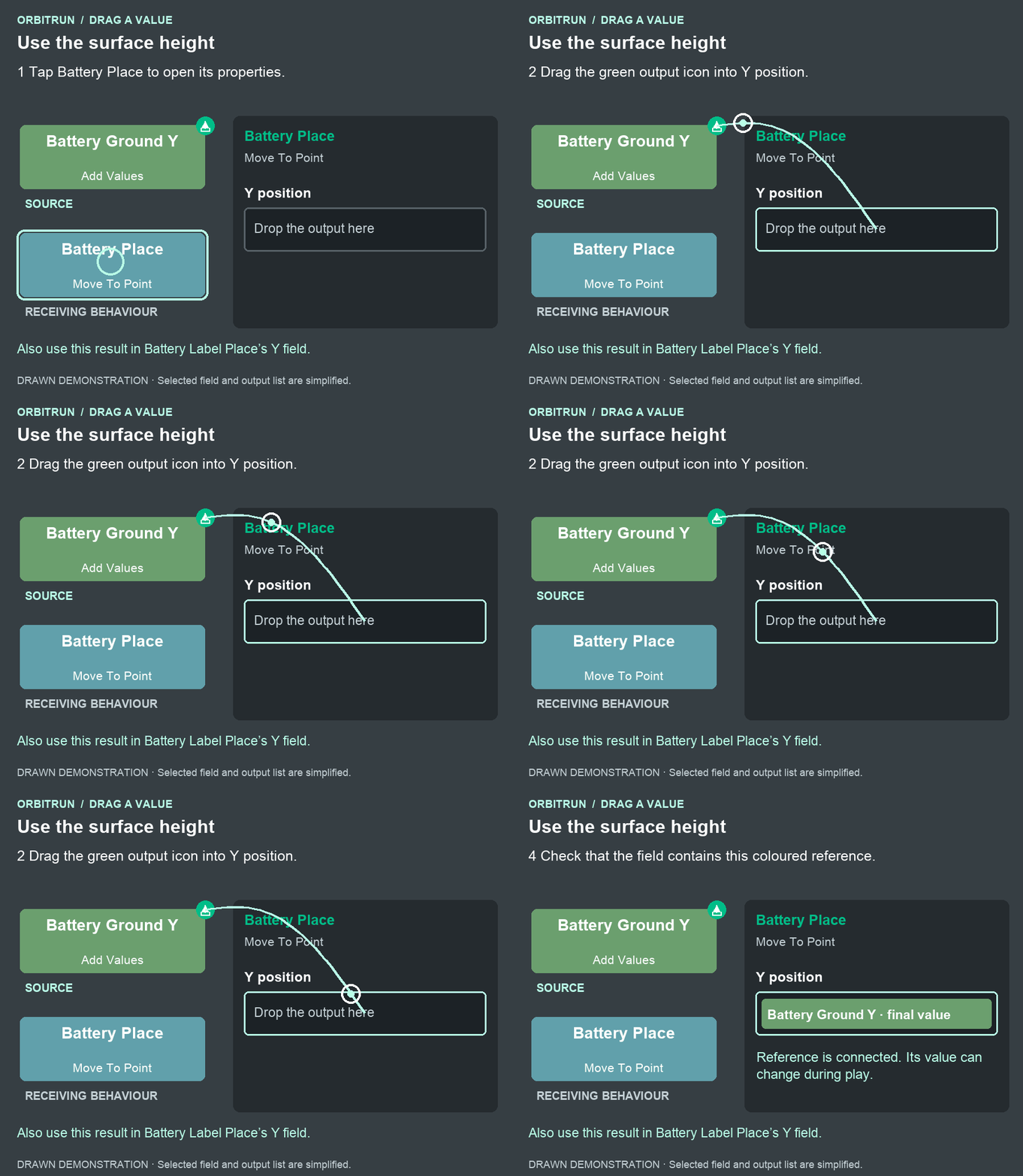
After the drop: Y position contains Battery Ground Y · final value. Also use this result in Battery Label Place’s Y field.
The 1.2 m offset keeps the graphic just above the collision surface. The active flag locks its position while the ship approaches, so the cell does not drift with the moving scan.
Recycle a miss
Use the recycling guide below. Configure these properties:
- Get Position, alias Battery Position, targeting Battery, Screen Coordinates Off.
- Subtract Values, alias Battery Gap: Battery Position's X Position − the existing HUD Position’s X Position output.
- If, alias Battery Missed: Battery Gap's result < −6.
- Set Attribute, alias Battery Deactivate: Skimmer,
batteryActive= 0. - Set Visibility, alias Battery Hide Cell, hiding Battery, followed by Battery Hide Label, hiding Battery Label.
Build: Recycle a missed battery
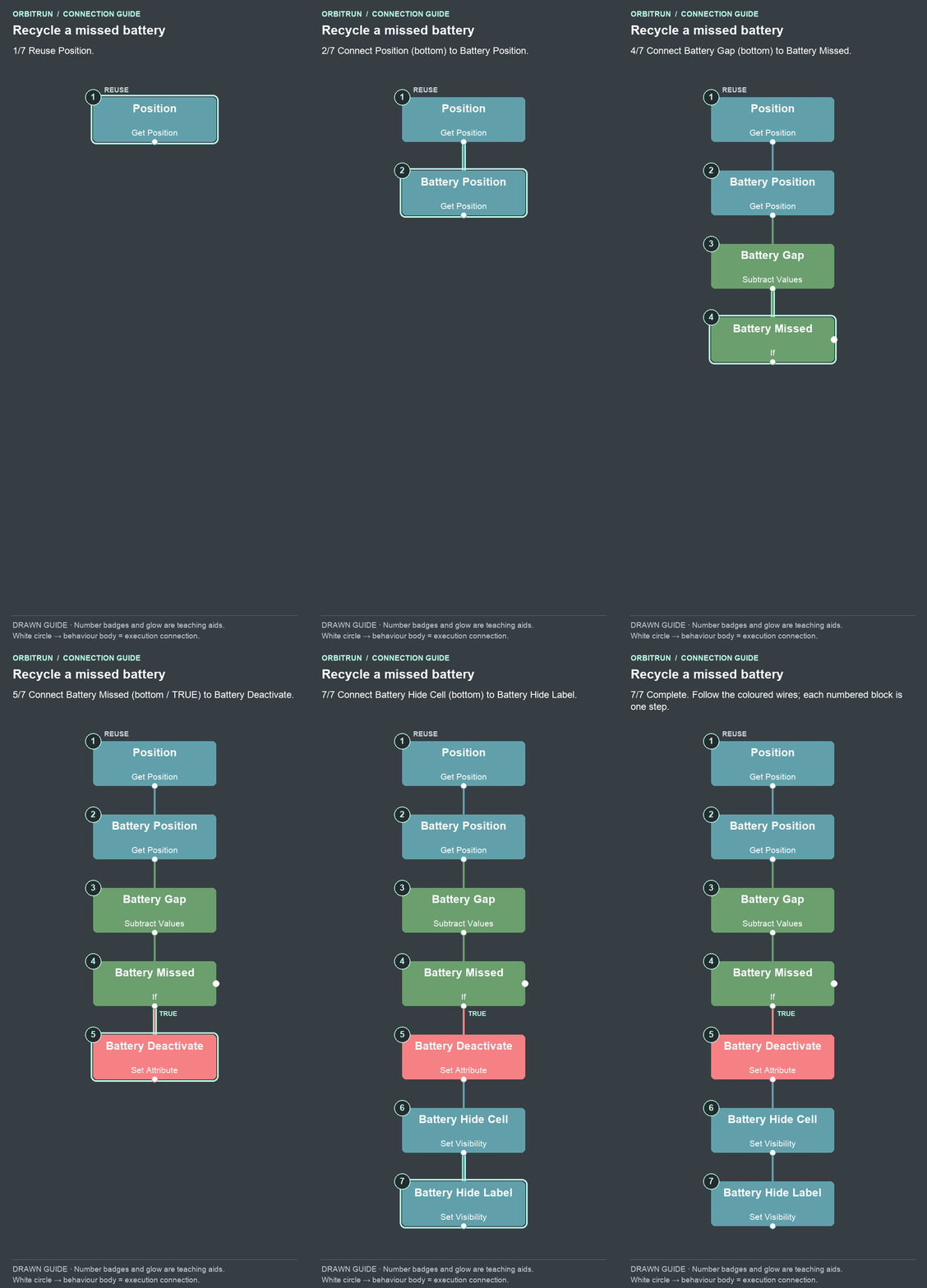
- Reuse Position.
- Add Get Position and name it Battery Position. Drag an unused bottom white circle on Position onto the Battery Position block.
- Add Subtract Values and name it Battery Gap. Drag an unused bottom white circle on Battery Position onto the Battery Gap block.
- Add If and name it Battery Missed. Drag an unused bottom white circle on Battery Gap onto the Battery Missed block.
- Add Set Attribute and name it Battery Deactivate. Drag an unused bottom white circle (true) on Battery Missed onto the Battery Deactivate block.
- Add Set Visibility and name it Battery Hide Cell. Drag an unused bottom white circle on Battery Deactivate onto the Battery Hide Cell block.
- Add Set Visibility and name it Battery Hide Label. Drag an unused bottom white circle on Battery Hide Cell onto the Battery Hide Label block.
Try it: follow a cell toward a valley. It should stay attached to that spot in the course. Fly over it and watch it disappear after passing behind the ship; a later valley can receive the next cell. Collection is added in step 20.
Why it works: the ray positions and results use world coordinates, so changing camera zoom does not move pickups. The three hit checks handle terrain that is not ready at the sampled positions. The active flag separates searching from waiting for a collection.
Tuning exercise: adjust the 35-metre look-ahead distance, the 4-metre sample spacing, or the small surface offset. Keep the ray's top above every crest and its bottom below every valley. If you change terrain height or position, update those bounds. The check deliberately finds valleys rather than placing batteries above every hill.
20. Collect energy, then end the run when it is empty
The earlier prototype had a fixed Run Limit timer. That timer must go: otherwise the game would finish at 90 seconds even after collecting batteries.
Detect a collection
Set up the collection in execution order: check whether the battery is active, check its distance, then award the bonus. Follow the numbered build below.
Properties to enter as you add the blocks:
- Battery Collect State: Skimmer, attribute
batteryActive. - Battery Collect Active: Attribute Value Equals 1.
- Battery Distance: Calculate Distance; Object A = Skimmer, Object B = Battery, Compensate for Zoom On.
- Battery Near: Battery Distance’s Value < 2.5.
- Battery Bonus: its own result + 8, initial result 0.
- Battery Capacity: first number 90, second number from Battery Bonus’s result.
Build: Check active, then distance
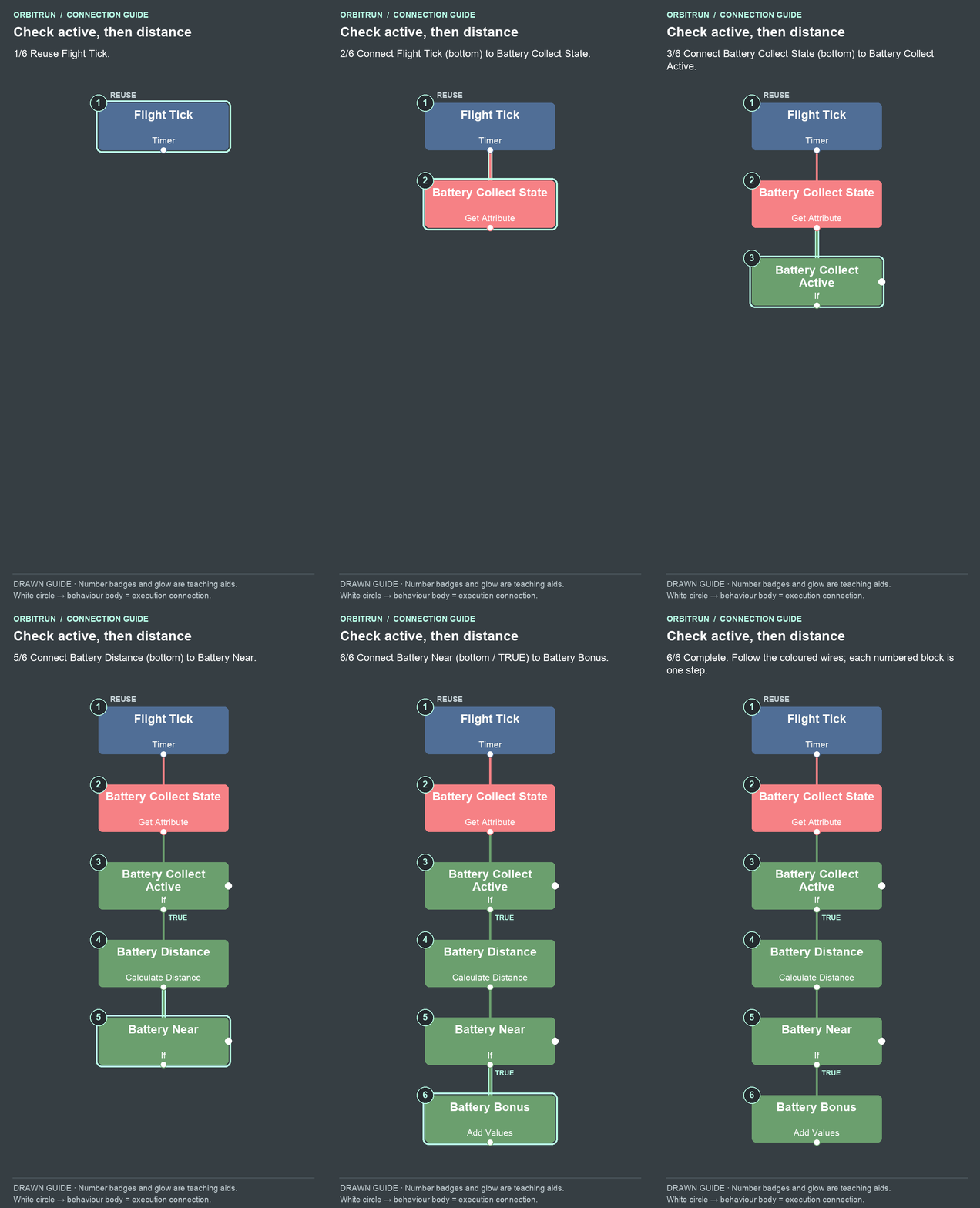
- Reuse Flight Tick.
- Add Get Attribute and name it Battery Collect State. Drag an unused bottom white circle on Flight Tick onto the Battery Collect State block.
- Add If and name it Battery Collect Active. Drag an unused bottom white circle on Battery Collect State onto the Battery Collect Active block.
- Add Calculate Distance and name it Battery Distance. Drag an unused bottom white circle (true) on Battery Collect Active onto the Battery Distance block.
- Add If and name it Battery Near. Drag an unused bottom white circle on Battery Distance onto the Battery Near block.
- Add Add Values and name it Battery Bonus. Drag an unused bottom white circle (true) on Battery Near onto the Battery Bonus block.
Build: Add energy and retire the cell
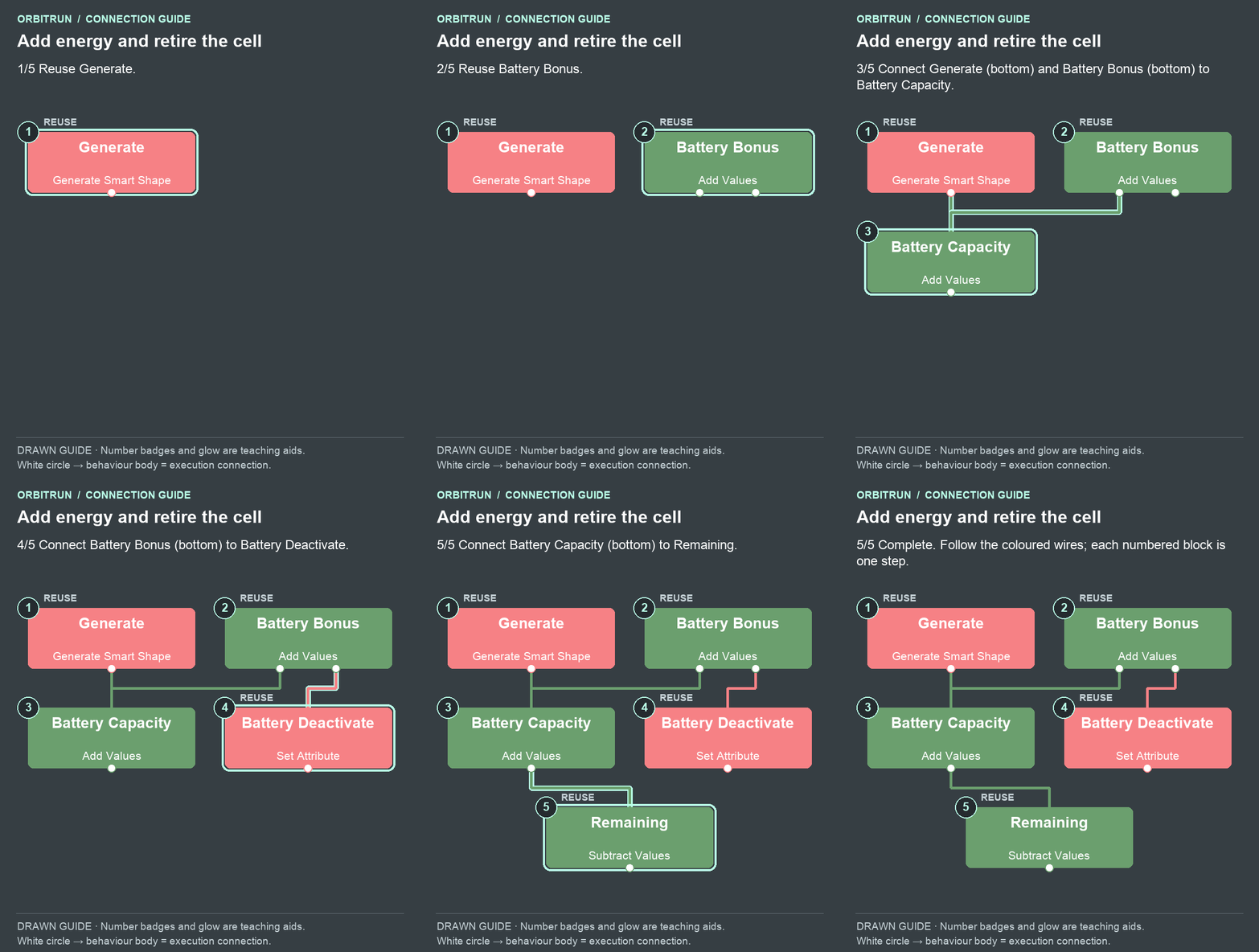
- Reuse Generate.
- Reuse Battery Bonus.
- Add Add Values and name it Battery Capacity. Drag an unused bottom white circle on Generate onto the Battery Capacity block. Drag an unused bottom white circle on Battery Bonus onto the Battery Capacity block.
- Reuse Battery Deactivate. Drag an unused bottom white circle on Battery Bonus onto the Battery Deactivate block.
- Reuse Remaining. Drag an unused bottom white circle on Battery Capacity onto the Remaining block.
Battery Bonus holds all earned seconds. Battery Capacity holds starting energy plus earned energy. The existing Seconds behaviour continues counting elapsed time.
Update the countdown and finish condition
The Timer reference helps distinguish the repeating display update from the one-shot run limit we are replacing.
- In Remaining, replace the constant A value 90 with Battery Capacity’s result output. Leave B connected to Seconds’ result output.
- Keep the two connections made in the energy guide: Battery Capacity to Remaining, and Battery Bonus to Battery Deactivate. The pickup is hidden and marked inactive immediately after one award, preventing repeated collection. The search can then place it in another valley.
- Delete the old Run Limit timer and its connections.
- In the finish guide below, set Energy Empty to compare Remaining’s result ≤ 0. Reuse Finished and keep Remaining’s existing Clock Text connection.
- Battery Hide End hides Battery; Battery Label Hide End hides Battery Label. Both use Set Visibility. Connect them using the finish guide below.
Watch the output drag: use energy capacity in the clock
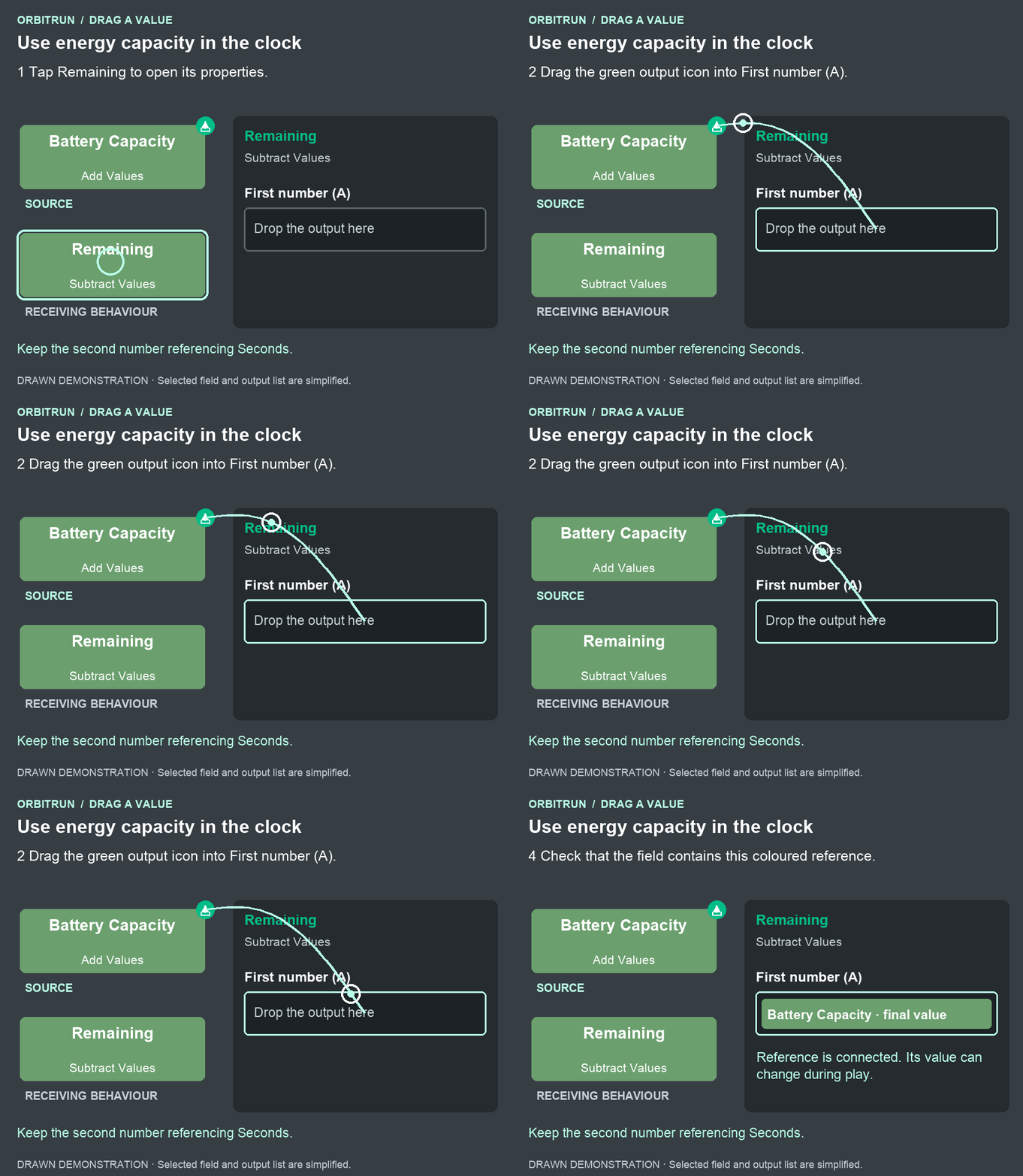
After the drop: First number (A) contains Battery Capacity · final value. Keep the second number referencing Seconds.
Build: Finish when energy is empty
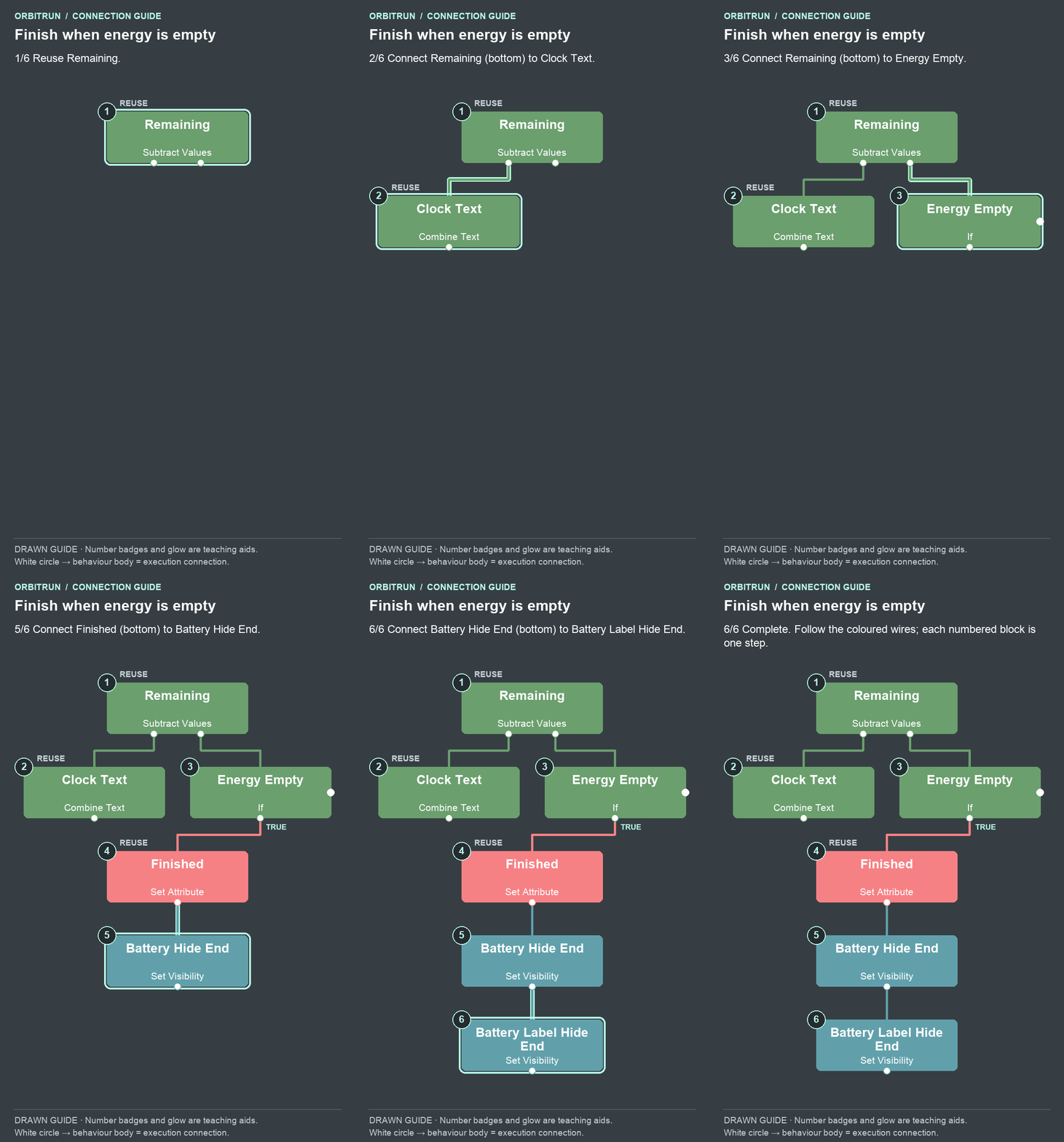
- Reuse Remaining.
- Reuse Clock Text. Drag an unused bottom white circle on Remaining onto the Clock Text block.
- Add If and name it Energy Empty. Drag an unused bottom white circle on Remaining onto the Energy Empty block.
- Reuse Finished. Drag an unused bottom white circle (true) on Energy Empty onto the Finished block.
- Add Set Visibility and name it Battery Hide End. Drag an unused bottom white circle on Finished onto the Battery Hide End block.
- Add Set Visibility and name it Battery Label Hide End. Drag an unused bottom white circle on Battery Hide End onto the Battery Label Hide End block.
The energy relationship is now:
remaining seconds = 90 + earned battery seconds − elapsed seconds
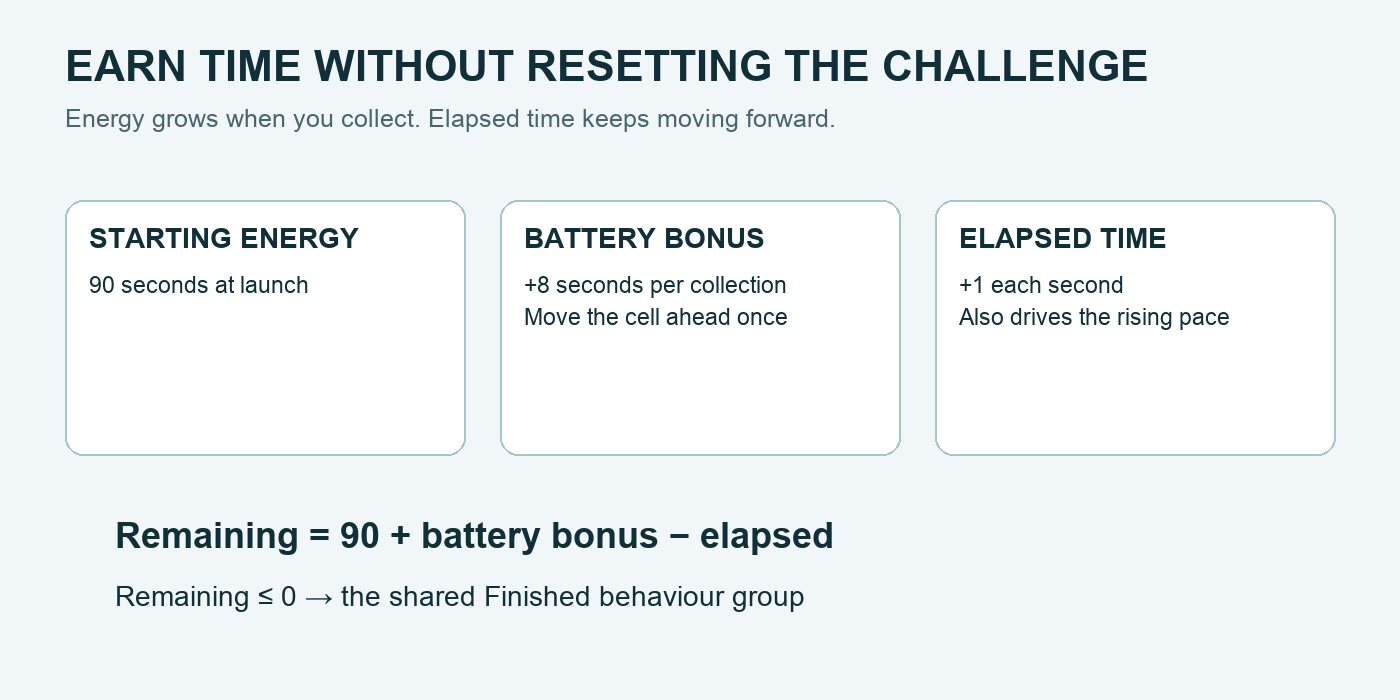
The existing Finished group still disables the flight, HUD, and seconds timers, freezes the ship, shows the score, and checks the personal best. Keep that shared ending path rather than creating a second ending system for batteries.
Make collection satisfying and clear
- The collection-reward guide adds Battery Chime (Play Sound). Use the same settings and chime asset as Flow Sound.
- Battery Message (Change Label) targets Flow Label, with text
+8s BATTERY. - Follow the two branches in the collection-reward guide below.
- Set Battery Hide to 1.3 seconds, once, Start Immediately Off. Reuse Show Flow and Hide Flow as shown.
- Disconnect Velocity → Flow Check. This reserves the feedback label for battery messages, so a speed message does not overwrite a collection message. The trail and other effects remain active.
- Change the title instructions to
Hold downhill. Release at the valley. Valley batteries add 8 seconds of flight.Change the result title's starting text to BATTERY EMPTY. The personal-best branch may replace it with NEW PERSONAL BEST.
Build: Finish when energy is empty
- Reuse Remaining.
- Reuse Clock Text. Keep its existing execution connection from Remaining; the guide includes it so you can see both branches.
- Add If and name it Energy Empty. Drag an unused bottom white circle on Remaining onto the Energy Empty block.
- Reuse Finished. Drag an unused bottom white circle (true) on Energy Empty onto the Finished block.
- Add Set Visibility and name it Battery Hide End. Drag an unused bottom white circle on Finished onto the Battery Hide End block.
- Add Set Visibility and name it Battery Label Hide End. Drag an unused bottom white circle on Battery Hide End onto the Battery Label Hide End block.
Build: Show the collection reward
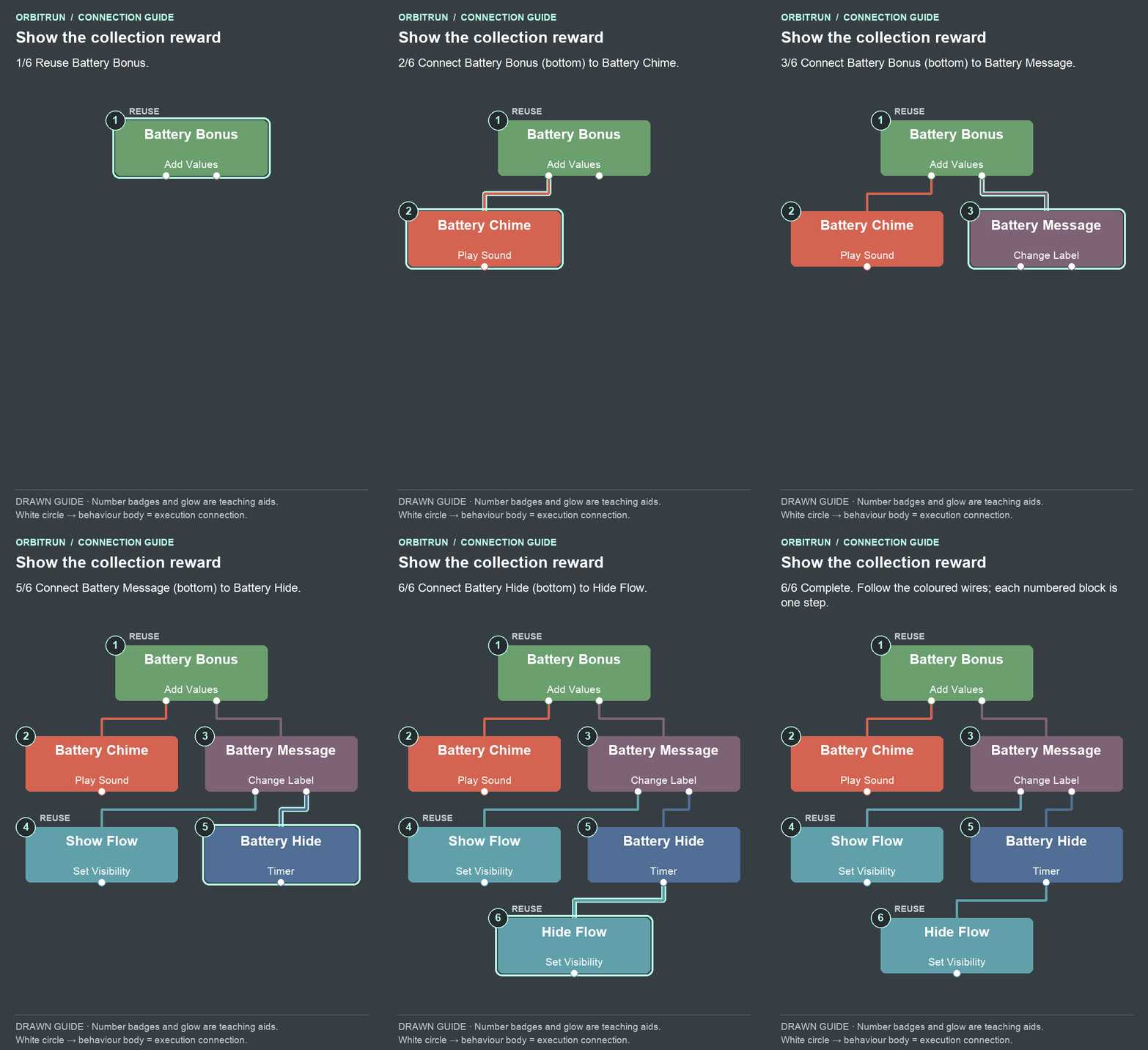
- Reuse Battery Bonus.
- Add Play Sound and name it Battery Chime. Drag an unused bottom white circle on Battery Bonus onto the Battery Chime block.
- Add Change Label and name it Battery Message. Drag an unused bottom white circle on Battery Bonus onto the Battery Message block.
- Reuse Show Flow. Drag an unused bottom white circle on Battery Message onto the Show Flow block.
- Add Timer and name it Battery Hide. Drag an unused bottom white circle on Battery Message onto the Battery Hide block.
- Reuse Hide Flow. Drag an unused bottom white circle on Battery Hide onto the Hide Flow block.
Try it: watch the clock as you collect a cell. It should gain eight seconds, show the collection message, and remove that cell once. A new valley can then receive a battery. Keep flying beyond the original 90-second point after earning extra energy. On a later run, miss the cells and let energy reach zero; the normal results and replay flow should still work.
Why it works: energy and difficulty are separate. Batteries increase capacity, while elapsed time continues to raise the pace from Part 5. A longer run therefore grows more demanding instead of resetting to beginner speed.
Debug by symptom
- The cell adds seconds continuously — Battery Bonus must trigger Battery Deactivate; collection must be gated by batteryActive = 1
- The pickup only works at one zoom level — Calculate Distance must have Compensate for Zoom On
- It ends at exactly 90 seconds after a pickup — Remove the old Run Limit timer; Energy Empty should trigger Finished
- The clock jumps to a negative value immediately — Generate must run Battery Capacity to initialize 90 seconds; Battery Bonus and Seconds start at 0
- The label moves but the green cell stays behind — Battery Place must target Battery; Battery Label Place must target Battery Label
- The ship cannot reach batteries — Check the three ray hit conditions, the two low-point comparisons, and the 1.2-metre surface offset
Your next experiment
You now have an endless Smart Shape course, one-touch physics, three visual worlds, increasing pace, a responsive camera, energy pickups, persistence, sound, and replay.
Try adding a short row of cells along the final downslope into a valley using a small object pool. Use the row to teach when to press and release. Keep the same principles: one award per collection, world-space placement, bounded difficulty, and a single shared finish path.