How to Make a Game on iPad for Free Without Coding

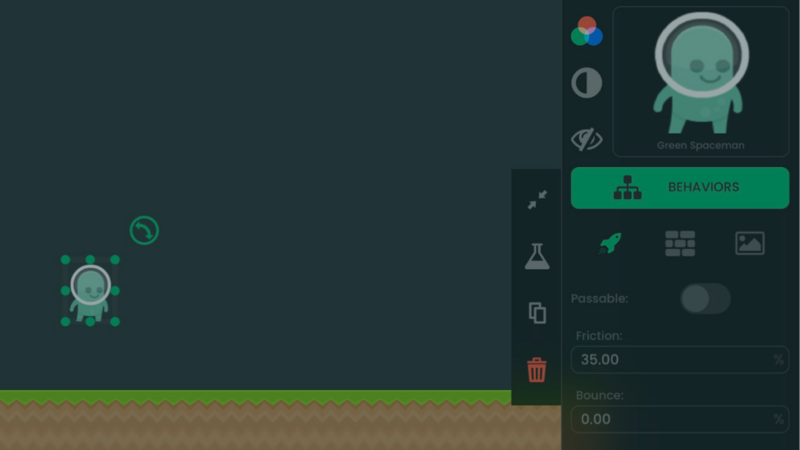
You can make and test a complete first game on iPad for free with hyperPad Starter. You do not need to write traditional code. You arrange Objects in a Scene, then connect visual Behaviors to control input, scoring, feedback, and game state.
This guide builds a one-screen coin-tapping game. The player taps five coins before the timer ends. That small loop teaches the same basic structure used in larger 2D games.
What you need
- An iPad that supports the current hyperPad Starter release
- hyperPad Starter
- About 30 minutes for the first playable version
- One Project slot
Apple Pencil and a keyboard are optional. Touch controls are enough.
How a hyperPad Project works
A Project is built from a few connected parts:
- Scenes hold a level, menu, or other screen.
- Objects are characters, coins, buttons, labels, and scenery.
- Graphics control how Objects look.
- Attributes store values such as the score or time remaining.
- Behaviors define events, decisions, and actions.
- Scene UI holds interface Objects that should stay fixed on screen.
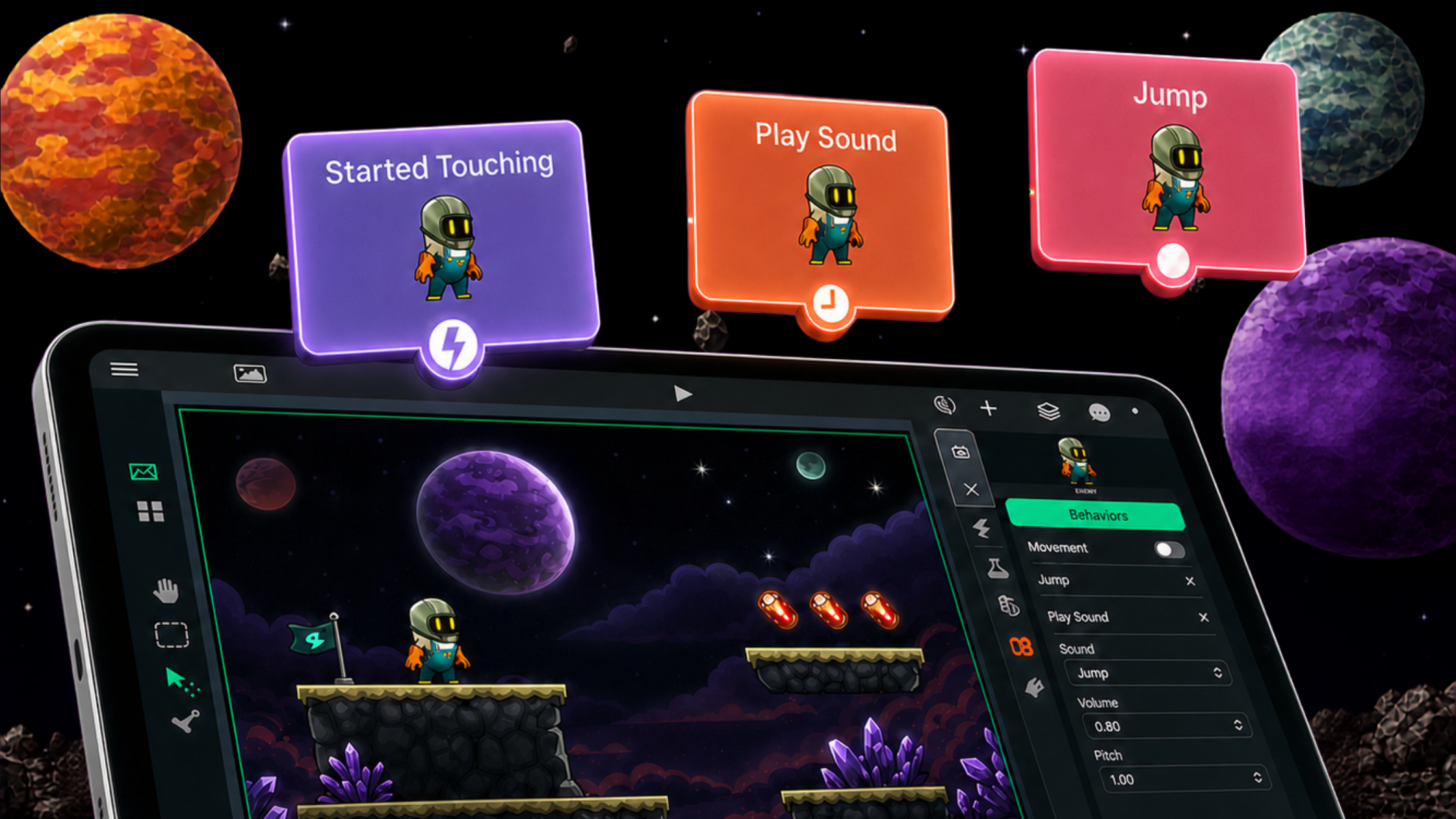
The Behavior Editor overview explains execution connections and value connections. Events start a chain. Actions change the game. Values pass information between Behaviors.
Build a coin-tapping game
The first version has one Scene, five coin Objects, a score label, and a timer label. The win condition is simple: reach a score of five before time runs out.
1. Create the Project and Scene
Open hyperPad Starter and create a Project. Choose Bird's Eye View so gravity is disabled by default.
Keep the first version in one Scene. Use a plain background while testing. The creating a new Project guide explains the available Project types.
2. Add the coins
Drag a Graphic from the Asset Dock into the Scene. It becomes an Object.
Name it Coin1. Duplicate it four times and name the copies Coin2 through Coin5. Place the coins far enough apart that each one is easy to tap.
Use placeholder circles if you do not have finished art. The interaction matters more than the Graphic during the first test.
3. Add the interface
Add two Label Objects to the Scene UI:
- ScoreLabel starts with “Score: 0”
- TimerLabel starts with “Time: 10”
Add a third label named ResultLabel. Leave its text empty.
4. Store the score
Add a controller Object outside the visible play area and name it GameController.
Create a predefined Attribute named score with an initial value of 0. Attributes store information that Behaviors can read and change. See Object Attributes for the current setup.
Keeping the score on one controller gives every coin one shared value to update.
5. Make a coin respond to touch
Open Coin1's Behavior Editor and add Started Touching. This event runs once when the selected Object is touched.
Connect the touch event to this chain:
- Get GameController's score Attribute.
- Add 1 to the value.
- Set GameController's score to the new value.
- Use Set Label to show the new score in ScoreLabel.
- Disable Coin1 so it cannot score twice.
Execution connections control the order. Value connections carry the current score into the calculation and label.
Press Play and tap Coin1. Confirm that the label changes once and the coin becomes unavailable.
6. Apply the logic to all five coins
Copy the touch chain to Coin2 through Coin5.
After copying, inspect every Object reference. The touch event and Disable Object action must point to the coin you are editing. The score Attribute must still point to GameController, and Set Label must still point to ScoreLabel.
Test every coin separately. The score should increase from zero to five without counting any coin twice.
7. Check the win condition
After updating the score, add an If Behavior.
When the new score equals 5:
- set ResultLabel to “You found every coin!”
- stop or disable the timer logic
- leave the collected coins disabled
When the score is below 5, the game continues.
8. Add the timer
Use a timer or looping Wait chain on GameController to reduce the displayed time once per second.
When time reaches zero, check the score:
- If the score is 5, keep the win message.
- If the score is below 5, set ResultLabel to “Time is up” and disable any remaining coins.
Build and test the score first. Add the timer only after all five coins behave correctly.
9. Add feedback
Connect a short sound or animation after a successful tap. The feedback should confirm the action without delaying the next one.
Useful additions include a collection sound, brief scale animation, small particle effect, different sound for winning, or a restart button using Restart Scene.
Add one effect, then play the full round again.
Test the game on your iPad
Run these checks:
- each coin scores once
- the score starts at zero after a restart
- the label shows the current value
- winning stops the loss condition
- time running out disables untouched coins
- repeated fast taps do not add extra points
- the restart button restores the full board
Then hand the iPad to someone who has not seen the Project. Do not explain the controls. Watch whether they understand the goal, notice the timer, and recognize the result.
Fix the first problem that blocks play before adding another feature.
Make the game your own
Once the basic round works, change one part:
- replace coins with vocabulary answers
- make only one target correct
- move targets between taps
- add a penalty Object
- shorten the timer after each win
- use original Graphics and sound
Keep the same core loop: input, state change, feedback, and result.
What hyperPad Starter includes
hyperPad Starter is free and ad-free. It provides one editable Project and the creation tools needed to build and test it.
The current Starter App Store listing says an upgrade is required to share your own game and export to Xcode. Paid hyperPad adds more Projects, Hub publishing, and Xcode Export.
You do not need a Mac to build and test the Project. Final App Store signing and submission normally require the Xcode project exported by paid hyperPad, a Mac with Xcode, and an Apple Developer account.
Free art and sound
Use your own work or assets whose licenses permit your intended use.
- Kenney provides game-asset packs with clear license information.
- OpenGameArt hosts assets under several licenses; check the individual asset page.
- Freesound also uses several licenses; keep the creator and license record.
Placeholder shapes are enough for the first playable round. Replace them after the game works.
Common questions
Can you make a game entirely on iPad?
You can design, build, and test a complete hyperPad Project on iPad. App Store submission is a later workflow that normally uses a Mac with Xcode.
Is hyperPad Starter really free?
Yes. Starter is free and provides one Project for building and testing. Paid hyperPad is a separate one-time-purchase app, not a subscription.
Do I need coding experience?
No. Behaviors represent programming logic visually. You still work with events, actions, conditions, values, and state, but you connect them instead of typing source code.
Can Starter publish to the Hub?
The current Starter listing says you need to upgrade to share your own game. You can still explore projects and community features available in Starter.
What should I build after this?
Add a moving target, a penalty Object, or a second Scene. Change one system at a time and test the complete round after every change.
Build the first playable round
One finished Scene teaches more than a large unfinished plan. Build the five-coin version, ask someone to play it, and use what you observe to choose the next change.
Keep the first version focused on one mechanic. Test the input, result, and restart flow before adding another Scene or system.