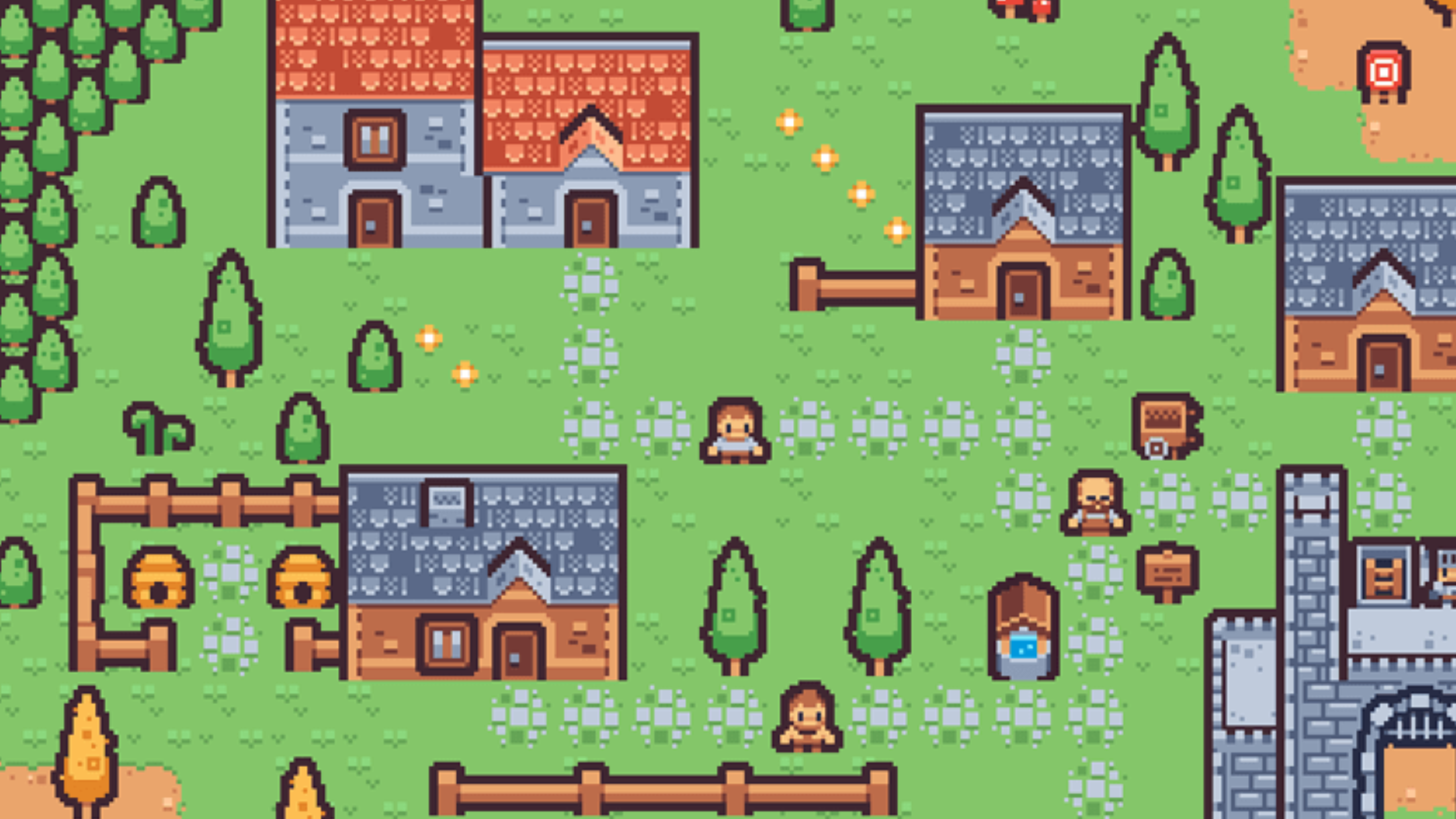
Free 2D Game Assets: 8 Pixel Art Sites for iPad Games

Resource pages and license terms reviewed September 2026. Recheck the source page before publishing because licenses can change.
You can download free 2D game assets from Kenney, itch.io, OpenGameArt, CraftPix, GameArt2D, Pixel Frog, Ansimuz, and the Unity Asset Store. For the simplest iPad workflow, choose a pack with transparent PNG files, a license you understand, and one consistent visual style.
Start with Kenney when you need a general prototype pack. Choose Pixel Frog or Ansimuz for matching pixel-art platformer Graphics. The comparison below explains what each source provides, what license to check, and how to import the files into hyperPad.
One thing to be clear about before you download anything: an asset pack supplies artwork. You build the gameplay yourself with Behaviors. A Unity or Godot template does not become a hyperPad project just because its images can be imported.
Choose a Resource for Your Game
- Simple prototype: Kenney. Its asset pages use CC0.
- Pixel art platformer: Pixel Adventure or SunnyLand. Check whether animations need frame preparation.
- Top-down art or a specific style: search itch.io or OpenGameArt, then read the individual license.
- Interfaces and illustrated tiles: GameArt2D Freebies or CraftPix Freebies. Their sharing terms differ.
- Assets you already use on desktop: Unity Asset Store, subject to its EULA and file preparation.
1. Kenney: a straightforward starting point
Kenney's asset library is a good place to pick a matching set of characters, tiles, or interface elements. Open a 2D pack and check its included formats before downloading.
Kenney's license guidance confirms that assets on its asset pages use CC0, including commercial use, with no required attribution. Save the included license file with your project. That statement applies to those game assets, not to every product or logo on the site.
2. itch.io: search by style, then check the pack
Use the free 2D assets filter. Read the creator's description, downloadable files, and license before choosing a pack. A free price doesn't give you permission to use the art however you want.
Some listings include a free sample alongside paid extras. For iPad, look for PNG files or a ZIP of graphics. Engine projects, shaders, and scripts need a separate compatibility check. Pixel Adventure and SunnyLand below are specific examples with published license information.
3. OpenGameArt: read the individual license
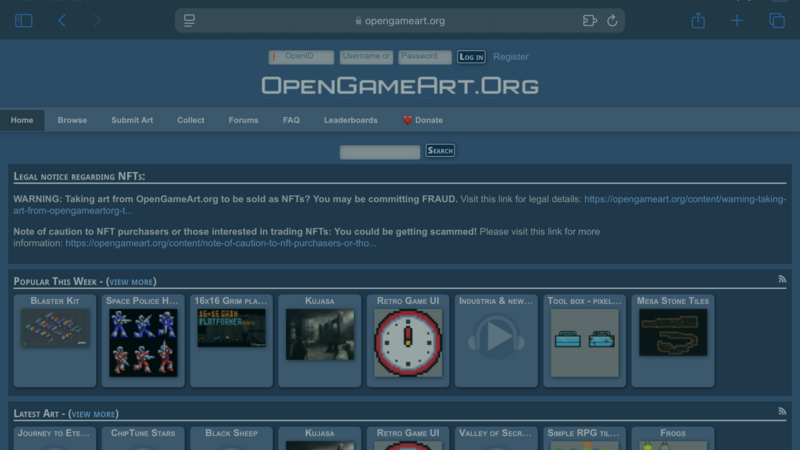
OpenGameArt hosts art under several licenses. Read the license and the Copyright/Attribution Notice on the actual download page. Its licensing FAQ explains the differences and flags potential App Store distribution conflicts for some licenses.
CC0 is a simpler starting point. Attribution and share-alike licenses have additional conditions, so do not assume adding an artist's name covers every intended use. Save the source page and full license with the files.
4. CraftPix: useful freebies with sharing limits
CraftPix Freebies includes sprites, tilesets, backgrounds, and interface art. Its Freebie Products license allows personal and commercial projects and modifications without required credit.
It restricts redistribution of the art as reusable source files. Before putting CraftPix graphics in an editable Hub project, a classroom resource, or a template, check the applicable terms. A finished game and a reusable asset collection are different uses.
5. GameArt2D: use the Freebies section
GameArt2D Freebies includes character sprites, tilesets, and game interfaces. The Free Platformer Game Tileset is one concrete place to start.
The site's license page identifies its Freebies as CC0, with commercial use allowed and credit optional. Paid assets use different terms. Choose an original-looking set that suits your project. A license does not grant rights to someone else's trademarks or characters.
6. Pixel Frog: Pixel Adventure
Pixel Adventure provides PNG characters, objects, tiles, and items, all in pixel art. Its page states CC0, allows commercial use, and does not require attribution.
Choose Pixel Adventure 1.zip. This is artwork rather than a ready-made hyperPad game. If an animation arrives as a strip or grid of frames, prepare individual frames or a compatible sprite sheet before importing it as an animation.
7. Ansimuz: SunnyLand
SunnyLand offers pixel art platformer characters, enemies, scenery, and effects. The asset page lists CC0. Choose Sunny-land-files.zip for the art, since the Phaser and Godot projects are separate downloads. The Plus download is paid, so it is not part of this free recommendation.
Use a small selection to make your first Scene. Keep any included notices, especially when you add separately credited music or other files.
8. Unity Asset Store: an option with extra preparation
The Unity Asset Store is useful if you already have assets in a desktop project. Set the category and price filters, then check the pack's formats and license.
Unity's cross-engine guidance permits use in other engines subject to its EULA and any separate terms. Restrictions include sharing extractable source assets. Follow its download instructions, then transfer compatible graphics to iPad. For an iPad-only start, choose a direct PNG or ZIP source above.
Where to Find Free Pixel Art Assets Specifically
If pixel art is the style you want, four of the sources above carry it.
- Pixel Frog (Pixel Adventure) and Ansimuz (SunnyLand) are CC0 pixel-art platformer sets with matching characters, scenery, and effects for a small prototype.
- Kenney has several pixel packs alongside its vector-style sets. Check the pack preview, since the styles do not mix well.
- itch.io has the deepest pixel art selection. Filter by the pixel-art tag and sort by popularity.
Two things to check on any pixel pack before you commit to it:
The resolution. A 16 by 16 character and a 32 by 32 tileset will not line up. Pick one grid size and stick to it across the whole game.
The palette. Packs from different artists rarely share a palette. Mixing them is a common reason a first game looks unfinished, even when every individual sprite is good.
If you want to draw your own pixel art on iPad, follow the Pixquare sprite workflow. It covers transparent PNG frames, animation export, and importing the finished art into hyperPad.
hyperPad Starter gives you one Project and the building tools needed to import and test an asset pack.
Download and Import Assets on iPad
1. Keep the art and the license together
Download your chosen ZIP in Safari. Find it in Files and tap it to create an extracted folder, as shown in Apple's ZIP guide. Keep the original download, the license, and the source URL together. Use a folder name like "My game / Art / Pack name".
Start with one character, one ground tile, and one background. That keeps your first import easy to check.
2. Import a static PNG first
Open your hyperPad project, then Asset Library → Import → Graphics → Files. Browse to the extracted folder and select your PNG. PNG is the format to use, because it keeps transparent backgrounds. See the asset import guide for supported options.
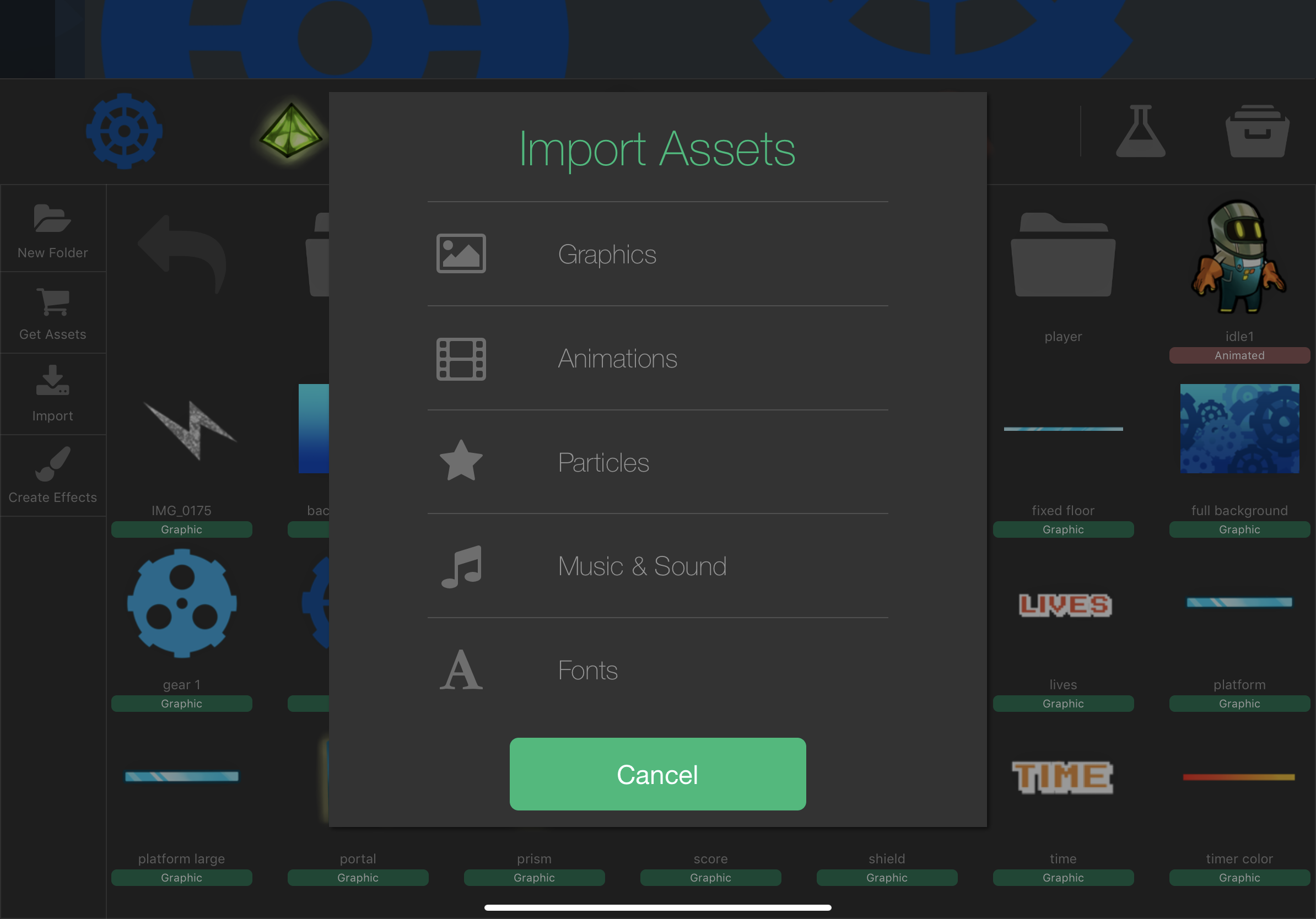
Choose Graphics for a static image. Screenshot from hyperPad's documentation. Appearance may vary by version.
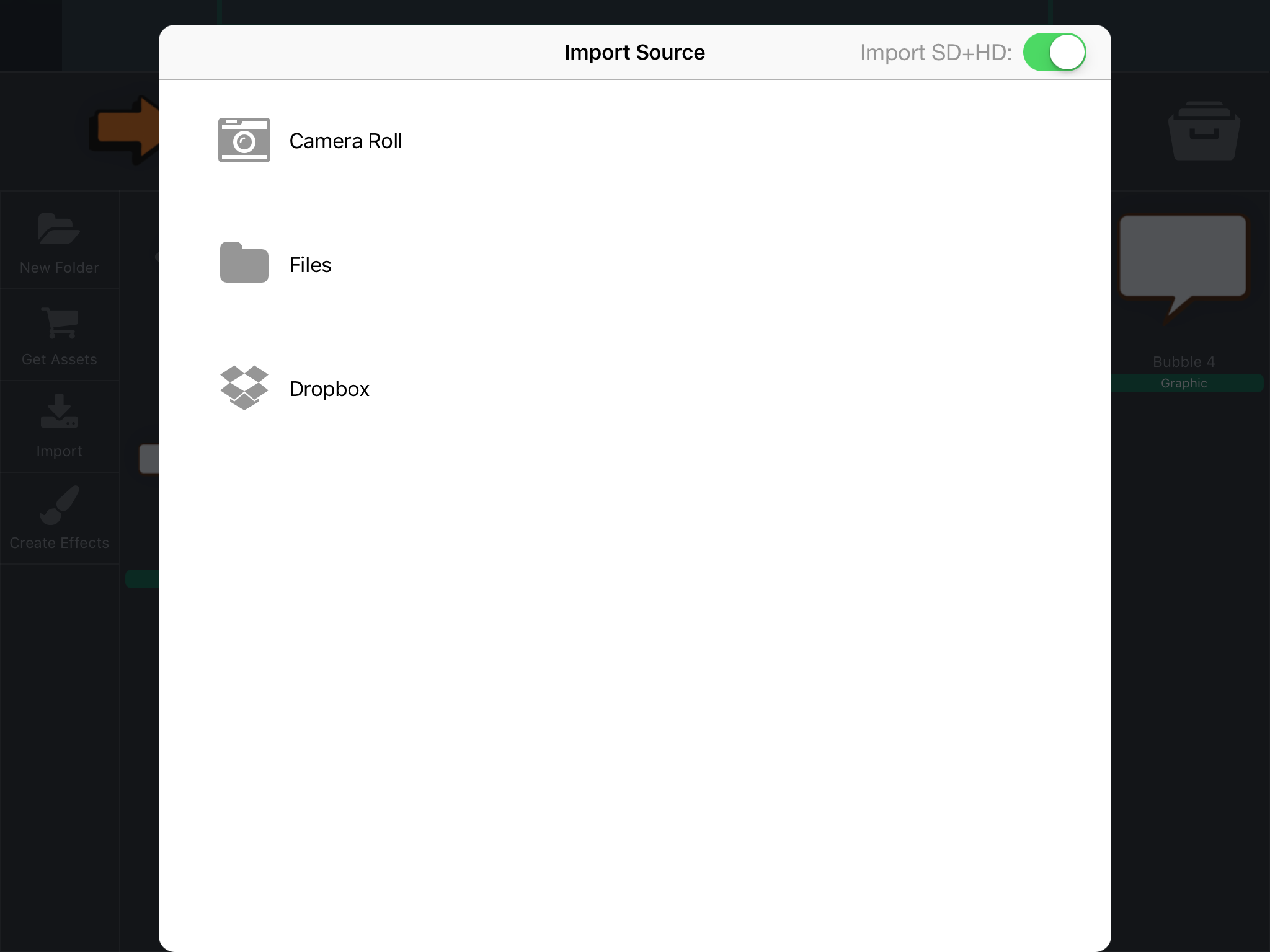
Choose Files to browse your extracted pack. This screenshot shows Import SD+HD enabled. Leave it off for a normal single-resolution import.
3. Check animation files before importing
For separate frames, use Import → Animations → Create Animation. Keep frame dimensions consistent and names in playback order. Preview the result before you use it.
A PNG containing many poses is not automatically an animation. The sprite-sheet import route needs a compatible PNG plus its Cocos2D PLIST data file. A Unity package, a Godot project, or a plain grid image is not a substitute. See importing and using animations for preparation and playback options.
4. Make one interaction work
Build a small test. Place a character in the Scene and make a tap play its animation. In the Behavior Editor, connect Started Touching to Play Animation, choose the animation, and press Play. That gives you a quick check on both the artwork and the interaction before you build a full level.
For project setup, follow Create Your First Game on iPad. For the wider process, read the iPad game development guide.
If the Asset Does Not Look Right
- The whole sprite sheet appears: you imported the sheet as a static graphic. Use individual frames, or prepare the PNG and PLIST pair.
- A white box surrounds the character: check that you downloaded a transparent PNG rather than a preview or a JPEG.
- The animation jumps between frames: check image dimensions, character alignment, and frame order.
- The import fails: check the file type and dimensions against the import guide, and test one smaller image first.
- The pack contains only engine files: go back to the creator's page for standalone graphics. Renaming a file does not convert it.
Check Permissions Before Sharing Your Project
Keep a short asset record: pack name, creator, source URL, license, download date, and any edits you made. Add required credits to the project.
CC0 permits broad reuse without attribution, but it does not clear third-party trademark, privacy, or publicity rights. Other licenses may permit a finished game while restricting access to the original files. Before you share an editable project on the Hub or distribute a template, make sure that use is allowed.
Portfolio images and downloadable game assets are not interchangeable. Always use the creator's actual download and its license.
Build Your First Scene
Pick one pack, import a character, and make one interaction work. Start small, then add your own art and your own gameplay ideas.
Test each asset inside the running Scene, not only on its own. Keep it when it makes the action clearer, strengthens feedback, or supports the atmosphere.