Bringing Your Animations to Life on iPad


If you're an aspiring animator or indie game dev, two tools make a strong pair: hyperPad and your favorite iPad animation app. Use them together, and your animations become interactive games and experiences. This post shows you how to pair hyperPad with your animation app to bring your ideas to life, with a focus on what hyperPad can do as an iPad dev tool.
Why hyperPad is Your Go-To Tool for iPad Game Dev
1. Visual Programming Made Easy
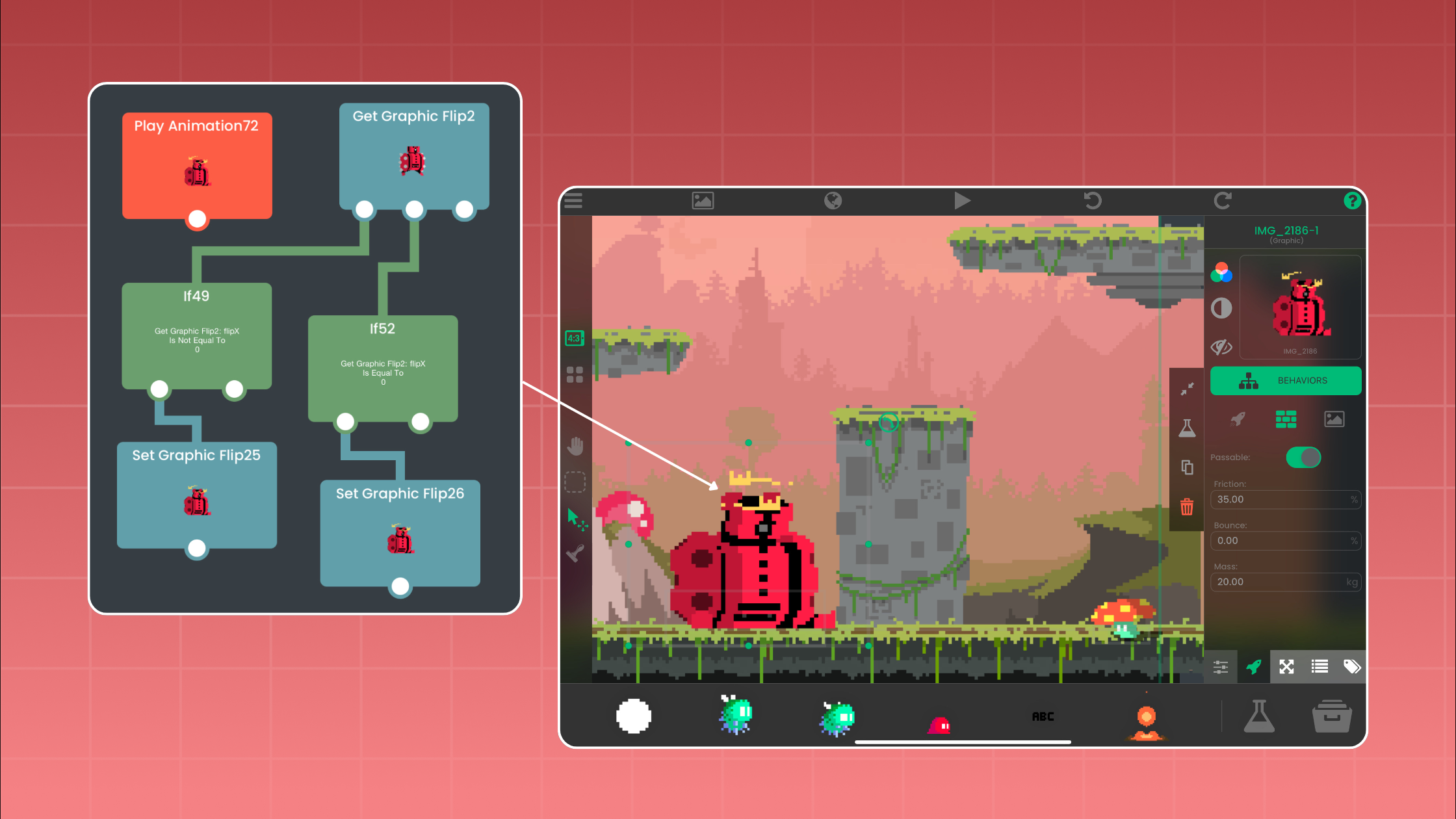
hyperPad is a no-code game dev app designed for iPad. You build interactive apps and games with visual programming instead of writing code. Drag and drop Objects, connect Behaviors, and build anything from simple animations to full games. It earns a spot in any collection of iPad dev tools.
2. Game Development Features
hyperPad has game creation features for beginners and experienced developers alike. With hyperPad, you can:
- Design Interactive Games: Use built-in Behaviors to make game elements that respond to your players.
- Animate with Ease: Add smooth animations to characters and Objects with keyframes and tweening.
- Integrate Multimedia: Add sound effects, music, and voiceovers to your players' experience.
- Export to the App Store: Export your projects to the Apple App Store so players everywhere can download them.
3. Strong Community and Support
The hyperPad community is full of creators who share their projects, give feedback, and help each other grow. hyperPad also has tutorials and documentation to help you through any challenge along the way. Whether you're just starting out or a seasoned indie game dev, you'll find the support you need.
Enhancing Your Projects with an Animation App
Pairing hyperPad with your favorite iPad animation app takes your creations further. Here's how to get the most out of your animation app:
1. Choose Your Animation Tool
Pick an animation app that fits the quality you're after. Many apps offer advanced features such as:
- Frame-by-Frame Animation: Gives you detailed, precise control over each frame.
- Onion Skinning: Shows several frames at once so your transitions stay smooth.
- Vector Drawing Tools: Create crisp, scalable artwork that looks great on any screen size.
2. Bringing Your Animations into hyperPad
Create detailed animations in your animation app, then import them into hyperPad to make them interactive. Each app does the part it's best at:
- Design in the Animation App: Create character animations, backgrounds, and special effects.
- Import into hyperPad: Add interactivity, game mechanics, and multimedia in hyperPad, so your animations become part of a working game or interactive app.
Step-by-Step Guide to Using Both Platforms
Step 1: Create Your Animation
Start by designing your animation in your preferred iPad animation app:
- Storyboard Your Ideas: Plan your animation sequence and key scenes.
- Draw and Animate: Use the app's drawing tools to create characters and backgrounds, then animate them frame by frame or with keyframes.
- Export Your Animation: When it's done, export the animation in a format hyperPad can use, such as a PNG sequence or a video file.
Step 2: Develop Interactivity with hyperPad
Next, bring your animations into hyperPad and make them interactive:
- Import Animation Assets: Import your animation files into hyperPad.
- Create Interactive Scenes: Use hyperPad's Scene editor to place your animations in interactive environments.
- Add Behaviors: Connect Behaviors for touch controls, physics, and game logic.
- Enhance with Multimedia: Add sound effects, background music, and voiceovers to draw players in.
Step 3: Test and Publish
Make sure your project is polished and ready for players:
- Test Your Project: Playtest your app or game to find and fix any issues.
- Gather Feedback: Share your project with beta testers, or publish it to the Hub for feedback from other creators.
- Export Your Creation: Export your project to the Apple App Store and share it with the world.
Test each asset inside the running Scene, not only on its own. Keep it when it makes the action clearer, strengthens feedback, or supports the atmosphere.