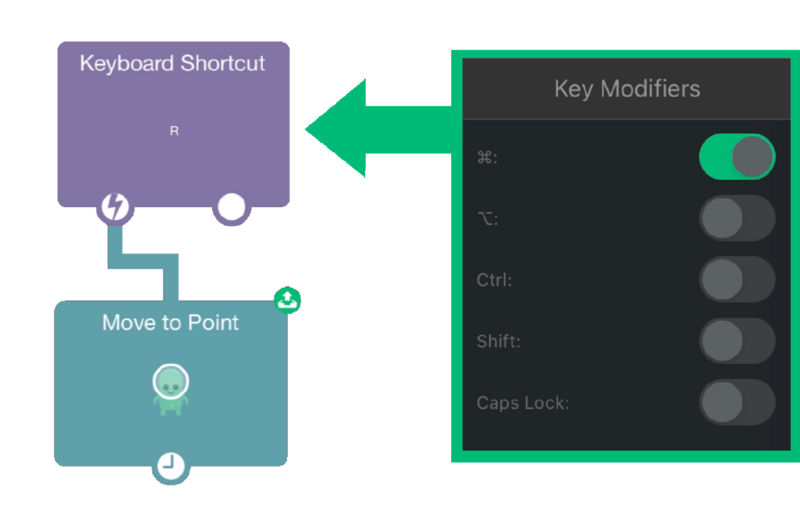

Keyboard Shortcut
The Keyboard Shortcut behavior creates a user defined shortcut in the project and triggers behaviors when the shortcut is triggered with an external hardware keyboard or when selected in the iOS keyboard shortcuts menu.
⚠️ Warning: This feature is only fully supported on iOS 14.0 and above.
| Property | Description |
| Key |
Select any of the special keys on the keyboard to listen to: Up Arrow, Left Arrow, Right Arrow, Down Arrow, Escape, Page Up, Page Down and Delete. Or you can select Character and enter a single character on the keyboard to listen for like a or d. |
| Discoverability |
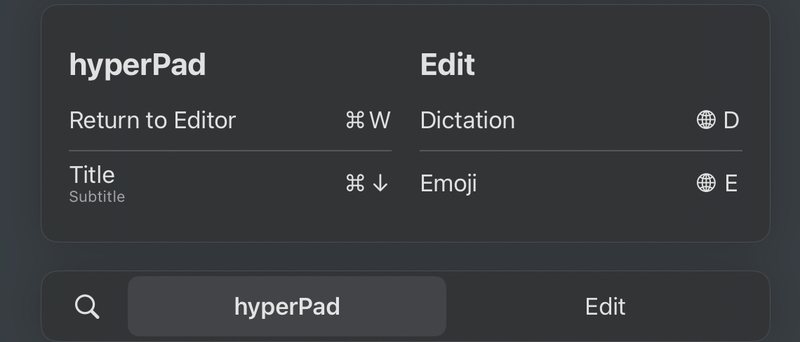
The shortcut will be discoverable on the iOS shortcuts menu which can be shown when holding the ⌘ key on the keyboard. You can edit the title and the subtitle of the shortcut. In this case, you can perform ⌘ + ↓ to trigger our custom shortcut. In exported projects, the app name will be displayed instead of hyperPad. |
| Repeatable |
If toggled on, the action will repeatedly trigger while holding the shortcut. |
| Key Modifiers |
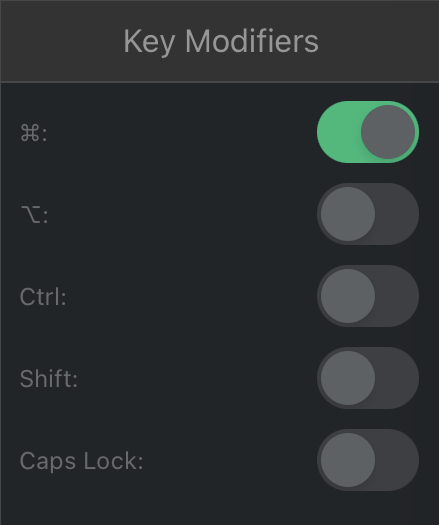
Special key(s) that need to be held to trigger the shortcut. You can use multiple key modifiers. For example, for undo, the ⌘ key modifier is used. For redo, the ⌘ and shift key modifiers are used. For the Caps Lock modifier, the user does not need to hold the key for the shortcut to register. Caps lock just needs to be active. |
Example: Resetting Player Position
The user can perform ⌘ + R to reset the player's position.