How to Crop and Import Sprites in hyperPad

A Step-by-Step Tutorial
Hello, fellow game developers! We're glad you're making games on iPad with hyperPad. Whether you're creating platformers, adventure games or anything in between, hyperPad lets you build your game ideas without writing a line of code.
Today we're answering one of the questions we hear most: How do I crop and import sprites in hyperPad? If you're working on a project with character animations or custom game assets, this tutorial is for you.
Getting Started with Sprites in hyperPad
Sprites are the Graphics you put on your characters and other interactive Objects in your game. Before we get to cropping, here's how to import sprites into hyperPad.
- Import Your Sprite Open your project in hyperPad. Tap the Asset Library icon at the bottom of your screen. Then tap the "+" button to import your custom sprites. You can import images from your iPad's photo library, cloud storage or other sources.
- Managing Your Assets Once your sprite is imported, it appears in the Asset Library. From there, you can manage, duplicate or delete assets as needed.
How to Crop Your Sprites in hyperPad
Now let's crop your sprites. Cropping helps when you need to fine-tune a character's look, remove unwanted parts, or make the image fit the screen.
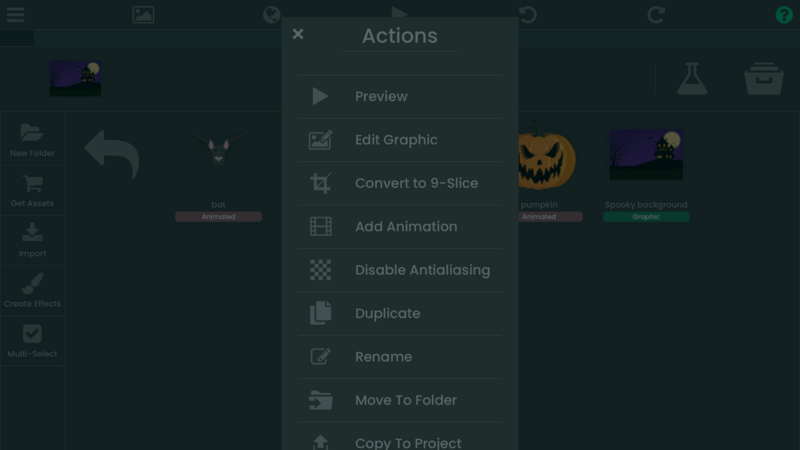
- Select the Sprite for Editing In the Asset Library, press and hold the sprite you want to crop. A pop-up menu appears with several options. Select Edit Graphic.
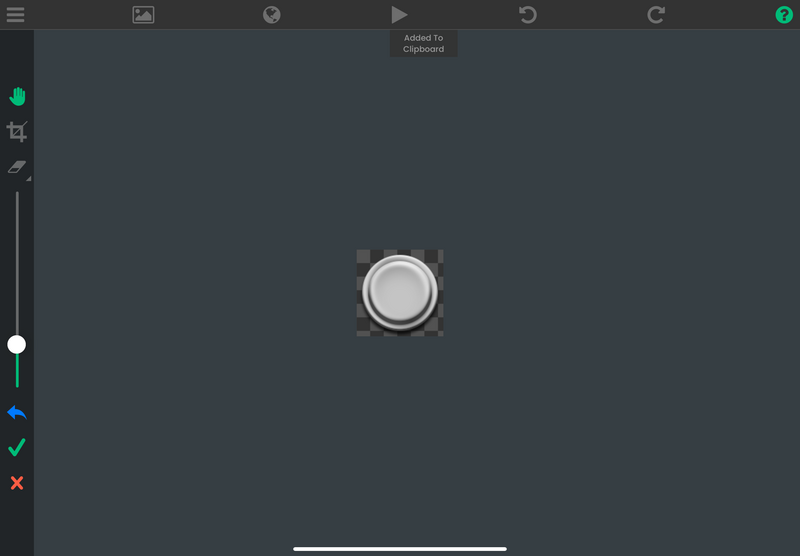
- Enter Crop Mode In edit mode, you'll see a set of editing tools. On the left side of the screen, tap the Crop Icon (it looks like a pair of scissors). Now you can adjust the size and shape of your sprite.
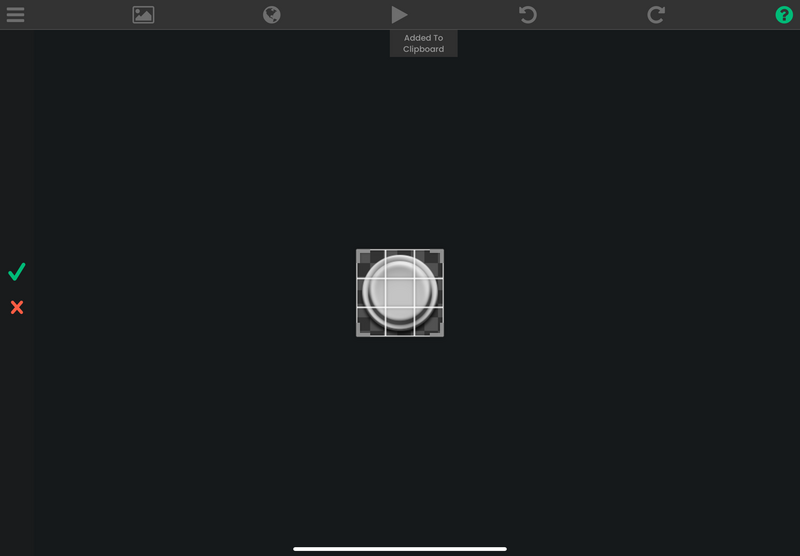
- Adjust the Crop Area Drag the corners of the cropping box with your fingers so it includes only the parts of the image you want. Zoom in or out for precision.
- Apply the Changes When you're happy with the crop, tap the Checkmark to save your changes. Your cropped sprite updates in the Asset Library, ready to use in your project!
Using Third-Party Tools for Advanced Sprite Editing
hyperPad's crop tool covers the basics. Sometimes you'll need more advanced editing, such as color adjustments or pixel-level changes. For those jobs, we recommend an external image editor like:
- Procreate (a good option for pixel art and detailed sprite work)
- Affinity Photo (a Photoshop alternative)
- Pixlr (a free online editor)
After editing your sprites there, import them back into hyperPad through the Asset Library.
Creating a Platformer with Animated Sprites
Now that you know how to import and crop sprites, you're ready to start building your game. If you're making a platformer and your character needs different movements (jumping, running and so on), you can import several sprites for each movement and create an animated sequence in hyperPad.
Here's a quick guide to get you started:
- Add Sprites to Your Scene Drag your character sprite into the Scene. You can layer multiple sprites to build more complex animations.
- Create Animations Using the Behavior Editor Use hyperPad's Behavior Editor to assign different animations to your character's movements. For example, add a Behavior that switches Graphics when the character jumps or runs.
- Test and Refine Test your game by pressing the play button. Refine the animations as needed by adjusting sprite timing or adding frames.
Join the hyperPad Community!
Need more tips or want to show your progress? Join our community of iPad game dev enthusiasts on Discord or follow us on social media. We love seeing what you're creating, and the community is a good place to swap ideas, ask for advice and collaborate.
Start Game Dev on iPad Now
Cropping sprites and importing assets in hyperPad takes a few taps, which makes it a practical tool for no-code game dev on iPad. Whether you're designing a platformer or an interactive app, you can build it with hyperPad.
Keep the first version focused on one mechanic. Test the input, result, and restart flow before adding another Scene or system.
If you enjoy hyperPad, please leave us a review on the App Store. Your feedback helps us keep improving hyperPad for creators like you. Happy creating!