No-Code Tools for Teachers


No-code tools let teachers and students build quizzes, interactive books, simple apps and even games without writing a line of code. That matters in a classroom. You get to spend the lesson on the idea, the content and the thinking, instead of on syntax errors. This guide covers the main kinds of no-code tools for teachers, what each is good for, and how to pick one for your next project.
What "no-code" means in a classroom
A no-code tool replaces typed code with something visual: drag and drop, templates, forms or flowcharts. Students still practice the logic behind computing. They break a problem into steps, decide what happens when, and fix things that don't work. They just do it without memorizing a programming language first.
For younger students, that lowers the barrier to a first finished project. For older students, it's a fast way to prototype before they move to text-based code.
No-code tools for teachers, by job
Games and interactive apps: hyperPad
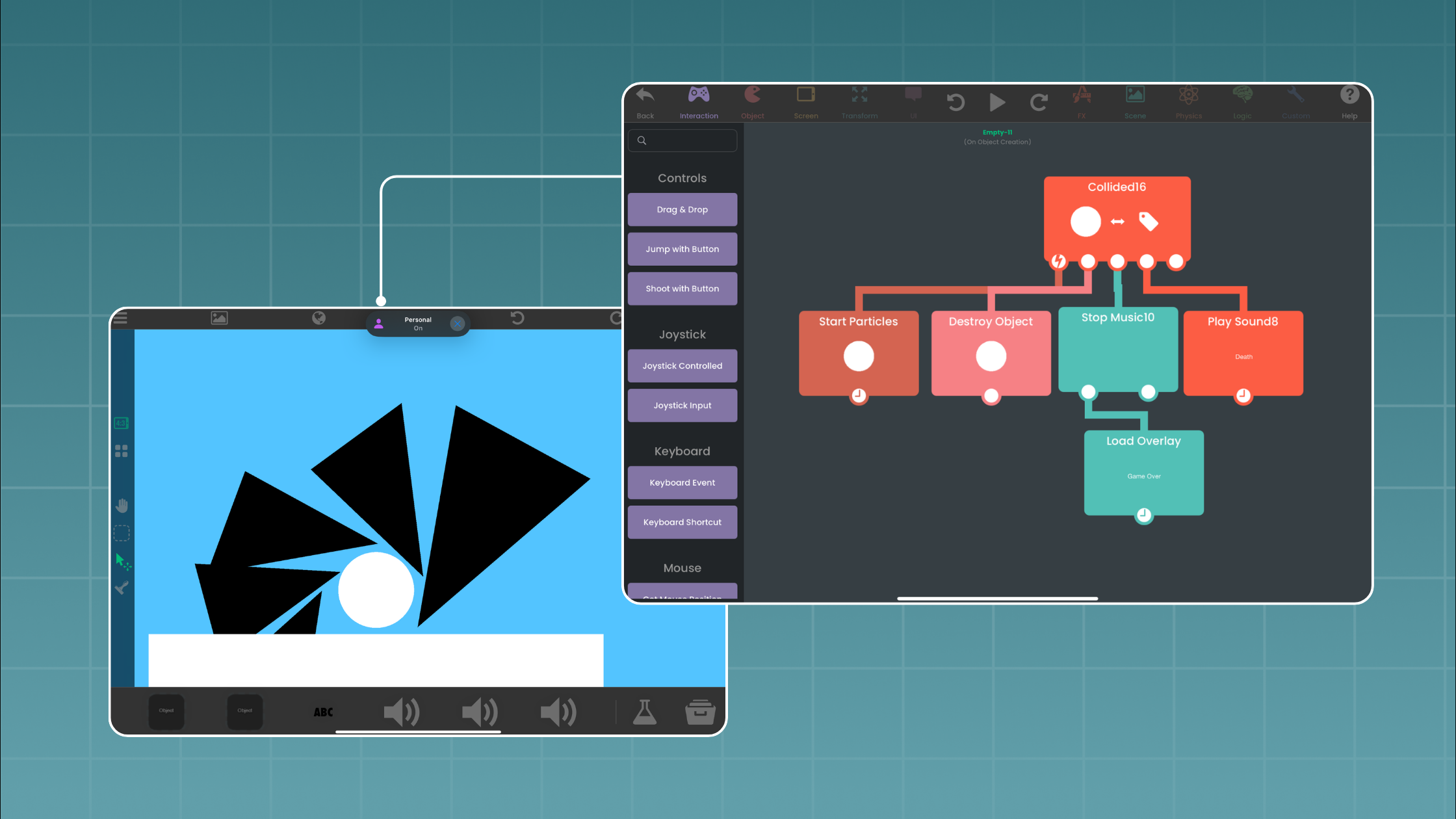
hyperPad is an iPad app for making games and interactive apps. Students build with Behaviors: they connect actions and events to create a flowchart of the app's logic. Under the hood there's physics, particles and more, so projects can grow as students do.
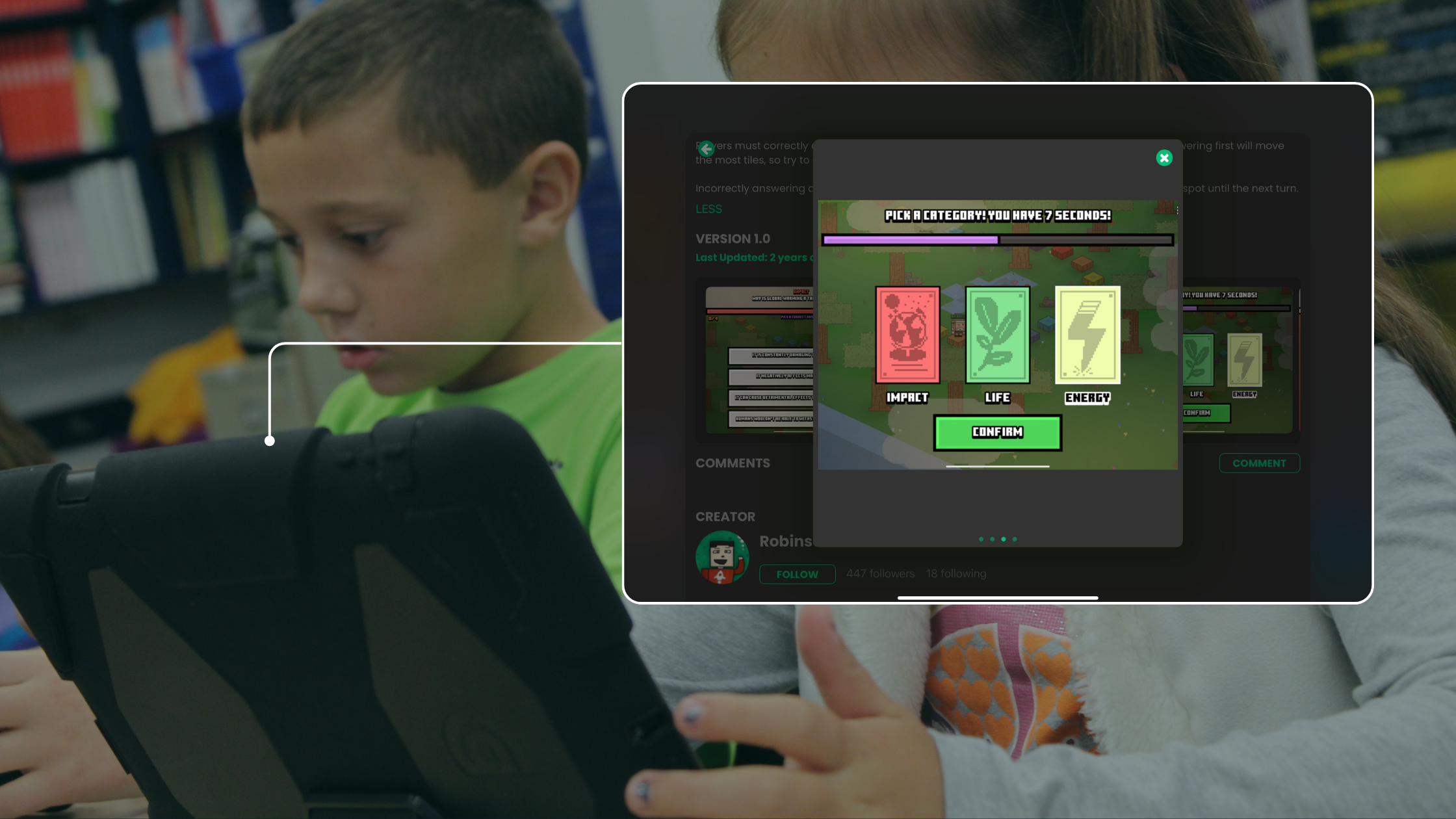
It fits lessons where students design something others will play, such as a quiz game, a science simulation or a story with choices. Finished Projects can be Published to the hyperPad Hub for others to play. hyperPad also runs on Apple silicon Macs.
For schools, hyperPad is 50% off for educational institutions through Apple School Manager. Private Login keeps student accounts managed by the school. It's used from grade 4 through post-secondary, aligned to ISTE and CSTA standards, and built with COPPA and FERPA in mind.

Open Source Projects can be Branched, which gives students a full copy of a project to study and change. That's a handy way to hand out a starter project.
Interactive books: Book Creator
Book Creator lets students combine text, images, audio and video into digital books. It works well for reports, portfolios and class anthologies. The output is a book rather than an app, but it's quick to learn and easy to share.
Design and visuals: Canva
Canva covers posters, slides, infographics and short videos with templates. Students can make the art and title screens for their projects here before building them elsewhere.
Quizzes and forms: Google Forms
Google Forms handles quizzes, surveys and exit tickets. Branching sections let you send students to different questions based on their answers. That's a gentle first taste of conditional logic.
Interactive presentations: Keynote
Keynote is already on most iPads. Linked slides and buttons can turn a deck into a choose-your-path story or a clickable model. It's a good warm-up before students build a real interactive project.
Collaboration boards: Padlet
Padlet gives the class a shared board for ideas, links and feedback. Use it to collect game ideas or to post playtest notes for each team.
How to choose the right tool
Start with what students will make, then pick the tool:
| If students are making | Try | What they practice |
|---|---|---|
| A game or interactive simulation | hyperPad | Events, conditions, variables, debugging |
| A digital book or portfolio | Book Creator | Writing, media, layout |
| Posters, slides or game art | Canva | Visual design |
| A quiz or survey | Google Forms | Question design, simple branching |
| A choose-your-path story | Keynote | Sequencing, linking |
A few practical checks help too. Does it run on the devices you have? Does it support managed student accounts? Can students share their finished work with classmates? And can the project grow if a student wants to go further?
A first no-code project for your class
Ask students to pick one habit they could change at home or school, such as turning off lights or sorting waste. In one hyperPad Scene, they build a short interaction: the player makes a choice, and the game shows what happens next. A single tap that dims a light and lowers an "energy used" score is enough for a first version.
Then have students swap iPads and play each other's projects. Hearing a classmate explain the choice they made is where the lesson sticks. For more ideas, see our guide to iPad coding projects for students and our list of iPad apps for teachers.
Lesson plans, presentations and an educator kit are on the hyperPad education page. Download a lesson there and run it with one class this month.