

Generate Smart Shape
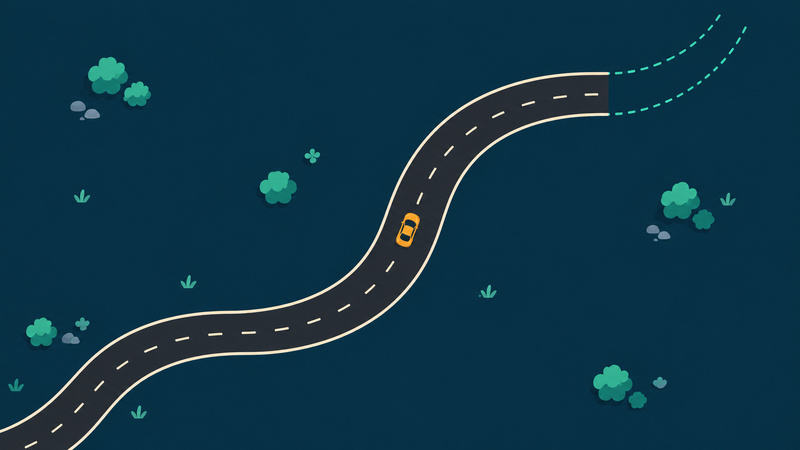
Pre-release feature — not available in the live app release yet.
Create a new shape while your game is running. Find this behaviour under Object → Lifetime. Choose a shape, give it artwork, then choose where it appears. You do not need a template object.
The control images are real dark-mode screenshots, cropped and arranged for readability. They show the inputs, not a completed gameplay setup. Diagrams illustrate the result.
Choose your shape
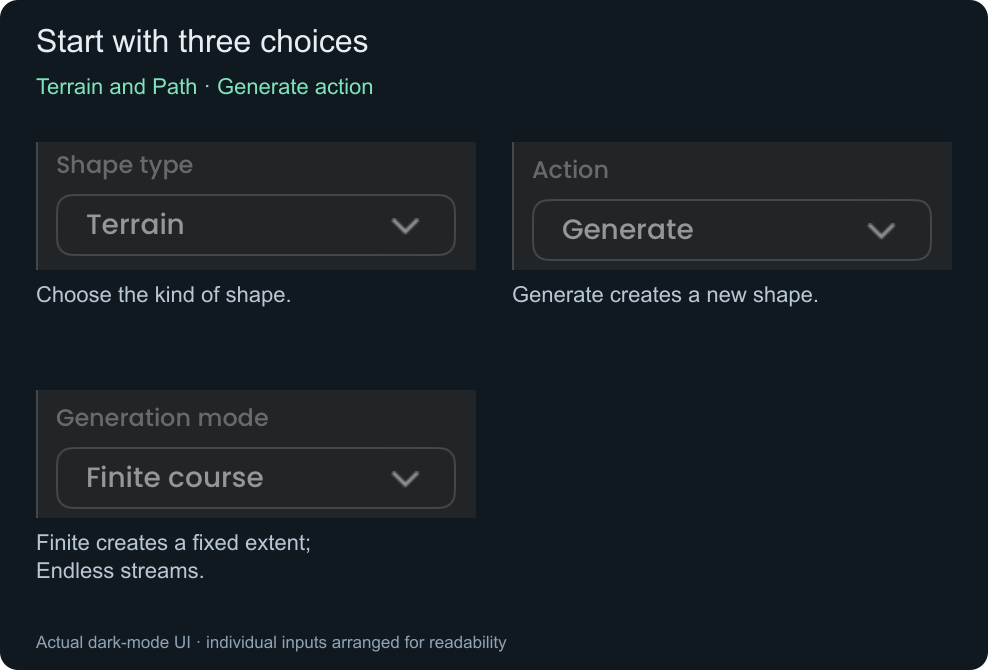
Open just the shape you are making. Box and Freeform have a short size form. Terrain and Path also let you choose a course mode.
Box — floors, platforms, and rooms · 2 shape inputs
Choose Shape type → Box. Set Width and Height, then continue to artwork and placement below. Action and Generation mode are hidden.
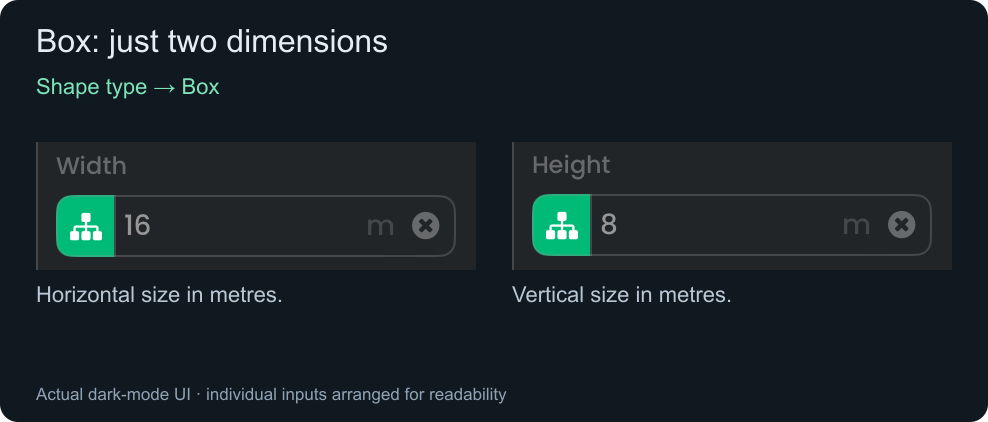
Try: Width 16 m, Height 2 m for a broad platform. A taller Box can form an RPG room floor. Repeating artwork fills the area as you resize it.
Box uses Top and Middle, plus optional Left, Right, and Bottom. Middle may be empty. Choose Solid for a stationary obstacle or No collision for decoration.
Terrain — rolling hills with ground beneath
Choose Terrain → Generate → Finite course for your first example.
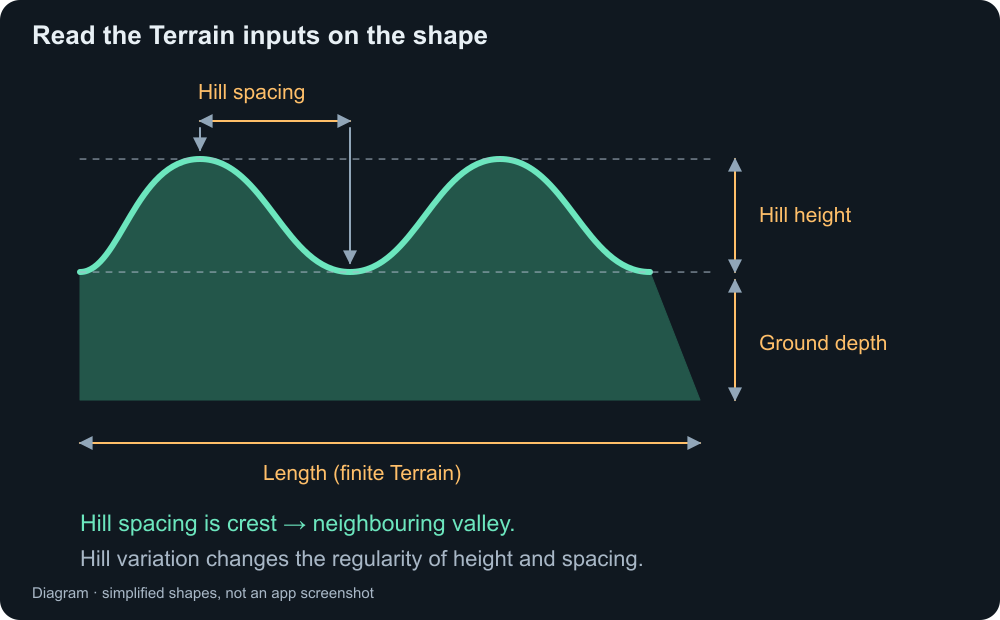
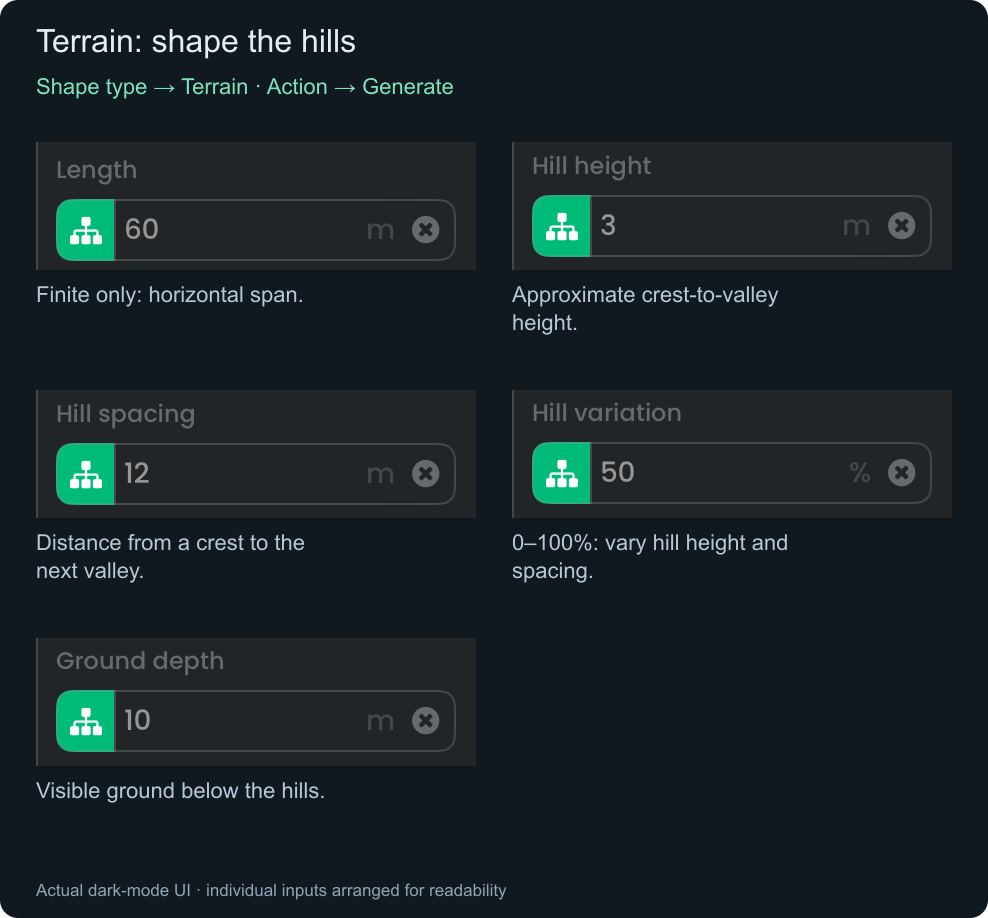
Try: Length 60 m, Hill height 3 m, Hill spacing 12 m, Hill variation 0%, Ground depth 10 m. Zero variation makes the pattern easy to compare while learning.
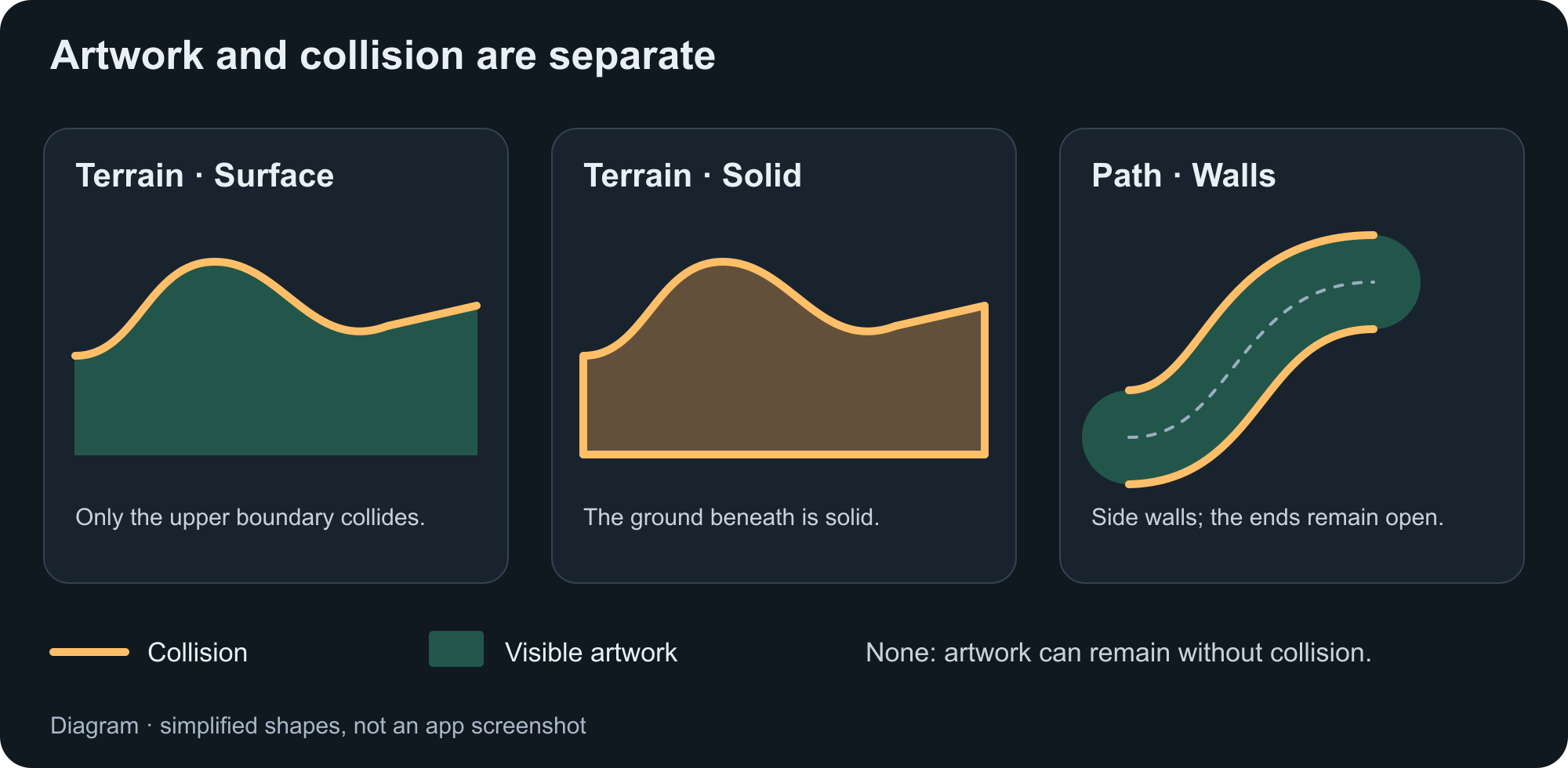
Assign Top and Middle artwork; Terrain requires Middle. Choose Surface collision to let a character stand on the hills. Ground depth adds visible ground; it does not make Surface collision solid underneath.
For Endless, Length disappears and Follow object appears. The hill controls stay. See “Endless courses” below.
Freeform — islands and irregular areas · 3 shape inputs
Choose Shape type → Freeform. It always creates one finite shape.
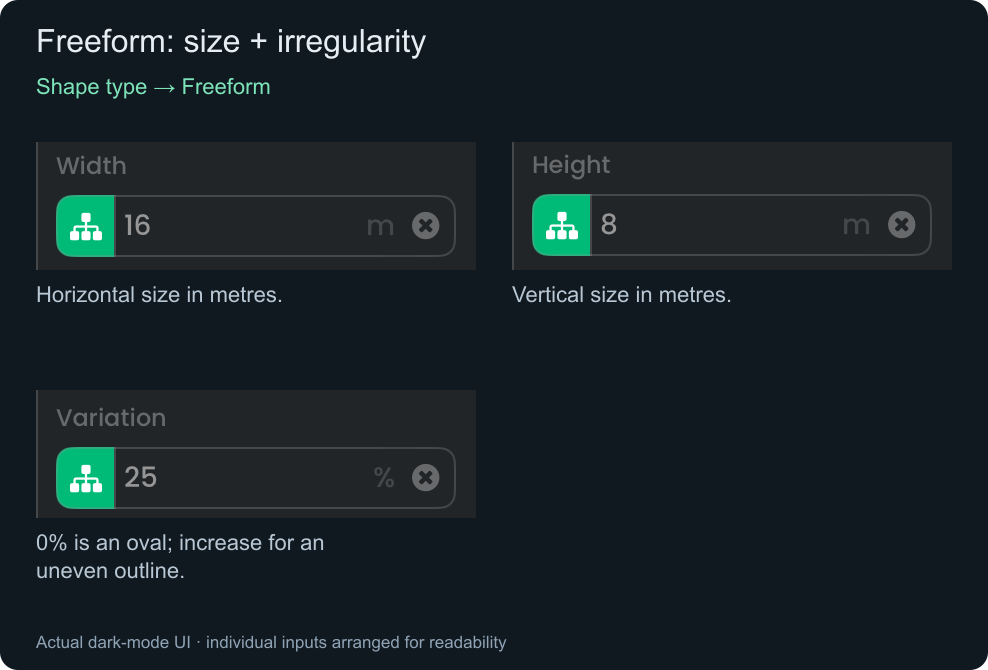
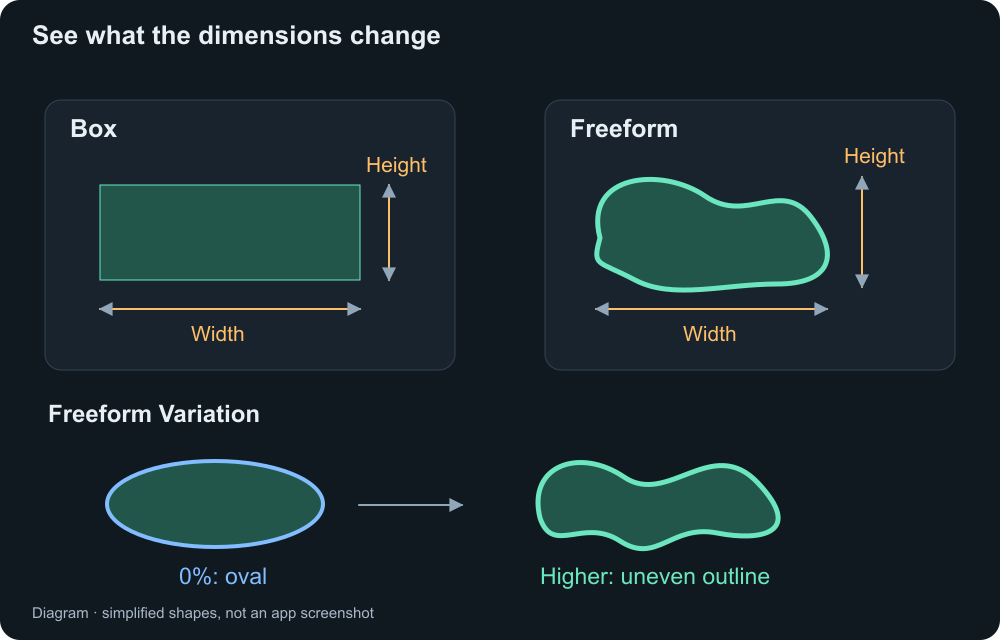
Try: Width 16 m, Height 8 m, Variation 25%. At 0%, the outline is an oval, or a circle when Width and Height match. Variation controls irregularity; it does not choose a new random outline on every execution.
Use Perimeter for the outline and Fill for the inside. Choose Solid or No collision. Draw custom points with the Smart Shape Object.
Path — roads and racing tracks
Choose Path → Generate → Finite course. Leave Closed loop off for an open road.
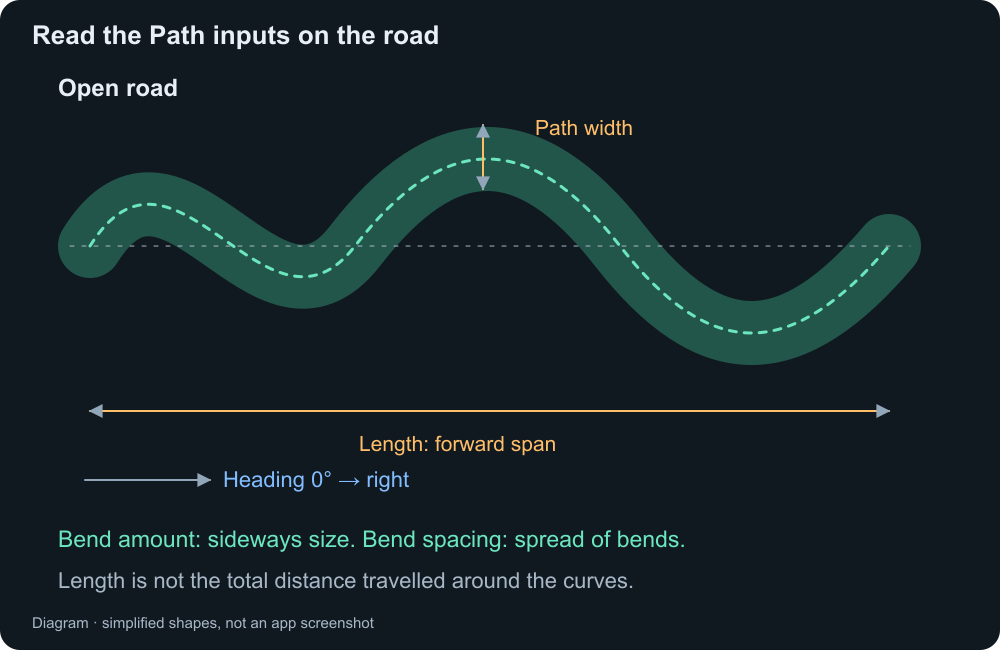
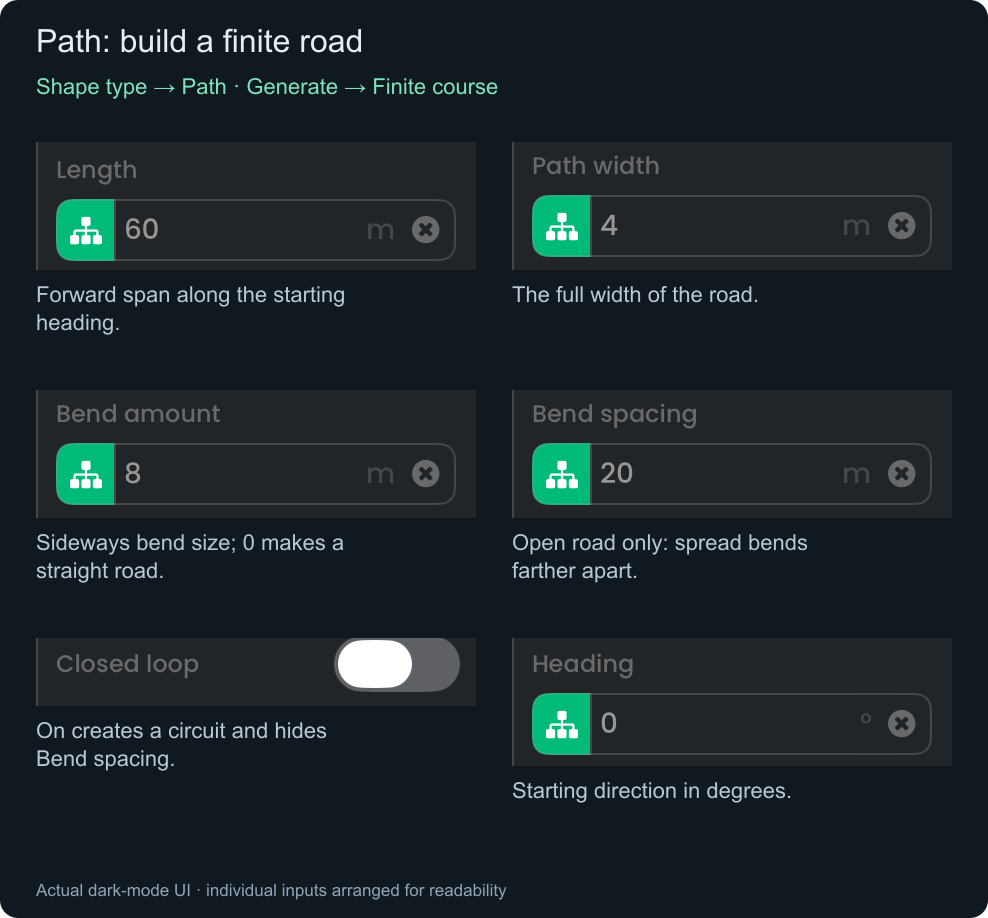
Try: Length 60 m, Path width 4 m, Bend amount 8 m, Bend spacing 20 m, Heading 0°. Set Bend amount to 0 for a straight road.
Heading points 0° right, 90° up, 180° left, 270° down. Length measures forward span, not distance around the curves. Add vehicle movement separately.
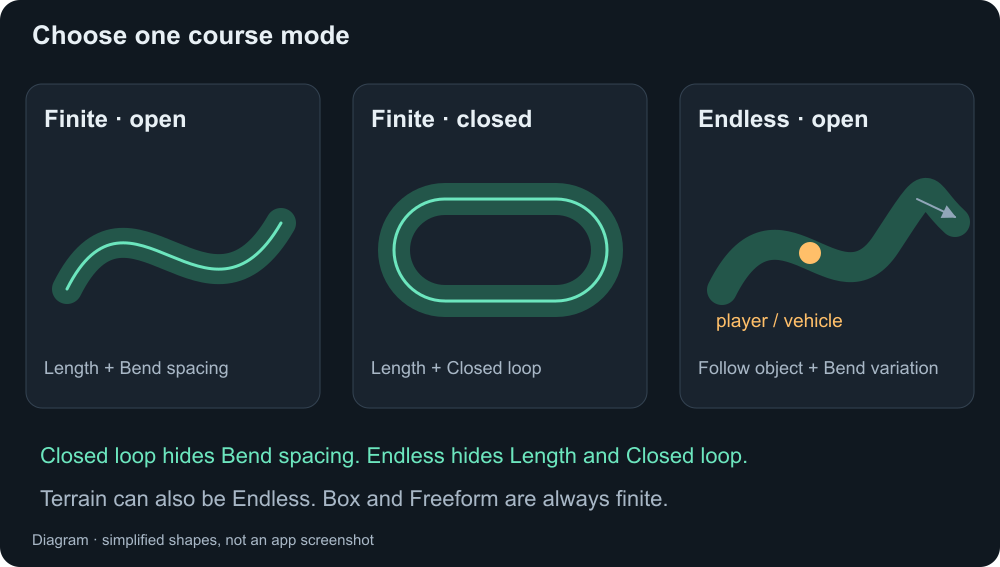
Closed loop on: Bend spacing disappears. Bend amount becomes the end-turn radius. Length must exceed twice that radius; the radius must exceed half Path width plus any positive Wall offset.
Endless: Length and Closed loop disappear. Follow object and Bend variation appear. The road stays open.
Path has one artwork slot, Road. Choose Edge walls, Solid, or No collision. Solid fills the road ribbon; a closed track's central opening stays empty.
Give the shape artwork
Use static PNG graphics. Only the slots for your chosen shape appear. Tile size scales repeating artwork, not the shape's dimensions.
Box / Terrain — Top, Middle, and optional sides
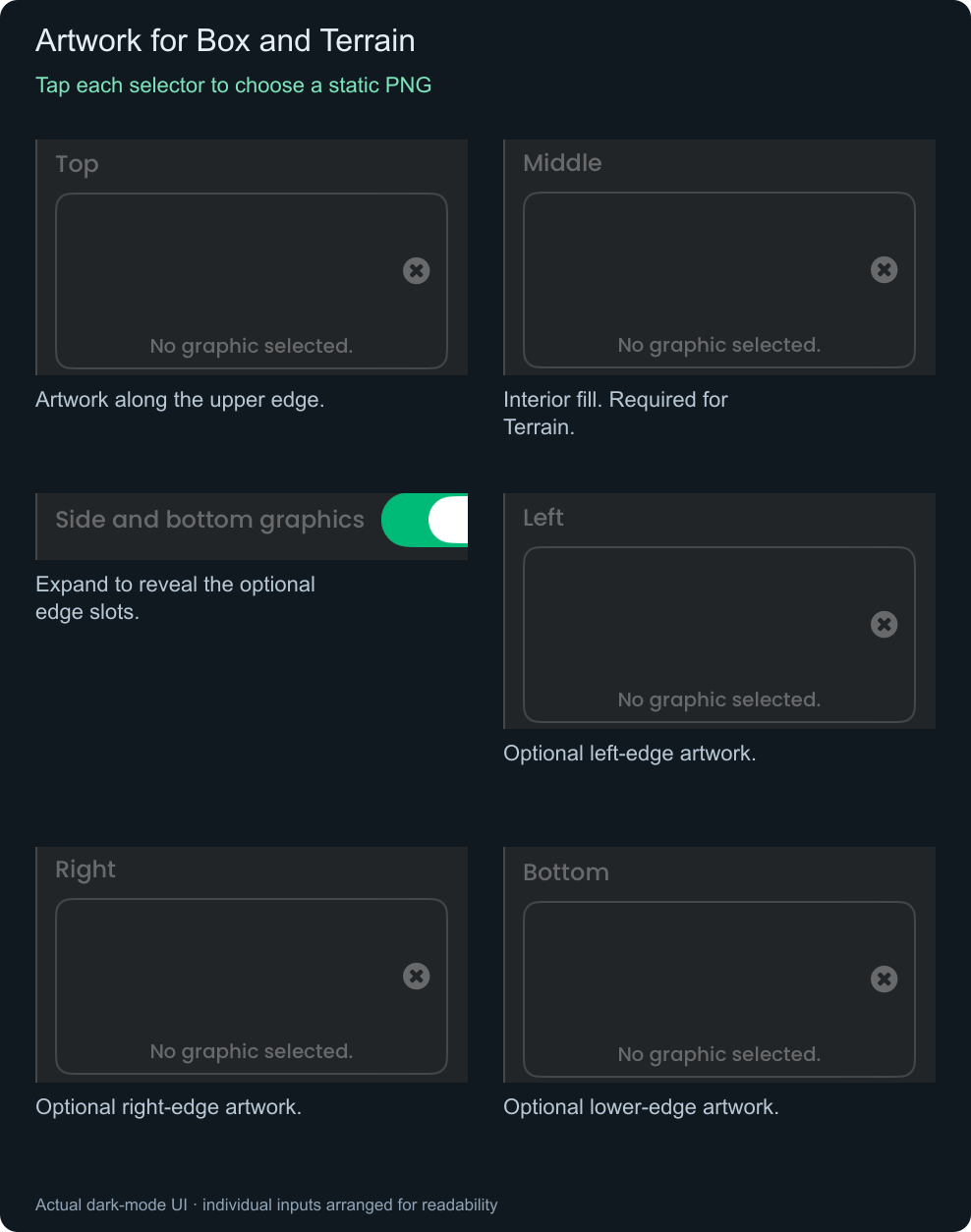
Closing Side and bottom graphics hides its controls; stored graphics still apply.
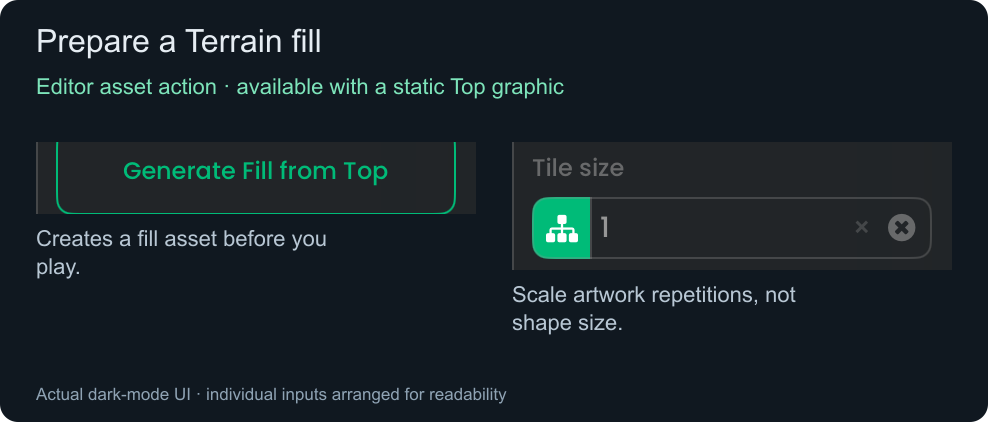
For Terrain, Generate Fill from Top prepares a fill asset in the editor before play. It needs a static Top graphic and is unavailable when Top is Dynamic.
Freeform / Path — Perimeter and Fill, or Road
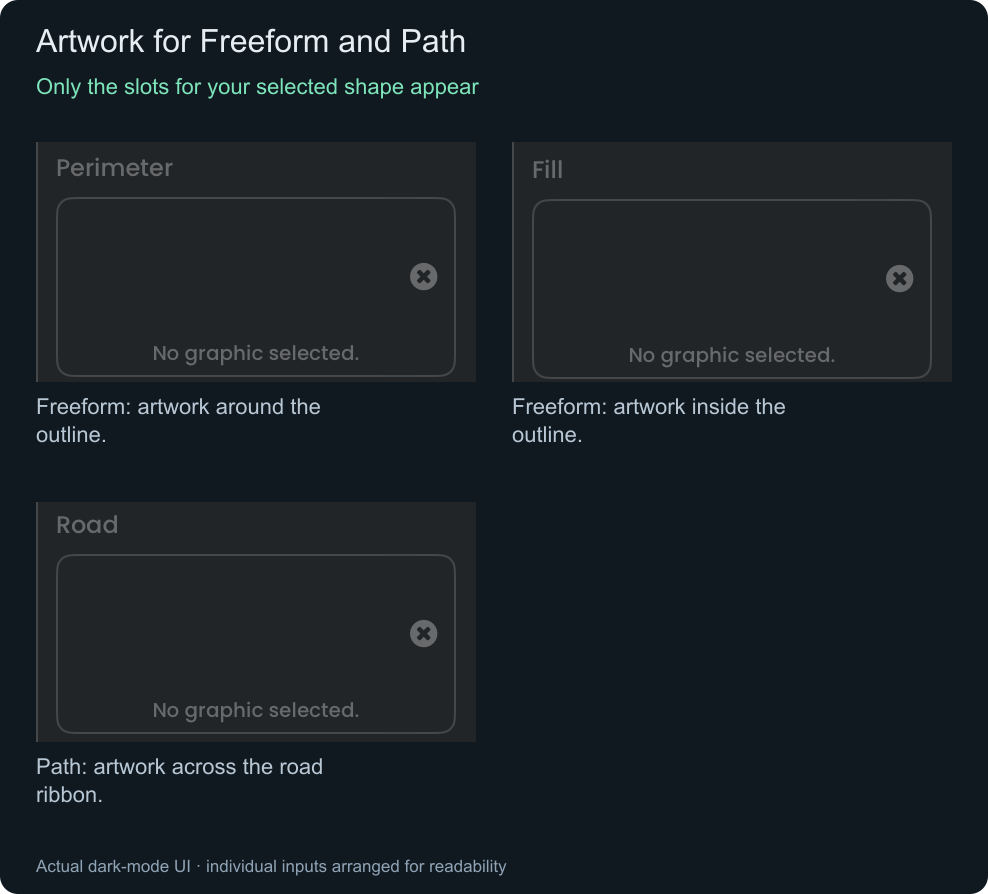
Start with Tile size 1×. Increase it for larger artwork repetitions; decrease it for smaller repetitions. The range is 0.25×–4×.
Choose collision
Artwork is what you see. Collision is what objects touch. Collision-enabled generated shapes are stationary walls.
Show collision, Wall offset, Friction, and Bounce inputs
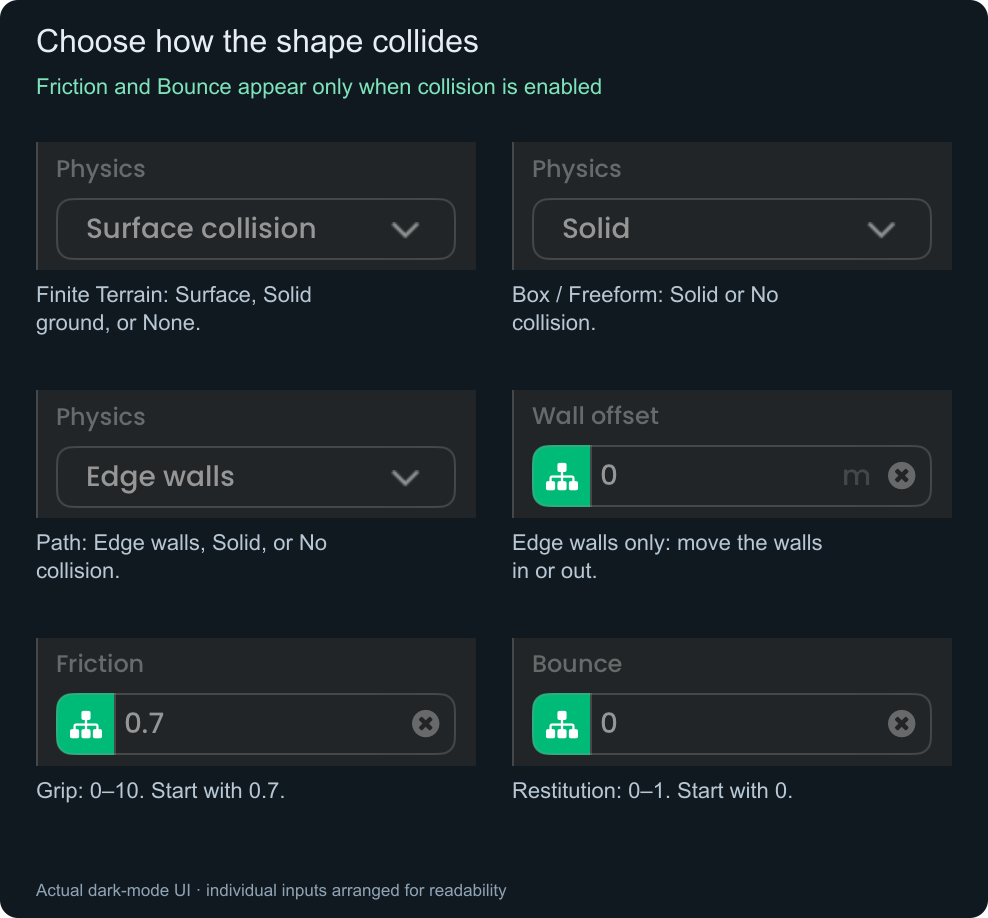
No collision hides and ignores Friction and Bounce. The other object's values also affect contact. Endless Terrain always uses Surface collision and hides that selector.
Path Wall offset appears only with Edge walls: 0 follows the edges, positive moves outward, negative moves onto the road.
Place it and run the next behaviour
- Expand Position and layer. Choose a gameplay layer and set Start X / Start Y in scene metres.
- Set Trigger on → Ready for setup that needs the new shape.
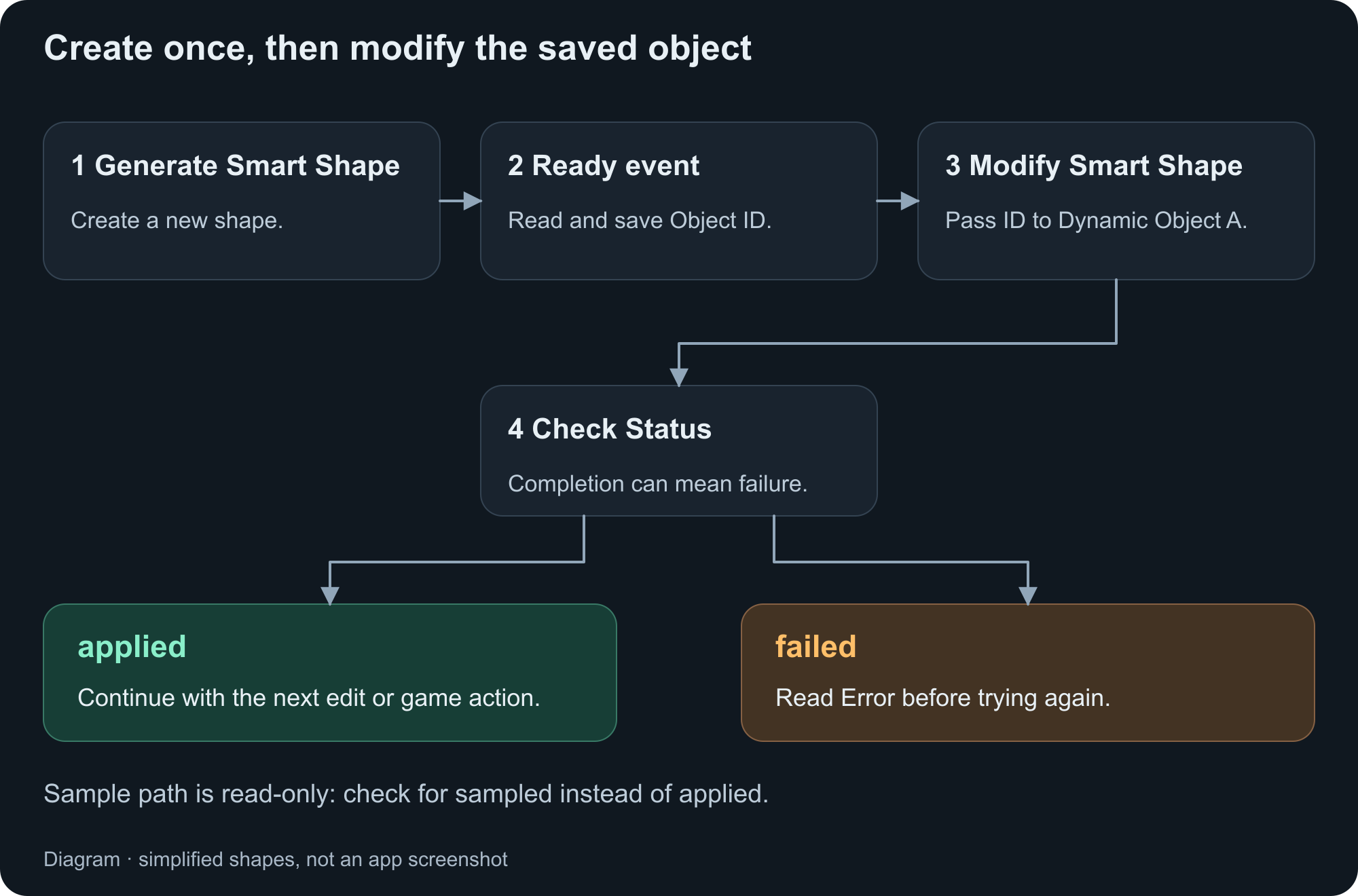
- Run Generate once. Save its Object ID to edit this particular shape later.
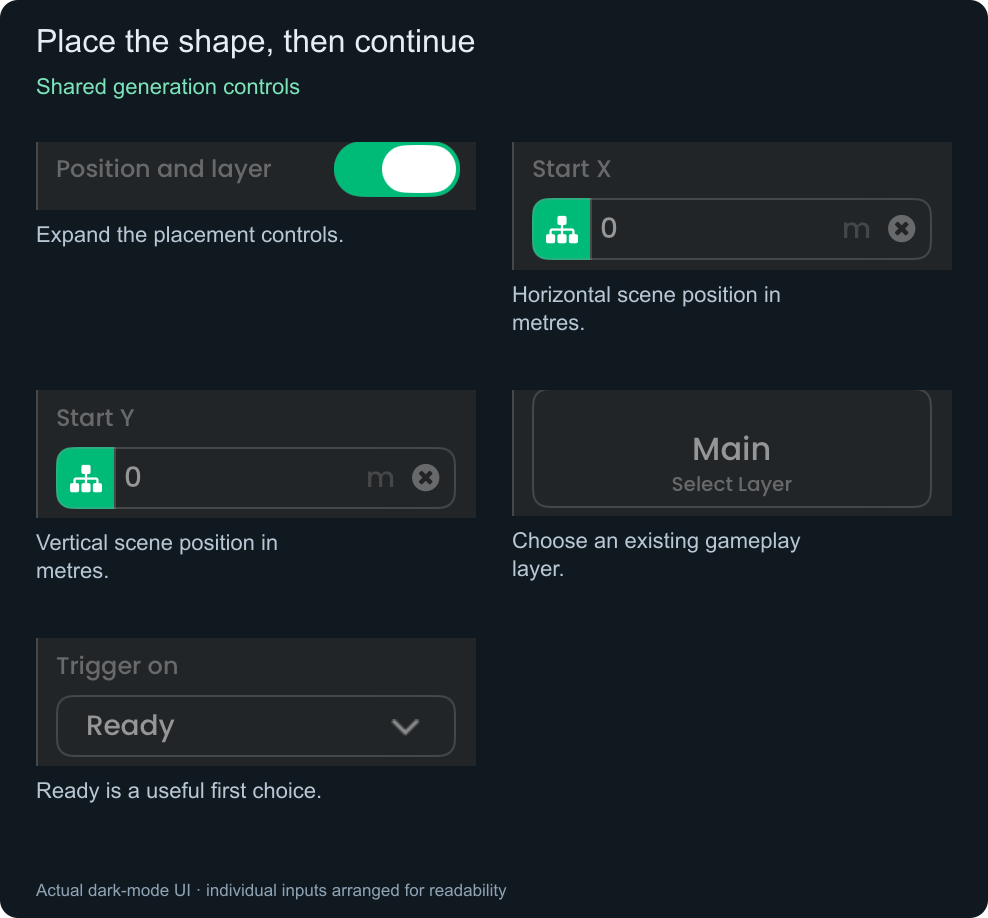
Closing Position and layer does not reset its values. Position your player and camera separately. Choosing a Follow object does not place the course under it.
Generate creates another shape every time it runs. To change the existing one, use Modify Smart Shape.
Other Trigger on choices and output IDs
Choose Section generated for each published section, Completed when finite generation finishes, Failed for an error, or Each event for all event kinds. Check Event: ready, sectionGenerated, completed, or failed.
Completed means generation finished, not that the player reached the end. Endless has no normal Completed event. Each event may trigger a finite chain three times; check Event before one-time actions. Outputs update even for events that do not trigger the chain.
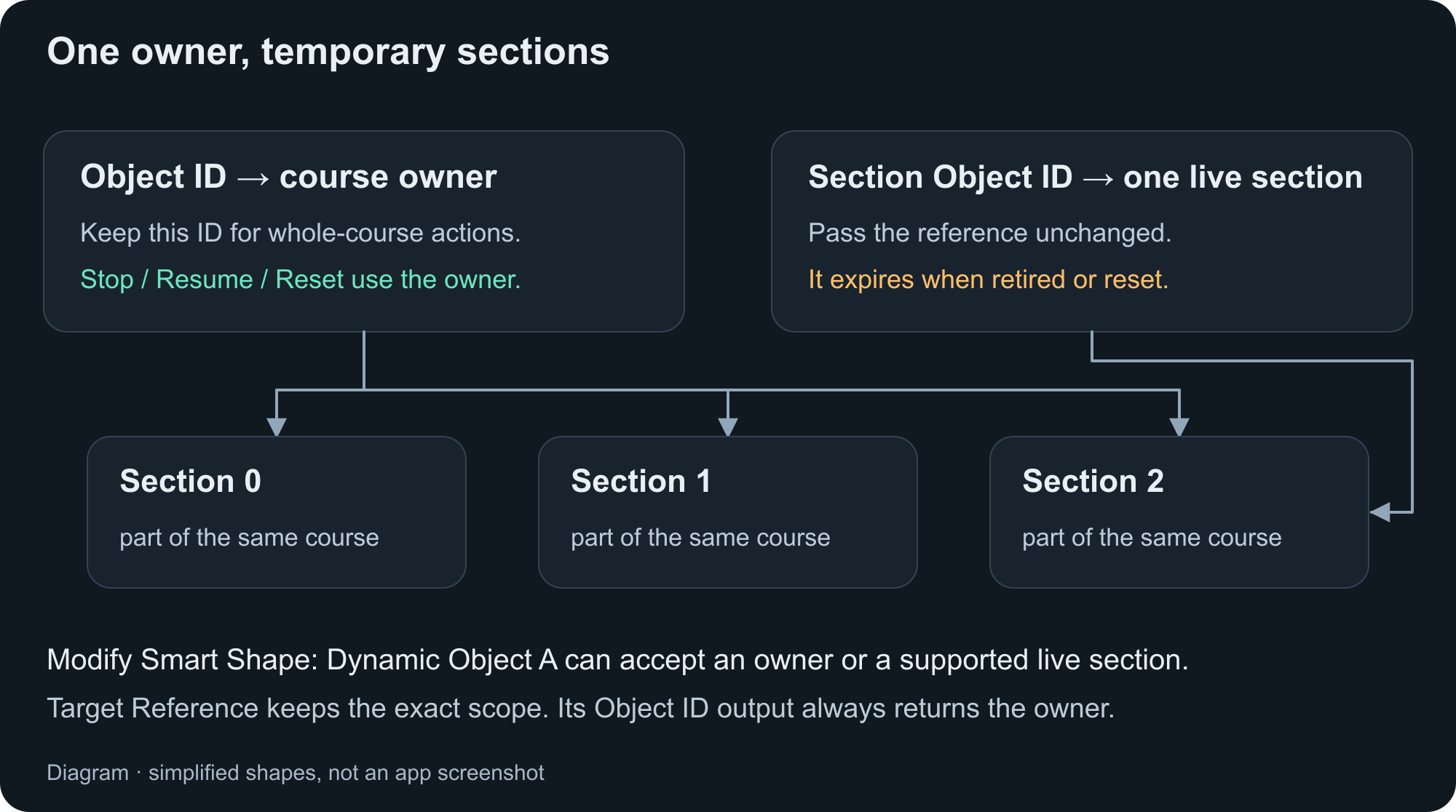
Save Object ID for the whole shape. Terrain Object ID is a compatibility name for the same owner ID. Section Object ID addresses one live section; pass it unchanged. It expires when retired or reset.
For Endless Path section events, Section Index starts at 0. Section X, Y, and Heading describe the point halfway through the section's forward span, not necessarily halfway along its curved travel distance. These values are empty for finite Path events.
Endless courses
Make Terrain or Path continue ahead of the player
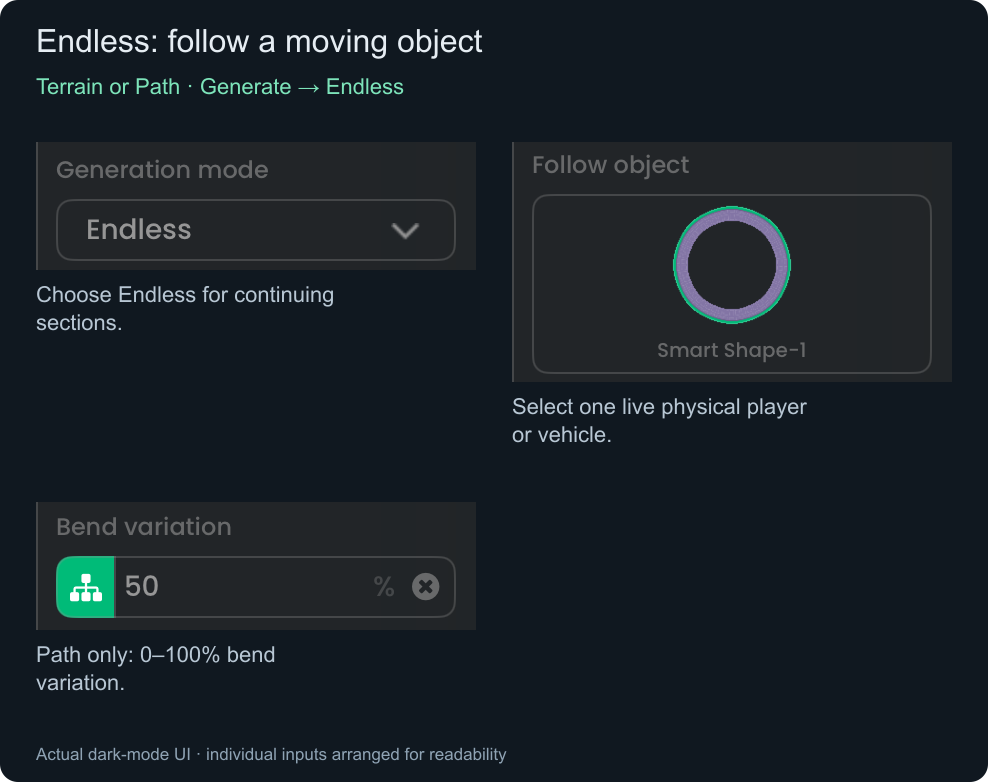
Select one live Follow object with a physics body in the same scene. Use your moving player or vehicle. Replace the example screenshot selection with your own object.
The generator builds ahead and retires old sections. It chooses section lengths internally; Length is hidden. Only one Endless generator can be active in a scene. Add movement and camera-follow behaviours separately.
Path Bend variation is 0–100%. Randomness is internal, and the generator may soften bends to keep geometry valid. Terrain uses its hill controls and always has surface collision.
Stop, Resume, or Reset an existing course
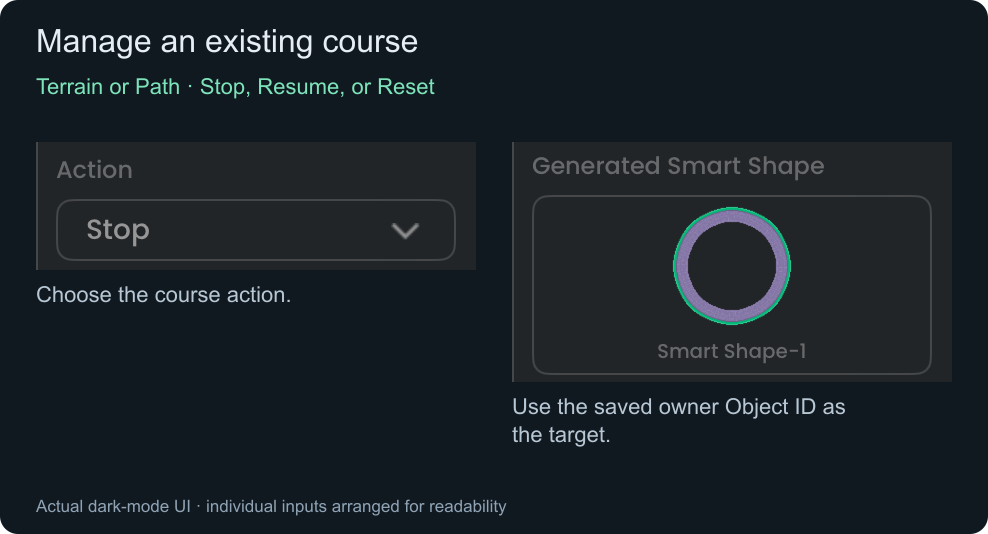
Add another Generate Smart Shape behaviour, select Terrain or Path, then choose the action. Supply the saved owner Object ID through the target's Dynamic input; section IDs are not accepted.
- Stop: pause new Endless sections; existing ground remains. The player keeps moving.
- Resume: continue a stopped live Endless course. Moving far beyond retained ground while stopped can prevent a safe resume.
- Reset: remove the course and invalidate its IDs. Run Generate again for a replacement.
These actions continue after success or failure and do not use Trigger on. Reset does not rewind the player or recreate the same random course.
If something does not work
Read Error first. Missing Terrain Middle artwork, invalid dimensions, an unsuitable Follow object, or tight road bends can cause failure. Try broader bends or a narrower road when geometry does not fit. If shapes pile up, Generate is running repeatedly.
The expandable reference below keeps the exact rules and outputs available when you need them.
Field reference: open only what you need
The detailed definitions below are grouped by shape and purpose. Each group covers several possible selections; these are not all visible inputs at once.
Creates a Terrain, Box, Freeform, or Path Smart Shape directly from graphics. Choose its type to show the relevant settings; no template object is needed.
Box — dimensions
Choose Box. Only Width and Height define its geometry. Artwork and shared controls are in their own group below.
Box
Creates one rectangular shape using Width and Height. Top, Middle, Left, Right, and Bottom can each use different graphics. Choose Solid for a physical obstacle or No collision for decoration.
Width
The horizontal size of a Box or Freeform shape in metres. Use a positive value. This changes the shape dimensions, not the size of each repeated graphic tile.
Height
The vertical size of a Box or Freeform shape in metres. Use a positive value. This is separate from Terrain's Hill height and Ground depth.
Terrain — hills and ground
Choose Terrain → Generate. Length is finite-only; hill inputs and Ground depth are used in either mode. Surface/Solid ground choices apply to finite Terrain; Endless uses Surface collision automatically.
Terrain
Creates a hill surface extending along the horizontal axis, with tiled ground beneath it. It requires a Middle graphic. Finite Terrain uses Length; Endless Terrain chooses its own section lengths and always uses Surface collision.
Length
For finite Terrain, the horizontal course length in metres. For finite Path, the span along Heading in metres, not the distance travelled around bends or the circumference of a closed loop. Use a positive value. Very long courses with closely spaced hills or bends can exceed the supported shape detail; shorten Length or increase spacing if generation fails.
Hill height
The approximate crest-to-valley height of Terrain hills in metres, not the height on each side of the starting level. Zero makes flat ground. Larger values make taller hills; increase Hill spacing if the hills become too steep to generate.
Hill spacing
The requested horizontal distance in metres between neighbouring crests and valleys, not a complete crest-to-crest cycle. Use a positive value. Spacing is fitted to the generated section, and Hill variation can vary individual intervals.
Hill variation
Terrain variation from 0% to 100%. Zero gives a regular hill pattern; higher values vary hill heights and spacing. Randomness is chosen internally for each new generation, with no seed input for replaying an exact course.
Ground depth
The depth of filled ground beneath the Terrain hills in metres. Use a positive value. This changes the visible ground depth; Surface collision still follows only the top, while Solid ground includes the filled area.
Generate Fill from Top
An editor action for Terrain, not an action run when the behaviour executes. Choose a static Top graphic, then use this button to create a fill asset and assign it to Middle. It is unavailable for a Dynamic Top input and does not accept an animation cycle or frame. If the graphics change while the fill is being prepared, generate it again.
Surface collision
For Terrain, collision follows the hill surface only. The visible ground underneath is not filled with solid collision, regardless of Ground depth. This is optional for finite Terrain and required for Endless Terrain.
Solid ground
For finite Terrain, makes the ground beneath the hill surface solid, including its sides and bottom. Ground depth controls how far the filled ground extends. This choice is not offered for Endless Terrain.
Freeform — dimensions and variation
Choose Freeform. These are its three geometry inputs; it always creates one finite shape.
Freeform
Creates one rounded outline using Width, Height, and Variation. Perimeter decorates its border and Fill covers its interior. This generator makes the outline for you; it is not a drawing tool.
Width
The horizontal size of a Box or Freeform shape in metres. Use a positive value. This changes the shape dimensions, not the size of each repeated graphic tile.
Height
The vertical size of a Box or Freeform shape in metres. Use a positive value. This is separate from Terrain's Hill height and Ground depth.
Variation
For Freeform, a value from 0% to 100% that changes the rounded outline's irregularity. Zero gives an oval, or a circle when Width and Height match. Higher values pull parts of the outline inward. Unlike Terrain variation, it does not choose a new random outline on each run.
Path — road geometry and edge walls
Choose Path → Generate. Length and Closed loop are finite-only; Bend variation is Endless-only. Closed loops hide Bend spacing. Wall offset appears only with Edge walls.
Path
Creates a road from the Road graphic. Finite paths can be open or a closed loop; Endless paths remain open and add sections along Heading. Creating a path does not make another object travel along it. Use separate movement behaviours and Sample path in Modify Smart Shape when you need positions on the road.
Length
For finite Terrain, the horizontal course length in metres. For finite Path, the span along Heading in metres, not the distance travelled around bends or the circumference of a closed loop. Use a positive value. Very long courses with closely spaced hills or bends can exceed the supported shape detail; shorten Length or increase spacing if generation fails.
Path width
The full width of the road in metres, measured across its centreline. Use a positive value. Edge walls start at either side of this width before Wall offset is applied. Tight bends must leave enough space for the road and walls without crossing.
Bend amount
For an open Path, the sideways bend size in metres; zero makes a straight road. Endless Path may soften bends to keep the road and walls from folding across each other. For Closed loop, this becomes the radius of the rounded end turns and must be greater than half Path width, plus any positive Wall offset when using Edge walls.
Bend spacing
For an open Path, the requested distance along Heading in metres between alternating bends. Use a positive value; larger spacing spreads the turns farther apart. Endless sections fit bends to their internal section length, so the exact spacing can differ. Closed loop does not use this input.
Bend variation
For Endless Path only, a value from 0% to 100% that varies bend sizes, spacing, and direction between sections. Zero uses a regular pattern. Randomness is chosen internally for each new run; finite paths do not use this setting.
Closed loop
For finite Path, turn this on to create a closed, rounded loop with two straight stretches and rounded ends. Turn it off for an open road. Length must exceed twice Bend amount, and the end turns must leave enough room for Path width and any wall offset. This closes the road geometry only; it does not loop object movement. Endless mode ignores this setting.
Heading
The Path's starting forward direction in degrees: 0° points right, 90° up, 180° left, and 270° or -90° down. Positive angles turn counterclockwise. Open paths bend around this direction; closed loops are rotated to it. Heading does not apply to Terrain, Box, or Freeform.
Edge walls
For Path, creates collision boundaries along both sides of the road while leaving the space between them open for objects to travel through. It does not make the road interior solid. Use Wall offset to adjust where those boundaries sit relative to the artwork.
Wall offset
For Path with Edge walls, the distance in metres that both walls move from the road edges. Zero follows the edges, positive values move outward, and negative values move inward. This does not resize the road artwork. Offsets that make the walls cross or collapse a bend are rejected; use an offset closer to zero or a wider bend.
Shared setup — artwork, collision, and placement
Only the slots and collision choices for your selected shape appear. Friction and Bounce require collision. Expand the placement or side-artwork disclosures only when you need them.
Shape type
Choose Terrain for hills with ground beneath them, Box for a rectangle, Freeform for a rounded irregular outline, or Path for a road. Terrain and Path offer course actions and Finite course or Endless modes. Box and Freeform always generate one finite shape. Only settings for the selected type are used.
Graphics
Choose the graphics that tile along the shape and fill its interior. Terrain and Box use Top, Middle, Left, Right, and Bottom; Freeform uses Perimeter and Fill; Path uses Road. Slots belonging to another shape type are ignored, including their Dynamic bindings. Empty optional slots add no artwork for that role.
Top
For Terrain, the graphic repeated along the hill surface. For Box, the graphic along the upper edge. Top does not automatically fill the area beneath it; choose Middle separately, or use Generate Fill from Top for Terrain.
Middle
The graphic tiled inside Terrain or Box. Terrain requires this slot to fill the ground beneath Top. Choose a fill tile directly or use a previously generated fill graphic; Box can leave it empty when only its edges need artwork.
Side and bottom graphics
Shows or hides the Left, Right, and Bottom selectors for Terrain and Box. This only collapses the controls: previously selected side and bottom graphics are still used when the controls are hidden.
Left
The graphic for the left-facing edge of a Terrain or Box outline. It does not replace Top or fill the interior. Leave this optional slot empty if no left-edge artwork is needed.
Right
The graphic for the right-facing edge of a Terrain or Box outline. It does not replace Top or fill the interior. Leave this optional slot empty if no right-edge artwork is needed.
Bottom
The graphic for the bottom edge of a Terrain or Box outline. Middle still supplies the interior fill. Leave this optional slot empty if no bottom-edge artwork is needed.
Perimeter
For Freeform, the graphic repeated around the entire curved border. This uses the Top graphic slot internally but is presented as Perimeter for this shape type.
Fill
For Freeform, the graphic tiled inside the outline. This uses the Middle graphic slot internally. Leave it empty if only the perimeter should have artwork.
Road
For Path, the graphic tiled along the road. This is the only artwork slot used by Path and shares the Top slot internally. Edge walls are collision boundaries, not additional wall-graphic slots.
Tile size
The scale multiplier for repeated graphics, from 0.25× to 4×. At 1× the graphics use their normal tile size; 2× makes the tiles larger and 0.5× makes them smaller. This changes artwork repetition, not Length, Width, Path width, or other shape dimensions.
Physics
Choose how the generated shape collides with other objects. Collision-enabled shapes are stationary walls, not freely moving physics objects. Terrain has Surface collision, Solid ground, or No collision; Path has Edge walls, Solid, or No collision; Box and Freeform have Solid or No collision. Endless Terrain always uses Surface collision.
Solid
For Box and Freeform, makes the filled outline a solid obstacle. For Path, makes the road strip itself solid rather than creating only side walls. A closed road remains a strip around its loop; Solid does not fill the central opening.
No collision
Generates visible artwork without collision. Other objects can pass through it. Friction and Bounce are hidden and ignored for this choice. No collision is available for finite Terrain and for Box, Freeform, and Path, but not for Endless Terrain.
Friction
A unitless collision value from 0 to 10. Zero is slippery; higher values resist sliding more. The other object's friction also affects contact. This setting does not slow an object that is not touching the generated collision.
Bounce
A unitless collision value from 0 to 1. Zero adds no bounce from this shape; higher values make collisions more elastic. The other object's bounce also affects the result. This is not a force or movement speed.
Position and layer
Shows or hides Start X, Start Y, and the layer selector. This only collapses the controls: their stored values are still used when hidden. Positions are in scene metres, not screen pixels or offsets from the Follow object.
Start X
The horizontal scene position of the generated shape's origin in metres. Larger values place it farther right and negative values farther left. Terrain extends along the horizontal axis; Path extends according to Heading. The default is 0 m.
Start Y
The vertical scene position of the generated shape's origin in metres. Larger values place it higher and negative values lower. Terrain hills rise and fall relative to this starting level. The default is 0 m.
Layer
The scene layer that receives the generated Smart Shape and its sections. Choose an available gameplay layer. Layer ordering affects where the artwork appears, and the layer's collision grouping affects which objects can collide with it. Selecting a missing layer fails instead of silently using a different one.
Terrain and Path — modes and course actions
These controls do not appear for Box or Freeform. Generate uses the selected mode. Stop, Resume, and Reset use an existing owner target instead of the generation inputs.
Action
For Terrain and Path, choose Generate, Stop, Resume, or Reset. Generate uses the shape settings below. The other actions use an existing generated Smart Shape instead and trigger connected behaviours when the action succeeds or fails.
Generate
Creates a new Smart Shape with its own Object ID. Running Generate again creates another shape; it does not replace a previously published shape. Terrain hills and Endless Path bends may vary between runs when their variation is above zero.
Stop
Pauses generation of new sections for the selected Endless course, keeping its currently published graphics and collisions. It does not stop or move the Follow object. A finite shape remains in place but has no further sections to generate.
Resume
Continues a live Endless course after Stop, using its existing settings and Follow object. Resume does not recreate a reset or deleted course and is not available for finite courses. Moving beyond the retained course while paused can prevent a safe resume; check Error if it fails.
Reset
Removes the selected generated course and invalidates its Object ID and section references. Reset does not rewind the Follow object, automatically generate a replacement, or guarantee the same random course. Run Generate again to create a new course.
Generated Smart Shape
For Stop, Resume, or Reset, set Dynamic Object A to the Object ID returned by Generate Smart Shape. Select exactly one generated course owner, not its Section Object ID or the Follow object.
Generation mode
Finite course creates Terrain or Path over the requested Length once. Endless creates sections ahead of a Follow object and retires older sections to keep the course bounded in memory. Endless ignores Length and Closed loop; it does not repeat a finite course or preserve every old section. Only one Endless generator can be active in a scene.
Follow object
In Endless mode, choose exactly one live object with a physics body in the same scene, such as your player or vehicle. Its position guides where sections are needed. This does not make the object move, attach the course to it, or make the camera follow it; set up movement and camera behaviours separately. Start X and Start Y still place the generated course.
Completion events and outputs
Trigger on is a Generate input. The outputs are returned values, not settings to fill in. Section position outputs are exposed for Path and populated for Endless Path section events.
Trigger on
Select which generation event runs connected behaviours. Outputs update when events arrive even if that event is not selected. Stop, Resume, and Reset do not use this selector: they report a Completed event on success or Failed on error. Choose Each event if the same behaviour chain must handle both successful generation and failures.
Ready
Triggers after the initial shape and its selected collision have entered the scene. Use this for one-time setup that needs Object ID. An Endless Ready event need not identify an individual section; use Section generated when section details are required.
Section generated
Triggers for each newly published section. A finite shape produces one section reference; Endless courses produce more as they extend. Use Section Object ID to target that section. Endless Path also provides Section Index, Section X, Section Y, and Section Heading for section-based placement logic.
Completed
Triggers when finite generation has finished, including Box, Freeform, and closed Path. It does not mean a player reached the end of the course. Endless generation has no normal Completed event because it continues adding sections.
Failed
Triggers if generation cannot proceed, such as invalid settings, unavailable graphics, a missing Follow object, or a streaming safety failure. Read Error for the reason. An Endless streaming failure can leave previously published sections in place; it does not imply the course was reset.
Each event
Triggers for every received Ready, Section generated, Completed, or Failed event. Inspect Event to choose which connected logic to run. One finite generation can therefore trigger the behaviour multiple times: once for Ready, once for its section, and once for Completed.
Outputs
These are values you can connect to Dynamic inputs in other behaviours. They describe the latest received event, so some fields are empty when that event has no matching object or section. Save IDs you need before later events overwrite the outputs, and do not use a reference after its target is removed.
Object ID
The generated Smart Shape owner's identifier. Pass it to Dynamic Object A of Modify Smart Shape or Set Graphic to target the whole shape. For a generated Terrain or Path course, also use this owner ID for Stop, Resume, or Reset. Reset invalidates the ID even though the Reset completion reports which owner was removed.
Terrain Object ID
A compatibility alias containing the same value as Object ID, including for Box, Freeform, and Path. It is not a separate object or section.
Section Object ID
An opaque reference to one published section, not an ordinary scene object number. Pass it unchanged to Dynamic Object A of Modify Smart Shape or Set Graphic to target that section. It expires when the section retires or the course is reset. Do not perform arithmetic on it or use it for Stop, Resume, or Reset. Endless sections restrict edits that would break their joins; use supported section graphics, bend, or sampling actions.
Section Index
For an Endless Path section event, the section's sequence number starting at 0. Later sections keep increasing this number even as older sections retire. It is useful for counting or alternating placement logic, but is not an Object ID. It is empty for finite paths and events without Endless Path section details.
Section X
For an Endless Path section event, the scene-space X coordinate in metres halfway through that section's forward span. This is a sampled road position, not the centre of the artwork's bounding box or necessarily halfway by curved travel distance. Use Section Object ID with Sample path in Modify Smart Shape for another position along the section.
Section Y
The scene-space Y coordinate in metres at the same Endless Path sample as Section X. These coordinates are suitable for scene placement, not screen placement. Section X and Section Y are empty for finite paths and events without Endless Path section details.
Section Heading
For an Endless Path section event, the road's forward tangent at the Section X/Y sample in degrees: 0° right, 90° up. This can differ from the initial Heading because the road bends. It is empty for finite paths and events without Endless Path section details.
Status
The latest operation or course state, for example generating, completed, ready, paused, blocked, failed, or reset. Status describes the state; Event describes what happened. A Failed event may have blocked status when an Endless course cannot safely continue.
Error
A readable explanation of the latest failure, or an empty value when the latest event has no error. Check this when settings are rejected or streaming stops progressing. Error and Status still update even when Trigger on is set to a different event.
Event
The event name for branching logic: ready, sectionGenerated, completed, or failed. These output values are not the display labels; for example, the Section generated choice outputs sectionGenerated. Each event is a trigger choice, not a value returned by Event.