Part 4: Creating Your Player

In Part 3, you learned how to create your first level. In this tutorial, you'll start turning that empty level into a game.
A platformer is a game like Mario. Platformers usually have a character you control with a joystick, who jumps around to solve puzzles.
This part of the guide builds on Part 3. It assumes you've already created your level with the assets from the Platformer Starter Pack, which you can download from the Asset Shop.
Adding the Player
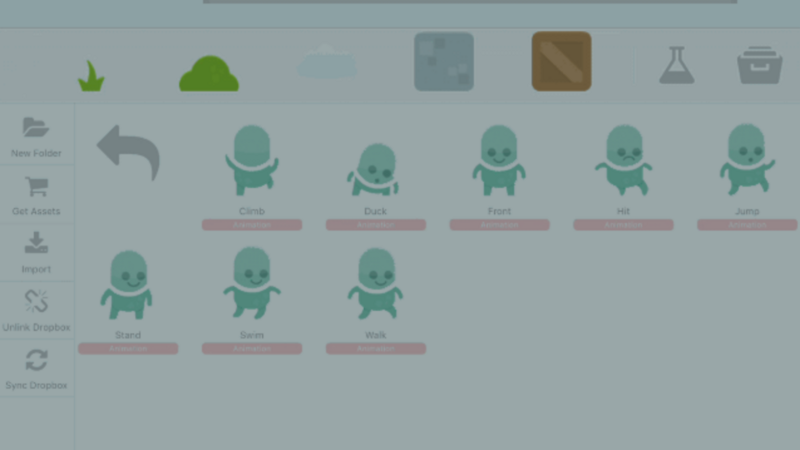
First, add your player Graphic to the Object Dock. Go to the Downloads folder in the Asset Library and find the animated Green Space Man character.
Tap the animated character in the Asset Library to see all of its animation cycles.
You don't want the player to look like he's walking while he's standing still, so use the "Stand" animation cycle. Tap the "Stand" animation cycle to add it to the dock.
Note: If the animated Graphic you're using doesn't have a stand or idle cycle, you can select a single frame instead. Hold your finger on the animation cycle and choose "View Frames" from the Asset Menu.
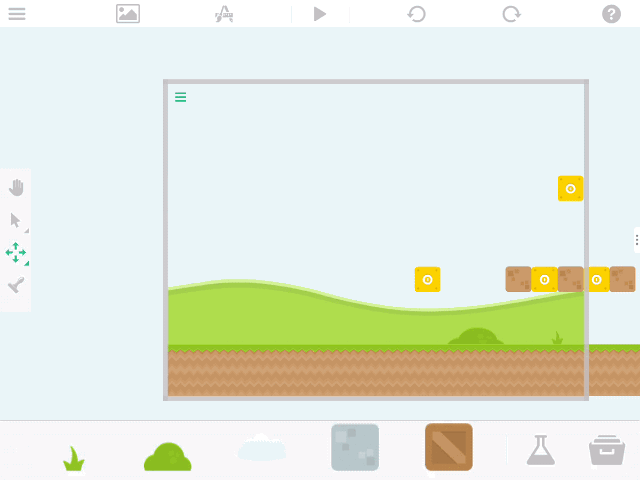
Now that your character is on the Object Dock, drag it off the dock and into your Scene.
Moving the Player
Next, bring the character to life and make it move with a joystick. hyperPad's built-in Behaviors make this simple.
First, open the Object Properties by tapping the character you just dragged onto the canvas.
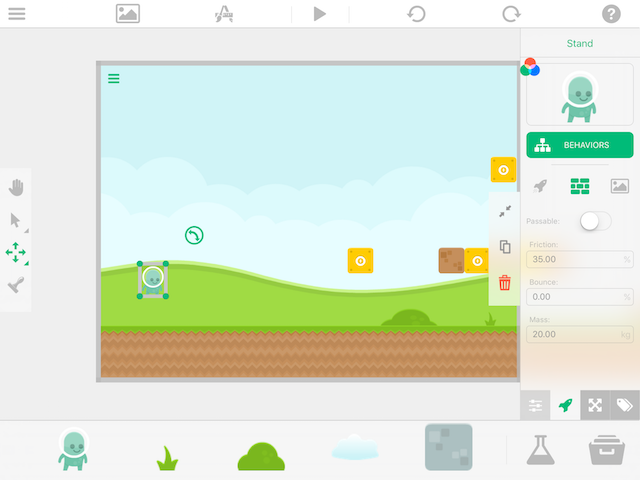
On the "Physics Tab" of the Object Properties, make your character a "Physics Type" by tapping the physics object icon just below the "Behaviors" button.

Physics object icon
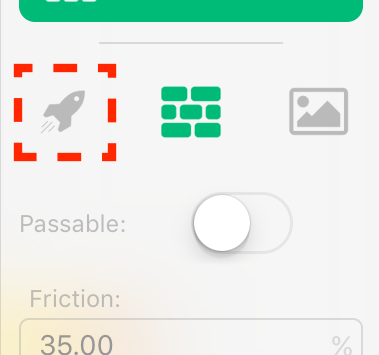
Note: Physics Objects follow the laws of gravity and react to other Objects and forces.
Next, tap the Behaviors button to open the Behavior Editor and start making your character playable.
The Behavior Editor shows categories along the top bar and Behaviors in the list on the left.
Because you added an animation cycle, a "Play Animation" Behavior is already on the Behavior canvas.
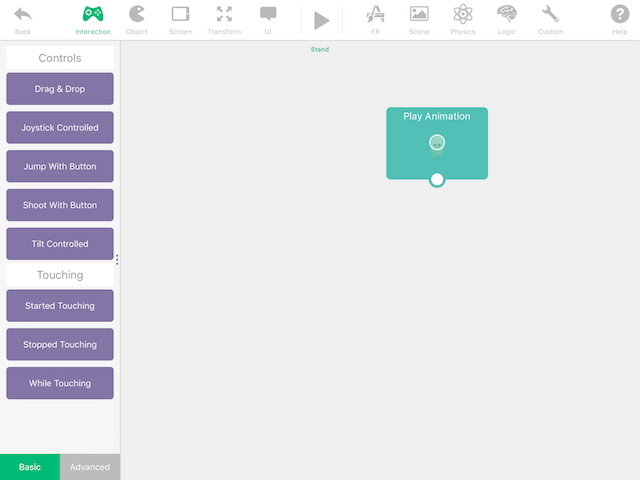
From the "Interaction" category, drag the Joystick Controlled Behavior onto your canvas.
As soon as you add this Behavior, it automatically creates a joystick on your Global UI Layer. If you already have a joystick on your UI layer, the Behavior uses that one instead.
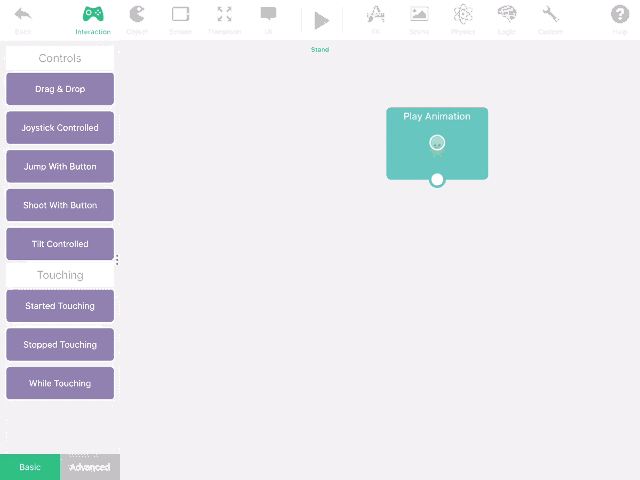
At this point, you can press play and run your game! You may notice, though, that the player just slides around the screen.
Animations
Let's make the game look better by adding some animations to the player.
Start by making the character walk when you move the joystick left or right.
To do this, you need the "Advanced" interaction Behaviors. While in the Interaction category, tap the Advanced option at the bottom of the Behavior list.
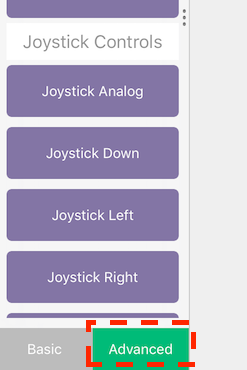
From the "Advanced" list, add "Joystick Left" and "Joystick Right" to the canvas.
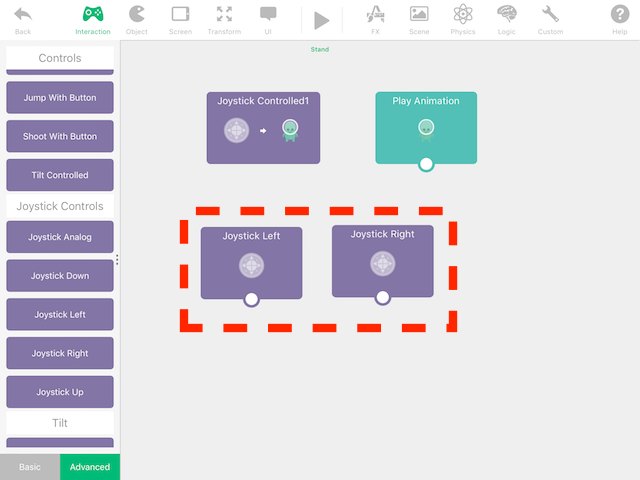
Next, from the "FX" category, add the "Play Animation" Behavior. Connect both Joystick Left and Joystick Right to this new Play Animation.
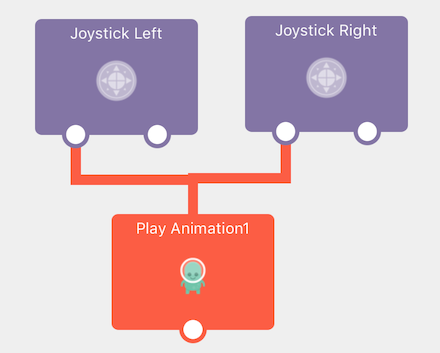
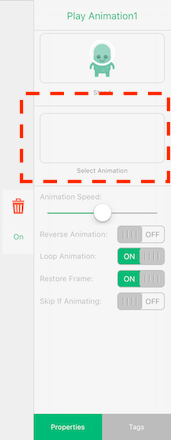
Now tap the "Play Animation" Behavior to view the Behavior Properties.
The first box at the top is the Object you want to apply the animation to. hyperPad automatically selects the current Object.
Note: You can tap here and select any other Object in your Scene. You don't need to do that right now, so leave it alone.
The next box down is the animation you want to play. It's blank because you haven't chosen an animation yet.
Tap the empty box to select an animation.
A film strip appears along the bottom of the screen. Tap the Asset Library icon to add an animation cycle to the film strip.
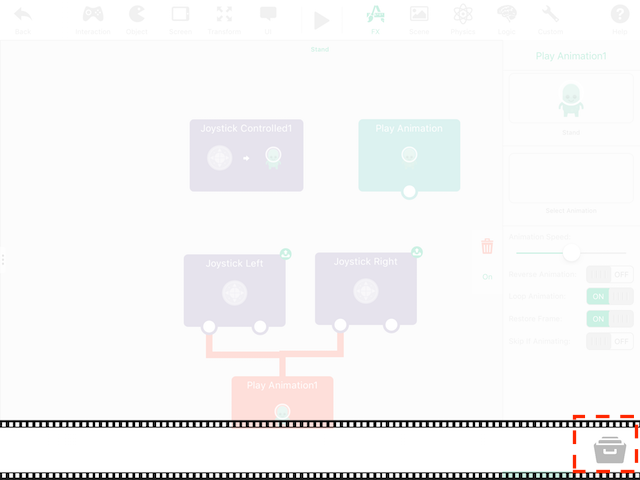
Go to the animated "Green Spaceman" character and select the "Walk" cycle. Each frame of the animation is added to the film strip automatically. Tap anywhere to close the film strip and return to the properties.

Note: You can also add individual images or animation frames to the film strip. Pre-made animation cycles are only one option.
Next, in the Walk animation's Behavior Properties, turn off the "Loop Animation" toggle. You want it off because Joystick Left and Joystick Right already loop the animation for you. The animation only plays while the joystick is pushed left or right.

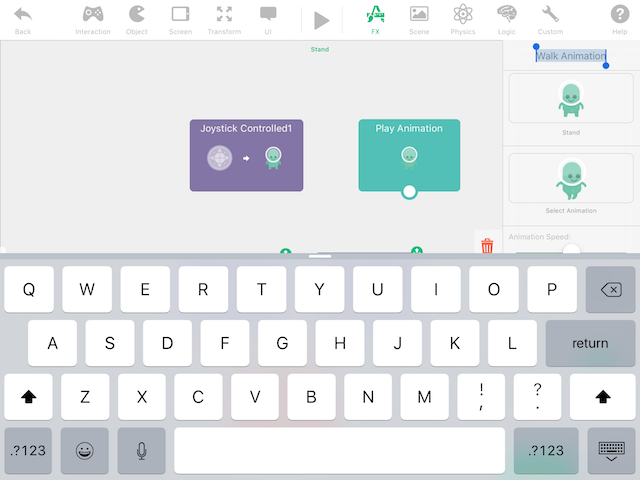
Finally, rename this Behavior so it's easier to find later. In the Behavior Properties, tap the Behavior name at the very top. A keyboard appears so you can type a new name. Call it "Walk Animation".
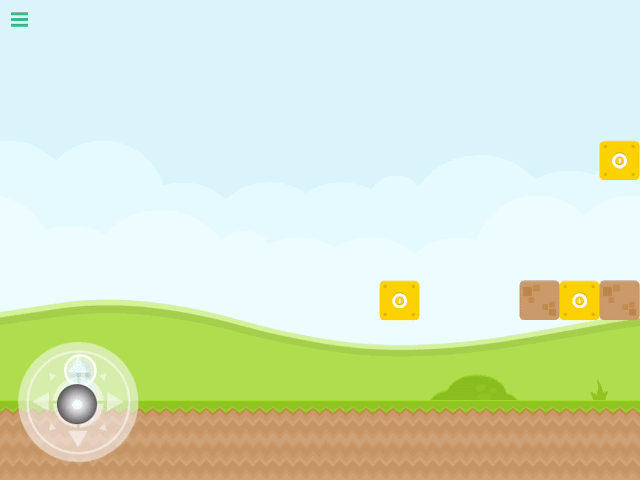
If you press play now, your character moves with the joystick and is animated!
Jumping
You can't have a platform game without jumping. Making the player jump in hyperPad takes just a few steps.
While you're still in the Green Spaceman's Behavior Editor, tap the "Interaction" category. From the Behavior list on the left, drag on the Jump with Button Behavior. Like the Joystick Controlled Behavior, Jump with Button handles a lot of your Object's movement for you. It also adds a button to the Global UI Layer automatically.
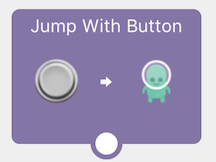
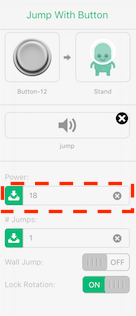
Tap the jump Behavior to view its properties. There you can change settings like the sound to play, the power of the jump, and more. For this tutorial, leave everything the same except the power.
I set the power to 18 so the player could jump over all the obstacles in the Part 3 level. If you designed your own level, you may need to experiment with the jump value until it works for you.
If you press play now, your player runs around and jumps. You may notice, though, that the character keeps walking while in the air. Let's fix that.
Start by playing an animation when you jump.
From the "Interaction" category, add a "Started Touching" Behavior, then tap it to view its properties.
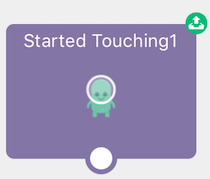
Now change the Behavior so it only works when you start touching the jump button. In the "Started Touching" Behavior Properties, tap the spaceman Graphic in the top box.
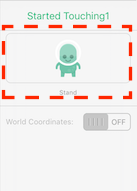
This opens the "Object Selector" screen, where you can select any Object or UI element in your Scene. You probably can't select the button yet. That's because the Green Spaceman is on the Main Layer and the button is on the Global UI Layer. In the layers bar on the right side of the screen, tap the Global UI layer. Now you can select the button.
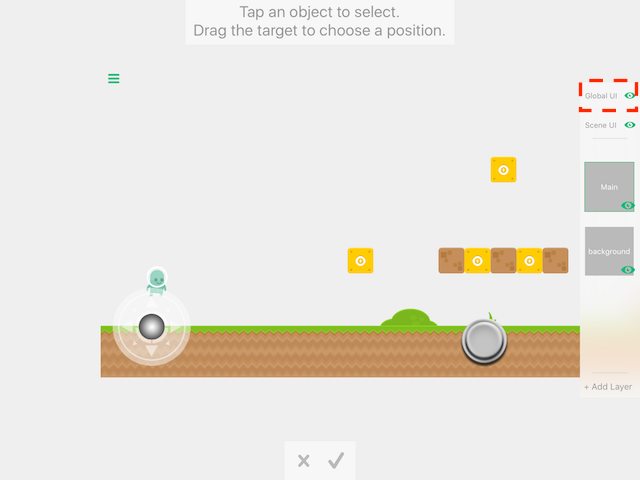
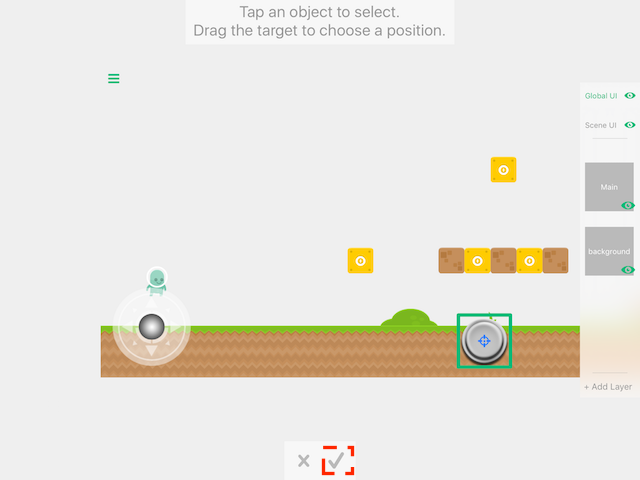
With the button selected, tap the accept icon at the bottom.
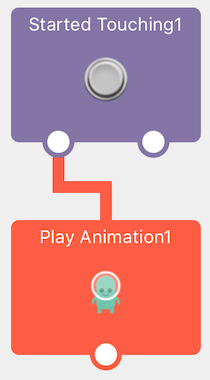
Next, add another Play Animation Behavior and connect it to the Started Touching Behavior you just added.
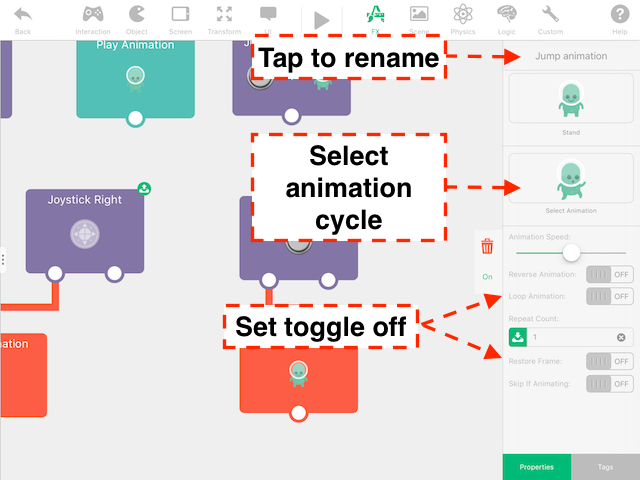
Just like before, you can rename the Behavior and select an animation in the Behavior Properties.
To rename it, tap the Behavior's title in the properties and enter a new name. I used "Jump animation".
As you did for the walk animation, you need to select a cycle for the jump. Tap the second empty box in the Behavior Properties and select the Jump animation cycle from the Green Spaceman animations.
Also turn off the "Loop Animation" toggle and the "Restore Frame" toggle.
If you press play now, the character looks like he's jumping when you jump. There are still 2 small issues, though.
-
The character doesn't return to his standing animation when he lands.
-
If you move the character while he's in the air, he plays the walk animation in the air.
For the first issue, switch to the "Transform" Behavior category and tap the advanced button to view the advanced Behaviors.
Drag on the Stopped Falling Behavior. Then drag on another "Play Animation" Behavior from the FX category and connect it to Stopped Falling.
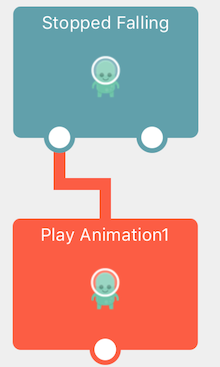
On the "Play Animation" you just added, select the Green Spaceman's "Stand" animation cycle, disable the "Restore Frame" and "Loop Animation" toggles, and rename the Play Animation Behavior to "Standing".
The Green Spaceman can now jump, and he looks like he's standing when he lands.
For the second problem, you need to stop the walk animation from running while the character is jumping.
Switch to the "Custom" Behavior category, drag on "Behavior Off", and connect it to the "Started Touching" Behavior you added earlier for the jump animation.
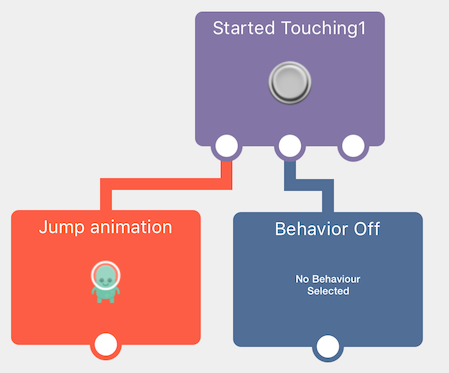
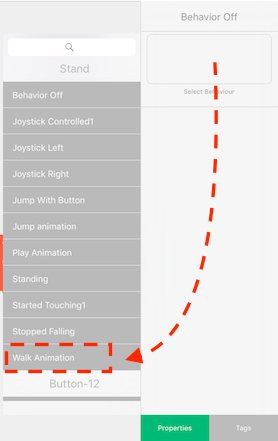
Now tap "Behavior Off", then tap the empty box to select a Behavior from the list. Find the "Play Animation" (Walk Animation) Behavior that's connected to the Joystick Left and Right Behaviors.
Next, add a "Behavior On" and connect it to the "Stopped Falling" Behavior you added earlier.
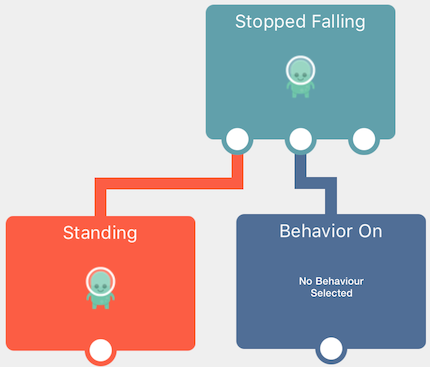
Again, tap the empty box and select the Play Animation (Walk Animation) Behavior that plays the walk animation.
If you press play now, your character should move and jump around perfectly!
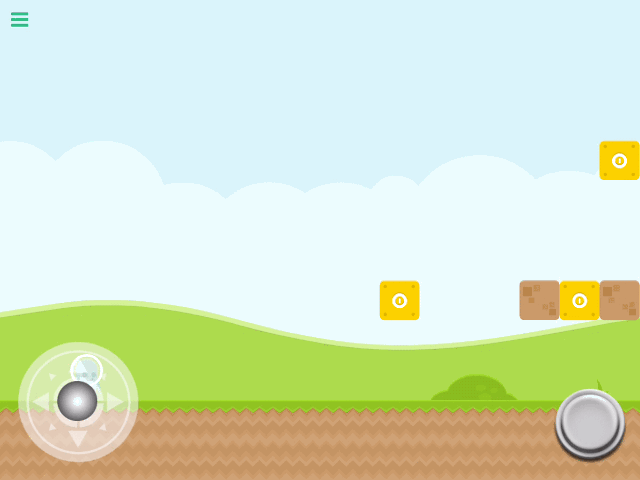
Moving the Screen
You've probably noticed that if you move too far, the character goes off the screen. In traditional platform games, the screen usually moves with the player. Take Mario, for example: Mario always stays near the middle of the screen.
Let's make the screen move with the Green Spaceman so he never leaves the screen.
While you're still in the Green Spaceman's Behaviors, switch to the "Screen" category and add the "Screen Follow" Behavior. Screen Follow moves the screen with the Object you select.
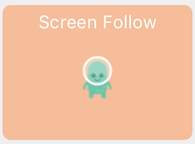
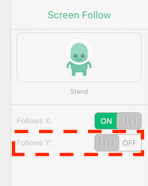
Next, open the Behavior Properties for Screen Follow and turn off the "Follows Y" toggle. Now the screen follows your player left and right, but not up and down.
If you press play now, you can run through your level with an animated character while the screen moves along with you.
You can download the finished version of Part 4 from the Hub and see it all in action.

In Part 5, you'll add more gameplay with coins to pick up and a score.
Continue with an in-game asset test
Use the free 2D game assets guide to compare sources and licences. Then follow Importing Assets and test the file inside a running Scene. Keep each asset’s license with your Project notes, then use the hyperPad Asset Library to organize imported Graphics, animations, audio, and fonts.
Test each asset inside the running Scene, not only on its own. Keep it when it makes the action clearer, strengthens feedback, or supports the atmosphere.