How to Make a Tower Stacking Game on iPad

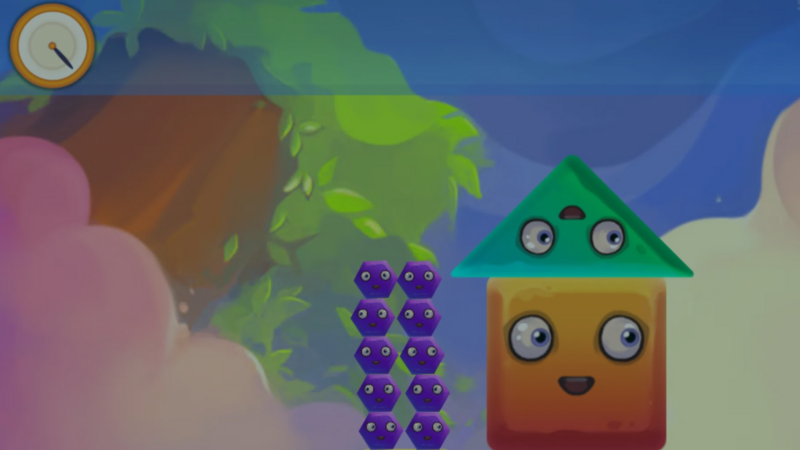
A tower stacking game needs one clear loop: move a block, tap to drop it, judge the landing, update the score, and prepare the next block. You can build that loop directly on iPad with hyperPad’s Objects, physics, UI, Attributes, and visual Behaviors.
This guide replaces the unsupported Super Stacky Tower claims with an original mechanic you can test. Start with rectangles and one Scene. Add final art only after the stack behaves consistently.
The smallest playable version
| System | First version | Test |
|---|---|---|
| Moving block | One block travels left and right | Its speed is predictable |
| Drop input | One touch releases the block | One tap creates one drop |
| Landing | Collision with the tower stops the fall | The block settles without repeated scoring |
| Score | One point per accepted block | A failed block adds nothing |
| End state | Missing the tower ends the round | Input stops and retry appears |
1. Build the base and first block
Create one Scene. Add a fixed base Object near the bottom and a moving block above it.
Use simple rectangle Graphics. Match each collision shape to the visible block so the landing result makes sense to the player.
2. Move the active block
Move the block horizontally between two limits. Begin with one constant speed. Reverse its direction at each side rather than adding random movement.
The player should be able to predict the block’s path. Difficulty can come later from speed, block width, or target size.
3. Drop with one input
Use Started Touching on the play area or a button. The touch should stop horizontal control and allow the block to fall.
Store a dropping state with Set Attribute. Check that state before accepting another touch so one press cannot trigger the same drop twice.
4. Judge the landing
Use a Collision Event to detect contact with the base or the top accepted block.
A valid landing should:
- mark the block as accepted;
- stop repeated scoring;
- add one point;
- provide sound or visual feedback;
- create or enable the next moving block.
A miss should lead to the end state.
5. Track score and height
Use Add to Score for the visible score. Keep the number of accepted blocks as a separate value if the game uses it to change difficulty.
Do not award points from a general collision that can fire several times. Use the block state to ensure each block scores once.
6. Keep the tower on screen
As the stack grows, move the camera or shift the visible play area so the active landing zone remains readable. Test the transition before building a very tall tower.
The player needs to see the moving block, the top of the stack, and enough surrounding space to judge alignment.
7. Increase difficulty gradually
Change one variable at a time:
- horizontal speed;
- block width;
- movement distance;
- allowed overlap;
- visual distractions.
Test whether the player can identify why a drop failed. Difficulty should come from the intended timing decision, not inconsistent physics or unclear collision shapes.
8. Add feedback
A successful landing can play a sound, update the score, and briefly change the block’s appearance. A miss should use a different response.
Use Play Sound, animation, particles, or screen feedback only when they clarify the result.
9. Build the end and restart states
When a block misses, disable the active drop input and show the final score with a retry button.
Restart must reset:
- score;
- block count;
- active-block state;
- camera position;
- generated or disabled blocks;
- game-over UI.
Play three complete rounds without leaving the Project. A new round should never inherit a block or value from the last one.
10. Playtest the timing
Give the game to someone who did not build it. Watch whether they understand where to tap, how a successful landing is judged, why the round ended, and how to retry.
Change one issue per test. A clearer landing response or slower first block may help more than adding hazards.
Expand after the core loop works
Once the one-Scene version is dependable, add original art, different block shapes, a combo system, or a pass-and-play mode. Each addition should preserve the readable tap, drop, judge, score, and restart loop.