
Global Physics Properties
These properties can be found in the Physics tab of Global Properties and take effect in every scene in the project. For information on general global properties, see here.
Physics Modes
The Birds Eye View and Side View change the way your projects physics behave, and adjust certain behaviors like Joystick Controlled. Remember this affects every scene in your project.

Birds Eye View: This option is option is used to disable gravity by default. If you still need gravity, you can use the Set Gravity behavior to apply gravity to specific objects. You would typically use this option for UI Based projects, top down shooter games, RPG games, and puzzle games.
Side View: The side view option is used for projects that rely on gravity. This is often used for platform games like Mario, endless runners like Flappy Birds or Jet Pack Joy ride, and physics puzzle games like Angry Birds.
Physics Properties
Wall Friction: This value is the friction for the edge of the screen. This only applies when behaviors like Conform to Screen are used.

Wall Bounciness: This sets how much an object will bounce off the edge of the screen. This only applies when behaviors like Conform to Screen are used.

Air Resistance: The air resistance is how freely an object can move through the scene. If your air resistance is zero, and there are no other forces (gravity) being applied to your object, it will continue to move for ever.

World Gravity: This is the gravity for your scene. You can set the gravity in both the X and Y direction. The world gravity fields are disabled if you select the Birds Eye View physics mode. These fields change the gravity through out your entire project. You can change gravity for a specific object using the Set Gravity behavior.

Physics Refresh Rate: This is the number of times the physics calculations get updated per second. Increasing this makes your physics more accurate and feel less like "jelly", but it will negatively impact your performance.

Physics Iterations: This is the number of physics calculations done each frame. Increasing this will make physics more accurate, but this comes at the cost of performance.

Increasing your physics refresh rate, and iterations will make the overall feeling of your physics based scenes better. This also means your attachments will feel stronger, and more lifelike.
Note: Increasing these will negatively impact your performance, so adjust these settings with caution. Remember, slower devices may also be playing your games.
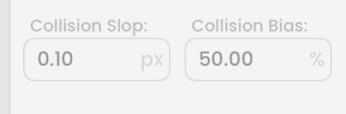
Collision Slop: The amount of overlap that the physics engine allows in pixels. Using a higher value may improve performance as contact solutions between objects are more stable (not constantly colliding and separating).
Collision Bias: This is how quickly physics objects separate from each other. By default, this is set to 50%, where objects resolve 50% of their physical overlap each frame. 100% will separate objects instantly, while smaller values will separate objects more slowly over time.