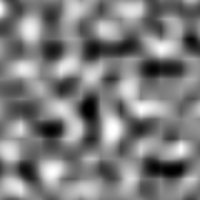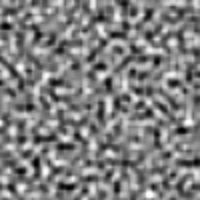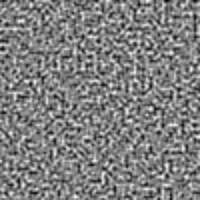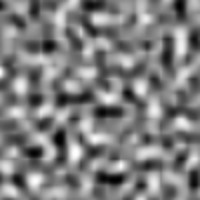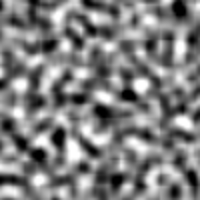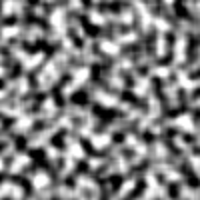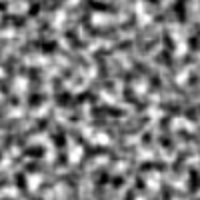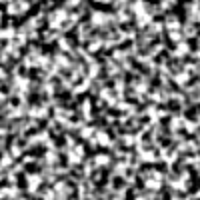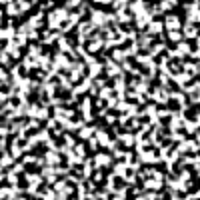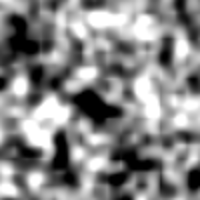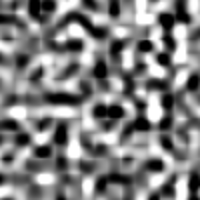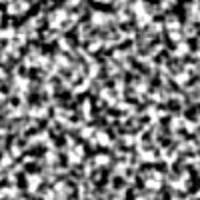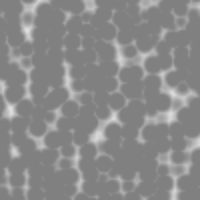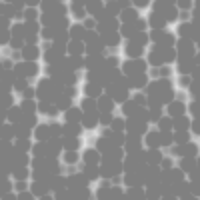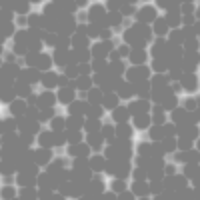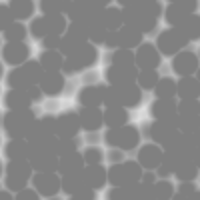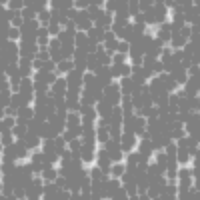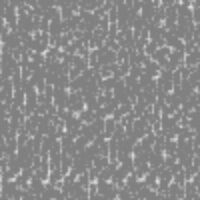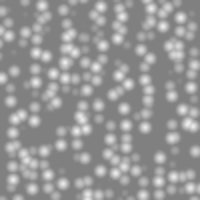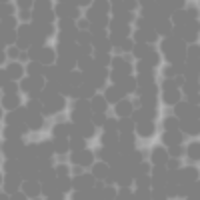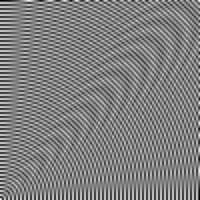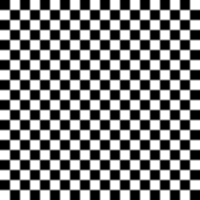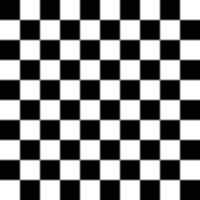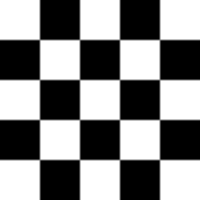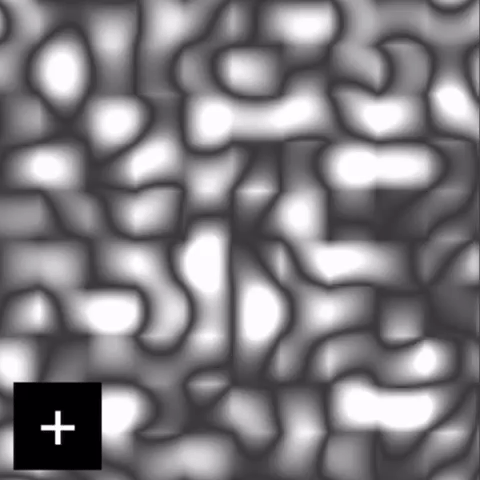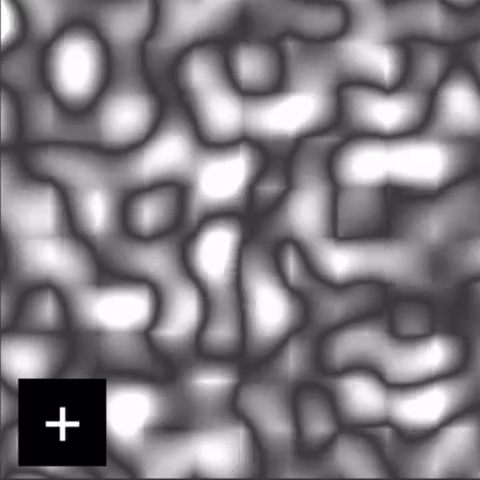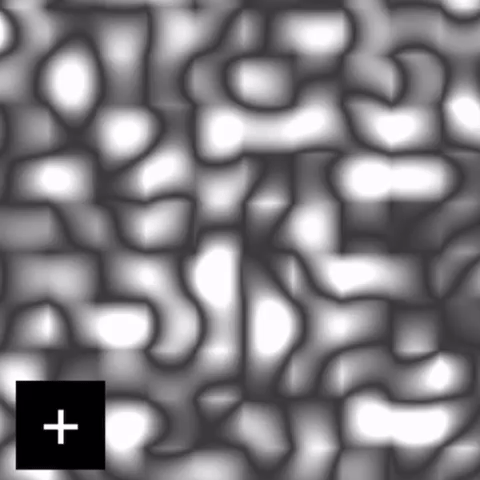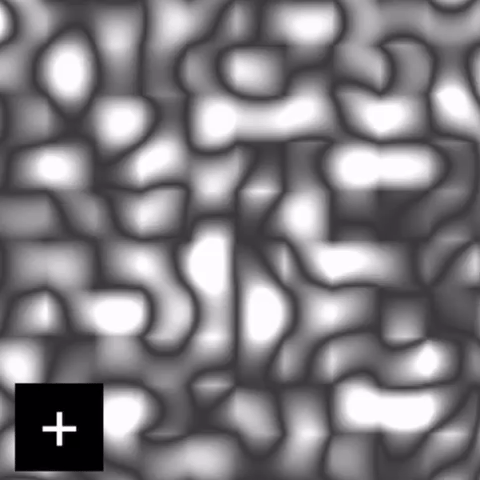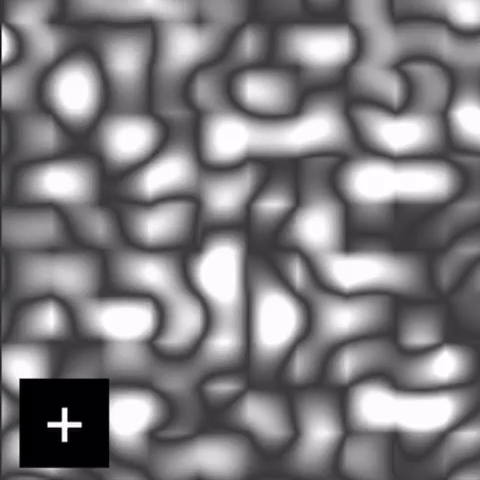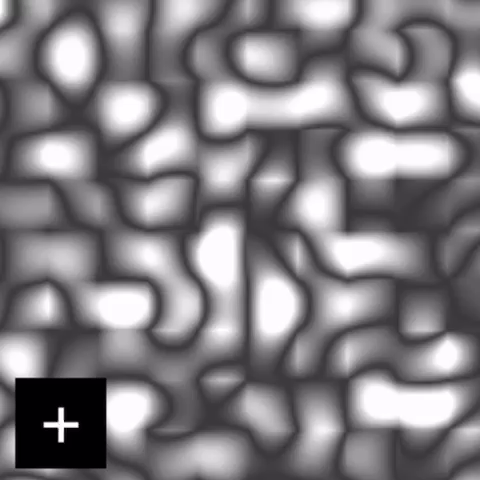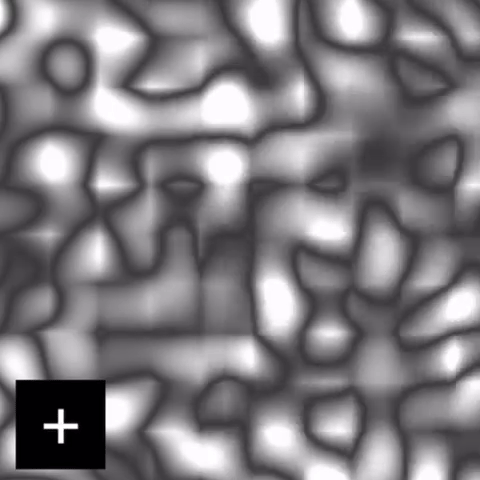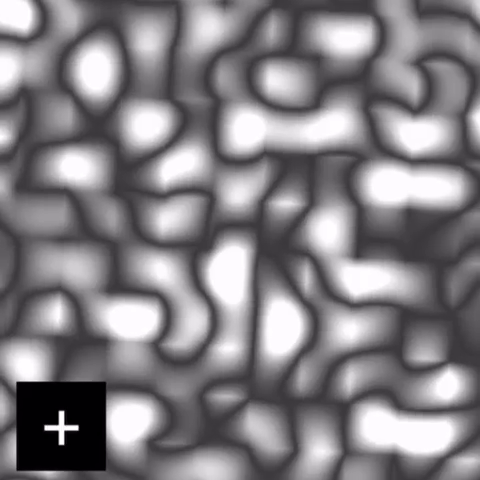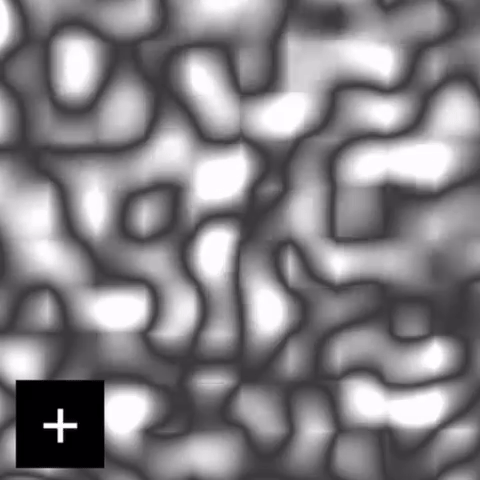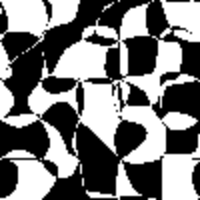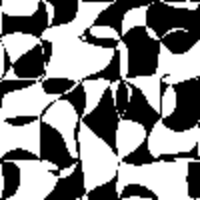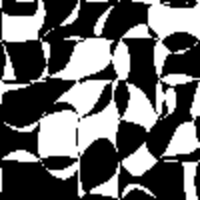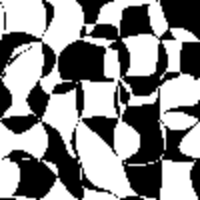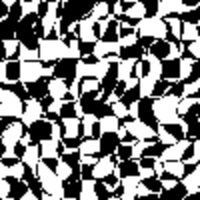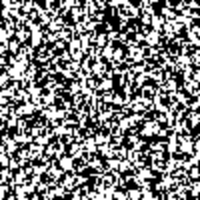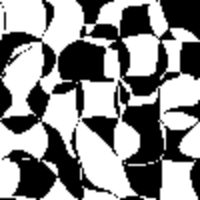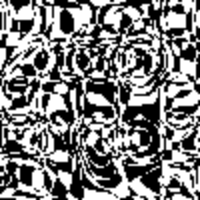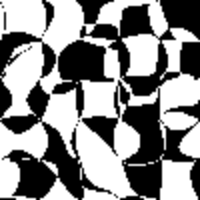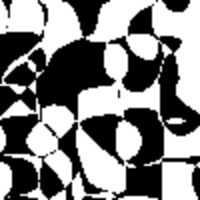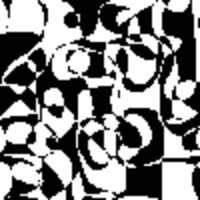

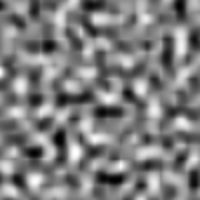
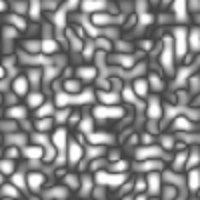

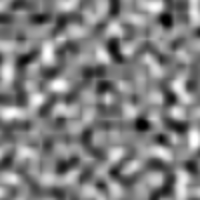
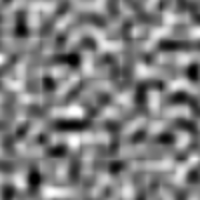
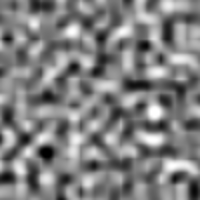
The number and size of distinct features in any given area of generated noise. Using a larger frequency number will result in more features present in the same area.
|
Frequency: 0.1 |
Frequency: 0.25 |
Frequency: 0.5 |
//www.youtube-nocookie.com/embed/CGrGToNv3Ak
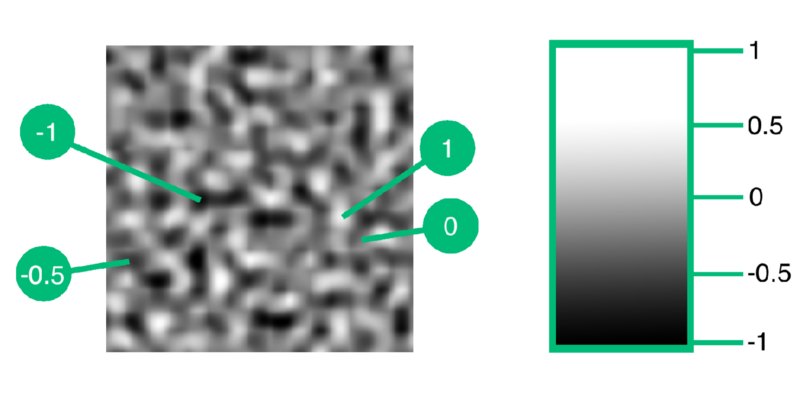
The Noise Map behavior creates and manipulates noise maps. The action is done upon execution, which works similarly to the Render Texture behavior. A noise map is a 2D grid of values that range from -1 to 1. Noise maps can be used to create textures and procedurally generated content in your project. Normally, noise maps are displayed in black and white, where -1 represents black and +1 represents white.
The image below shows a noise map with its values at some locations.
It all starts with a 3D noise map that is generated from this behavior, then it can be transformed, modified and such. The 3D noise map can have its values be read using the Get Noise Value behavior. Finally, the noise map can be converted into a final texture (2D noise map) that can be used as a graphic, which can also have its values read from.
The Noise Map behavior has 7 modes to choose from.
By default, it is set to Create Noise Map. You can change the mode by tapping on the dropdown located under the preview box and selecting the preferred mode.
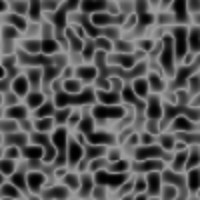
The Create Noise Map mode will create a new noise map based on the inputs given when the behavior is executed. You can select the noise type you want to use, each having their own properties that you can edit to achieve the appearance you are going for.
| Noise Types | ||||||||||||||||
|
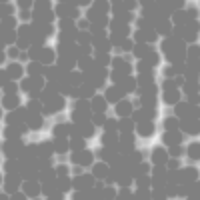
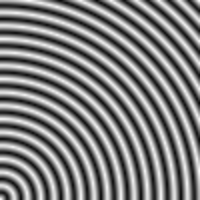
NOTE: Cylinders noise and spheres noise may appear the same, but they're structurally different! If you move them through the y-axis, you'll see different results. This is because the cross-section of a cylinder visually stays the same whereas the cross-section of a sphere visually changes as you move through them.
Perlin, Billow and Ridged Noise Types
All of these noise types use the same algorithm for creating the noise map, hence why they have the same exact patterns. The difference between them is that the values are remapped, so they appear different. All the properties have the same effect on all of these noise types.
| Property | Description | |||
| Seed |
A number determining the starting conditions for the creation of the noise map. Using the same seed will result in the exact same noise map. Using a different seed will result in a different noise map.
| |||
| Frequency |
The number and size of distinct features in any given area of generated noise. Using a larger frequency number will result in more features present in the same area.
| |||
| Octave Count |
The number of additional noise layers to add to the noise map.
| |||
| Persistence |
A number that determines how much each octave will contribute to the result of the noise map. You can think of this as the
Persistence = 1 - All octaves equally contribute to the result. Persistence > 1 - Successive octaves contribute more to the result. Persistence < 1 - Successive octaves contribute less to the result. | |||
| Lacunarity |
A number that determines how much detail is added or removed for each octave. You can think of this as the
Lacunarity = 1 - All octaves will have the same level of detail. Lacunarity > 1 - Successive octaves will include more detail. Lacunarity < 1 - Successive octave after will include less detail. |
Voronoi Noise Type
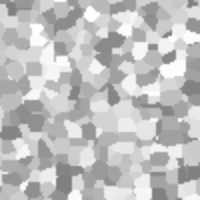
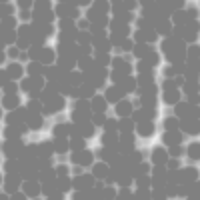
Voronoi noise features a cell-like structure and is generated by calculating distances between a pixel and a grid of offset points.
| Property | Description | ||||
| Seed |
A number determining the starting conditions for the creation of the noise map. Using the same seed will result in the exact same noise map. Using a different seed will result in a different noise map.
| ||||
| Frequency |
The number and size of cells in any given area of generated noise. Using a larger frequency number will result in more cells present in the same area.
| ||||
| Displacement |
A number that determines the variety of noise values between cells.
| ||||
| Distance |
Whether or not to add distance values to the noise.
|
Spheres and Cylinders Noise Types
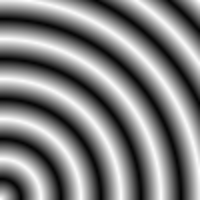
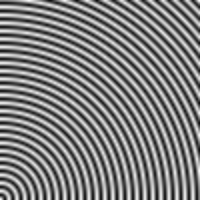
Spheres and cylinders noise feature concentric circles originating from 0,0. Although these noise types appear the same in the preview, they're different when looking at them from a different angle. Spheres noise is created by placing spheres inside of each other whereas cylinders noise is created by placing cylinders inside of each other.
|
Checkerboard Noise Type
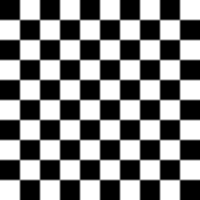
One of the simpler noise types that feature a grid of uniform squares with alternating values, a checkerboard pattern.
| Properties | Description | |||
| Square Size |
The size of each square in the noise map.
|
Constant Noise Type
The simplest noise type where every single value is the same.
| Properties | Description | |||
| Value |
The value to populate at every single position.
|
The preview box displays what the noise map would look like in real-time. It is a cross-section of the 3D noise map and if you were to use the Get Noise Value behavior, that will be where the values are being read from. The origin (0, 0) is the bottom left corner of the preview box.
By default, the preview is 100px by 100px. You can change the size of the preview box by editing the size value located under the preview box. Using a larger size value will reveal more of the noise map. You can also disable the preview in case you are dealing with a huge chain of noise maps in the editor. The preview box assumes that all the behaviors are executed in order beforehand.
The purpose of the preview box is to only give you a sense of what the actual noise map looks like and does not fully represent the final result. Modifying the preview size has no effect in gameplay functionality - it is solely there to adjust the preview in the editor.
The Transform Noise Map mode moves, scales and rotates a selected noise map in 3D space when the behavior is executed.
The position system is different than hyperPad's position system where x and z axes are the horizontal and vertical components (respectively). The y axis serves as the third dimension.
You can think of the position as the screen position. As you increase x, the camera shifts right and the noise map visually moves left. As you increase z, the camera shifts up and the noise map visually moves down. As you increase y, the camera moves through the noise map and the noise map visually morphs. The scale can be thought of as the screen zoom and the rotation can be thought of as the screen rotation.
|
Position
| |||
|
Scale
| |||
|
Rotation
|
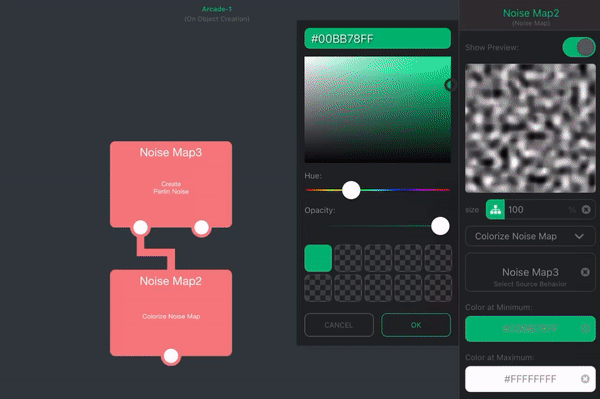
The Colorize Noise Map mode sets the colors for a selected noise map when the behavior is executed. Simply change the colors at the minimum and maximum values.
The Math Operation mode performs a math operation on all the values of a selected noise map when the behavior is executed.
A table below shows what each math operation does. The variable v represents a given value and variables a and b represent other provided input numbers.
| Operation | Function | Description |
| Absolute Value | f(v) = |v| | Performs an absolute value on the value where negative numbers become positive numbers. |
| Invert | f(v) = -v | Multiplies the value by -1, which is equivalent to flipping the sign of the value. |
| Raise to Power | f(v) = v^a | Raises the value by another number. |
| Clamp | f(v) = clamp(v, a, b) | Restricts the value between a minimum and maximum range. |
| Add | f(v) = v + a | Adds a number to the value. |
| Subtract | f(v) = v - a | Subtracts a number from the value. |
| Multiply | f(v) = v * a | Multiplies the value by a number. |
| Divide | f(v) = v / a | Divides the value by a number. |
The Combine Noise Map mode combines two noise maps together when the behavior is executed. This performs a math operation on all the values of a selected noise map using corresponding values on another noise map to produce the final result.
A table below shows what each operation does. The variable v₁ is the value from the first noise map at a specific position and the variable v₂ is the value from the second noise map at the same exact position.
| Operation | Function | Description |
| Raise to Power | f(v₁,v₂) = v₁^v₂ | Raises the value of the first noise map by another corresponding value of the second noise map. |
| Minimum | f(v₁,v₂) = min(v₁,v₂) | Takes the minimum value of both noise maps. |
| Maximum | f(v₁,v₂) = max(v₁,v₂) | Takes the maximum value of both noise maps. |
| Add | f(v₁,v₂) = v₁ + v₂ | Adds the values of both noise maps together. |
| Subtract | f(v₁,v₂) = v₁ - v₂ | Subtracts the value of the first noise map by another corresponding value of the second noise map. |
| Multiply | f(v₁,v₂) = v₁ * v₂ | Multiplies the values of both noise maps. |
The Distort Noise Map mode displaces values on the noise map when the behavior is executed, creating a distortion effect. There are two ways of distorting noise maps - applying turbulence and displacing values using multiple noise maps.
Applying Turbulence
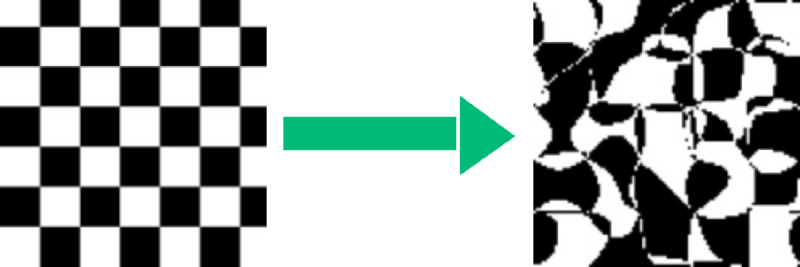
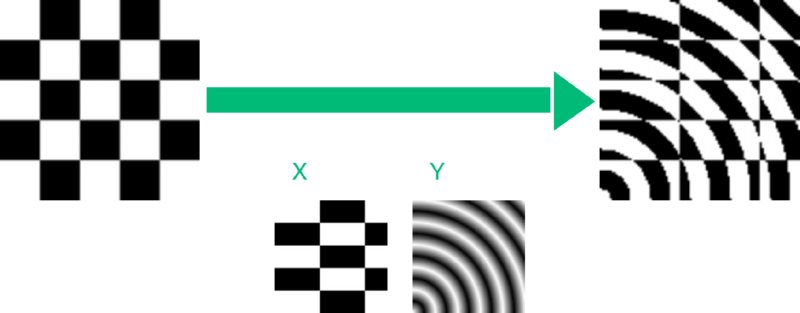
Applies a randomized distortion effect by shifting values randomly. The following operation is applied to a checkerboard noise map in this example.
| Properties | Description | |||
| Seed |
A number determining the starting conditions of the distortion. Using the exact same number will result in the exact same distortion effect and using a different number will result in a different distortion effect.
| |||
| Frequency |
How frequent the amount of distortion changes in a given amount of area. Using a higher frequency means the distortion effect changes more in an area.
| |||
| Power |
A number determining the strength of the distortion effect.
| |||
| Roughness |
A number determining the rate of change of the distortion effect (how fast it changes). Lower roughness values result in smoother transitions between more-distorted and less-distorted regions whereas higher values result in rapid, rough transitions.
|
Displace
Shifts each noise value by a 3D offset which are defined by x,y, and z components provided by three noise maps. Leaving any of these components blank will simply substitute it with a constant noise map with a value of 0 instead.
TheGenerate Texture mode produces the final noise map texture when the behavior is executed. This allows values to be read much faster from the noise map with the cost of it being restricted to an area and being no longer editable.
⚠️ NOTE: The noise map will no longer be editable once converted to a final texture. Attempting to perform operations on it will result in a
Modification Prohibitederror.
| Property | Description |
| Texture Size | The width and height (in pixels) of the final noise map to sample and create. |
| Origin | The starting position (in pixels) to start sampling the noise map. |
| Sample Count | The amount of samples to use in the x and y dimensions of the noise map. A higher sample count would allow for larger and more detailed noise maps. |
| Seamless | If enabled, the texture is adjusted so it can be tiled without visible seams. |
| Asynchronous | If enabled, the texture is rendered outside the main thread and the behavior will trigger once the rendering is finished. This allows the noise map to be generated without freezing the project for larger noise maps. |
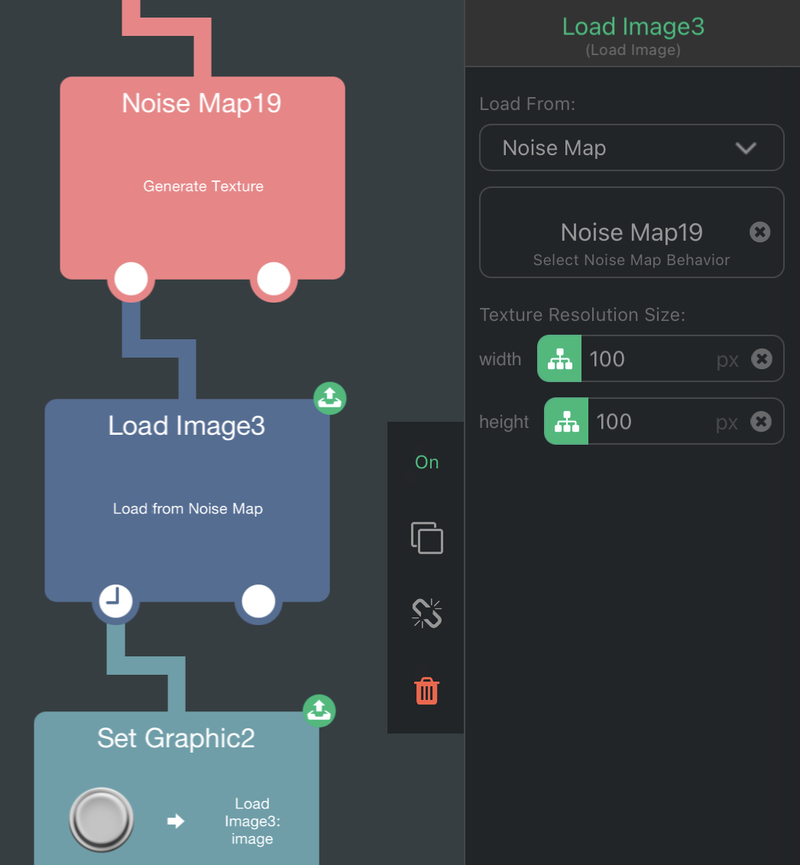 |
In the Load Image behavior, you can retrieve the image of the noise map by selecting the Using a different resolution size than the original noise map will resize the noise map to fit within the image.
|
The Noise Map behavior can display errors in the preview box which is signified by a triangle warning icon along with a short error message under it.
This means that the behavior was not able to generate the preview, which also means that the noise map will never be rendered during gameplay. To make sure the behavior works as intended, you will have to address the errors and double check all input fields.
| Error Message | Meaning |
| Source Missing | The source noise map behavior is not selected. |
| Secondary Source Missing | The secondary source noise map behavior is not selected (Combine Noise Maps mode only). |
| Source Error | At least one of the selected source noise maps are encountering an error. |
| Self-Reference Prohibited | One of the selected source noise maps are referencing itself. This would create an infinite loop. |
| Modification Prohibited | The selected source noise map is a final texture and cannot be modified or cannot be used to generate a new texture. |
| Unknown Error | The preview failed to load due to another issue. |